
Even in a quiet PC, good airflow is essential to keep components cool and prevent overheating. Without a proper cooling plan, your system can get hot, leading to noise from fans struggling to work harder and possible hardware damage. Optimizing airflow, managing cables, and choosing the right fans help maintain silence while ensuring stability. If you want to learn how to design an effective cooling strategy that balances silence and performance, there’s more to discover ahead.

Get business pricing on monitors, keyboards and dev gear
- Business-only prices and quantity discounts
- Tax-exempt purchasing
- Multiple users, one account, clear invoices
Key Takeaways
- Effective airflow ensures components stay cool, reducing fan speeds and noise in quiet PC builds.
- Proper cooling prevents overheating, which can damage hardware and degrade system stability.
- Well-designed airflow pathways help maintain optimal temperatures without excessive noise.
- Regular maintenance of filters and cleaning prevents dust buildup that hampers airflow and increases noise.
- Strategic component placement and cable management optimize cooling efficiency and support a silent operation.
As an affiliate, we earn on qualifying purchases.
Why Good Airflow Matters for a Quiet PC
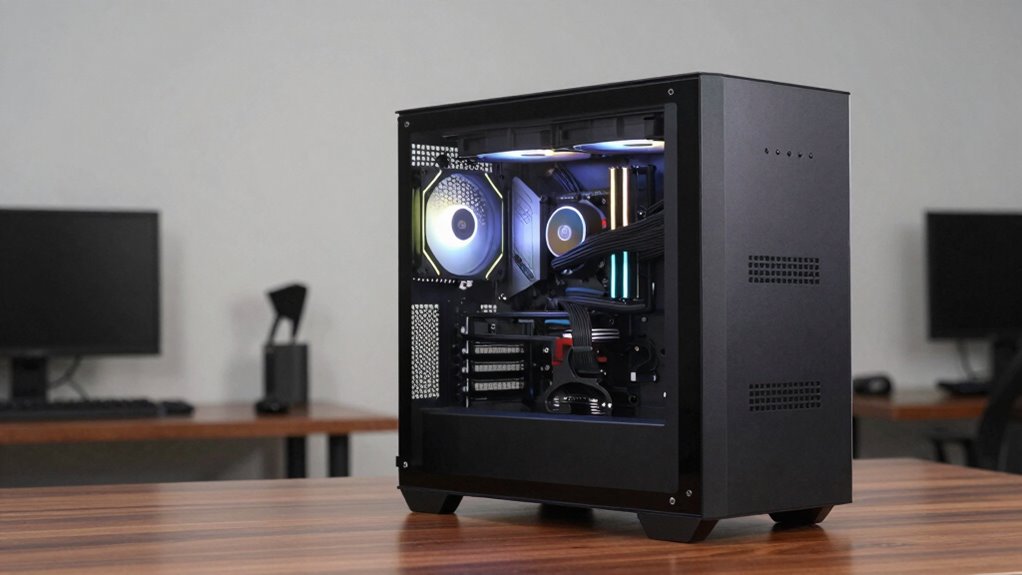
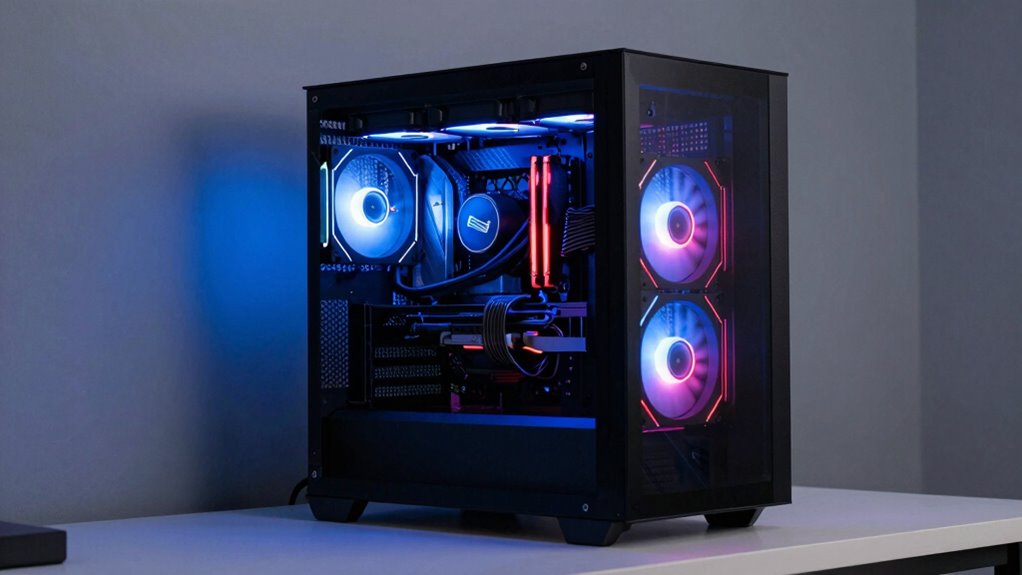
Good airflow is essential for keeping your PC quiet because it directly influences how efficiently heat is removed from the components. When airflow is ideal, fans can operate at lower speeds, reducing noise. Proper airflow depends on good cable management and strategically placed intake and exhaust fans. Ensuring your CPU has high-quality thermal paste improves heat transfer, preventing hotspots that cause fans to ramp up loudly. Additionally, case aesthetics matter because a well-ventilated case with clean, unobstructed airflow looks better and performs more quietly. If your case design promotes good air circulation, you won’t need to rely on noisy, high-speed fans. Maintaining this balance helps keep your PC cool and quiet, enhancing both performance and overall user experience. Effective airflow management is crucial for achieving a quiet and efficient cooling system. Proper case design can also prevent hotspots, which are areas that trap heat and cause fans to spin faster, increasing noise levels. Being mindful of airflow paths can further optimize cooling and reduce unnecessary fan noise. Incorporating multi-unit setups with multiple fans can distribute airflow more evenly, further improving cooling efficiency and reducing noise. Additionally, understanding how airflow direction impacts heat dissipation can help fine-tune your cooling setup for quieter operation.
As an affiliate, we earn on qualifying purchases.
Understanding How PC Cooling Works
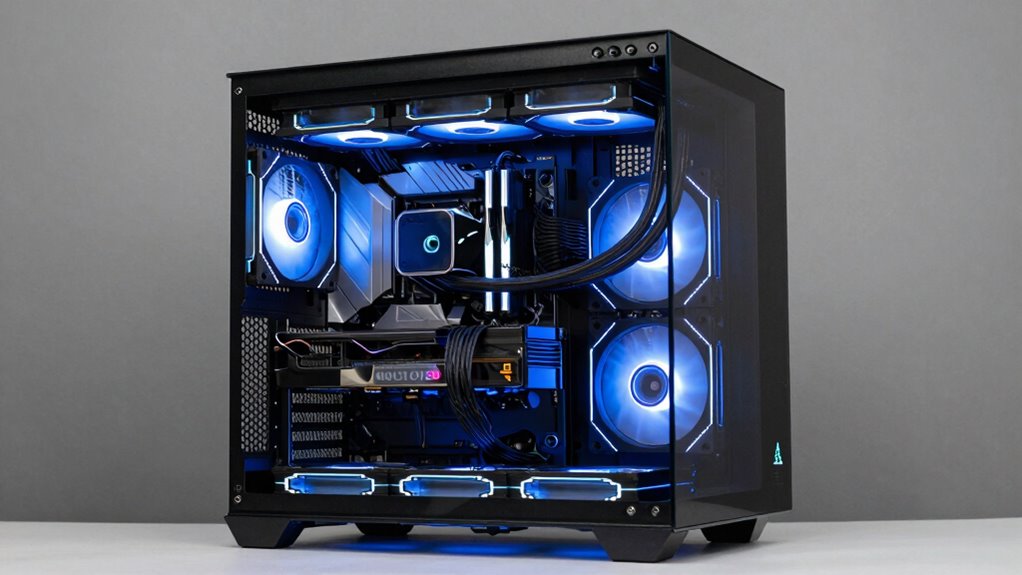
Understanding how PC cooling works is essential for maintaining a quiet and efficient system. Proper cooling relies on creating an effective airflow path that moves heat away from components. Many airflow myths suggest that high fan speeds always mean loud noise, but this isn’t true with quality fans and proper setup. When you optimize airflow, you guarantee consistent temperatures, reducing the need for noisy fan speeds. Here’s what happens:
Optimized airflow ensures quiet operation and consistent temperatures by effectively moving heat away from components.
- Cool air enters through intake fans, flowing over hot components
- Warm air is pushed out through exhaust fans
- Fans operate at lower speeds, decreasing fan noise
- Proper airflow prevents hotspots and overheating
- Utilizing natural airflow principles can minimize the reliance on mechanical fans, leading to quieter operation. Additionally, understanding airflow dynamics can help further optimize your cooling strategy for a virtually silent PC. Employing component placement strategies also plays a crucial role in enhancing overall airflow efficiency and noise reduction. Exploring airflow patterns can provide deeper insights into achieving optimal cooling performance.
As an affiliate, we earn on qualifying purchases.
Designing an Airflow Path That Keeps Your PC Quiet
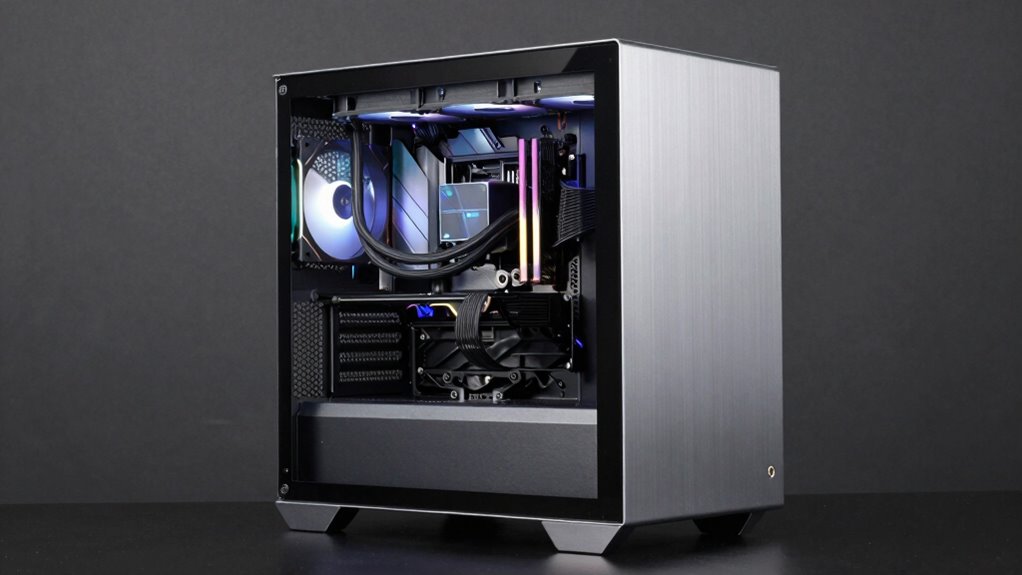
Creating a quiet PC starts with designing an effective airflow path that directs cool air to key components while efficiently removing warm air. You want airflow to flow smoothly from intake to exhaust, minimizing turbulence and noise. Good cable management keeps wires tucked away, preventing airflow obstructions and maintaining case aesthetics. Use strategically placed intake and exhaust fans to create a gentle, continuous flow. Recognizing shipwreck preservation techniques can inspire innovative approaches to maintaining airflow pathways within your case. Additionally, selecting quiet fans designed for low noise levels can significantly enhance the overall quietness of your system, especially when combined with proper airflow planning.
As an affiliate, we earn on qualifying purchases.
Choosing Fans and Components for Balance and Silence
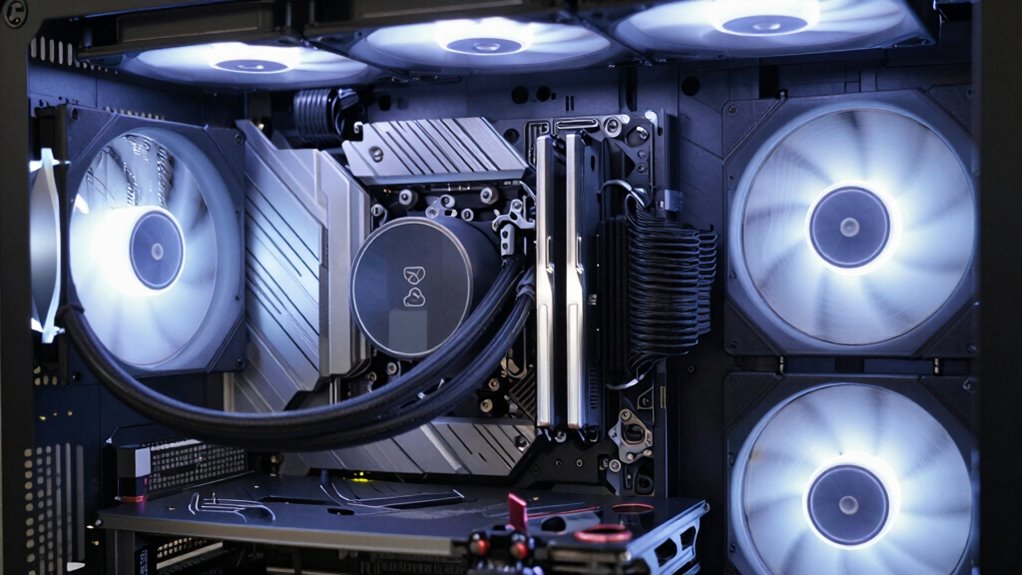
When choosing fans and components, focus on optimizing your airflow paths to minimize noise while maintaining cooling efficiency. Look for quiet models with low RPMs and high-quality bearings that reduce vibrations. Balancing these elements guarantees your PC stays cool without sacrificing silence. Incorporating variety in airflow can help prevent hotspots and improve overall system performance. Additionally, selecting components with optimized airflow design can further enhance cooling effectiveness and reduce noise levels. Ensuring proper cable management is also crucial, as it helps maintain smooth airflow and minimizes obstructions that could lead to increased noise or hotspots. Paying attention to airflow patterns can significantly impact both noise levels and cooling performance.
Optimizing Airflow Paths
Choosing the right fans and components is essential for achieving a balance between effective cooling and quiet operation. To optimize airflow paths, focus on strategic case positioning and cable management. Proper case placement guarantees unobstructed airflow, preventing hotspots and noise. Good cable management keeps cables tidy, avoiding airflow blockages and reducing turbulence that increases noise. Consider airflow direction: intake fans should bring cool air in, while exhaust fans push hot air out. Create a gentle pressure balance to prevent turbulence. Use dust filters to maintain airflow efficiency. Confirm fans are set to run at appropriate speeds for noise reduction without sacrificing cooling. By carefully planning these elements, you’ll establish a smooth, quiet airflow path that keeps your PC cool and silent.
Selecting Quiet Components
Selecting the right fans and components is essential for striking a balance between effective cooling and quiet operation. For custom cooling setups, choose fans with low noise levels and high airflow ratings, ensuring they move enough air without creating excess sound. Look for models with noise reduction features like rubber mounts or fluid dynamic bearings, which minimize vibrations and reduce noise. Components such as heat sinks and radiator fans should prioritize quiet operation without sacrificing performance. Consider using aftermarket fans designed specifically for silent operation, and avoid high-RPM models that generate unnecessary noise. Additionally, airflow management techniques, such as proper ducting and cable organization, can further enhance cooling efficiency while maintaining silence. Proper component selection ensures that each part works harmoniously to keep temperatures in check without compromising on noise levels. By carefully selecting these components, you optimize your cooling system, maintaining a quiet environment while keeping temperatures in check. This approach delivers a well-balanced, noise-conscious PC build.
Common Mistakes That Hurt Your Quiet PC’s Cooling
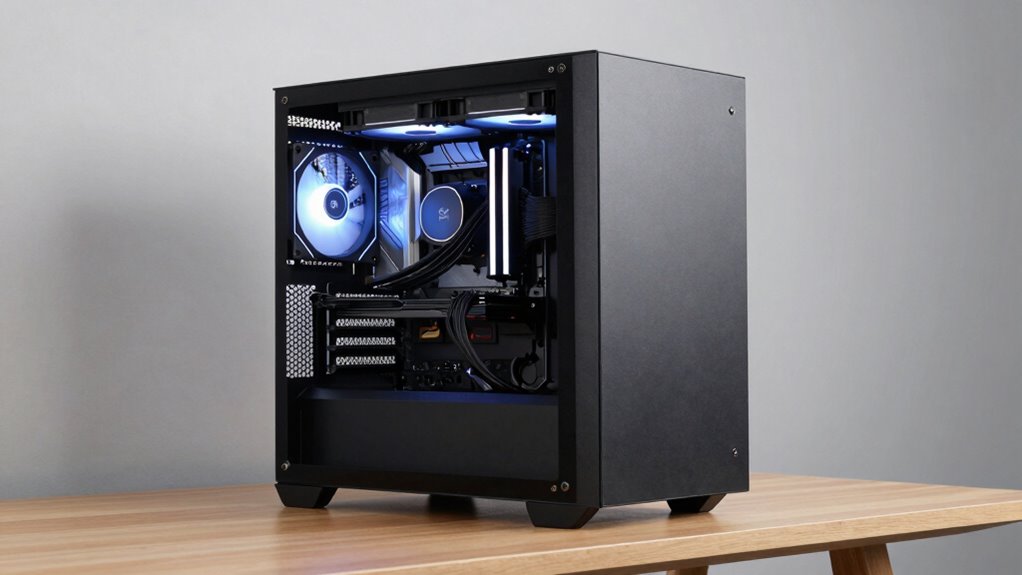
Obstructed airflow paths can substantially reduce your PC’s cooling efficiency and increase noise levels. Neglecting regular filter maintenance allows dust buildup, which hampers airflow and cooling performance. To keep your system quiet and cool, make certain nothing blocks airflow and clean filters frequently. Additionally, ensure that your cabling is well-organized to prevent obstruction and improve overall airflow within your PC case. Proper ventilation is essential for maintaining optimal temperatures and preventing overheating. Understanding airflow dynamics can help you identify potential bottlenecks and optimize your cooling setup effectively. Recognizing the importance of cable management in airflow can significantly reduce hotspots and improve cooling efficiency. Being aware of side-channel vulnerabilities can also help you protect your system from external threats that could compromise your hardware’s performance.
Obstructed Airflow Paths
One of the most common mistakes that can undermine your quiet PC’s cooling performance is blocking airflow paths. When cables are poorly managed, they can clutter the interior, obstructing the smooth flow of air. This disrupts heat dissipation and forces fans to work harder, increasing noise. Neglecting proper cable management also ruins case aesthetics, making your build look cluttered and unorganized. Additionally, placing components or accessories in front of vents can restrict airflow. Overcrowding the case with large, obstructive parts or ignoring airflow design principles creates bottlenecks. To maintain ideal cooling, keep cables tidy, avoid blocking vents, and guarantee unobstructed paths for air to circulate freely. A clean, well-organized case maximizes cooling efficiency and keeps noise levels low.
Neglecting Filter Maintenance
Even with well-managed cables and unobstructed airflow paths, neglecting filter maintenance can still compromise your PC’s cooling. Dust accumulation on filters restricts airflow, causing your system to work harder to cool itself. Regular filter cleaning is essential to prevent dust buildup that can clog vents and reduce airflow efficiency. If you ignore filters, dust and debris will settle on components, leading to higher temperatures and potential overheating. Make it a habit to inspect and clean filters frequently, especially if your environment is dusty or your PC runs continuously. Proper filter maintenance guarantees unobstructed airflow, keeps dust out of sensitive parts, and maintains ideal cooling performance. Skipping this step might seem minor, but it can considerably impact your quiet PC’s temperature regulation. Additionally, understanding the importance of airflow management can help optimize your cooling setup and prevent heat buildup. Dust buildup can significantly hinder your system’s ability to stay cool, emphasizing the need for regular upkeep.
Monitoring Your PC’s Cooling Performance Over Time

Regularly monitoring your PC’s cooling performance is essential to guarantee it continues operating quietly and efficiently. Over time, thermal paste can dry out, reducing heat transfer, so checking temperatures helps catch issues early. Use software tools to track CPU and GPU temperatures, ensuring they stay within safe ranges. Keep an eye on case aesthetics—dust buildup or cable clutter can impede airflow and increase temperatures. Consider inspecting your cooling system if you notice higher-than-normal temps. Regular cleaning and replacing thermal paste can restore ideal heat dissipation. Also, verify that case fans are spinning correctly and airflow paths remain unobstructed. Maintaining these elements ensures your PC stays cool, quiet, and performing at its best.
Troubleshooting Cooling Problems in a Quiet Setup
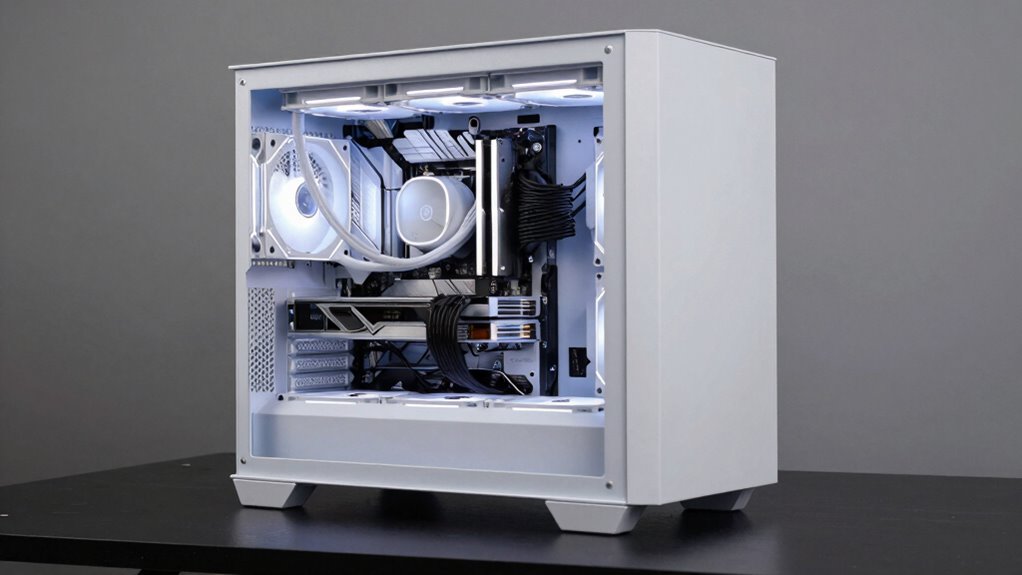
When your quiet PC starts running hotter or becomes noisier than usual, it’s a clear sign that something’s wrong with the cooling system. Overclocking challenges can cause increased heat, so make certain your settings aren’t pushing components beyond their limits. Check if your CPU or GPU temperatures are higher than recommended; if so, your cooling might be insufficient. Dust buildup is a common culprit, blocking airflow and trapping heat. Regularly inspect and clean your fans, heatsinks, and filters to maintain airflow. If dust isn’t the issue, verify that fans are spinning properly and that airflow paths aren’t obstructed. Addressing these problems promptly helps restore quiet operation and prevents long-term damage, keeping your PC cool without sacrificing silence.
Tips for Maintaining Optimal Airflow and Silence
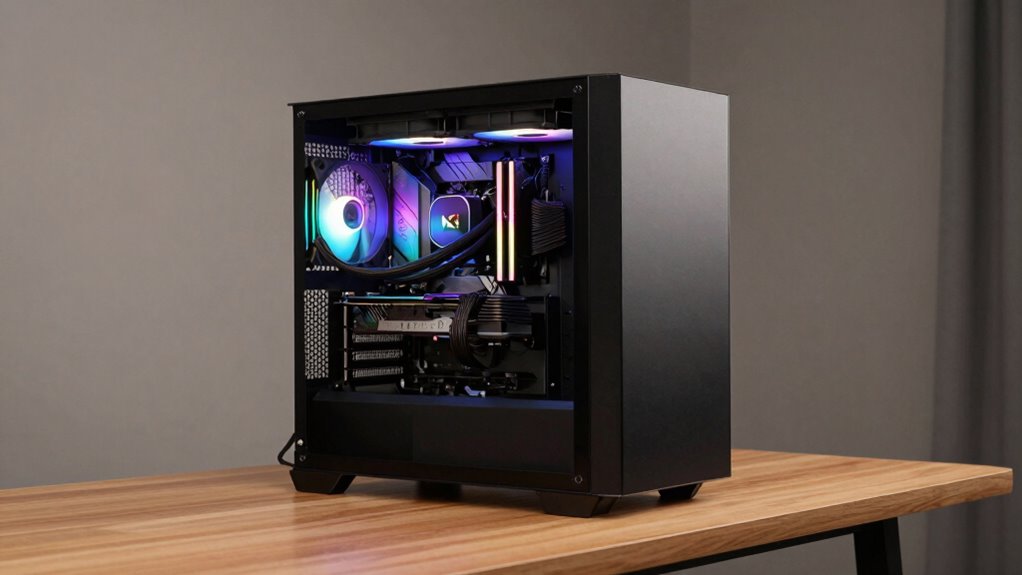
Maintaining ideal airflow is key to keeping your PC cool and quiet, and it starts with thoughtful case setup. Guarantee intake and exhaust fans are balanced to promote smooth airflow, and use dust filters to prevent debris buildup. When considering overclocking strategies, good airflow helps manage increased heat output. Proper heat sink selection is essential—choose models designed for efficient cooling without excess noise. Keep cables tidy to avoid airflow obstructions, and position fans to create a steady front-to-back airflow path. Additionally, consider low-noise fans or PWM-controlled models for quieter operation. Regularly clean filters and fans to maintain peak performance. These steps help your PC stay cool under load while minimizing noise, assuring your system remains both powerful and whisper-quiet.
Frequently Asked Questions
Can I Cool My PC Without Any Noise at All?
You can cool your PC with minimal noise by using silent fans and implementing noise reduction techniques. Opt for high-quality, low-noise fans designed specifically for quiet operation, and consider installing sound-dampening materials inside your case. Additionally, adjusting fan speeds and using fan controllers can help reduce noise further. While achieving absolute silence is tough, these steps considerably lower noise levels, ensuring your PC stays cool without disturbing your environment.
How Often Should I Clean My Pc’s Airflow Components?
Think of your PC’s airflow components as the lungs of your system. You should clean them every three to six months to prevent dust buildup and guarantee smooth fan maintenance. Regular cleaning keeps airflow unobstructed, helping your PC stay cool and quiet. Dust accumulation hampers performance, so don’t wait too long—staying proactive preserves your system’s health and longevity.
Are Liquid Coolers Quieter Than Air Coolers?
Liquid coolers are generally quieter than air coolers because they use fewer fans and rely on a pump to circulate coolant. This reduces fan noise, especially under load. However, the pump can produce some noise, and the thermal paste application on the CPU affects heat transfer efficiency. Properly installed liquid coolers, combined with quality thermal paste, can keep your system cooler and quieter compared to traditional air cooling.
Do Case Size and Shape Affect Airflow Efficiency?
Think of your case as the lungs of your PC; its size and shape directly influence airflow efficiency. Larger cases with clear airflow pathways allow cool air to breathe freely, reducing heat buildup. Aesthetic design matters too, shaping how air moves without blocking essential pathways. Choosing the right case guarantees your components stay cool, quiet, and performing at their best, turning your PC into a well-orchestrated symphony of airflow.
Can Overclocking Damage My Pc’s Cooling System?
Overclocking does pose risks to your PC’s cooling system, as it generates extra heat that can overwhelm your existing cooling setup. If you overclock, you need to prioritize cooling maintenance, like cleaning fans and replacing thermal paste regularly. Ignoring these steps can lead to overheating, hardware damage, and reduced lifespan. So, always monitor temperatures and make certain your cooling system is up to the task when pushing your components beyond stock speeds.
Conclusion
Remember, good airflow is the backbone of a quiet PC—think of it as the steady heartbeat that keeps everything running smoothly. By designing an effective cooling plan, choosing the right components, and keeping an eye on performance, you’ll guarantee your system stays cool without sacrificing silence. With a little attention, your PC will hum along quietly like a well-tuned orchestra, proving that peace and power can indeed go hand in hand.
Columbus Day / Indigenous Peoples' Day Picks
long weekend sales
As an affiliate, we earn on qualifying purchases.