USB-C, Thunderbolt, and DisplayPort transform your desk setup by consolidating multiple functions into single cables, reducing clutter, and streamlining connections. They enable faster data transfer, high-quality video, and efficient power delivery, making your workspace cleaner and more organized. With these standards, you can connect multiple monitors and peripherals easily. For tips on choosing the right options and future trends, keep exploring how these technologies can optimize your workspace.
Key Takeaways
- USB-C, Thunderbolt, and DisplayPort standards enable a single cable for data, video, and power, reducing cable clutter on your desk.
- These connection types support high-speed data transfer and high-resolution displays, enhancing productivity and visual quality.
- Compatibility with various devices allows for versatile, streamlined setups with fewer adapters and connectors.
- Advanced standards like Thunderbolt facilitate daisy-chaining multiple peripherals, freeing up workspace and simplifying cable management.
- Future-proofing your desk with these standards ensures seamless integration with emerging wireless and smart docking technologies.

USB C Laptop Docking Station Dual Monitor HDMI for Dell/Lenovo/HP Laptop 14 in 1 USB C Hub Multiport Adapter Dongle Dock USB C to 2 HDMI 4K+DisplayPort+Ethernet+4USB+2USB C+100W PD Charger+SD/TF+Audio
Docking Station 14 in 1:This usb c docking station could extend your laptop from one usb c/thunderbolt 3/4/type…
As an affiliate, we earn on qualifying purchases.
As an affiliate, we earn on qualifying purchases.
What Are USB-C, Thunderbolt, and DisplayPort?
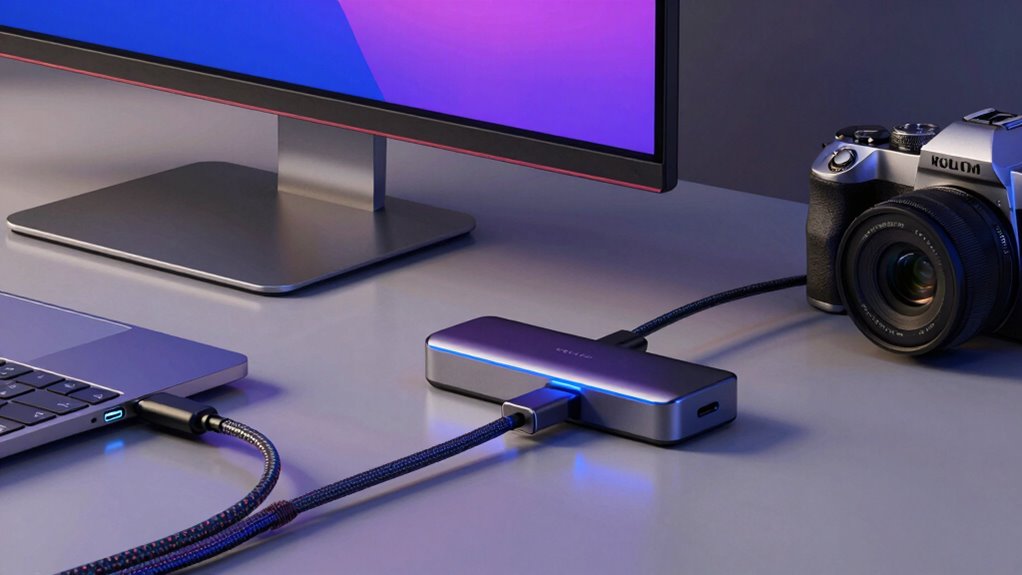
USB-C, Thunderbolt, and DisplayPort are all types of connection standards that help you link your devices and display your content clearly and efficiently. These standards enhance cable organization by reducing clutter, as they often use a single port for multiple functions. USB-C is versatile, supporting data transfer, charging, and video output, making it compatible with many devices like laptops, smartphones, and monitors. Thunderbolt, especially Thunderbolt 3 and 4, offers faster speeds and more power, ideal for high-performance setups. DisplayPort primarily focuses on delivering high-quality video and audio from your device to a display. Understanding device compatibility is crucial; not all devices support every standard, so matching the right connector to your equipment guarantees seamless connectivity and a more streamlined desk setup. Additionally, digital concepts play a significant role in how these standards evolve to meet modern data transfer needs, including improvements in connection technology and increased bandwidth capacity.
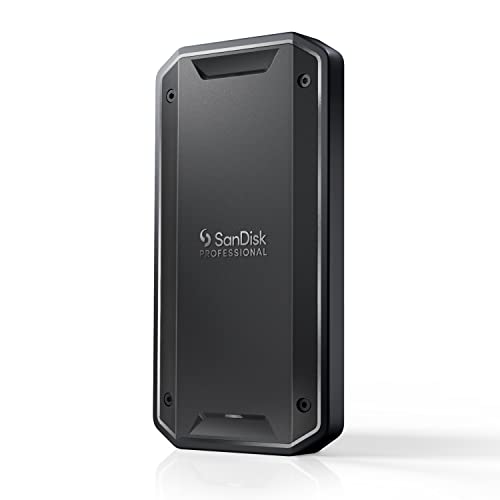
SanDisk Professional 4TB PRO-G40 SSD – Up to 3000MB/s, Thunderbolt 3 (40Gbps), USB-C (10Gbps), IP68 dust/Water Resistance, External Solid State Drive – SDPS31H-004T-GBCND
Super-fast speeds up to 3000MB/s(1) read and 2500MB/s(1) write with Thunderbolt 3 (40Gbps), capable of moving 50GB in…
As an affiliate, we earn on qualifying purchases.
As an affiliate, we earn on qualifying purchases.
How Do These Connectors Perform Compared to Each Other?
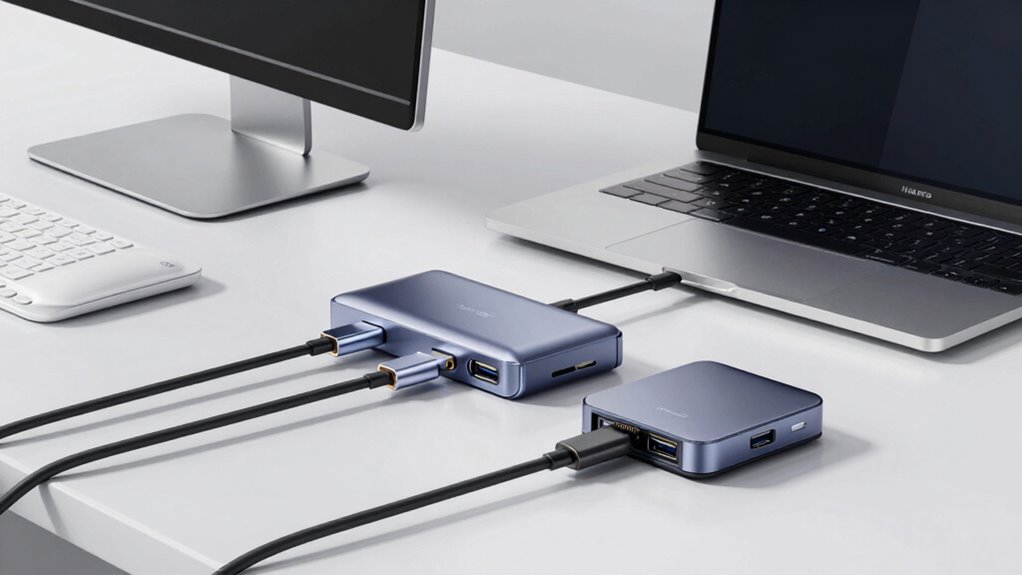
While all three standards aim to connect your devices efficiently, they differ markedly in performance. USB-C offers versatile data transfer speeds up to 10 Gbps and supports power delivery, but its performance varies based on the version. Thunderbolt 3 and 4 excel with speeds up to 40 Gbps, ideal for high-bandwidth tasks like video editing. DisplayPort, primarily for video, provides excellent display quality and supports high refresh rates, with performance depending on version and cable quality. Here’s a quick connector comparison:
| Feature | USB-C | Thunderbolt | DisplayPort |
|---|---|---|---|
| Max Speed | 10-40 Gbps | 40 Gbps | 8-32 Gbps |
| Power Delivery | Yes, up to 100W | Yes, up to 100W | No |
| Video Support | Yes | Yes | Yes |
| Compatibility | Broad | High | Specific to displays |
![Silkland 80Gbps DisplayPort Cable 2.1 6.6FT/2M [VESA Certified], [8K@240Hz, 4K@540Hz 360Hz 240Hz] DP 2.1 Cable 16K, DP80 HDR DSC Display Port Cord Compatible FreeSync Gaming Monitor 5090 7900XTX,S1334](https://m.media-amazon.com/images/I/418Qa3n9TNL._SL500_.jpg)
Silkland 80Gbps DisplayPort Cable 2.1 6.6FT/2M [VESA Certified], [8K@240Hz, 4K@540Hz 360Hz 240Hz] DP 2.1 Cable 16K, DP80 HDR DSC Display Port Cord Compatible FreeSync Gaming Monitor 5090 7900XTX,S1334
【VESA Certified DP80 Cable 2M】Silkland 6.6FT Display Port 2.1 Cable is the first VESA-certified DP80 cable on Amazon….
As an affiliate, we earn on qualifying purchases.
As an affiliate, we earn on qualifying purchases.
Which Connectivity Standard Is Best for Your Workspace?

Choosing the right connectivity standard depends on your device compatibility and how fast you need data to transfer. If you work with high-resolution displays or large files, faster speeds matter more. Consider which standard best fits your current gear and workflow to optimize your desk setup.
Compatibility With Devices
Selecting the right connectivity standard depends on the devices you already own and the specific tasks you perform. Device compatibility is key—some devices only support certain ports or standards, so check their specifications. USB-C offers broad connector versatility, working with many peripherals like external drives, monitors, and smartphones. Thunderbolt provides high compatibility with advanced peripherals, especially if you need fast data transfer or daisy-chaining multiple devices. DisplayPort is ideal for connecting high-resolution monitors but may require adapters for compatibility with other ports. Consider the ports your devices already have, and choose a standard that seamlessly integrates into your setup. This guarantees you avoid buying unnecessary adapters or risking compatibility issues, making your workspace more efficient and functional.
Data Transfer Speeds
When it comes to data transfer speeds, the right connectivity standard can considerably impact your productivity. Thunderbolt 4 offers the fastest speeds, reaching up to 40 Gbps, ideal for large files and high-resolution displays. USB-C provides versatile speeds, from 5 Gbps with older versions to 20 Gbps with newer ones, balancing performance and cable aesthetics. DisplayPort excels with high-resolution video transfer but may lag in data speed compared to Thunderbolt. Choosing the right standard depends on your workspace needs, ergonomic design preferences, and cable aesthetics. Here’s a quick comparison:
| Standard | Max Data Speed | Best Use |
|---|---|---|
| Thunderbolt 4 | 40 Gbps | Large files, high-res displays |
| USB-C | 5-20 Gbps | Everyday tasks, flexible setup |
| DisplayPort | Varies, high-res | Video-focused applications |

UGREEN Revodok Pro USB-C Hub 6 in 1 10Gbps 4K 60Hz HDMI, 100W Power Delivery for MacBook Pro/Air, iPad Pro, Thinkpad Rog Ally and More.
6-in-1 10Gbps USB C Hub: Inspire more potential of your laptop’s USB-C port with two 10 Gbps USB-C…
As an affiliate, we earn on qualifying purchases.
As an affiliate, we earn on qualifying purchases.
How USB-C, Thunderbolt, and DisplayPort Simplify Your Desk Setup
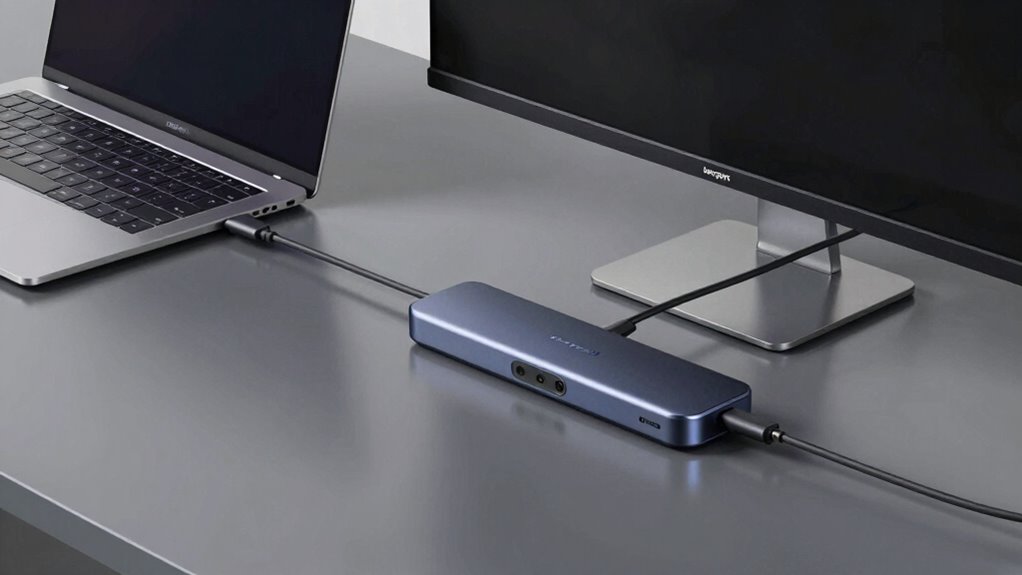
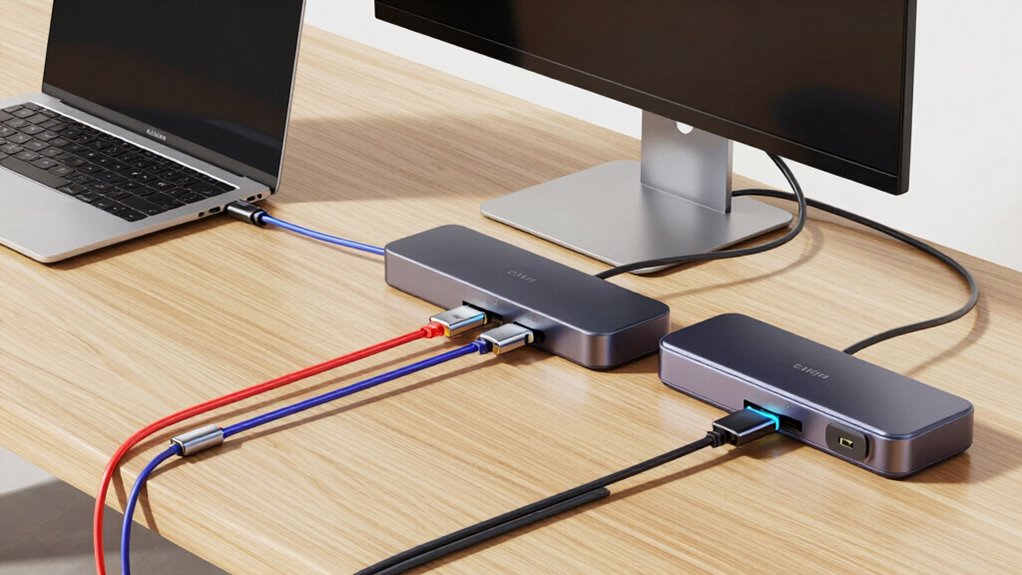
Thanks to the versatility of USB-C, Thunderbolt, and DisplayPort, your desk setup becomes much simpler and more streamlined. These technologies reduce the number of cables needed, creating a cleaner, more organized workspace. With a single port, you can connect your monitor, peripherals, and charger, eliminating clutter. This streamlining promotes an ergonomic design by minimizing cable tangles and awkward placements, reducing strain during daily use. Plus, a tidy desk with fewer cables enhances aesthetic appeal, making your workspace look modern and professional. You no longer need multiple adapters or ports, which simplifies setup and troubleshooting. Overall, these connections help you achieve a sleek, functional environment that’s easier to maintain and more visually appealing.
Connecting Multiple Monitors With USB-C, Thunderbolt, or Displayport

Connecting multiple monitors with USB-C, Thunderbolt, or DisplayPort is easier than ever, thanks to their compatibility with various setups. You can usually run two or more screens simultaneously, improving your workspace efficiency. Plus, these connections help keep cable clutter to a minimum, giving you a cleaner desk.
Multiple Monitor Compatibility
Utilizing USB-C, Thunderbolt, or DisplayPort ports makes it easier than ever to set up multiple monitors on your desk. These ports support high-resolution displays and fast data transfer, allowing you to expand your workspace efficiently. Many devices now offer peripheral upgrades that enable connecting several monitors simultaneously, enhancing productivity. When choosing monitors, consider models with ergonomic design features to reduce strain. Your setup can include a combination of different monitors, thanks to the compatibility of these ports. Here’s a quick comparison:
| Feature | USB-C | Thunderbolt | DisplayPort |
|---|---|---|---|
| Number of Monitors | 1-2 (with hubs) | Multiple (up to 6) | Multiple (up to 4) |
| Resolution Support | 4K, 8K | 8K, 10K | 8K |
| Data Transfer Speed | Up to 10 Gbps | Up to 40 Gbps | Up to 32.4 Gbps |
This compatibility simplifies expanding your desk with multiple monitors for an ergonomic, efficient workspace.
Simplified Cable Management
Managing multiple monitors can quickly become a tangled mess of cables, but modern ports like USB-C, Thunderbolt, and DisplayPort are designed to streamline this process. These ports support daisy-chaining, reducing the number of cables cluttering your desk. With fewer cords, your setup looks cleaner and more organized, enhancing cable aesthetics. The ergonomic design of these connections also makes plugging and unplugging easier, minimizing strain and accidental disconnections. You can route cables neatly through cable management sleeves or clips, further tidying your workspace. This simplified cable management not only improves visual appeal but also boosts productivity by reducing the time spent untangling cords. Overall, these ports make connecting multiple monitors more efficient and visually appealing, creating a sleek, clutter-free environment.
Power Delivery and Fast Charging for Your Devices
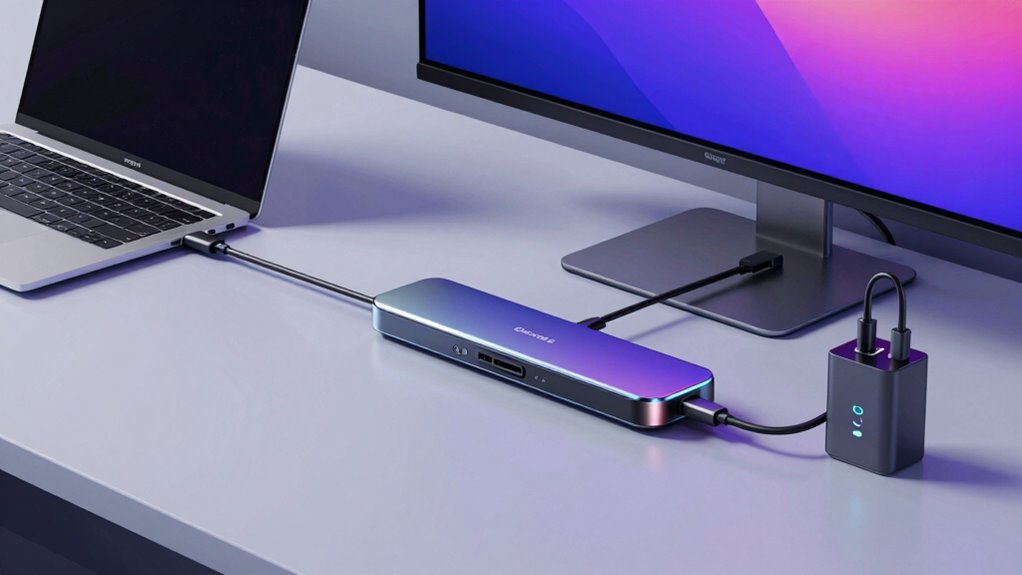
Power Delivery and Fast Charging have revolutionized how you keep your devices powered, making it possible to charge laptops, smartphones, and tablets quickly through a single cable. With USB-C’s Power Delivery, you can get rapid charging without juggling multiple chargers. Wireless charging options complement this setup, offering convenient, cable-free power for compatible devices. Power banks with fast-charging capabilities provide portable power on the go, guaranteeing your devices stay charged even away from outlets. These features simplify your desk setup by reducing clutter and increasing efficiency. You no longer need separate chargers for each device—just one USB-C port or a wireless charger. Additionally, power management technologies optimize charging speed and safety, ensuring your devices are charged efficiently without overheating. This streamlined approach keeps your workspace tidy and assures your devices are always ready when you need them.
Tips for Ensuring Compatibility Across Devices
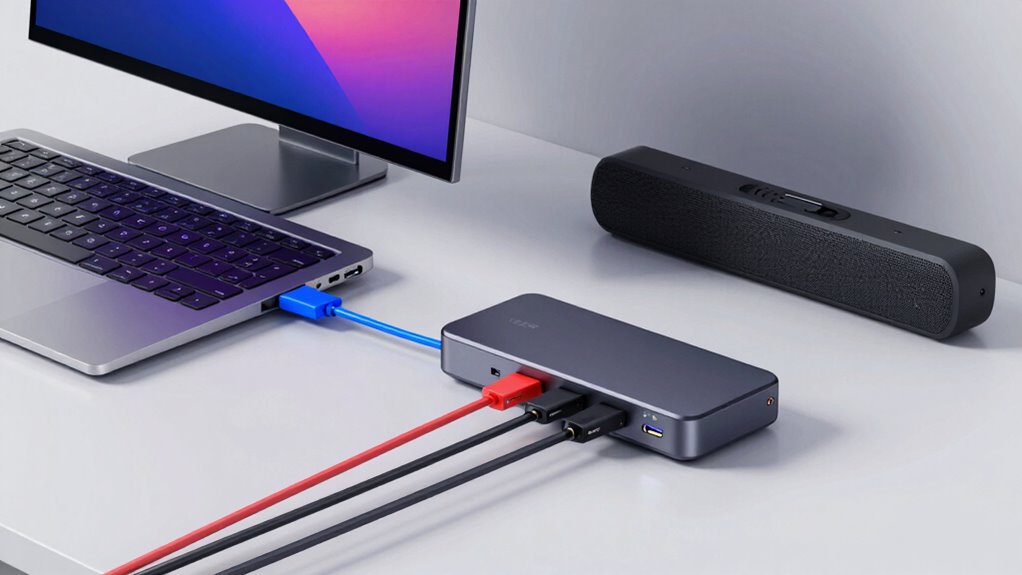
Ensuring compatibility across your devices is key to making the most of your USB-C, Thunderbolt, and DisplayPort connections. Start by checking each device’s specifications to confirm they support the same standards. Using high-quality cables helps prevent connection issues and ensures reliable data transfer. Proper cable organization minimizes tangles and reduces wear, making it easier to identify compatible cables quickly. Keep a list of your devices’ compatibility requirements to avoid mismatched ports or incompatible accessories. When purchasing new cables or adapters, choose those labeled for your specific connection types. Regularly update device firmware and drivers to maintain compatibility. By managing your cables thoughtfully and verifying device specs, you’ll create a smooth, efficient setup that maximizes the potential of your connectivity options.
Future Trends in Connectivity for Your Desk
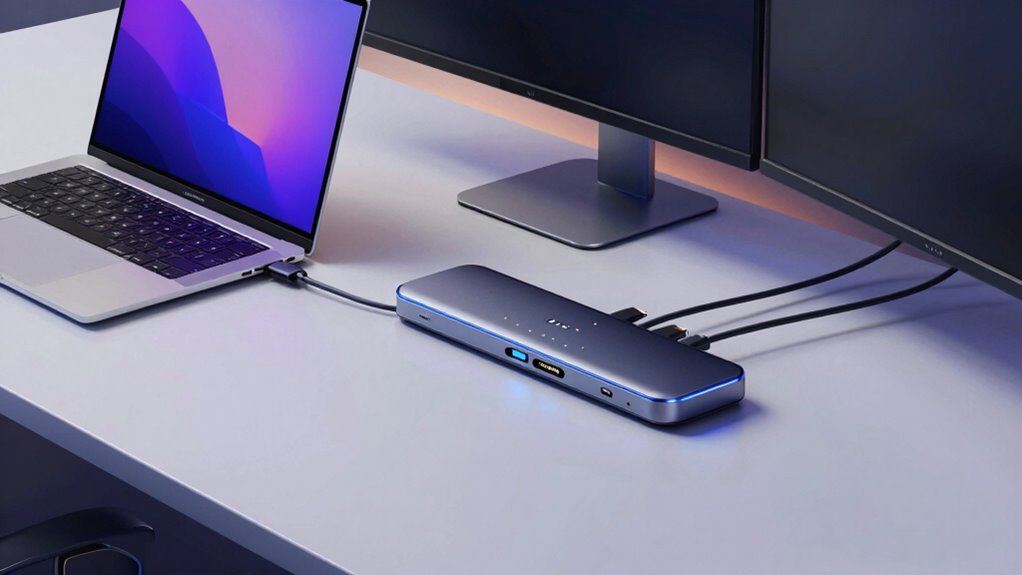
Future trends in desk connectivity will focus on seamless wireless options, making cables less necessary. You’ll see more device compatibility, allowing you to connect different gadgets effortlessly. Smart docking solutions will simplify your setup by automatically adjusting to your needs, keeping your workspace efficient and clutter-free. Additionally, thorough analysis will continue to inform product recommendations, ensuring you choose the best tech for your setup. As technology advances, security considerations will become increasingly important to protect your data and devices in a wireless environment. Furthermore, ongoing standardization efforts will help ensure that various connectivity technologies work together smoothly, enhancing overall user experience. Staying informed about emerging connectivity standards can help you future-proof your workspace and avoid compatibility issues, especially as interoperability between different devices improves through ongoing industry collaboration.
Wireless Connectivity Advancements
Have you noticed how wireless technology is rapidly transforming the way you connect your devices? Wireless expansion is making it easier to eliminate clutter and streamline your desk setup. Bluetooth accessories now offer a wider range of options, from keyboards to speakers, boosting productivity and convenience. Here are some key trends:
- Faster, more reliable Wi-Fi standards improve streaming and file transfers.
- Wireless charging stations reduce cable clutter on your desk.
- Bluetooth 5.x provides enhanced range and stability for peripherals.
- Smart wireless hubs integrate multiple devices seamlessly.
- Wireless standards continue to evolve, ensuring more consistent and secure connections across all your devices.
These advancements mean fewer cables, more freedom of movement, and a cleaner workspace. As wireless connectivity continues evolving, you’ll enjoy a more flexible and efficient desk environment, aligning with future tech trends.
Increased Device Compatibility
As wireless connectivity makes your workspace more flexible, the range of compatible devices continues to expand, making it easier to integrate new gear seamlessly. With USB-C, Thunderbolt, and DisplayPort, you can effortlessly connect a variety of peripherals, from monitors to external drives. This broad compatibility supports innovations like wireless charging pads, reducing cable clutter and streamlining your desk. Additionally, ergonomic accessories such as adjustable stands and keyboard trays become more compatible with these versatile connections, enhancing comfort and productivity. As device ecosystems grow smarter and more interconnected, you’ll find your setup adapting effortlessly to new technologies. This future-proofing means fewer compatibility issues, allowing you to focus on work without worrying about outdated or incompatible hardware.
Smart Docking Solutions
Could smart docking stations be the next evolution in desk connectivity? They’re designed to streamline your workspace with ergonomic design and improved cable organization. Imagine a dock that automatically recognizes your devices, adjusts settings, and minimizes clutter. Here are four key benefits:
- Seamless device integration for faster setup
- Ergonomic design reduces strain and improves comfort
- Cable organization features keep your desk tidy
- Future-ready connectivity with USB-C, Thunderbolt, and DisplayPort. Additionally, these docks can incorporate automotive performance parts principles by optimizing power delivery and data transfer efficiency, ensuring your devices operate smoothly and reliably. Incorporating advanced materials can further enhance durability and thermal management in these docking stations. As technology advances, they may also incorporate smart home features to adapt to your workspace environment, enhancing overall productivity and comfort. Furthermore, integrating connectivity standards helps future-proof your setup as new interfaces emerge, and ongoing innovations in wireless technology could eventually reduce the need for physical connections altogether.
Smart docks simplify your workflow by consolidating connections and reducing cable chaos. They adapt to your needs, enhancing efficiency and comfort. As technology advances, these solutions promise even smarter, more intuitive desk setups, letting you focus on your work without distractions.
Troubleshooting Common Connection Problems
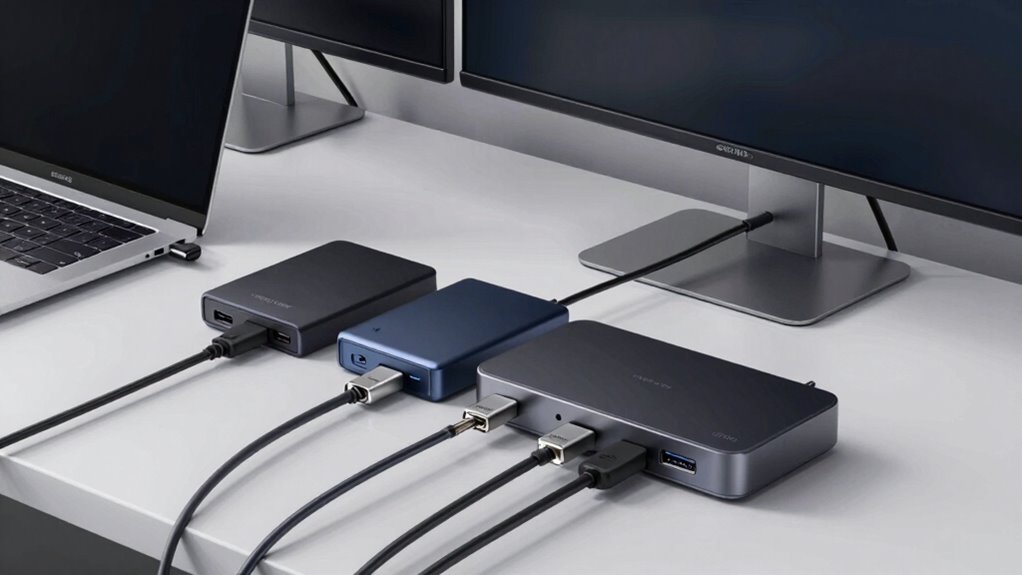
When your devices refuse to connect properly, troubleshooting becomes essential to get your setup back on track. Start by inspecting your cables for issues like damage or wear, as poor cable durability can cause intermittent connections. Check that connectors are securely plugged in, ensuring they’re properly aligned and seated. Sometimes, connector ergonomics matter—if a connector is awkwardly shaped or difficult to handle, it may not connect fully or securely. Try unplugging and reinserting cables gently but firmly. If problems persist, test with different cables or ports to rule out faulty hardware. Keep your cables organized to avoid bending or twisting, which can deteriorate their durability. Regularly updating device firmware and drivers can also improve connection stability, preventing common issues from recurring. Additionally, understanding connection standards can help in selecting compatible cables and devices for a more reliable setup. Being aware of hardware compatibility is also crucial to ensure that all your devices work seamlessly together. To further enhance connection reliability, consider cable quality, which directly impacts signal integrity and durability. Ensuring that your cables meet the appropriate industry standards can significantly reduce connection issues and improve overall performance.
Practical Tips to Optimize Your Desk With These Technologies
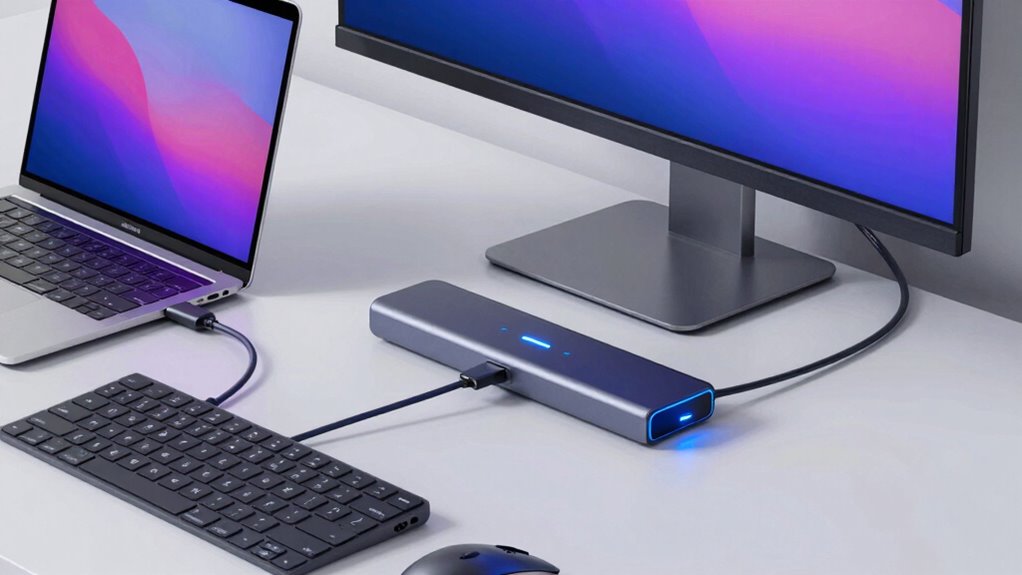
To make the most of your desk setup with USB-C, Thunderbolt, and DisplayPort, focus on strategic organization and cable management. Use cable organizers or clips to keep cords tidy and prevent clutter. Incorporate ergonomic accessories like adjustable stands and wrist supports to improve comfort and workflow. Here are four tips to optimize your workspace:
- Label cables so you can quickly identify and disconnect or connect devices.
- Use a docking station to centralize connections and reduce cable mess.
- Route cables behind your desk or along edges to keep surfaces clear.
- Invest in cable sleeves or conduits to protect and conceal excess cords. Additionally, understanding the capabilities of spy tech can help you identify and secure your workspace from potential security threats.
Prioritizing cable organization and ergonomic accessories helps create a clean, efficient, and comfortable environment.
Frequently Asked Questions
Can USB-C, Thunderbolt, and Displayport Be Used Simultaneously on One Device?
Yes, you can use USB-C, Thunderbolt, and DisplayPort simultaneously on one device, but compatibility issues may arise. Not all ports support every feature, especially Power Delivery and high-speed data transfer. Make sure your device’s ports are compatible and support multiple protocols at once. Check your device specs to avoid issues like limited power delivery or reduced display performance, ensuring seamless multitasking and connectivity.
Are There Security Concerns With Using Thunderbolt Connections?
You’re right to be cautious—Thunderbolt connections do pose security concerns. Studies show that over 70% of data breaches involve physical access points like ports. Thunderbolt’s high-speed data transfer can be exploited if devices lack proper data encryption and device authentication. To protect your setup, make certain your devices support secure authentication protocols, and keep firmware updated. Using trusted cables and disconnecting when not in use also minimizes potential vulnerabilities.
How Do I Identify Which Port My Device Supports?
You can identify which port your device supports by checking the port symbols and labels. Look for icons like a lightning bolt for Thunderbolt, a D-shaped symbol for DisplayPort, or a simple “USB-C” label. Device compatibility varies, so consult your device’s manual or manufacturer’s website if you’re unsure. Recognizing these symbols helps guarantee you connect compatible devices and avoid potential issues with unsupported ports.
Do These Standards Support Daisy-Chaining Multiple Devices?
Yes, these standards support daisy-chaining multiple devices, but with limitations. Thunderbolt, especially Thunderbolt 3 and 4, allows for extensive daisy-chaining of multiple devices, including monitors and storage. USB-C and DisplayPort support daisy-chaining through Multi-Stream Transport (MST), yet compatibility considerations are vital; not all devices or ports support MST, and daisy chain limitations may restrict the number of devices you can connect effectively.
Are There Specific Cables Required for 8K or High-Refresh-Rate Displays?
Sure, to get that glorious 8K or high-refresh-rate display working without a headache, you’ll need the right cables. Not all cables are created equal; some just can’t handle the resolution capabilities you crave. Look for ultra-high-speed HDMI or DisplayPort cables rated for 8K or 144Hz. Cable compatibility is key—use the wrong one, and you’ll be stuck with a pixelated nightmare or a frozen screen. Choose wisely!
Conclusion
By upgrading to USB-C, Thunderbolt, or DisplayPort, you can transform your workspace into a sleek, efficient hub. Did you know that over 50% of new laptops now support Thunderbolt 4? Embracing these technologies not only streamlines your connections but also boosts productivity and reduces clutter. So, whether you’re multitasking with multiple monitors or future-proofing your setup, adopting these standards keeps your desk modern and your workflow seamless.