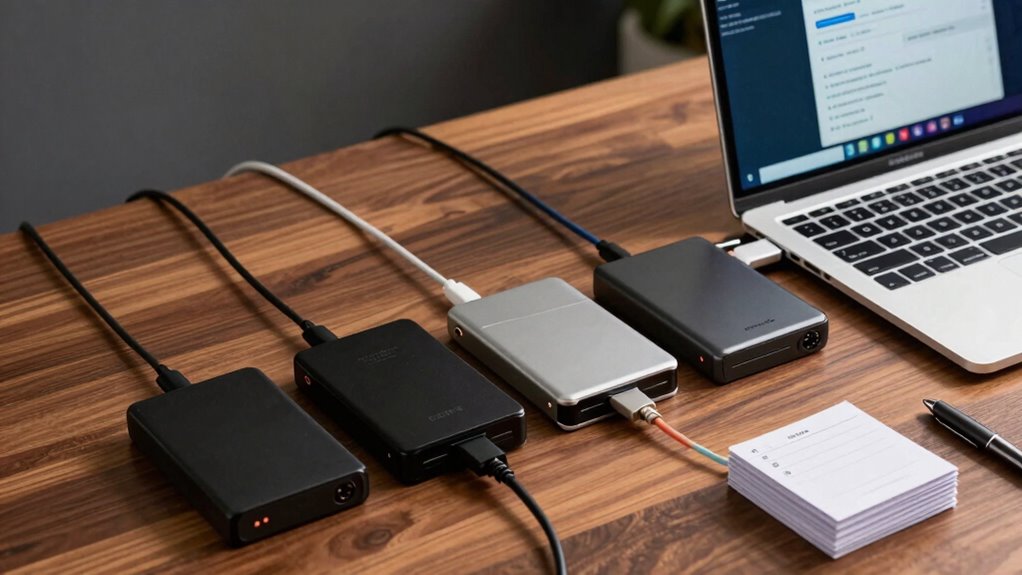

To build a safe local backup rotation with external drives, establish a clear schedule based on your data’s importance, using strategies like the Grandfather-Father-Son method. Choose reliable drives with strong encryption and enough capacity, and regularly test the backups for success. Automate the process to minimize effort, monitor drive health frequently, and troubleshoot issues promptly. Keeping your system consistent and updated will guarantee your backups stay protected—continue exploring how to refine your backup plan further.
Prime for Young Adults — start your free trial
Fast free delivery, streaming and member deals for eligible 18–24 year olds.
As an affiliate, we earn on qualifying purchases.
Key Takeaways
- Establish a backup rotation schedule using strategies like Grandfather-Father-Son to ensure regular, organized backups.
- Use external drives with encryption and redundancy features to secure and protect data during rotation.
- Automate backups through reliable software, scheduling regular, consistent backups to minimize manual errors.
- Regularly monitor drive health and verify backup success through SMART data and test restores.
- Periodically review and adjust the rotation plan to accommodate evolving data needs and hardware conditions.
external hard drives with hardware encryption
As an affiliate, we earn on qualifying purchases.
As an affiliate, we earn on qualifying purchases.
How to Design an Effective Backup Rotation Schedule

Creating an effective backup rotation schedule is essential to guarantee your data stays safe and accessible. You need to determine the right backup frequency, balancing between up-to-date data and minimizing effort. Daily or weekly backups can work depending on your data’s importance and how often it changes. Rotation strategies help organize your external drives efficiently, such as the Grandfather-Father-Son method, which involves rotating drives at set intervals. This approach can help foster a growth mindset about data management, encouraging proactive and responsible backup habits. Incorporating backup reliability practices ensures your data remains protected even in the event of hardware failure or other issues. Additionally, understanding storage technology helps choose the most suitable drives for your backup needs. This way, you always have recent backups while maintaining historical copies. Regularly testing your backups is crucial to confirm they can be successfully restored, which reinforces the importance of backup integrity. For example, selecting drives with durability can improve your backup system’s longevity and resilience. Consistency is key—stick to your schedule to prevent data loss. Regularly reviewing and adjusting your rotation plan ensures it stays aligned with your evolving needs. An organized, disciplined approach keeps your backups reliable, ready for recovery whenever you need them.
RAID external drives for data redundancy
As an affiliate, we earn on qualifying purchases.
As an affiliate, we earn on qualifying purchases.
Choosing the Best External Drives for Reliable Backups
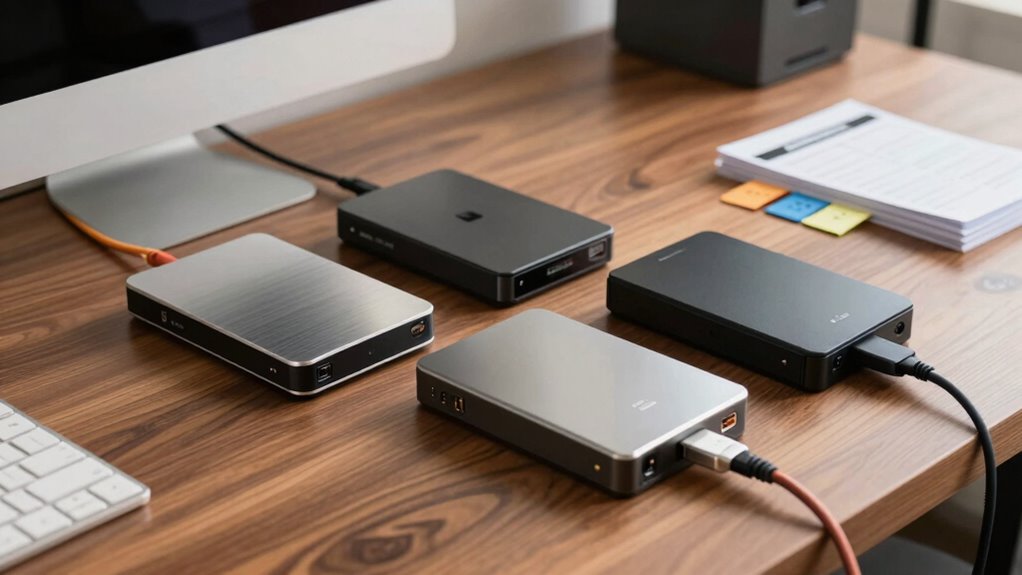
Once you’ve established a solid backup schedule, choosing the right external drives becomes the next vital step. Look for drives that prioritize data security through robust encryption protocols, ensuring your backups stay protected from unauthorized access. Opt for drives offering data redundancy features, like RAID support or mirrored backups, to safeguard against drive failure. Reliability is key, so select brands known for durability and consistent performance. Consider capacity needs based on your data volume—don’t settle for less. Additionally, check compatibility with your system and whether the drive supports hardware encryption. A well-chosen external drive with strong encryption protocols and data redundancy features will help maintain your backups’ integrity and security, giving you peace of mind. Incorporating ethical considerations into your backup choices can also ensure your data handling aligns with responsible data management practices. Moreover, understanding data security principles can guide you in selecting drives that best protect your sensitive information. Ensuring your drives are compliant with industry standards can further enhance your data protection strategy. Paying attention to regulatory compliance can help you avoid potential legal issues related to data storage and protection. Additionally, selecting drives that adhere to recognized security protocols can provide an extra layer of protection for your backups.
backup rotation software for external drives
As an affiliate, we earn on qualifying purchases.
As an affiliate, we earn on qualifying purchases.
Automate Your Backup Process for Peace of Mind

To guarantee your backups happen consistently without relying on memory or manual effort, automating the process is essential. You can set up backup software to run on a schedule, ensuring your data is regularly protected. Use encryption methods to secure your backups, so sensitive information remains private even if the drives are lost or stolen. Integrating your backup system with the cloud adds an extra layer of safety and convenience, allowing automatic off-site copies of your data. Many backup tools support both local and cloud backups, simplifying the process. Automating your backups not only saves time but also provides peace of mind, knowing your data is continuously protected without requiring daily oversight. This approach minimizes the risk of missed backups and data loss. Incorporating sound healing science principles, like mindful routines during backups, can also help reduce stress while managing your data security.
SMART drive health monitoring tools
As an affiliate, we earn on qualifying purchases.
As an affiliate, we earn on qualifying purchases.
Monitor Drive Health and Backup Success Regularly

Regularly checking your drive health and backup success is essential to guarantee your data remains protected and accessible. You should routinely verify that your external drives are functioning properly, using tools that monitor SMART data and drive performance. Confirm that your backups are completing successfully, and verify that encryption protocols are intact to keep your data secure. Incorporate cloud integration to verify that cloud backups sync correctly and are up-to-date. Additionally, review your backup logs for any errors or inconsistencies. Consider setting automated alerts for drive failures or backup issues, so you can address problems promptly. By staying proactive, you minimize the risk of data loss and maintain a reliable backup rotation system. Regular checks keep your backup strategy resilient and your data safe. Monitoring drive health is a vital part of ensuring your backup system remains robust over time, especially as external drives can be affected by environmental factors or age, similar to how cowboy culture in Fort Worth reflects resilience and tradition. To further safeguard your data, stay informed about drive deterioration signs and replace drives proactively before failure occurs. Understanding the environmental factors that impact drive longevity can help you prevent unexpected data loss.
Troubleshoot Common Backup Rotation Issues

When your backup rotation isn’t running smoothly, identifying and resolving common issues is vital to maintain data security. First, check your drive connections; loose cables or failing ports can cause backup failures. Make sure your encryption security settings aren’t interfering with backup processes, as overly strict encryption can block data transfer. Verify that your backup schedule isn’t conflicting with other tasks, leading to incomplete backups. If you encounter data redundancy issues, confirm your backup software isn’t overwriting critical files or creating duplicate copies unnecessarily. Regularly test restore procedures to guarantee backups are reliable. Additionally, paying attention to media ratings can help ensure compatibility and optimal performance of your external drives. Properly handling safety tips when connecting and disconnecting drives helps prevent hardware damage and data loss. Being aware of water damage and rug cleaning tips can also prevent accidental spills or moisture-related issues that might affect your drives. Incorporating preventive maintenance practices can further extend the lifespan of your drives and improve backup reliability. Regular inspections for hardware issues can help catch potential problems early before they lead to data loss. Addressing these issues helps maintain a consistent backup cycle, protects your data, and guarantees your external drives serve their purpose effectively in your rotation system.
Frequently Asked Questions
How Often Should I Update My Backup Rotation Schedule?
You should update your backup rotation schedule regularly, ideally weekly or biweekly, to guarantee your data stays current. Your backup frequency depends on how often you change or add files. If you work daily, consider daily backups; for less frequent updates, weekly is sufficient. Regular updates reduce data loss risks, so stick to a consistent rotation schedule and adjust it as your data needs evolve.
What Security Measures Should I Take for External Drive Backups?
You should encrypt your external drive backups using strong encryption protocols like AES-256 to protect your data from unauthorized access. Additionally, set strict access controls, such as strong passwords and multi-factor authentication, to limit who can access the backups. Keep your encryption keys secure, and regularly update security software. These measures guarantee your backups remain private and safe from theft or cyber threats.
Can I Use Cloud Storage Alongside Physical Backups?
Yes, you can use cloud storage alongside physical backups to enhance data security. Cloud integration offers off-site protection, reducing risks from physical damage or theft. Make sure to enable data encryption both during transfer and at rest, ensuring your information stays private. Combining cloud backups with external drive rotations gives you an all-encompassing safety net, offering quick recovery options and peace of mind knowing your data is protected across multiple platforms.
How Do I Securely Dispose of Old Backup Drives?
Think of your old backup drive as a locked treasure chest. To securely dispose of it, first, encrypt the drive to safeguard its contents. Then, perform data sanitization—erasing all data completely. You can physically destroy the drive afterward, like smashing the chest to prevent any recovery. This process guarantees your sensitive data remains protected, and your old drive is safely retired from use.
What Are Signs My Backup Drive Needs Replacing?
You’ll notice your backup drive needs replacing if it shows signs like frequent errors, slow access, or failing to mount. Keep an eye on drive encryption status—if encryption becomes outdated or compromised, replacement is wise. Also, if data redundancy is compromised due to drive issues, your backups aren’t reliable anymore. Regularly test your backups to verify data integrity, and replace drives proactively to prevent data loss.
Conclusion
By following these steps, you can create a robust backup rotation system that safeguards your data. Regularly rotating and monitoring external drives reduces the risk of data loss, giving you peace of mind. Did you know that over 30% of hard drives fail within three years? Staying proactive with your backups guarantees you’re protected before disaster strikes. Keep your data safe, stay vigilant, and enjoy the confidence that comes with a solid backup plan.
Fall yard work Picks
leaf blowers
As an affiliate, we earn on qualifying purchases.