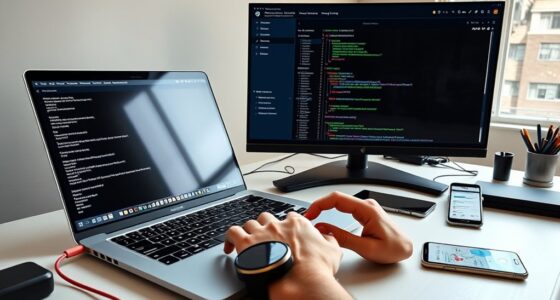
To deploy a Dockerized app to Kubernetes with Minikube, start by installing Minikube and kubectl. Next, create a deployment YAML file that specifies your Docker image and desired replicas. Use `kubectl apply -f` to deploy your app and then expose it with a service for external access. You can easily scale your app and manage updates seamlessly. If you continue, you’ll discover all the essential steps and best practices for smooth deployment.
Key Takeaways
- Install Minikube and kubectl to set up a local Kubernetes environment for testing.
- Create a Dockerized app and push the image to a container registry or build locally.
- Define deployment and service YAML files to specify app configuration and exposure.
- Apply deployment with `kubectl apply -f` and verify pods are running correctly.
- Access the app via Minikube’s service URL and scale as needed with `kubectl scale`.

Deploying a Dockerized app to Kubernetes streamlines the process of scaling and managing your application in a containerized environment. When you use Kubernetes, you’re tapping into powerful container orchestration capabilities that simplify deploying, updating, and scaling your app. Instead of manually handling individual containers, Kubernetes manages the entire cluster, ensuring your application runs reliably across multiple nodes. This cluster management allows you to focus on your app’s development rather than the complexities of infrastructure, making deployments more efficient and less error-prone.
Kubernetes simplifies deploying, updating, and scaling Dockerized apps across reliable, multi-node clusters.
To get started with deploying your Dockerized app on Minikube, you’ll first need to install Minikube and kubectl, the command-line tool for interacting with Kubernetes clusters. Minikube creates a local Kubernetes environment, perfect for testing and development. Once installed, you can start your cluster with a simple command, which spins up a single-node Kubernetes cluster on your machine. This setup simulates a full Kubernetes environment, giving you a sandbox for deploying your Docker containers without needing a cloud provider or dedicated infrastructure.
Next, you’ll create a deployment configuration file in YAML format. This file defines your application’s deployment specifics, such as the Docker image to use, the number of replicas you want to run, and resource limits. When you apply this configuration with `kubectl apply -f`, Kubernetes takes charge by creating the necessary pods and ensuring your app is scheduled correctly within the cluster. Kubernetes’s container orchestration features handle the placement, health checks, and restarts, so your application stays available even if a node fails or an update occurs.
As your app runs within the cluster, you can expose it outside the Kubernetes environment through a service. Minikube provides a command to easily access your app via a URL or localhost. This step involves creating a service resource that maps your app’s internal port to an accessible endpoint. Kubernetes manages this service, ensuring your app remains reachable and load-balanced across the pods. You can also scale your deployment up or down by changing the number of replicas, and Kubernetes will automatically adjust the running containers, maintaining desired state through cluster management.
Throughout this process, Kubernetes’s container orchestration capabilities keep your deployment consistent and resilient. It manages the lifecycle of containers, monitors their health, and performs rolling updates without downtime. Additionally, understanding the importance of contrast ratio in projectors ensures that your visual output remains crisp and vibrant, especially in dark scenes. By leveraging Minikube for local testing, you gain hands-on experience with cluster management and container orchestration, preparing you to deploy more complex, production-ready Kubernetes environments. This approach simplifies the complexities of container deployment, making it accessible while providing the robustness needed for scalable applications.

Elgato Prompter – Teleprompter with Built-in Screen for YouTube, Twitch, Zoom and More, 1080 pixels, Supports DSLR/Webcam/Smartphone, Drag & Drop Monitor Display, Works with Mac/PC & Stream Deck
Built-in display, Drag-and-drop: No extra tablets or smartphone screens required. Move any window or app onto Prompter’s display,...
As an affiliate, we earn on qualifying purchases.
Frequently Asked Questions
How Do I Troubleshoot Deployment Issues in Minikube?
To troubleshoot deployment issues in Minikube, start by checking container logs with `kubectl logs`. This reveals errors inside your pods. Also, monitor resource usage using `kubectl top` to spot CPU or memory constraints. Confirm your configs are correct, and verify that services are running as expected. Combining logs and resource monitoring helps identify and fix issues quickly, ensuring your app deploys smoothly.
Can I Deploy Multi-Container Applications on Minikube?
Yes, you can deploy multi-container applications on Minikube. It supports container orchestration, allowing you to manage multiple containers within a single pod or across several pods. By defining your application’s architecture in Kubernetes YAML files, you can set up multi-container management easily. This setup enables you to run complex, interconnected services locally, providing a realistic environment for testing and development before deploying to a full-scale Kubernetes cluster.
How to Update the App Without Downtime on Kubernetes?
You can update your app without downtime by using Kubernetes’ rolling updates feature. Start by incrementing your image version, then apply the update with kubectl. Kubernetes gradually replaces old pods with new ones, ensuring continuous availability. Make sure your deployment is configured for rolling updates, and monitor the process. This approach minimizes service disruption and leverages image versioning to manage updates effectively.
What Are Best Practices for Securing Docker Images?
Think of your Docker images as treasure chests—you want to keep them secure. To do this, regularly perform image scanning to detect vulnerabilities, like checking for hidden traps. Use secret management tools to safeguard sensitive data inside your images, ensuring only authorized access. Keep your images up-to-date, and follow the principle of least privilege. These best practices help you protect your containers from potential threats.
How Do I Scale Applications Dynamically in Minikube?
To scale your applications dynamically in Minikube, you should implement auto scaling techniques like Horizontal Pod Autoscaler (HPA). HPA adjusts the number of pods based on resource management metrics such as CPU or memory utilization. By configuring HPA, you enable your app to automatically respond to increased or decreased demand, ensuring efficient resource usage and maintaining performance without manual intervention.

Glide Gear TMP 100 Teleprompter – DSLR, Tablet, Smartphone – 12" Glass, Carry Case, No Assembly
WIDE DEVICE COMPATIBILITY: The TMP 100 Teleprompter is Designed to Accommodate Smartphones and Tablets up to 10.5"x 8",...
As an affiliate, we earn on qualifying purchases.
Conclusion
Now, your Docker container is a seed, ready to grow within the vast Kubernetes garden. With Minikube as your nurturing ground, you’ve planted the foundation for a thriving app. As the pods bloom and services connect, envision your project taking root and reaching new heights. Keep tending your deployment with care, and watch it flourish like a mighty tree—strong, resilient, and alive in the digital forest you’ve cultivated.

AMBITFUL Teleprompter 7.5'' with Tabletop Tripod for Smartphone and DSLR Camera, Adjustable Phone Clip & Camera Adapting Ring, for Live Streaming, Interviews(Mini Teleprompter Only)
Enhance Your Video Production: Elevate your video production with the AMBITFUL 7.5'' Mini Teleprompter. Perfect for live streaming,...
As an affiliate, we earn on qualifying purchases.

TELEPROMPTER PAD Bluetooth Remote Control for Teleprompter, Includes Teleprompter APP for Apple, Android Windows & Mac, Wireless Controller for Beam Splitter Prompter, Live Events & Content Creation
Remote + Teleprompter APP Bundle: Use this remote with any mirror-based teleprompter and download TeleprompterPAD APP, the leading...
As an affiliate, we earn on qualifying purchases.