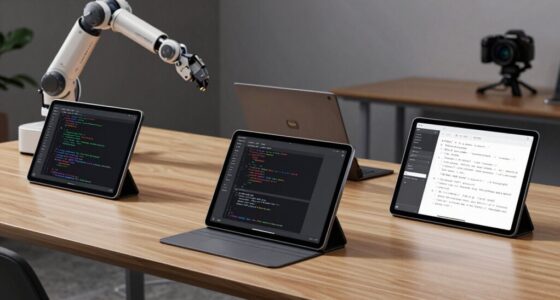
Developer docking stations can simplify a multi-monitor coding desk, but the right pick depends on your laptop’s ports, display needs, and operating system. I’d start with the Plugable 13-in-1 USB-C Triple Monitor Dock as the best overall for its broad port selection and 100W charging; the Belkin 140W Thunderbolt 5 Dock stands out for newer high-performance setups, while the Anker 8-in-1 USB-C Hub is a smaller, simpler choice. The main tradeoff is between native Thunderbolt bandwidth and DisplayLink flexibility, with power delivery and monitor compatibility adding another layer. A dock’s advertised display count may depend on your laptop’s USB-C capabilities, operating system, and driver support. Read on for the full breakdown and a guide to matching a dock to your development workflow.

Get business pricing on monitors, keyboards and dev gear
- Business-only prices and quantity discounts
- Tax-exempt purchasing
- Multiple users, one account, clear invoices
Key Takeaways
- The lineup spans lightweight USB-C hubs, DisplayLink multi-monitor docks, and Thunderbolt models, so the best fit depends more on the laptop and screens you own than on port count alone.
- The Plugable 13-in-1 Triple Monitor Dock is the strongest all-rounder in this roundup because it balances multiple displays, a broad selection of connections, and 100W charging.
- DisplayLink models from TobenONE, WAVLINK, and Plugable can add monitor flexibility, but their software and operating-system requirements make compatibility checks especially important.
- The Belkin Thunderbolt 5 and Smartlinx and Plugable Thunderbolt 4 docks suit higher-bandwidth desk setups, while USB-C models can be a more practical match for routine peripherals and coding.
- The Anker 8-in-1 hub is the compact pick, but buyers needing a permanent multi-monitor desk should compare it with full-size docks that offer more ports and stronger workstation-style connectivity.
| Plugable 13-in-1 USB-C Triple Monitor Docking Station with 100W Charging |  | Best for Cross-Platform Triple-Monitor Work | Host interface: USB Type-C; compatible with supported USB-C, USB4, and Thunderbolt systems | Total ports: 13 | Display outputs: 3 HDMI; up to three extended displays | VIEW LATEST PRICE | See Our Full Breakdown |
| Belkin 140W Thunderbolt 5 Docking Station, 14-in-1 |  | Best Premium Thunderbolt 5 Upgrade | Ports: 14 | Data transfer: Up to 80Gbps; up to 120Gbps with Bandwidth Boost | Host power delivery: Up to 140W | VIEW LATEST PRICE | See Our Full Breakdown |
| TobenONE DisplayLink USB-C Docking Station for 3 Monitors with 120W Power Adapter |  | Best for High-Resolution Multi-Monitor Desks | Total ports: 18 | Display technology: DisplayLink; driver required | Video outputs: 3 HDMI and 3 DisplayPort | VIEW LATEST PRICE | See Our Full Breakdown |
| HP USB-C 100W G6 Dock with Extra USB-C Cable |  | Best for a Compact, Single-Display Setup | Model: HP USB-C 100W G6 Dock | Total ports: 10 | USB ports: 5 | VIEW LATEST PRICE | See Our Full Breakdown |
| WAVLINK DisplayLink Dual-Monitor Docking Station |  | Best for Dual-Monitor USB-A Desks | Display technology: DisplayLink; driver required for video output | Maximum external monitors: 2 | Maximum display resolution: 4K at 60Hz | VIEW LATEST PRICE | See Our Full Breakdown |
| Plugable Dual 1080p HDMI Universal Docking Station |  | Best for Older Laptops | Model: UD-3900Z | Display outputs: 2 × HDMI, up to 1920 × 1200 | Host connectivity: USB-C or USB-A | VIEW LATEST PRICE | See Our Full Breakdown |
| WAVLINK DisplayLink Docking Station for Three Monitors |  | Best for Three-Display Setups | Display support: Up to 3 monitors: 4K at 60Hz plus 2 × 2K at 60Hz | Video outputs: 3 × HDMI and 2 × DisplayPort | USB ports: 6 total: 2 × USB-C and 4 × USB-A, up to 10Gbps | VIEW LATEST PRICE | See Our Full Breakdown |
| Plugable USB-C Triple Display Docking Station with 100W Power Delivery |  | Best for HDMI-Only Multi-Monitor Desks | Display outputs: 3 × HDMI | Display support: 1 × 4K at 30Hz and 2 × 1080p at 60Hz | USB ports: 6 | VIEW LATEST PRICE | See Our Full Breakdown |
| Anker 8-in-1 USB-C Hub with Dual HDMI |  | Best Compact Travel Hub | Port count: 8 | HDMI display support: One display up to 4K at 60Hz or two up to 4K at 30Hz | USB-A: 2 data ports | VIEW LATEST PRICE | See Our Full Breakdown |
| Smartlinx Thunderbolt 4 21-in-1 USB-C Docking Station for MacBook, Dual 4K Monitors |  | Best for Port-Heavy Developer Setups | Port count: 21 | USB ports: 7 total: 6 × USB-A and 1 × USB-C | Display support: Dual 4K at 60Hz on compatible devices | VIEW LATEST PRICE | See Our Full Breakdown |
| TobenONE 18-in-1 Laptop Docking Station with Triple 4K Display and 150W Adapter |  | Best for Windows Multimonitor Workstations | Total ports: 18 | USB ports: 8 | Video outputs: 2× HDMI, 1× DisplayPort, 1× USB-C video | VIEW LATEST PRICE | See Our Full Breakdown |
| Dell Pro Thunderbolt 4 Smart Dock SD25TB4 |  | Best for Dell Business Setups | Model: SD25TB4 | Total ports: 12 | USB ports: 6 | VIEW LATEST PRICE | See Our Full Breakdown |
| Wozoyo 11-in-1 USB-C Docking Station with 100W Power Delivery |  | Best Compact Budget-Conscious Pick | Total ports: 11 | Video outputs: 2× HDMI and 1× DisplayPort | Maximum listed video output: Up to 4K at 60Hz via HDMI; DisplayPort up to 4K | VIEW LATEST PRICE | See Our Full Breakdown |
| Dell Pro WD25 USB-C Laptop Docking Station, 100W Power Delivery |  | Best for Linux-Compatible Office Fleets | Model: WD25 | Connection: USB-C | Total ports: 10 | VIEW LATEST PRICE | See Our Full Breakdown |
| Plugable Thunderbolt 4 Dock with 100W Charging and Dual HDMI |  | Best for Thunderbolt 4 Desks | Hardware interface: Thunderbolt 4 | Total ports: 13 | USB ports: 6 | VIEW LATEST PRICE | See Our Full Breakdown |
| developer docking station | USB ports | Total ports | Display support | Ethernet |
|---|---|---|---|---|
| Plugable 13-in-1 USB-C Triple | 4 USB-A at 5Gbps and 1 USB-C charging port | 13 | — | — |
| Belkin 140W Thunderbolt 5 Dock | — | — | Up to 3 extended displays at 4K/144Hz or 8K/60Hz on compatible Windows PCs; up to 2 extended displays on macOS | 2.5Gb |
| TobenONE DisplayLink USB-C Doc | — | 18 | Up to 3 extended 4K displays at 60Hz on macOS; up to 4 on compatible Windows laptops | — |
| HP USB-C 100W G6 Dock with Ext | 5 | 10 | — | RJ-45, 2.5Gbps |
| WAVLINK DisplayLink Dual-Monit | 6 USB 3.0 Type-A | — | — | — |
| Plugable Dual 1080p HDMI Unive | 2 × 5 Gbps USB and 4 × USB 2.0 | — | — | — |
| WAVLINK DisplayLink Docking St | 6 total: 2 × USB-C and 4 × USB-A, up to 10Gbps | — | Up to 3 monitors: 4K at 60Hz plus 2 × 2K at 60Hz | Gigabit Ethernet |
| Plugable USB-C Triple Display | 6 | — | 1 × 4K at 30Hz and 2 × 1080p at 60Hz | — |
| Anker 8-in-1 USB-C Hub with Du | — | — | — | 1Gbps |
| Smartlinx Thunderbolt 4 21-in- | 7 total: 6 × USB-A and 1 × USB-C | — | Dual 4K at 60Hz on compatible devices | 2.5Gbps |
| TobenONE 18-in-1 Laptop Dockin | 8 | 18 | — | 2.5Gbps |
| Dell Pro Thunderbolt 4 Smart D | 6 | 12 | Up to four 4K displays | — |
| Wozoyo 11-in-1 USB-C Docking S | — | 11 | — | Gigabit, 1Gbps |
| Dell Pro WD25 USB-C Laptop Doc | 6 | 10 | Up to four high-resolution displays | — |
| Plugable Thunderbolt 4 Dock wi | 6 | 13 | Dual 4K at 60Hz or single 8K on compatible systems | Gigabit |
More Details on Our Top Picks
Plugable 13-in-1 USB-C Triple Monitor Docking Station with 100W Charging
I’d pick this Plugable for a desk where three HDMI monitors and a broad mix of everyday connections matter more than uniform high-resolution output. It pairs up to 100W laptop charging with Gigabit Ethernet, an SD card reader, audio, and ports for USB-A and USB-C devices, cutting down on adapters for development peripherals. Compared with the TobenONE DisplayLink Docking Station, it offers fewer monitor outputs and less flexible high-resolution coverage, but it avoids TobenONE’s stated Linux and Unix exclusion; check compatibility with your exact system before buying.
The tradeoff is in the display details: only the primary HDMI output reaches 4K at 30Hz, while the other two top out at 1920 x 1200 at 60Hz. Mac users need DisplayLink Manager for multiple screens, and HDCP-protected streaming is unsupported. This is a work-focused multi-display dock, not a uniform 4K or entertainment hub.
Pros:- Connects up to three extended HDMI displays.
- Delivers up to 100W laptop charging and 20W charging for connected devices.
- Combines Gigabit Ethernet, an SD card reader, audio in/out, and USB ports.
- Supports Windows, macOS, and ChromeOS on compatible USB-C, USB4, or Thunderbolt systems.
Cons:- Only the primary HDMI output supports 4K, and it is limited to 30Hz.
- Multiple displays on macOS require DisplayLink Manager.
- Does not support HDCP-protected content playback.
Best for: Developers using a supported USB-C laptop who need three HDMI-connected work displays, wired networking, and laptop charging from one desk dock.
Not ideal for: Mac users who want to avoid DisplayLink software, anyone needing three matched 4K displays, or buyers who use the dock for HDCP-protected streaming.
- Host interface:USB Type-C; compatible with supported USB-C, USB4, and Thunderbolt systems
- Total ports:13
- Display outputs:3 HDMI; up to three extended displays
- Display resolution:Primary HDMI up to 4K at 30Hz; HDMI 2 and 3 up to 1920 x 1200 at 60Hz
- USB ports:4 USB-A at 5Gbps and 1 USB-C charging port
- Charging:Up to 100W to laptop; 20W to USB-C devices
- Other connectivity:Gigabit Ethernet, SD card reader, audio in/out
- Operating systems:Windows 10+, macOS 11+, and ChromeOS; macOS multi-monitor use requires DisplayLink Manager
Our verdict“Choose this Plugable if three HDMI work screens and built-in connectivity matter more than matching 4K output or protected video playback.”
Belkin 140W Thunderbolt 5 Docking Station, 14-in-1
For a compatible development workstation, this Belkin is the most forward-looking option in this group: Thunderbolt 5 data up to 80Gbps, up to 140W host charging, and a 2.5Gb Ethernet port make it suited to fast storage, demanding peripherals, and a high-power laptop. Compared with the Plugable 13-in-1, it puts more emphasis on bandwidth and high-refresh displays than on a simple three-HDMI setup; its mix includes DisplayPort 2.1 and HDMI 2.1 instead.
The display headline needs a compatibility check: up to three extended displays at 4K/144Hz or 8K/60Hz requires a compatible Windows PC, while macOS supports up to two extended displays. The listed DisplayPort and HDMI specifications each state up to 4K at 60Hz, so buyers should verify which output combination supports their intended setup. This is a poor fit for older laptops that cannot use its Thunderbolt capabilities.
Pros:- Supports data transfer up to 80Gbps, with Bandwidth Boost up to 120Gbps.
- Provides up to 140W power delivery to the host.
- Includes 2.5Gb Ethernet and a broad mix of Thunderbolt, USB, display, audio, and card-reader connections.
- Supports daisy chaining up to six Thunderbolt devices.
Cons:- Three extended displays require a compatible Windows PC; macOS supports up to two.
- The listed DisplayPort 2.1 and HDMI 2.1 specifications each state up to 4K at 60Hz.
- Its main advantages depend on having a compatible Thunderbolt 4 or 5 setup.
Best for: Developers with a Thunderbolt 5 or Thunderbolt 4 workstation who connect fast external storage, wired 2.5Gb networking, and high-bandwidth displays.
Not ideal for: Buyers with older USB-C laptops who cannot use Thunderbolt features, or Mac users who need three extended displays.
- Ports:14
- Data transfer:Up to 80Gbps; up to 120Gbps with Bandwidth Boost
- Host power delivery:Up to 140W
- Display support:Up to 3 extended displays at 4K/144Hz or 8K/60Hz on compatible Windows PCs; up to 2 extended displays on macOS
- Video connections:DisplayPort 2.1 and HDMI 2.1; each listed up to 4K at 60Hz
- Ethernet:2.5Gb
- Additional connections:Thunderbolt 5, USB-A, USB-C, SD 4.0, microSD 4.0, and 3.5mm audio combo
- Compatibility:USB-C devices; Thunderbolt 4 and 5; Windows, macOS, and ChromeOS
Our verdict“Choose the Belkin if your compatible workstation can use Thunderbolt 5 bandwidth and high host power, but skip it if your display needs exceed your operating system’s limits.”
TobenONE DisplayLink USB-C Docking Station for 3 Monitors with 120W Power Adapter
The TobenONE stands out for developers who want three extended 4K displays at 60Hz on macOS or up to four on compatible Windows laptops. Its six video outputs—three HDMI and three DisplayPort—give a desk more connection choices than the Plugable 13-in-1, whose secondary HDMI ports stop at 1920 x 1200. A 120W adapter supports up to 100W laptop charging, while 18 ports and 10Gbps data cover a crowded workstation.
That display flexibility comes with software and platform limits. DisplayLink drivers are required, macOS asks for Screen Recording permission, and Linux and Unix are unsupported. Unlike the Belkin Thunderbolt 5 dock, this is not aimed at high-refresh gaming; the product also excludes paid streaming services such as Netflix. I’d shortlist it for coding, documentation, and productivity screens—not as a universal graphics or media dock.
Pros:- Supports up to three extended 4K displays at 60Hz on macOS or four on compatible Windows laptops.
- Includes three HDMI and three DisplayPort outputs for flexible monitor connections.
- Provides up to 100W laptop charging and 18W front USB-C device charging.
- Offers 18 ports and data transfers up to 10Gbps.
Cons:- Requires DisplayLink drivers; macOS also requires Screen Recording permission.
- Does not support Linux or Unix.
- Not designed for high-refresh gaming and does not support paid streaming services such as Netflix.
Best for: Developers running several 4K productivity displays on supported Windows or macOS laptops who want a large port selection and laptop charging.
Not ideal for: Linux or Unix developers, high-refresh-rate gamers, or anyone who wants to avoid DisplayLink drivers and macOS Screen Recording permission.
- Total ports:18
- Display technology:DisplayLink; driver required
- Video outputs:3 HDMI and 3 DisplayPort
- Display support:Up to 3 extended 4K displays at 60Hz on macOS; up to 4 on compatible Windows laptops
- Charging:Up to 100W laptop charging (96W certified); 18W front USB-C charging
- Power adapter:120W
- Data transfer:Up to 10Gbps
- Compatibility:Thunderbolt 3, 4, and 5; USB4; full-featured USB-C; Windows 10+, macOS 11+, Chrome OS 100+, and Android
- Unsupported systems:Linux and Unix
Our verdict“Choose TobenONE for a driver-based, multi-4K productivity desk on supported systems, but skip it if Linux support or gaming performance is part of the brief.”
HP USB-C 100W G6 Dock with Extra USB-C Cable
I’d favor the HP G6 for a developer who wants a straightforward one-cable desk connection rather than a multi-monitor hub. It provides up to 100W laptop power, a 2.5Gb Ethernet port, five USB ports, and HDMI 2.1 with support for 4K at up to 120Hz. Compared with the WAVLINK DisplayLink dock, the HP supplies laptop power and avoids a stated DisplayLink driver requirement, but WAVLINK can connect two monitors and offers six USB-A ports.
HP’s listed display output is a single HDMI port, so this is not the right match for a multi-screen coding desk. Its stated minimum operating system is Windows 11, which narrows the audience, and buyers should confirm support for their particular laptop before connecting. Replaceable components and status notifications add practical service and setup cues, while the included extra USB-C cable is useful to keep at a second workstation.
Pros:- Delivers up to 100W laptop power over a single cable.
- Supports HDMI 2.1 output at 4K and up to 120Hz.
- Includes 2.5Gb Ethernet and five USB ports.
- Has status LEDs, replaceable components, and an extra USB-C cable.
Cons:- Provides only one HDMI display output.
- Windows 11 is the listed minimum operating system.
- Compatibility still depends on the laptop having a supported USB-C or Thunderbolt connection.
Best for: Windows 11 developers with a compatible USB-C or Thunderbolt laptop who need one high-refresh 4K monitor, wired networking, and charging from a compact dock.
Not ideal for: Developers who need multiple external monitors, Linux support, or a dock with clearly listed support for older operating systems.
- Model:HP USB-C 100W G6 Dock
- Total ports:10
- USB ports:5
- Host power delivery:Up to 100W
- Video output:1 HDMI 2.1 port; up to 4K at 120Hz
- Ethernet:RJ-45, 2.5Gbps
- Compatibility:Most USB-C or Thunderbolt laptops
- Minimum operating system:Windows 11
- Weight:1.5 lb
Our verdict“Choose the HP G6 for a Windows 11 desk with one 4K high-refresh display and 100W charging, not for multi-monitor expansion.”
WAVLINK DisplayLink Dual-Monitor Docking Station
This WAVLINK makes sense when a developer needs two 4K monitors and extra USB-A connections, but does not need the dock to charge a laptop. It supports HDMI and DisplayPort combinations, adds six USB-A ports, Gigabit Ethernet, and audio, and works through a single USB connection. Compared with the HP G6, WAVLINK offers two displays and broader video-port flexibility, while HP is the better fit for 100W charging and a single HDMI 2.1 screen.
Its main compromises are significant for a primary desk dock: it provides no laptop charging, video requires DisplayLink drivers, and Linux is unsupported. The 5Gbps USB-A ports suit keyboards, storage, and common peripherals, but this is not the pick for high-frame-rate gaming, intensive video editing, or protected streaming. I’d choose it when monitor expansion and USB-A count matter more than power delivery or driver-free setup.
Pros:- Connects up to two external monitors at 4K and 60Hz.
- Supports flexible HDMI and DisplayPort combinations.
- Includes six USB-A ports, Gigabit Ethernet, and a 3.5mm audio jack.
- Works with USB-A, USB-C, USB4, and Thunderbolt connections on compatible systems.
Cons:- Does not charge the connected laptop.
- Requires DisplayLink drivers for video output.
- Not compatible with Linux and not intended for gaming, high-frame-rate video editing, or DRM-protected streaming.
Best for: Developers with a compatible Windows, macOS, or ChromeOS computer who need two 4K displays and several USB-A peripherals, and already have laptop charging covered.
Not ideal for: Linux users, buyers who want a single-cable charging dock, or developers who need high-refresh gaming, intensive video editing, or protected streaming.
- Display technology:DisplayLink; driver required for video output
- Maximum external monitors:2
- Maximum display resolution:4K at 60Hz
- Video ports:2 HDMI and 2 DisplayPort
- USB ports:6 USB 3.0 Type-A
- USB data transfer:Up to 5Gbps
- Other interfaces:Gigabit Ethernet and 3.5mm audio
- Compatible operating systems:Windows 10 and later, macOS, and ChromeOS; not compatible with Linux
- Laptop charging:Not supported
Our verdict“Choose WAVLINK when two 4K screens and six USB-A ports are your priorities, provided you can supply laptop power separately and use a supported operating system.”
Plugable Dual 1080p HDMI Universal Docking Station
I’d choose this dock when a developer needs two external HDMI displays but has an older laptop with USB-A rather than USB-C. Both host cable types are included, and the dock also adds Gigabit Ethernet, USB connections, and audio without requiring a video-capable USB-C port. That flexibility sets it apart from the Anker 8-in-1 USB-C Hub with Dual HDMI, which requires USB-C with DisplayPort Alt Mode. The tradeoff is that this Plugable does not charge the laptop, so you’ll keep using a separate power adapter. Its 1920 × 1200 ceiling suits office coding, terminals, and documentation, not high-resolution workflows. Windows and ChromeOS are the easier fit; macOS requires DisplayLink software, and protected video playback and gaming are unsupported.
Pros:- Supports two HDMI displays up to 1920 × 1200 from one host connection.
- Includes both USB-C and USB-A host cables for broader laptop compatibility.
- Adds Gigabit Ethernet, USB ports, and a 3.5 mm audio jack.
- Compact vertical form helps reduce desk footprint.
Cons:- Does not provide laptop charging, so the laptop needs its own power connection.
- macOS requires installing the DisplayLink driver.
- Does not support HDCP-protected content or gaming-focused use.
Best for: Developers using a USB-A or USB-C office laptop who want two HDMI work displays, wired Ethernet, and a compact desk setup.
Not ideal for: Laptop owners seeking a single-cable charging setup, Linux users, or developers who need high-refresh gaming or HDCP-protected video.
- Model:UD-3900Z
- Display outputs:2 × HDMI, up to 1920 × 1200
- Host connectivity:USB-C or USB-A
- USB ports:2 × 5 Gbps USB and 4 × USB 2.0
- Additional connections:Gigabit Ethernet and 3.5 mm audio
- Laptop charging:Not supported
- Dimensions and weight:5.31 × 2.76 × 7.48 in; 333 g
Our verdict“Choose this Plugable if your priority is dual HDMI office displays on a USB-A or USB-C laptop and you can live without dock-based charging.”
WAVLINK DisplayLink Docking Station for Three Monitors
This WAVLINK is the display-first pick for developers who want three external monitors and laptop charging from one USB-C connection. Its stated mix of one 4K display at 60Hz and two 2K displays at 60Hz gives more room for code, logs, and reference material than the Plugable Dual 1080p HDMI Universal Docking Station, which tops out at 1920 × 1200 across two displays. Six 10Gbps USB ports and Gigabit Ethernet also make it useful for a peripheral-heavy desk. The costs are compatibility limits: it does not work with USB-A laptops, and the host USB-C port must support video output. Mac users need DisplayLink software. I’d skip it for gaming or protected 4K streaming, since those uses aren’t supported.
Pros:- Supports up to three displays, including 4K at 60Hz and two 2K displays at 60Hz.
- Provides up to 100W USB-C Power Delivery for laptop charging.
- Six USB ports support data speeds up to 10Gbps.
- Adds Gigabit Ethernet for a wired network connection.
Cons:- Requires a compatible video-capable USB-C connection and does not support USB-A laptops.
- Mac users must install the DisplayLink driver.
- Not recommended for gaming or HDCP-protected 4K streaming.
Best for: Developers with a compatible USB-C, USB4, or Thunderbolt laptop who want three extended monitors, fast USB connections, and up to 100W charging.
Not ideal for: USB-A laptop owners, gaming-console users, or anyone relying on HDCP-protected 4K streaming or gaming performance.
- Display support:Up to 3 monitors: 4K at 60Hz plus 2 × 2K at 60Hz
- Video outputs:3 × HDMI and 2 × DisplayPort
- USB ports:6 total: 2 × USB-C and 4 × USB-A, up to 10Gbps
- Power delivery:Up to 100W
- Included power adapter:130W
- Ethernet:Gigabit Ethernet
- Compatible connections:USB-C, USB4, and Thunderbolt 3/4
- Dimensions and weight:3.6 × 8.7 × 1 in; 370 g
Our verdict“Pick the WAVLINK when three-display workspace capacity matters more than broad host compatibility or protected-media support.”
Plugable USB-C Triple Display Docking Station with 100W Power Delivery
I’d put this Plugable on the shortlist for a developer whose monitors all accept HDMI and who wants three extended displays plus laptop charging. It supports one 4K screen at 30Hz alongside two 1080p screens at 60Hz, a useful layout for code and reference windows, though the 4K refresh limit is less suited to fast-moving content. Compared with the WAVLINK DisplayLink Docking Station for Three Monitors, this model offers three HDMI outputs rather than a mix of HDMI and DisplayPort; that can simplify cabling when the desk is HDMI-only, but gives fewer display-connection choices. Its 100W Power Delivery and six USB ports help consolidate a work setup. The tradeoffs are macOS driver requirements, no Linux support, and no HDCP support.
Pros:- Connects up to three HDMI displays, including one 4K screen and two 1080p screens.
- Provides up to 100W USB-C Power Delivery for host charging.
- Combines six USB ports with Gigabit Ethernet and audio.
- Works with compatible USB-C, USB4, and Thunderbolt systems.
Cons:- The 4K display is limited to 30Hz.
- macOS requires DisplayLink driver installation.
- Linux and HDCP-protected content are not supported.
Best for: Developers with a compatible USB-C, USB4, or Thunderbolt laptop and three HDMI monitors who want charging and everyday peripherals through one dock.
Not ideal for: Linux users, owners of DisplayPort-only monitors, or anyone who needs HDCP-protected playback or 4K at 60Hz.
- Display outputs:3 × HDMI
- Display support:1 × 4K at 30Hz and 2 × 1080p at 60Hz
- USB ports:6
- Power delivery:Up to 100W
- Connectivity:Gigabit Ethernet and audio
- Compatible interfaces:Full-featured USB-C, USB4, and Thunderbolt
- Operating systems:Windows 10/11, macOS 11 or later, and ChromeOS 100 or later
- Dimensions and weight:3.3 × 7.9 × 1.2 in; 332 g
Our verdict“Choose this Plugable for an HDMI-only, three-monitor desk that also needs laptop charging, but not for Linux or 4K-at-60Hz workflows.”
Anker 8-in-1 USB-C Hub with Dual HDMI
Unlike the full-size docks here, the Anker is a compact hub for a laptop bag, not a permanent multi-monitor command center. It combines dual HDMI, Gigabit Ethernet, two USB-A data ports, card readers, and USB-C power pass-through in a small enclosure. For a developer who moves between desks and needs a display plus storage-card access, that’s more portable than the Plugable USB-C Triple Display Docking Station with 100W Power Delivery. Its dual-screen mode supports up to 4K at 30Hz, while one screen can reach 4K at 60Hz. The key limitation is macOS: both external monitors mirror the same content rather than extending the desktop. Charging also depends on a separate 100W PD charger and USB-C cable, and Linux isn’t supported.
Pros:- Compact design combines dual HDMI, Ethernet, USB-A, and SD/microSD readers.
- Supports one display up to 4K at 60Hz or two displays up to 4K at 30Hz.
- Passes through up to 85W of laptop charging.
- Small, lightweight format suits travel and shared workspaces.
Cons:- A 100W PD wall charger and USB-C cable are required and not included.
- Linux is not supported.
- On macOS, the two external displays mirror rather than extend the desktop.
Best for: Mobile developers using a compatible Windows or ChromeOS USB-C laptop who want a lightweight hub with HDMI, Ethernet, card readers, and charging pass-through.
Not ideal for: Linux users, Mac users who need two independent external desktops, or buyers wanting a powered full-time dock with many USB peripherals.
- Port count:8
- HDMI display support:One display up to 4K at 60Hz or two up to 4K at 30Hz
- USB-A:2 data ports
- Power delivery:Up to 85W pass-through; 100W PD charger and USB-C cable required
- Ethernet:1Gbps
- Card reader:SD and microSD
- Compatibility:USB-C, USB4, and Thunderbolt laptops with supported video and power delivery
- Dimensions and weight:4.65 × 2.01 × 0.69 in; 3.2 oz
Our verdict“Choose the Anker for a portable Windows or ChromeOS workstation, but skip it if you need extended dual displays on macOS.”
Smartlinx Thunderbolt 4 21-in-1 USB-C Docking Station for MacBook, Dual 4K Monitors
The Smartlinx is the most connection-heavy option in this group, aimed at developers who want 21 ports, 40Gbps Thunderbolt data, and 2.5Gbps Ethernet at a fixed desk. Its dual 4K-at-60Hz support on compatible systems and simultaneous SD and microSD access give it a broader workstation role than the travel-focused Anker 8-in-1 USB-C Hub with Dual HDMI. It also includes a Thunderbolt 4 cable and 150W power supply, while charging a laptop at up to 90W. Compatibility deserves close attention: the host needs Thunderbolt or USB-C with DisplayPort Alt Mode, and M1 Macs are limited to one external display. The stated display ceiling also varies by device. Its plastic enclosure and 90W charging limit may matter to buyers expecting a premium metal dock or full charging for a 16-inch MacBook Pro.
Pros:- Provides 21 ports, including HDMI, DisplayPort, USB, Ethernet, and audio.
- Supports 40Gbps Thunderbolt data transfer.
- Includes 2.5Gbps Ethernet and SD and microSD slots usable at the same time.
- Package includes a Thunderbolt 4 cable and 150W power supply.
Cons:- Requires Thunderbolt or USB-C with DisplayPort Alt Mode; ordinary USB-C without video support will not work.
- M1 Macs are limited to one external display.
- Up to 90W charging does not provide full 140W charging for 16-inch MacBook Pro models.
Best for: Developers with a compatible Thunderbolt or DisplayPort Alt Mode laptop who need many peripherals, fast networking, card readers, and dual 4K displays at a desk.
Not ideal for: M1 Mac owners seeking two external displays, users with USB-C ports lacking video support, or 16-inch MacBook Pro owners who need full 140W charging.
- Port count:21
- USB ports:7 total: 6 × USB-A and 1 × USB-C
- Display support:Dual 4K at 60Hz on compatible devices
- Video outputs:HDMI and DisplayPort
- Thunderbolt data rate:Up to 40Gbps
- Laptop charging:Up to 90W
- Ethernet:2.5Gbps
- Power supply:150W
- Card slots:SD and microSD; simultaneous use supported
Our verdict“Pick the Smartlinx for a compatible, port-heavy desk setup, but verify your laptop’s display limits and charging needs before choosing it.”
TobenONE 18-in-1 Laptop Docking Station with Triple 4K Display and 150W Adapter
I’d pick the TobenONE 18-in-1 for a Windows developer who wants one connection for several monitors, wired networking, and card-based workflows. Its three-display support reaches dual 4K at 60Hz plus a third 4K at 30Hz, while eight USB ports and 2.5Gbps Ethernet leave room for drives and a fast network connection. Compared with the Plugable Thunderbolt 4 Dock, it offers more ports and a third display option, but the Plugable has a clearer Thunderbolt-focused 40Gbps specification. The tradeoff that matters most is platform support: Mac laptops can mirror displays but cannot use three independent extended screens here. Buyers also need to supply display cables and confirm their USB-C connection supports video; this is not a fit for a basic data-only USB-C port.
Pros:- Supports up to three external displays on compatible Windows laptops.
- Eight USB ports, dual card readers, and multiple video outputs cover varied workstation gear.
- Provides up to 100W laptop charging and 2.5Gbps Ethernet.
- Can read SD and microSD cards simultaneously.
Cons:- Mac laptops do not get three independent extended displays.
- Display cables are not included.
- Requires a full-featured USB-C, USB4, or Thunderbolt 3/4 host connection.
Best for: Windows developers who run up to three external monitors and regularly connect multiple USB peripherals, wired Ethernet, or SD and microSD cards.
Not ideal for: Mac developers who need three independent extended displays, or laptop owners whose USB-C port lacks video output and USB4 or Thunderbolt support.
- Total ports:18
- USB ports:8
- Video outputs:2× HDMI, 1× DisplayPort, 1× USB-C video
- Maximum multi-display output:Dual 4K at 60Hz plus third 4K at 30Hz
- Laptop charging:Up to 100W
- Ethernet:2.5Gbps
- USB data transfer:Up to 10Gbps
- Host compatibility:Full-featured USB-C, USB4, Thunderbolt 3, or Thunderbolt 4
Our verdict“Choose the TobenONE if your Windows development setup benefits from three screens and a broad set of built-in ports; skip it for Mac extended-display work.”
Dell Pro Thunderbolt 4 Smart Dock SD25TB4
The Dell Pro Thunderbolt 4 Smart Dock SD25TB4 is the lineup’s best match for developers working in a managed Dell environment. Its up to 130W charging for Dell devices can suit higher-power Dell laptops, and remote Wi-Fi management gives IT teams a way to manage the dock without treating it as a simple desk accessory. It also supports up to four 4K displays, more than the dual-display setup of the Plugable Thunderbolt 4 Dock. That display headline comes with a practical caveat: the supplied information does not specify the exact display combinations or refresh rates, so I’d check compatibility against the target laptop before planning a four-screen desk. Non-Dell devices receive up to 96W, and Windows 10 or later is the listed operating-system support, making this less flexible for mixed-platform or Linux-first teams.
Pros:- Supports up to four 4K displays.
- Delivers up to 130W charging for Dell devices.
- Thunderbolt 4 connectivity and remote Wi-Fi management suit managed workstations.
- Uses 65% recycled plastic and fully recycled packaging.
Cons:- Non-Dell devices receive up to 96W rather than the Dell-specific 130W.
- Windows 10 or later is the listed operating-system support.
- Display combinations and refresh rates are not specified in the provided product data.
Best for: IT-managed teams using Dell laptops that need high charging output, remote dock management, and a multi-display office setup.
Not ideal for: Developers using Linux or macOS, or mixed-device teams that need the same charging output across Dell and non-Dell laptops.
- Model:SD25TB4
- Total ports:12
- USB ports:6
- Display support:Up to four 4K displays
- Charging output:Up to 130W for Dell devices; up to 96W for other devices
- Connectivity:Thunderbolt 4, DisplayPort, HDMI, USB, USB-C, Ethernet
- Power:180W
- Operating system:Windows 10 or later
Our verdict“Choose this dock for a managed Dell workstation fleet that needs strong charging and remote oversight, but check display compatibility and skip it for non-Windows workflows.”
Wozoyo 11-in-1 USB-C Docking Station with 100W Power Delivery
The Wozoyo 11-in-1 makes sense when desk space and a short connection cable matter more than high-end bandwidth. Its compact body combines dual HDMI, DisplayPort, Gigabit Ethernet, SD and TF readers, and AUX, while 100W power delivery can keep a compatible laptop charged during a development session. Windows users can extend to three monitors, giving it a useful screen-count advantage over the dual-display Plugable Thunderbolt 4 Dock. The tradeoff is speed and placement flexibility: USB data tops out at 5Gbps, Ethernet is 1Gbps, and the included cable is only 15cm. macOS mirrors external displays rather than supporting independent triple-screen extension, so the three-monitor claim is primarily a Windows benefit. I’d choose it for a compact desk, not a high-throughput workstation.
Pros:- Combines dual HDMI and DisplayPort with Windows triple-monitor extension.
- Provides up to 100W power delivery in a compact form.
- Includes Gigabit Ethernet, SD and TF readers, and AUX.
- Supports macOS, Windows, Android, and iOS devices.
Cons:- macOS mirrors external displays and does not support independent triple-display output.
- USB data transfer is limited to 5Gbps.
- The included 15cm cable can restrict dock placement.
Best for: Developers with a compact Windows desk who want three extended displays, basic wired networking, card readers, and laptop charging from one small dock.
Not ideal for: Mac developers who need multiple independent external screens, or users who need faster-than-5Gbps USB transfers or a longer host cable.
- Total ports:11
- Video outputs:2× HDMI and 1× DisplayPort
- Maximum listed video output:Up to 4K at 60Hz via HDMI; DisplayPort up to 4K
- Power delivery:Up to 100W
- USB data transfer:Up to 5Gbps
- Ethernet:Gigabit, 1Gbps
- Card readers:SD and TF
- Cable length:15cm
Our verdict“Pick the Wozoyo for a compact Windows setup where three screens matter more than fast transfers; look elsewhere for Mac multi-monitor extension or more cable reach.”
Dell Pro WD25 USB-C Laptop Docking Station, 100W Power Delivery
I’d put the Dell Pro WD25 on the shortlist for workplaces that need a straightforward USB-C dock and explicitly listed support for several business operating systems. Unlike the Windows-only Dell Pro Thunderbolt 4 Smart Dock SD25TB4, the WD25 lists Ubuntu 24.04 and Red Hat Enterprise Linux 9.6 or later, alongside Windows and ChromeOS. It supplies up to 100W charging and supports up to four high-resolution displays, though the product data does not give exact resolutions or refresh rates. Six USB ports, Ethernet, DisplayPort, and HDMI cover the regular desk setup, while a cable that can route to either side helps with tidier placement. The tradeoff is a conventional USB-C connection rather than Thunderbolt 4, and 100W is the host limit; confirm your laptop and display combination against Dell’s compatibility details.
Pros:- Lists support for Windows, Ubuntu, Red Hat Enterprise Linux, and ChromeOS.
- Provides up to 100W power delivery and support for up to four high-resolution displays.
- Cable can be routed to the left or right for flexible desk placement.
- Made with at least 65% postconsumer recycled materials and includes a three-year limited hardware warranty.
Cons:- Host charging is capped at 100W.
- Uses USB-C rather than a specified Thunderbolt 4 connection.
- The supplied display details do not state exact resolutions or refresh rates.
Best for: Developers in Dell or mixed-PC offices who need listed Ubuntu or Red Hat support, up to 100W charging, and manageable desk cabling.
Not ideal for: Thunderbolt-focused users who need a stated 40Gbps connection, or buyers who require exact supported display resolutions and refresh rates before choosing.
- Model:WD25
- Connection:USB-C
- Total ports:10
- USB ports:6
- Power delivery:Up to 100W
- Display support:Up to four high-resolution displays
- Listed operating systems:Windows 10/11, Ubuntu 24.04, Red Hat Enterprise Linux 9.6 or later, ChromeOS 137
- Warranty:3-year limited hardware warranty with advanced exchange
Our verdict“Choose the WD25 for a multi-OS office that values Linux support and flexible cable routing, but favor a Thunderbolt dock when that bandwidth is a requirement.”
Plugable Thunderbolt 4 Dock with 100W Charging and Dual HDMI
For a developer who wants a dependable Thunderbolt-centered connection rather than the largest port count, the Plugable Thunderbolt 4 Dock is the clearest fit. Its 40Gbps Thunderbolt 4 link supports dual 4K at 60Hz or a single 8K display on compatible systems, with up to 100W host charging and 13 ports for everyday peripherals. Compared with the TobenONE 18-in-1, it has fewer ports and no stated 2.5Gbps Ethernet, but its Thunderbolt bandwidth and dual-4K configuration make its intended workstation use easier to identify. Compatibility still depends on the host: Thunderbolt 3 and non-Thunderbolt USB-C systems support only one external display, while some Mac models need clamshell mode for two. I’d verify the laptop’s display limits before treating dual HDMI as a guarantee.
Pros:- Offers up to 40Gbps Thunderbolt 4 connectivity.
- Supports dual 4K at 60Hz or a single 8K display on compatible systems.
- Provides up to 100W host charging and 13 ports.
- Includes dual HDMI, SD and microSD readers, Gigabit Ethernet, and a downstream Thunderbolt 4 port.
Cons:- Thunderbolt 3 and non-Thunderbolt USB-C hosts support only one external display.
- Dual-display support on base M3 Macs requires clamshell mode; base M1 and M2 Macs support one external display.
- Gigabit Ethernet is slower than the 2.5Gbps Ethernet on the TobenONE 18-in-1.
Best for: Developers with a compatible Thunderbolt 4, Thunderbolt 5, or USB4 laptop who want dual 4K displays, 40Gbps connectivity, and up to 100W charging.
Not ideal for: Owners of non-Thunderbolt USB-C or Thunderbolt 3 systems that need two external displays, and Mac users whose model’s display limits do not match their desk setup.
- Hardware interface:Thunderbolt 4
- Total ports:13
- USB ports:6
- Data transfer:Up to 40Gbps
- Host charging:Up to 100W; 96W certified
- Display support:Dual 4K at 60Hz or single 8K on compatible systems
- Ethernet:Gigabit
- Compatibility:Windows 10 and later; compatible Thunderbolt 4, Thunderbolt 5, and USB4 systems
Our verdict“Choose the Plugable for a compatible Thunderbolt workstation built around dual 4K screens and fast connectivity, but confirm host-specific display support first.”

How We Picked
I ranked these developer docking stations by how well they address common desk setups: connecting one cable to multiple monitors, wired networking, storage, input devices, and laptop power. I weighed display capability and connection type alongside power delivery, port variety, operating-system and laptop compatibility, and how practical each device is as a daily desk dock. A large port count alone did not earn a higher position; the dock also needs to suit a plausible developer workflow without adding avoidable compatibility or setup friction.
The ranking favors balanced, versatile options first, then models with a clear strength for a specific buyer, such as Thunderbolt bandwidth, DisplayLink-based screen expansion, or compact portability. Product names and listed specifications indicate different classes of hardware, but advertised screen support can depend on the host computer, its USB-C or Thunderbolt capabilities, display resolution, and software. I treated those dependencies as part of the buying decision rather than assuming every dock will provide the same result on every laptop.
Factors to Consider When Choosing Developer Docking Stations
Before choosing a dock, I’d start with the laptop and displays you already own—not the number of ports on the box. A developer desk often combines monitors, fast storage, wired network access, and peripherals, but a dock only helps when its connection standard and display method match the host computer. These checks can prevent buying a feature set your laptop cannot use.
Match the dock to your laptop’s actual port capabilities
USB-C describes a connector shape, not a guaranteed set of capabilities. One laptop’s USB-C port may support Thunderbolt or USB4, while another may handle data and charging but have limited video output. Check the computer’s specifications for Thunderbolt, USB4, DisplayPort Alt Mode, and supported charging input before selecting a dock. A faster dock cannot add host capabilities that are absent, and adapters do not change that limitation. If you switch between work and personal laptops, compare both machines; the less capable one may determine whether the dock’s headline features are useful.
Count displays by resolution and refresh needs, not just screens
A claim of support for two or three monitors does not tell the full story. The supported resolution and refresh rate can vary with the host connection, the number of active displays, and the dock’s video technology. Write down each monitor’s resolution and refresh rate, then check whether the dock can run them together at those settings. Developers using large code editors, design tools, or remote desktops may value screen area, while a high-refresh display may need a direct connection to the laptop. Avoid assuming that matching connector types alone guarantees the display arrangement you want.
Choose between native video and DisplayLink with your workflow in mind
Thunderbolt and USB-C docks that use native video can make a clean fit when a laptop supports the required display outputs. DisplayLink docks can offer another way to run several screens, which can be useful when a computer’s native display support is limited. They may require drivers and software, so check support for your operating system and any workplace restrictions on installing utilities. If you use a managed work laptop, ask whether driver installation is allowed before choosing a DisplayLink model. For graphics-heavy work or a setup where software installation is not practical, native video support may be the simpler route.
Treat power delivery as a laptop-specific requirement
Dock charging is only useful if it can supply enough power for your computer under your normal workload. Compare the dock’s stated power delivery with the laptop maker’s recommended adapter, especially for larger laptops or machines used for sustained compilation and other demanding tasks. A dock that charges a thin laptop well may not keep a workstation-class model powered at full load. Also check whether the dock’s power adapter is included and whether the laptop needs a separate charger for peak performance. Paying for more wattage than your laptop can accept may not improve your setup.
Plan ports around the peripherals you keep connected
List the devices that will stay on the desk: keyboard, mouse, external SSDs, webcam, headset, Ethernet, and any card readers or audio gear. Count the ports you need by type, not just by total number, since several USB-A ports do not replace a missing USB-C connection or wired network jack. Fast external storage can benefit from a higher-bandwidth connection, while a keyboard or mouse rarely needs one. Consider where the ports sit, too; frequently used connections are easier to reach on a hub than behind a dock buried under the desk. Leave some room for future peripherals rather than filling every port on day one.
Decide whether this is a desk dock or a travel hub
Full-size docks usually suit a permanent workstation with several attached peripherals, while compact hubs are easier to carry between home, office, and meeting rooms. A travel hub may reduce clutter but can offer fewer ports and less separation between connections. For a fixed developer setup, a larger dock can simplify cable management and keep monitors, network, and accessories attached in one place. For frequent travel, weigh the dock’s size and power adapter alongside the ports you truly need away from your desk. Buying one device to cover both roles may mean accepting compromises in either portability or desk connectivity.
Frequently Asked Questions
Will a USB-C docking station run two or three monitors on any laptop?
No. Monitor support depends on the laptop’s USB-C video capabilities, the dock’s connection and display technology, and the operating system. Some systems can send video through native DisplayPort Alt Mode or Thunderbolt, while DisplayLink docks use a software-based route that may require drivers. Check the laptop maker’s supported external display count and the dock’s specifications for your intended resolutions. If you have multiple computers, verify the setup for each one rather than assuming the same dock performance across them.
Should I choose a Thunderbolt dock or a DisplayLink dock for development?
I’d favor Thunderbolt when the laptop supports it and you want a high-bandwidth connection for displays and peripherals through one cable. DisplayLink can be a useful alternative when you need additional screens beyond the host’s native display support, but it introduces software and operating-system dependencies. The choice is not simply about which standard is newer: your laptop ports, monitor setup, and workplace software rules matter just as much. Check whether your development workflow includes graphics-intensive tasks or a locked-down computer before deciding.
How much dock charging power does my development laptop need?
Use the laptop maker’s recommended charger as a starting point, then compare that wattage with the dock’s power delivery specification. A compact laptop may be comfortable with less power than a larger machine running demanding workloads for long periods. If the dock supplies less than the laptop expects, it may charge slowly or rely on its own adapter during heavier use. Check whether the listed power is delivered to the host and whether it changes when other devices draw power. Keeping the laptop’s original charger available can be sensible when the dock is underpowered for peak use.
Can I use one docking station with both a Mac and a Windows laptop?
Often, but not every feature will necessarily work the same way on both systems. Confirm that the dock supports each laptop’s connection standard, charging needs, and intended display layout. DisplayLink docks can need compatible drivers on both machines, while native multi-display support can vary by computer model and operating system. Also check how many external displays each laptop can drive independently; a shared dock cannot bypass every host limitation. If you plan to switch computers often, prioritize clear compatibility information and an easy cable-swapping setup.
Is a compact USB-C hub enough for a permanent developer desk?
It can be enough if your setup needs only a few connections and perhaps one or two displays supported by your laptop. A compact hub like the Anker 8-in-1 is easier to carry, but a fixed workstation may benefit from more ports, a dedicated power adapter, wired networking, or a broader display setup. Think about the devices you unplug and reconnect each day, as well as whether you want one cable to handle charging and the whole desk. If your peripherals already fill a small hub, a full-size dock can reduce port juggling. For a travel-first setup, carrying a smaller hub may be the better tradeoff.
Conclusion
For most developers building a multi-monitor desk, I’d choose the Plugable 13-in-1 USB-C Triple Monitor Dock as the best overall balance of display support, ports, and 100W charging. The Anker 8-in-1 USB-C Hub is my best value-style pick for a simpler, portable setup, while the Belkin 140W Thunderbolt 5 Dock is the best premium choice for a compatible, high-bandwidth workstation. Beginners who want a straightforward USB-C desk connection can start with the HP USB-C 100W G6 Dock, after checking laptop compatibility. For a specific need, choose a DisplayLink model when extra screens matter and the required software is acceptable; choose a Thunderbolt model when your laptop supports it and bandwidth is the priority. Match the dock to your computer before committing, since that decision has more impact than a long port list.