For most developers, I’d start with the Plugable 13-in-1 USB-C Triple Monitor Dock: its 100W charging and broad port selection suit a busy multi-display desk. The Plugable Thunderbolt 4 Dock is a stronger fit for Thunderbolt-equipped laptops and demanding peripherals, while the Lenovo ThinkPad Universal USB-C Dock makes sense for a dependable, straightforward workstation. The main tradeoffs are connection technology, monitor compatibility, and power delivery—more displays or ports do not automatically mean better performance with every laptop. I compare all 15 options by those practical differences, along with setup needs and flexibility. Read on for the full breakdown and guidance on matching a dock to your laptop and development workflow.

Get business pricing on monitors, keyboards and dev gear
- Business-only prices and quantity discounts
- Tax-exempt purchasing
- Multiple users, one account, clear invoices
Key Takeaways
- USB-C triple-display flexibility distinguishes the Plugable 13-in-1 from simpler docks, but buyers should check how its display method works with their operating system and laptop.
- Thunderbolt 4 is the premium path in this lineup: the Plugable Thunderbolt 4 Dock is aimed at fast peripheral connections and a capable desk setup, not at buyers who only need basic USB-C expansion.
- DisplayLink adds a route to multiple monitors on compatible systems through the WAVLINK docks, but requires software and may not suit every graphics or security policy.
- Port count is not a reliable shortcut: the Selore 17-in-1 and MOKiN 14-in-1 emphasize connectivity, while a more focused dock may better match a developer’s actual devices.
- Older or simpler connections still have a place: the Plugable USB 3.0 Universal dock can serve a basic dual-display desk, while the newer USB-C and Thunderbolt options better suit modern laptops and higher-power setups.
| Lenovo ThinkPad Universal USB-C Docking Station with 90W Adapter | 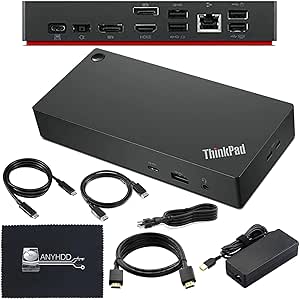 | Best for ThinkPad Workstations | Model: 40AY0090US | Total ports: 11, including 6 USB ports | Display outputs: 1 HDMI and DisplayPort | VIEW LATEST PRICE | See Our Full Breakdown |
| Anker Nano 13-in-1 Laptop Docking Station with Detachable 6-in-1 USB-C Hub |  | Best for Desk-to-Travel Flexibility | Total ports: 13 | Display outputs: 2 HDMI and 1 DisplayPort | Maximum display support: Single 4K at 60Hz, dual 2K at 60Hz, or triple 1080p at 60Hz | VIEW LATEST PRICE | See Our Full Breakdown |
| Plugable 13-in-1 USB-C Triple Monitor Docking Station with 100W Charging |  | Best for Mixed-OS Triple-Monitor Setups | Total ports: 13 | HDMI outputs: 3 | HDMI 1 resolution: Up to 4K at 30Hz | VIEW LATEST PRICE | See Our Full Breakdown |
| HP USB-C 100W G6 Dock with Extra USB-C Cable |  | Best for High-Refresh HDMI Workstations | Model: USB-C 100W G6 Dock | Model number: BS7S9AA#ABA | Power delivery: Up to 100W | VIEW LATEST PRICE | See Our Full Breakdown |
| Plugable USB-C Triple Display Docking Station with 100W Power Delivery |  | Best for Windows Triple-Display Desks | Hardware interface: USB Type-C | Display outputs: 3 HDMI: 1× 4K at 30Hz and 2× 1080p at 60Hz | USB ports: 6 | VIEW LATEST PRICE | See Our Full Breakdown |
| Plugable USB 3.0 Universal Laptop Docking Station with Dual HDMI |  | Best for Older USB-A Laptops | Model: UD-3900 | Connection: USB 3.0 or USB-C | Video outputs: 2× HDMI | VIEW LATEST PRICE | See Our Full Breakdown |
| Anker 8-in-1 USB-C Docking Station with Dual HDMI |  | Best Compact Dock for USB-C Laptops | Port count: 8 | Connection compatibility: USB-C, USB4, and Thunderbolt | HDMI outputs: 2 | VIEW LATEST PRICE | See Our Full Breakdown |
| Dell Universal Dock D6000S |  | Best for Mixed USB-A and USB-C Workstations | Model: D6000S | Laptop connectivity: USB-C and USB-A | Total ports: 6 | VIEW LATEST PRICE | See Our Full Breakdown |
| Acer 9-in-1 USB-C Docking Station with Dual HDMI |  | Best for Dual 4K 60Hz Monitors | Port selection: 2× HDMI, 3× USB-A, 1× USB-C, SD, and microSD | Monitor support: Dual 4K at 60Hz | USB data rate: Up to 5Gbps | VIEW LATEST PRICE | See Our Full Breakdown |
| MOKiN 14-in-1 USB-C Laptop Docking Station |  | Best for Port-Dense Desk Setups | Total ports: 14 | Video outputs: 2× HDMI and 2× DisplayPort | External displays: Up to three, per product highlights | VIEW LATEST PRICE | See Our Full Breakdown |
| Selore 17-in-1 USB-C Docking Station with Triple 4K Display Support |  | Best for Windows Multi-Monitor Workstations | Total ports: 17 | Video outputs: 3 HDMI and 2 DisplayPort | Display support: First two displays up to 4K at 60Hz; third up to 4K at 30Hz | VIEW LATEST PRICE | See Our Full Breakdown |
| Plugable Thunderbolt 4 Dock with 100W Charging and Dual Monitor Support |  | Best for Thunderbolt 4 Developers | Interface: Thunderbolt 4 | Total ports: 13 | USB ports: 6 | VIEW LATEST PRICE | See Our Full Breakdown |
| WAVLINK DisplayLink Docking Station for Mac and Windows, Triple Monitor |  | Best for Triple Displays Across Mixed Platforms | Total ports: 15 | Display support: Up to 3: one 4K at 60Hz HDMI plus two 2K at 60Hz HDMI/DisplayPort | Power delivery: Up to 100W | VIEW LATEST PRICE | See Our Full Breakdown |
| Dell Pro WD25 USB-C Docking Station |  | Best for Managed Linux and Windows Fleets | Connection: USB-C | Total ports: 10 | USB ports: 6 | VIEW LATEST PRICE | See Our Full Breakdown |
| WAVLINK DisplayLink Docking Station for Dual 4K Monitors |  | Best Compact Dock for Dual 4K Without Laptop Charging | Display support: Up to 2 monitors at 4K and 60Hz | Video ports: 2 HDMI and 2 DisplayPort | USB ports: 6 USB 3.0 Type-A | VIEW LATEST PRICE | See Our Full Breakdown |
| developer laptop docking station | Total ports | USB ports |
|---|---|---|
| Lenovo ThinkPad Universal USB- | 11, including 6 USB ports | — |
| Anker Nano 13-in-1 Laptop Dock | 13 | — |
| Plugable 13-in-1 USB-C Triple | 13 | — |
| HP USB-C 100W G6 Dock with Ext | 10 | 5 |
| Plugable USB-C Triple Display | — | 6 |
| Plugable USB 3.0 Universal Lap | — | 2× USB 3.0 and 4× USB 2.0 |
| Anker 8-in-1 USB-C Docking Sta | — | — |
| Dell Universal Dock D6000S | 6 | 5 |
| Acer 9-in-1 USB-C Docking Stat | — | — |
| MOKiN 14-in-1 USB-C Laptop Doc | 14 | 2× USB-C 3.0 and 3× USB-A |
| Selore 17-in-1 USB-C Docking S | 17 | 5; data transfer up to 10Gbps |
| Plugable Thunderbolt 4 Dock wi | 13 | 6 |
| WAVLINK DisplayLink Docking St | 15 | 6 total: 2 USB-C and 4 USB-A, up to 10Gbps |
| Dell Pro WD25 USB-C Docking St | 10 | 6 |
| WAVLINK DisplayLink Docking St | — | 6 USB 3.0 Type-A |
More Details on Our Top Picks
Lenovo ThinkPad Universal USB-C Docking Station with 90W Adapter
The Lenovo ThinkPad Universal USB-C Dock is a sensible desk anchor for developers using a compatible ThinkPad who want common peripherals and two kinds of display output in one setup. Its 11 ports, Gigabit Ethernet connectivity, and included 90W adapter suit a workstation that stays plugged in through long coding sessions. HDMI and DisplayPort cables are included, which makes it easier to connect an existing monitor without adding accessories. Compared with the HP USB-C 100W G6 Dock, this Lenovo supplies less laptop power and lacks its stated HDMI 2.1 4K-at-120Hz support; its appeal is a ThinkPad-focused fit and useful cable bundle. The tradeoff is compatibility: the computer must support USB-C or Thunderbolt, and firmware updates may be needed. I would choose it for a compatible ThinkPad desk, not as a universal guarantee for every laptop.
Pros:- 11 ports, including six USB ports and Ethernet, support a multi-peripheral coding desk.
- HDMI and DisplayPort outputs accommodate common monitor connections.
- 90W adapter provides laptop power through the dock.
- Includes USB-C, HDMI, and DisplayPort cables.
Cons:- Compatibility depends on the laptop supporting USB-C or Thunderbolt and may require firmware updates.
- 90W power delivery is lower than the 100W offered by the HP USB-C 100W G6 Dock and several other picks.
- The listed operating-system compatibility is Windows 10, narrower than options that list macOS or ChromeOS.
Best for: Developers with a compatible ThinkPad who want a permanent desk connection for monitors, USB accessories, and wired Ethernet.
Not ideal for: Owners of laptops without compatible USB-C or Thunderbolt support, or users seeking higher-power delivery and HDMI 2.1 video features.
- Model:40AY0090US
- Total ports:11, including 6 USB ports
- Display outputs:1 HDMI and DisplayPort
- Maximum display resolution:4K
- Power adapter:90W
- Compatibility:Select Lenovo ThinkPad models; USB-C or Thunderbolt support required
- Operating system:Windows 10
- Included accessories:USB-C cable, 4K HDMI cable, 4K DisplayPort cable, microfiber cloth
Our verdict“Choose this dock for a compatible ThinkPad desk setup where the included cables and broad port selection matter more than 100W charging.”
Anker Nano 13-in-1 Laptop Docking Station with Detachable 6-in-1 USB-C Hub
The Anker Nano’s defining advantage is that its 6-in-1 USB-C hub detaches from the 13-in-1 desk dock, so developers can leave the larger connection setup at a workstation and take a smaller hub on the road. At the desk, it offers three display outputs, Gigabit Ethernet, SD and TF card slots, and up to 100W laptop charging from a 140W adapter. Data transfer reaches 10Gbps, useful for moving project files to compatible peripherals. Unlike the Plugable 13-in-1 Triple Monitor Dock, this Anker lists HDMI and DisplayPort outputs and does not specify DisplayLink software for multi-display macOS use. The key limitation is macOS display behavior: external screens mirror the same image rather than extending separate desktops. It also needs a connected laptop to activate, so it is not a standalone charging hub.
Pros:- Detachable 6-in-1 hub can travel separately from the desktop dock.
- Three display outputs support up to one 4K 60Hz display, two 2K 60Hz displays, or three 1080p 60Hz displays.
- Up to 100W laptop charging with a 140W power adapter included.
- Adds Gigabit Ethernet, SD and TF card slots, and USB data transfer up to 10Gbps.
Cons:- macOS mirrors the same image across external displays rather than extending separate desktops.
- The dock requires a connected laptop to activate.
- Its maximum multi-display resolution is lower than a single 4K display when several screens are connected.
Best for: Developers who split time between a home or office desk and travel, and want one portable hub to serve both setups.
Not ideal for: Mac developers who need separate extended desktops across multiple external monitors, or anyone wanting the dock to operate without a connected laptop.
- Total ports:13
- Display outputs:2 HDMI and 1 DisplayPort
- Maximum display support:Single 4K at 60Hz, dual 2K at 60Hz, or triple 1080p at 60Hz
- USB-C data transfer:Up to 10Gbps
- Maximum power delivery:100W
- Included power adapter:140W
- Compatibility:USB-C and Thunderbolt 3, 4, and 5 laptops
- Operating systems:macOS 13 Ventura and Windows 10
- Dimensions:3.74 × 1.57 × 5.51 inches
Our verdict“Pick the Anker Nano if you want a dock that can become a travel hub, provided macOS mirroring meets your display needs.”
Plugable 13-in-1 USB-C Triple Monitor Docking Station with 100W Charging
For a developer who wants three monitors and switches among Windows, macOS, and ChromeOS machines, the Plugable 13-in-1 offers unusually broad listed OS support. It adds three HDMI outputs, Gigabit Ethernet, an SD card reader, audio connections, and up to 100W laptop charging, with a separate 20W front USB-C port for a device. Its display limits matter: HDMI 1 reaches 4K at 30Hz, while HDMI 2 and 3 top out at 1920×1200 at 60Hz. That makes it more useful for code, terminals, and reference windows than a high-refresh visual workstation. Compared with the Anker Nano 13-in-1, it offers three HDMI connections and clearly stated DisplayLink support for multiple macOS displays, but requires software installation on Mac and does not support HDCP-protected streaming. I would favor it when screen count and OS breadth outweigh those limits.
Pros:- Three HDMI outputs support a multi-screen coding workspace.
- Lists compatibility with Windows, macOS, and ChromeOS systems using USB-C, USB4, or Thunderbolt.
- Provides up to 100W laptop charging and a separate 20W front USB-C charging port.
- Includes Gigabit Ethernet, SD card reader, USB ports, and audio in/out.
Cons:- Multiple displays on macOS require DisplayLink software.
- HDMI 1 is limited to 4K at 30Hz, while HDMI 2 and 3 are limited to 1920×1200 at 60Hz.
- Does not support HDCP-protected playback such as Netflix or Hulu.
Best for: Developers who use Windows, macOS, or ChromeOS and want three extended HDMI screens for code, documentation, and monitoring tools.
Not ideal for: Mac users who prefer not to install DisplayLink, or developers who need HDCP-protected video playback or high-refresh 4K across their displays.
- Total ports:13
- HDMI outputs:3
- HDMI 1 resolution:Up to 4K at 30Hz
- HDMI 2 and 3 resolution:Up to 1920×1200 at 60Hz
- Laptop charging:Up to 100W
- Front USB-C charging:20W
- Connectivity:Gigabit Ethernet, SD card reader, audio in/out
- Compatibility:Windows 10+, macOS 11+, ChromeOS; USB-C, USB4, Thunderbolt
- Weight:400 g
Our verdict“Choose this Plugable model for a three-screen, mixed-OS developer desk if its display limits and macOS software requirement fit your workflow.”
HP USB-C 100W G6 Dock with Extra USB-C Cable
The HP USB-C 100W G6 is the pick for a developer who values a clean single-cable desk and wants a stated high-refresh HDMI connection. Its HDMI 2.1 port supports 4K at up to 120Hz, while 2.5 Gbps Ethernet can serve faster wired networks than the Gigabit ports specified for the Anker Nano and Plugable docks here. Up to 100W power delivery, five USB ports, and LED status notifications round out a practical workstation setup. Compared with the Lenovo ThinkPad Universal USB-C Dock, HP offers more power and a much higher stated HDMI refresh rate, while Lenovo includes both HDMI and DisplayPort cables. HP lists 10 total ports, but only one HDMI output is specified, so it is less suited to a multi-monitor plan than the triple-display Plugable options. Its compatibility still depends on a USB-C or Thunderbolt laptop.
Pros:- Up to 100W power delivery supports a single-cable laptop desk setup.
- HDMI 2.1 supports 4K at up to 120Hz.
- 2.5 Gbps Ethernet exceeds the Gigabit Ethernet specified on several alternatives in this roundup.
- Compact design includes LED status notifications and replaceable components.
Cons:- Only one HDMI port is specified, making it less suited to multi-monitor setups than the triple-display Plugable docks.
- Requires a compatible USB-C or Thunderbolt laptop.
- The listed warranty is one year.
Best for: Developers with a compatible USB-C or Thunderbolt laptop who want one-cable charging, fast Ethernet, and a high-refresh 4K HDMI display.
Not ideal for: Developers who need several specified display outputs, or buyers whose laptop lacks compatible USB-C or Thunderbolt connectivity.
- Model:USB-C 100W G6 Dock
- Model number:BS7S9AA#ABA
- Power delivery:Up to 100W
- HDMI:1 HDMI 2.1 port; 4K at up to 120Hz
- Ethernet:RJ-45, 2.5 Gbps
- Total ports:10
- USB ports:5
- Compatibility:USB-C and Thunderbolt laptops
- Weight:1.5 pounds
Our verdict“Choose the HP G6 if your developer setup centers on one high-refresh 4K HDMI monitor and faster-than-Gigabit Ethernet.”
Plugable USB-C Triple Display Docking Station with 100W Power Delivery
This Plugable dock suits developers who want three HDMI screens and a straightforward collection of desktop connections, with up to 100W USB-C charging for the host laptop. Its display arrangement supports one 4K screen at 30Hz plus two 1080p screens at 60Hz, a useful split for code, logs, and browser references rather than smooth 4K motion. Six USB ports, Gigabit Ethernet, and audio connectivity help reduce the need for separate adapters. Compared with the similarly named Plugable 13-in-1 USB-C Triple Monitor Dock, this model lists six USB ports and a compact footprint, while the 13-in-1 specifies an SD reader and a 20W front USB-C charging port. The limits are decisive: this dock does not support Linux or HDCP-protected playback. Its Windows, macOS, and ChromeOS support makes it broader than Linux-only compatibility, but Linux developers should skip it.
Pros:- Supports up to three HDMI displays, including one 4K at 30Hz and two 1080p at 60Hz.
- Provides up to 100W USB-C host charging.
- Six USB ports, Gigabit Ethernet, and audio connectivity support a full desk setup.
- Works with listed USB-C, USB4, and Thunderbolt systems across Windows, macOS, and ChromeOS.
Cons:- Not compatible with Linux.
- HDCP is not supported, limiting protected streaming playback.
- The 4K output is limited to 30Hz, and the other two display outputs are limited to 1080p at 60Hz.
Best for: Windows, macOS, or ChromeOS developers who need three HDMI-connected screens, 100W laptop power, and multiple USB peripherals.
Not ideal for: Linux developers and users who need HDCP-protected streaming or three high-resolution, high-refresh displays.
- Hardware interface:USB Type-C
- Display outputs:3 HDMI: 1× 4K at 30Hz and 2× 1080p at 60Hz
- USB ports:6
- Power delivery:100W
- Ethernet:Gigabit
- Compatible operating systems:Windows 10/11, macOS 11 or later, ChromeOS 100 or later
- Limitations:Not compatible with Linux; HDCP not supported
- Dimensions:3.3 × 7.9 × 1.2 inches
- Weight:332 g
Our verdict“Pick this Plugable dock for a three-HDMI developer workstation on Windows, macOS, or ChromeOS, but not for Linux or protected video playback.”
Plugable USB 3.0 Universal Laptop Docking Station with Dual HDMI
I’d choose the Plugable UD-3900 when a developer needs a dependable desk setup for coding, documentation, and browser work but has an older laptop without USB-C. Its USB-A connection and six USB ports, Gigabit Ethernet, and dual HDMI make it more useful for peripheral-heavy work than a basic adapter. The tradeoff is its dated display ceiling: it supports dual displays up to 1920×1200, not 4K, and does not charge the laptop. Compared with the Anker 8-in-1 USB-C Docking Station, this Plugable has broader legacy connectivity but gives up sharper displays and power delivery. macOS requires driver installation, Linux is unsupported, and protected video content may not play. I’d reserve it for coding desks where compatibility with older USB-A systems matters more than high-resolution monitors.
Pros:- USB-A and USB-C connectivity supports a range of laptop generations.
- Six USB ports, Gigabit Ethernet, and audio jacks suit a desk with several peripherals.
- Supports two external HDMI displays for coding and reference windows.
- Includes two-year coverage and lifetime support.
Cons:- Dual displays are limited to 1920×1200, with no 4K support.
- Does not supply power to the connected laptop.
- macOS requires driver installation, and Linux is unsupported.
Best for: Developers using a Windows, macOS, or ChromeOS laptop with USB-A who want dual productivity monitors, wired networking, and several peripheral connections.
Not ideal for: Linux users, developers who need 4K displays or laptop charging, and anyone relying on HDCP-protected streaming content.
- Model:UD-3900
- Connection:USB 3.0 or USB-C
- Video outputs:2× HDMI
- Maximum dual-display resolution:1920×1200 at 60Hz
- USB ports:2× USB 3.0 and 4× USB 2.0
- Networking:Gigabit Ethernet
- Audio:3.5mm headphone and microphone jacks
- Host charging:Not supported
Our verdict“Choose this Plugable for a USB-A developer laptop and a practical dual-display desk, but skip it if 4K or host charging is part of the setup.”
Anker 8-in-1 USB-C Docking Station with Dual HDMI
The Anker 8-in-1 suits developers who want a small, travel-friendly connection point for an external display, network cable, and removable storage. With one display, it supports 4K at 60Hz; two HDMI connections support up to 4K at 30Hz, which is more resolution flexibility than the older Plugable UD-3900 offers. Its SD and microSD readers are handy for moving files, while up to 85W pass-through charging can reduce desk clutter if you already have a suitable charger. The main catch is platform behavior: macOS mirrors the external displays, rather than extending them independently, and Linux is unsupported. The larger Acer 9-in-1 offers dual 4K at 60Hz, making it the better fit for high-refresh dual-monitor work, but the Anker’s compact 3.2-ounce body is easier to carry.
Pros:- Supports a single external display at up to 4K 60Hz.
- Combines HDMI, Gigabit Ethernet, USB-A, and SD and microSD readers.
- Provides up to 85W pass-through charging with a compatible power setup.
- Lightweight design is easier to pack than a full-size desk dock.
Cons:- Two connected displays are limited to 4K 30Hz and mirror on macOS.
- Linux is not supported.
- A 100W power adapter and USB-C cable are required but not included.
Best for: Developers with a USB-C, USB4, or Thunderbolt laptop who want a portable hub for one high-resolution monitor, wired networking, card readers, and charging pass-through.
Not ideal for: Linux users, Mac developers who need separate extended desktops on two external monitors, and buyers who need a charger included.
- Port count:8
- Connection compatibility:USB-C, USB4, and Thunderbolt
- HDMI outputs:2
- Maximum display support:One display at 4K 60Hz or two at 4K 30Hz
- USB-A data ports:2
- Networking:1Gbps Ethernet
- Power delivery:Up to 85W pass-through
- Card readers:SD and microSD
- Weight:3.2 ounces
Our verdict“Pick the Anker for a compact USB-C travel dock and one sharp external display, but choose the Acer if dual 4K 60Hz monitors are the priority.”
Dell Universal Dock D6000S
The Dell Universal Dock D6000S is the most flexible pick here for a developer desk that needs to accommodate laptops with different connection types. Its USB-C and USB-A support can make shared office setups simpler than a dock tied to one port standard, and Dell lists support for up to three 4K displays. That multi-monitor capacity gives it a different role from the two-HDMI Anker and Acer docks, which are more straightforward choices for dual-screen desks. The supplied information lists only one HDMI port, however, so buyers should check which display connections their monitors and laptop require rather than assume a three-HDMI setup. The dock has five USB ports and 65W power, but the available details don’t specify the display connection mix or charging conditions. I’d favor it for flexible mixed-laptop workstations, not for buyers who want clearly documented dual-HDMI behavior.
Pros:- USB-A and USB-C connectivity accommodates a range of laptop ports.
- Supports up to three 4K displays according to the product details.
- Five USB ports provide room for common desk peripherals.
- Compact listed dimensions suit a fixed workstation with limited desk space.
Cons:- Only one HDMI port is listed, so monitor connection needs may require other cable types.
- The supplied details do not specify multi-display connection combinations or resolution behavior.
- Listed power is 65W, which may not suit every higher-power laptop.
Best for: Development teams or home offices that connect different USB-A and USB-C laptops and want support for a multi-monitor workspace.
Not ideal for: Buyers who require several HDMI ports, clearly specified multi-display resolutions, or more than 65W of listed power.
- Model:D6000S
- Laptop connectivity:USB-C and USB-A
- Total ports:6
- USB ports:5
- Listed HDMI ports:1
- Maximum display support:Up to three 4K displays
- Power:65W
- Weight:13.4 ounces
- Warranty:1-year limited hardware warranty
Our verdict“Choose the Dell for a mixed-port workstation that values broad laptop compatibility and multi-display support, after confirming the video connections match your monitors.”
Acer 9-in-1 USB-C Docking Station with Dual HDMI
For a developer who wants two crisp external screens without stepping up to a larger multi-output dock, the Acer 9-in-1 is the clearest fit in this group. It supports dual 4K at 60Hz, a stronger dual-monitor specification than the Anker’s 4K at 30Hz when both HDMI outputs are in use. Three USB-A ports, USB-C data, and SD and microSD readers also cover common desk and file-transfer needs, while up to 90W laptop charging can keep a compatible system powered through the dock. That charging depends on an external adapter, which is not included. The built-in cable is short, and the laptop must have USB-C DisplayPort Alt Mode. Mac users should also note that external displays mirror, limiting its appeal for a true extended desktop. For Windows dual-screen coding, its display capability stands out.
Pros:- Supports two 4K displays at 60Hz.
- Delivers up to 90W laptop charging with a compatible power adapter.
- Includes three USB-A ports, USB-C data, and SD and microSD readers.
- Aluminum enclosure provides a more substantial build than a basic plastic hub.
Cons:- Requires a full-featured USB-C port with DisplayPort Alt Mode.
- The 100W power adapter is not included.
- External displays mirror on macOS rather than providing separate desktops.
Best for: Windows developers with a USB-C DisplayPort Alt Mode laptop who want two 4K 60Hz monitors, peripheral ports, and laptop charging from one compact dock.
Not ideal for: Mac developers who need separate external desktops, users without DisplayPort Alt Mode over USB-C, and buyers who expect a power adapter in the box.
- Port selection:2× HDMI, 3× USB-A, 1× USB-C, SD, and microSD
- Monitor support:Dual 4K at 60Hz
- USB data rate:Up to 5Gbps
- Card reader speed:Up to 104Mbps
- Power input:Up to 100W
- Laptop charging output:Up to 90W
- Host requirement:USB-C with DisplayPort Alt Mode
- Built-in cable length:0.65 ft
Our verdict“Choose the Acer for a Windows laptop and dual 4K 60Hz desk, but skip it if you need independent external displays on macOS or lack a compatible USB-C port.”
MOKiN 14-in-1 USB-C Laptop Docking Station
The MOKiN 14-in-1 is aimed at developers who want one dock to connect several monitors, wired networking, removable storage, and a mix of USB peripherals. Its combination of two HDMI and two DisplayPort outputs offers more connection variety than the dual-HDMI Acer, while Gigabit Ethernet and up to 100W USB-C power delivery add useful desk functions. The product highlights support for up to three external displays, but it does not provide specific multi-display resolution details; I’d verify the intended display arrangement before buying. It also requires Thunderbolt 3 or 4, or a full-function USB-C port, and macOS mirrors the same image across connected monitors. Compared with the Dell D6000S, this MOKiN lists more display connectors and ports, but the Dell offers USB-A laptop connectivity. A charger is not included.
Pros:- Four video outputs provide HDMI and DisplayPort connection options.
- Broad port selection includes USB-C, USB-A, Ethernet, SD, and microSD.
- Supports up to 100W USB-C power delivery with a compatible charger.
- Screen lock button can quickly turn off connected displays.
Cons:- Requires Thunderbolt 3/4 or a full-function USB-C port.
- macOS mirrors the same image across connected external monitors.
- Charger is not included, and multi-display resolution details are not specified.
Best for: Developers with a compatible USB-C or Thunderbolt laptop who need varied display connections, Gigabit Ethernet, card readers, and many attached peripherals at one desk.
Not ideal for: Mac users who need independent extended desktops, owners of laptops without full-function USB-C or Thunderbolt, and buyers seeking clearly specified multi-monitor resolutions or an included charger.
- Total ports:14
- Video outputs:2× HDMI and 2× DisplayPort
- External displays:Up to three, per product highlights
- USB ports:2× USB-C 3.0 and 3× USB-A
- Networking:1000Mbps RJ45 Ethernet
- Card readers:SD and microSD
- Power delivery:Up to 100W USB-C; charger not included
- USB data rate:Up to 5Gbps
- Host compatibility:Thunderbolt 3/4 or full-function USB-C; Windows and macOS
Our verdict“Pick the MOKiN for a compatible laptop and a port-heavy desk with mixed HDMI and DisplayPort monitors, but verify display behavior before relying on a multi-screen layout.”
Selore 17-in-1 USB-C Docking Station with Triple 4K Display Support
I’d shortlist the Selore 17-in-1 for developers who want to attach several displays and varied peripherals without filling a desk with adapters. Its five video outputs give compatible Windows laptops flexibility to run three extended displays, while Ethernet and SD and microSD readers help consolidate network and media connections. Compared with the Plugable Thunderbolt 4 Dock, Selore offers more video-output choices, but its third display tops out at 4K at 30Hz and it lacks the specified 40Gbps Thunderbolt connection. The tradeoff is especially relevant for Mac users: macOS does not provide three independent extended displays through this dock. Laptop power reaches approximately 85W, and the required charger is sold separately, so I’d favor this for a Windows desk setup over a simple, fully equipped one-cable charging station.
Pros:- Supports three extended displays on compatible Windows laptops.
- Five HDMI and DisplayPort outputs offer flexible monitor connections.
- Includes Gigabit Ethernet and SD and microSD card readers.
- USB data transfer reaches up to 10Gbps.
Cons:- macOS is limited to mirroring or one extended display.
- The third display is limited to 4K at 30Hz.
- Power adapter is sold separately; an 87W-or-higher charger is recommended.
Best for: Windows developers who need three extended monitors, wired networking, and built-in SD and microSD readers at one workstation.
Not ideal for: Mac users who need three independent external displays, or developers who require a supplied power adapter and 4K at 60Hz on every screen.
- Total ports:17
- Video outputs:3 HDMI and 2 DisplayPort
- Display support:First two displays up to 4K at 60Hz; third up to 4K at 30Hz
- USB ports:5; data transfer up to 10Gbps
- Ethernet:Gigabit
- Card readers:SD 3.0 and microSD 3.0, up to 104MB/s
- Laptop power output:Approximately 85W
- Compatibility:USB-C and Thunderbolt laptops running Windows, macOS, or Chrome OS
Our verdict“Choose Selore for a Windows developer workstation that needs broad display and peripheral connectivity, but skip it if you need three extended screens on macOS or an included charger.”
Plugable Thunderbolt 4 Dock with 100W Charging and Dual Monitor Support
For a developer whose laptop supports Thunderbolt 4, I’d put this Plugable dock ahead of a general USB-C hub when fast host connectivity and dependable desk power are the priority. It combines 40Gbps Thunderbolt 4, up to 100W host charging, and a useful 13-port spread, with dual 4K at 60Hz or a single 8K display on compatible systems. The dedicated Thunderbolt connection also separates it from the Selore 17-in-1, which offers more video sockets and card readers but does not specify Thunderbolt 4 speeds. The catch is host compatibility: some computers support only one external display, and base M3 Macs need clamshell mode for dual displays. At 2.4 pounds, it is also better suited to a fixed desk than a lightweight travel kit.
Pros:- Thunderbolt 4 provides up to 40Gbps connection speed.
- Delivers up to 100W host charging, with 96W certified.
- Supports dual 4K at 60Hz or a single 8K display on compatible systems.
- Thirteen ports include USB, HDMI, Ethernet, card readers, and audio.
Cons:- Display capability depends on the host; some systems allow only one external display.
- Base M3 Macs need clamshell mode for dual displays.
- At 2.4 pounds, it is less convenient for frequent travel.
Best for: Developers with a Thunderbolt 4 laptop who want high-speed peripherals, strong host charging, and a dual-monitor desk setup.
Not ideal for: Owners of systems with limited external-display support, or developers seeking a lightweight dock for regular travel.
- Interface:Thunderbolt 4
- Total ports:13
- USB ports:6
- Display support:Dual 4K at 60Hz or single 8K, depending on host compatibility
- Host charging:Up to 100W; 96W certified
- Thunderbolt speed:40Gbps
- Ethernet:Gigabit
- Dimensions and weight:8.9 × 3.3 × 0.9 in; 2.4 lb
Our verdict“Pick this Plugable dock for a Thunderbolt 4 desk where speed and charging matter more than portability, after checking your laptop’s display limits.”
WAVLINK DisplayLink Docking Station for Mac and Windows, Triple Monitor
The WAVLINK DisplayLink dock is the lineup’s clearest fit for a developer who needs three external displays and is willing to install a driver to get them. It can drive one 4K display at 60Hz plus two 2K displays at 60Hz, and pairs that setup with 100W laptop charging, six 10Gbps USB ports, and Gigabit Ethernet. Compared with the Selore 17-in-1, it offers a supplied 130W adapter and fast USB ports, but fewer display connections and no listed SD or microSD readers. Mac owners should plan for the DisplayLink driver and USB-C video output; this is not a plug-and-play route to extra screens. I’d also avoid it for gaming or protected 4K streaming, where its stated limitations matter more than its monitor count.
Pros:- Connects up to three displays, including one 4K at 60Hz and two 2K at 60Hz.
- Provides up to 100W laptop charging and includes a 130W power adapter.
- Six USB ports support data transfer up to 10Gbps.
- Adds Gigabit Ethernet in a 370g enclosure.
Cons:- M-series Macs require the DisplayLink driver and USB-C video output.
- Not recommended for gaming or HDCP-protected 4K streaming.
- Its display mix is less suited to three high-resolution 4K screens than buyers may expect.
Best for: Developers on compatible Windows or Mac laptops who need three external screens, fast USB peripherals, and laptop charging from one dock.
Not ideal for: Developers who want a driver-free Mac setup, use HDCP-protected 4K streaming, or need a dock suited to gaming.
- Total ports:15
- Display support:Up to 3: one 4K at 60Hz HDMI plus two 2K at 60Hz HDMI/DisplayPort
- Power delivery:Up to 100W
- Included power adapter:130W
- USB ports:6 total: 2 USB-C and 4 USB-A, up to 10Gbps
- Ethernet:Gigabit
- Mac requirement:DisplayLink driver and USB-C video output required
- Dimensions and weight:3.6 × 8.7 × 1 in; 370g
Our verdict“Choose this WAVLINK when three external displays and included power are the priority, provided you accept DisplayLink software and its media and gaming limits.”
Dell Pro WD25 USB-C Docking Station
I’d consider the Dell Pro WD25 for a developer using a supported business laptop where fleet compatibility, centralized device management, and a long warranty matter alongside desk connectivity. It supplies up to 100W power delivery and lists support for up to four high-resolution displays, with USB, DisplayPort, HDMI, and Ethernet in a compact 1.2-pound chassis. Its documented operating-system list, including Ubuntu 24.04 and Red Hat Enterprise Linux 9.6 and later, makes it a more specific option for Linux environments than the WAVLINK dual-4K DisplayLink dock, which explicitly excludes Linux. The WD25 provides only one HDMI port, though, so multi-monitor setups may depend on the other video outputs and host support. Its ten total ports are also a more restrained selection than Selore’s 17, making it less appealing for peripheral-heavy desks.
Pros:- Supports up to four high-resolution displays, subject to system capability.
- Provides up to 100W power delivery for compatible PCs.
- Lists support for Ubuntu 24.04 and Red Hat Enterprise Linux 9.6 and later.
- Includes a three-year limited hardware warranty with Advanced Exchange.
Cons:- Operating-system compatibility varies by computer and software version.
- Only one HDMI port is listed, so display cabling may require other outputs.
- Ten total ports offer less connection variety than Selore’s 17-port dock.
Best for: Developers in Windows or supported Linux business environments who value fleet management, up to four displays, and a three-year limited warranty.
Not ideal for: Developers with unsupported operating systems or desks that need many HDMI sockets and a larger assortment of built-in ports.
- Connection:USB-C
- Total ports:10
- USB ports:6
- Display support:Up to four high-resolution displays
- Power delivery:Up to 100W
- Video and network interfaces:1 HDMI, DisplayPort, and Ethernet
- Compatible operating systems:Windows 10/11, Ubuntu 24.04, Red Hat Enterprise Linux 9.6+, ChromeOS 137
- Dimensions and weight:8.07 × 3.54 × 1.39 in; 1.2 lb
- Warranty and materials:3-year limited hardware warranty with Advanced Exchange; at least 65% postconsumer recycled materials
Our verdict“Choose the Dell WD25 for a supported business laptop fleet that values management and Linux compatibility over a maximal port count.”
WAVLINK DisplayLink Docking Station for Dual 4K Monitors
For a developer who already powers a laptop separately and mainly needs two 4K screens plus desk peripherals, this WAVLINK DisplayLink dock offers a focused, relatively light setup. Its HDMI and DisplayPort options can connect two compatible monitors at 4K and 60Hz, while six USB-A ports, Gigabit Ethernet, and audio handle common desk accessories. Compared with the newer WAVLINK triple-monitor dock, this model gives up a third display, USB-C ports, and laptop charging, but weighs just 8.8 ounces and keeps the setup straightforward for USB-A devices. Video requires DisplayLink software, and the dock is not compatible with Linux or intended for gaming and DRM-protected streaming. I’d treat it as a display and peripheral expander, not as a full one-cable replacement for a powered USB-C dock.
Pros:- Supports two compatible monitors at 4K and 60Hz.
- Provides both HDMI and DisplayPort connection options.
- Six USB 3.0 Type-A ports, Gigabit Ethernet, and a 3.5mm audio jack expand desk connectivity.
- Works with USB-A, USB-C, USB4, and Thunderbolt laptops on supported operating systems.
Cons:- Requires DisplayLink driver installation for video output.
- Does not charge the connected laptop.
- No Linux support; not suited to gaming or DRM-protected streaming.
Best for: Developers with a separate laptop charger who want two 4K monitors, several USB-A accessories, and wired networking on supported Windows, Mac, or ChromeOS systems.
Not ideal for: Linux users, developers who want laptop charging through the dock, or anyone relying on gaming or DRM-protected streaming.
- Display support:Up to 2 monitors at 4K and 60Hz
- Video ports:2 HDMI and 2 DisplayPort
- USB ports:6 USB 3.0 Type-A
- Other ports:Gigabit Ethernet and 3.5mm audio
- Display technology:DisplayLink required for video output
- Laptop charging:Not supported
- Supported operating systems:Windows 10 and later, macOS 11 and later, ChromeOS 100 and later
- Linux compatibility:Not compatible
- Dimensions and weight:8.9 × 3.34 × 1.1 in; 8.8 oz
Our verdict“Pick this WAVLINK if you need two 4K displays and USB-A connectivity while charging separately, but choose a powered dock for a one-cable workstation.”

How We Picked
I ranked these docks around the jobs a developer’s desk asks them to do: connect one or more monitors, charge a laptop, attach keyboards and storage, and keep a work area easy to expand. I gave more weight to connection type, display approach, charging capacity, and practical port mix than to a headline port count. Compatibility matters as much as advertised capability, so I also considered whether a dock relies on USB-C, Thunderbolt, USB 3.0, or DisplayLink and what that can mean for the host laptop.
The order favors options that offer a useful balance for a range of developer setups, then gives specialized docks credit when they solve a narrower need. That puts the Plugable 13-in-1 USB-C near the top for its mix of power and multi-display connectivity, while the Thunderbolt 4 model ranks as a premium fit rather than a universal choice. More expansive docks are not automatically ranked higher: setup requirements, host compatibility, and the risk of paying for unused ports all affect their value. Before choosing, check the dock’s supported display modes and charging needs against the exact laptop model.
Factors to Consider When Choosing Developer Laptop Docking Stations
A dock can simplify a developer’s desk, but the right choice depends on the laptop’s ports, monitor plan, and how much setup flexibility you need. I’d start with the host device and work outward, rather than choosing by port count alone.
Match the Dock’s Connection to Your Laptop
USB-C describes the connector, not a guaranteed set of capabilities. A laptop’s USB-C port may support charging and video, data only, or Thunderbolt-class features, and those differences can change what a dock can do. Check the laptop’s specifications for the exact port standard and supported display output before buying. A Thunderbolt dock can be a strong investment for a compatible machine, but may be an unnecessary or limited fit on a basic USB-C port. If you switch between work and personal laptops, favor a dock whose supported features overlap across both devices.
Plan Displays by Resolution, Refresh Rate, and Operating System
Count more than the number of screens: resolution, refresh rate, and whether you need mirrored or extended desktops all matter. Dock listings may describe several monitors without making every resolution and refresh-rate combination clear. USB-C docks that rely on DisplayPort Alt Mode and docks using DisplayLink can behave differently, especially across operating systems. DisplayLink may enable additional displays, but it typically involves software and may be restricted by workplace security settings. Confirm the exact laptop-and-monitor combination before choosing a triple-display dock, particularly if your workflow depends on smooth graphics or video playback.
Choose Charging Capacity for Your Laptop, Not the Dock Listing
A dock’s advertised power delivery is not always the amount your laptop receives: power can be shared with connected devices, and the host may have its own charging requirement. Compare the laptop’s recommended adapter wattage with the dock’s delivered power, especially for mobile workstations or developer laptops running sustained builds. A lower-power dock may still keep a lightweight laptop charged for office work, but could charge slowly or lose ground under heavier use. If the dock includes a separate power adapter, account for that supply when planning desk space and cable routing. Avoid assuming that a USB-C plug alone guarantees sufficient charging.
Buy Ports for Your Actual Peripherals
List the devices that stay attached: monitors, wired networking, keyboard, mouse, external storage, headset, and any debugging hardware. Then check which ports the dock provides and whether the connection types match your accessories. A large port count can hide a mismatch, such as too few high-speed data ports or no connection you need for a particular display. Developers who frequently attach fast external storage may value suitable high-speed ports more than several low-bandwidth USB connections. Leave some room for new devices, but do not pay in complexity for connections that will remain unused.
Think Through Setup, Drivers, and Shared Desks
A dock that works well on a personal laptop may be less convenient on a managed work machine. DisplayLink software, driver permissions, and operating-system support can affect whether a setup is allowed or easy to maintain. For a shared desk, check whether every user’s laptop can use the same display outputs and receive enough charging power. If you move between machines, a detachable hub or a dock with a simple single-cable connection may save time, though it can offer different capabilities from a full desk dock. Ask IT about software policies before choosing a driver-dependent solution.
Pay More for Capability You Will Use
A premium Thunderbolt dock can make sense when you need fast peripheral connections, higher-capability displays, and a compatible laptop to use them. It is less compelling if your desk has one monitor, a keyboard, and a mouse; a simpler USB-C dock may cover that workload with fewer compatibility questions. Triple-display setups, high-wattage charging, and broad port selection are useful only when your host laptop supports the intended configuration. Think about whether your next laptop is likely to retain the same connection standards, since a dock is most useful when it can serve multiple generations of devices. The best purchase is the least complicated dock that meets your current needs and foreseeable upgrades.
Frequently Asked Questions
Will a USB-C dock run two or three monitors from any developer laptop?
No. The laptop’s USB-C port, graphics hardware, operating system, and the dock’s display technology all affect the result. Some laptops limit the number of external displays even when the dock has several video outputs. DisplayLink docks can provide another route, but they require compatible software and may not be allowed on managed computers. Check the laptop maker’s external-display limits and the dock’s supported display modes before ordering.
Should I choose a Thunderbolt dock or a USB-C dock?
Choose based on the laptop’s port and the work you need it to handle. Thunderbolt can suit compatible systems that connect fast storage, multiple displays, and other high-bandwidth peripherals through one cable. USB-C docks can be a better fit for everyday monitor, network, and accessory connections without requiring Thunderbolt. A Thunderbolt dock may still connect to some USB-C systems with reduced features, so verify compatibility rather than assuming the full feature set will carry over. The premium connection is most useful when your devices and workload can take advantage of it.
Is 100W charging enough for a laptop used for software development?
It depends on the laptop’s power requirement and how it behaves under sustained load. Many thin-and-light laptops can work well with 100W-class charging, while some higher-performance models need more power or may charge more slowly through a dock. The dock may also reserve power for its own operation or connected peripherals, so the available laptop output can differ from the headline figure. Compare the dock’s delivered wattage with the laptop’s supplied adapter rating and manufacturer guidance. If your laptop draws more than the dock provides, keep its original charger available.
Can I use a DisplayLink dock on a company-managed laptop?
Possibly, but workplace rules can decide the answer. DisplayLink normally relies on software, and managed laptops may block installations or require administrator approval. Ask your IT team before buying, and confirm the software supports your operating system and required display arrangement. If software installation is restricted, a dock that uses the laptop’s native USB-C or Thunderbolt video support may be simpler. Also check whether your work involves graphics-sensitive tasks that could be better served by a native display connection.
What should I check before buying a dock for a laptop I may replace soon?
Start with the connection standard you expect to keep using, then check charging and display support on both your current and likely replacement laptops. A dock with broad USB-C compatibility can be easier to reuse, while Thunderbolt may make more sense if both machines support it and you need its added bandwidth. Confirm that your monitors connect through outputs the new laptop can drive at your chosen resolution and refresh rate. Also consider whether the dock’s power delivery will suit a more demanding future laptop. If the next device is uncertain, avoid paying for specialized capabilities until you know they match your plans.
Conclusion
For a broadly useful developer desk, I’d choose the Plugable 13-in-1 USB-C Triple Monitor Dock as best overall, provided its display approach matches the laptop. The best value depends on how many screens and peripherals you actually use; the Plugable USB 3.0 Universal Dock is a simpler fit for basic dual-display needs, while the Anker 8-in-1 keeps a more compact USB-C setup focused. For the best premium option, the Plugable Thunderbolt 4 Dock suits compatible laptops and bandwidth-heavy desks. Beginners can start with the Lenovo ThinkPad Universal USB-C Dock for a more straightforward workstation, after checking laptop compatibility. For specific needs, pick a WAVLINK DisplayLink model when its software-based multi-monitor support suits your system, or the Selore 17-in-1 when a wide range of connections is the priority. The deciding check for every buyer is the same: match the dock’s display and charging capabilities to the exact laptop, not just the number of ports.