For most remote developers, I’d start with the Logitech MX Brio: its 4K image and flexible controls suit frequent calls and screen sharing. The Insta360 Link 2 adds motorized tracking for people who move around, while the Logitech C920S Pro is a simpler 1080p pick for a fixed desk setup. The main tradeoff is between sharper video and features such as tracking, lighting, and easy privacy controls. Your room, monitor placement, and meeting habits matter as much as resolution. Read on for how all 15 options compare and which one fits your workday.

Get business pricing on monitors, keyboards and dev gear
- Business-only prices and quantity discounts
- Tax-exempt purchasing
- Multiple users, one account, clear invoices
Complete the kit

Key Takeaways
- The MX Brio is the strongest all-around fit for developers who want 4K detail and adjustable controls without relying on motorized tracking.
- The Insta360 Link 2 and OBSBOT Tiny 2 Lite add active framing; that helps presenters who move, but adds complexity compared with fixed webcams.
- The C920S Pro shows why 4K is not a default requirement: a stable 1080p image can suit a fixed desk and routine team calls.
- Several models bundle lighting, remotes, or multiple views, but those extras matter most when they solve a real room or framing problem.
- Privacy and setup differ across the lineup: built-in covers or shutters appear on some models, while others emphasize lighting, microphones, or zoom controls.
| 4K USB Webcam with Autofocus, Fill Light, Microphone, and Adjustable Gooseneck Stand |  | Best for Document Sharing and Desk Work | Resolution: UHD 4K | Sensor: 1/2.55-inch CMOS | Focus: Autofocus | VIEW LATEST PRICE | See Our Full Breakdown |
| Insta360 Link 2 4K PTZ Webcam |  | Best Premium Pick | Resolution: 4K | Sensor: 1/2-inch | Autofocus: Phase Detection Auto Focus (PDAF) | VIEW LATEST PRICE | See Our Full Breakdown |
| NexiGo N950P (Gen 2) 4K Webcam with RF Remote and 5× Digital Zoom |  | Best Value 4K | Video resolution: 4K at 30 fps (8.29 MP) | Sensor: 1/2.5-inch CMOS | Zoom: 5× digital (1080p only) | VIEW LATEST PRICE | See Our Full Breakdown |
| 4K Webcam with Ring Light and Built-In Microphones |  | Best for Low-Light Home Offices | Resolution: 4K at 30 fps; 1080p at 60 fps | Sensor: 1/2.5-inch CMOS | Focus: TOF autofocus | VIEW LATEST PRICE | See Our Full Breakdown |
| Logitech MX Brio Ultra HD 4K Webcam | 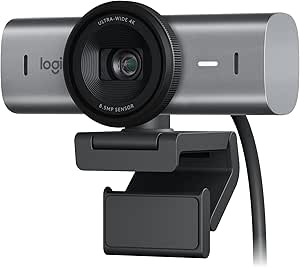 | Best Overall | Max resolution: 4K at 30 fps | Alternative mode: 1080p at 60 fps | Connection: USB-C | VIEW LATEST PRICE | See Our Full Breakdown |
| XOCLON Full HD 1080P Webcam with Microphone |  | Best Budget Starter Pick | Resolution: 1080p Full HD | Frame rate: 30 fps | Microphone: Built-in noise-canceling | VIEW LATEST PRICE | See Our Full Breakdown |
| Logitech Brio 101 Full HD 1080p Webcam |  | Best No-Fuss Privacy Pick | Resolution: Full HD 1080p | Connection: USB-A | Microphone: Built-in | VIEW LATEST PRICE | See Our Full Breakdown |
| Logitech C920S Pro HD Webcam, 1080p |  | Best All-Around 1080p Workhorse | Resolution: 1080p Full HD | Frame rate: 30 fps | Sensor: CMOS | VIEW LATEST PRICE | See Our Full Breakdown |
| EMEET C60E Dual-Camera 4K Webcam with Wide-Angle and Telephoto Views |  | Best for Whiteboard Demos and Teaching | Sensor: 1/2.8-inch CMOS 4K | Camera views: Wide-angle and telephoto | Zoom: 1× to 11× hybrid (unavailable in 4K/60FPS/YUY2 modes) | VIEW LATEST PRICE | See Our Full Breakdown |
| NexiGo N960E Plus 4K Webcam with Ring Light & RF Remote |  | Best Feature-Packed 4K Pick | Resolution: 4K at 30fps / 1080p at 60fps | Sensor: 1/2.5-inch CMOS | Autofocus: ToF (Time-of-Flight) | VIEW LATEST PRICE | See Our Full Breakdown |
| OBSBOT Tiny 2 Lite 4K PTZ Webcam with AI Tracking |  | Best for Presenters Who Move | Video resolution: 4K at 30 FPS; 1080p at 60 FPS | Sensor: 1/2-inch CMOS | Shooting modes: Landscape, portrait, and upside-down | VIEW LATEST PRICE | See Our Full Breakdown |
| Philips 4K Webcam with Microphone and Privacy Shutter |  | Best for Simple 4K Setup | Resolution: 4K | Microphone: Built-in | Privacy shutter: Physical | VIEW LATEST PRICE | See Our Full Breakdown |
| EMEET C960 1080p Webcam with Dual Microphones and Privacy Cover |  | Best for Wide Desk Views | Resolution: 1920 × 1080 (Full HD) | Field of view: 90° | Focus: Fixed focus | VIEW LATEST PRICE | See Our Full Breakdown |
| Elelink 4K USB Webcam with Autofocus and Dual Noise-Canceling Microphones |  | Best for Clear Calls in Changing Light | Resolution: 4K UHD | Frame rate: 30 FPS | Focus: Autofocus | VIEW LATEST PRICE | See Our Full Breakdown |
| Acer A610 1080p Webcam with Dual Microphones |  | Best for Flexible Budget Desk Setups | Resolution: 1080p Full HD | Microphones: Dual noise-reduction microphones | Field of view: 83° | VIEW LATEST PRICE | See Our Full Breakdown |
| webcams for remote developer | Resolution | Connectivity | Compatibility | Sensor |
|---|---|---|---|---|
| 4K USB Webcam with Autofocus | UHD 4K | USB 2.0/3.0, driver-free | — | 1/2.55-inch CMOS |
| Insta360 Link 2 4K PTZ Webcam | 4K | — | Mac and Windows; Zoom, Teams, Twitch and other major platforms | 1/2-inch |
| NexiGo N950P | — | USB-A and USB-C | — | 1/2.5-inch CMOS |
| 4K Webcam with Ring Light and | 4K at 30 fps; 1080p at 60 fps | — | Windows 7/10/11, macOS 10.6+, Linux | 1/2.5-inch CMOS |
| Logitech MX Brio Ultra HD 4K W | — | — | Windows, macOS, Chrome OS, Linux | — |
| XOCLON Full HD 1080P Webcam wi | 1080p Full HD | USB plug and play | Zoom, Teams, Skype, Google Meet | — |
| Logitech Brio 101 Full HD 1080 | Full HD 1080p | — | Teams, Zoom, Google Meet, Nintendo Switch 2 GameChat | — |
| Logitech C920S Pro HD Webcam | 1080p Full HD | USB | — | CMOS |
| EMEET C60E Dual-Camera 4K Webc | — | USB 2.0 Type-A, plug and play | Windows 10/11 (64-bit), macOS 10.14+, OBS, Twitch, YouTube | 1/2.8-inch CMOS 4K |
| NexiGo N960E Plus 4K Webcam wi | 4K at 30fps / 1080p at 60fps | — | — | 1/2.5-inch CMOS |
| OBSBOT Tiny 2 Lite 4K PTZ Webc | — | USB-C; no Wi-Fi | — | 1/2-inch CMOS |
| Philips 4K Webcam with Microph | 4K | — | Windows and macOS | — |
| EMEET C960 1080p Webcam with D | 1920 × 1080 (Full HD) | USB Type-A with A-to-C adapter | — | — |
| Elelink 4K USB Webcam with Aut | 4K UHD | USB plug and play | Windows, Mac OS, Android | — |
| Acer A610 1080p Webcam with Du | 1080p Full HD | Plug and play; Type-A to Type-C adapter included | Windows 7/8/10/11, Mac OS, and video calling and streaming platforms | — |
More Details on Our Top Picks
4K USB Webcam with Autofocus, Fill Light, Microphone, and Adjustable Gooseneck Stand
Most webcams in this roundup lock you into a fixed monitor-top position, but this model’s 40 cm gooseneck stand changes what’s possible. For a developer who wants to point the camera at a whiteboard, a sketch on paper, or a second monitor during pairing sessions, that flexibility beats the fixed mounts on the Logitech MX Brio or the NexiGo N950P. The six-mode fill light (three warm, three white) also solves a problem the MX Brio handles with software — instead of AI corrections, you get actual physical lighting, which tends to look more natural in a dim home office.
The tradeoff is polish. Video quality is solid 4K with dependable autofocus, but it lacks the AI tracking and HDR of the Insta360 Link 2, and the 110 cm cable can force awkward desk routing if your tower sits under the desk.
Pros:- Flexible 40 cm gooseneck stand enables document and whiteboard sharing
- Six-mode fill light provides real physical lighting correction
- Driver-free plug-and-play over USB 2.0 or 3.0
- Sliding privacy cover and autofocus included
Cons:- No AI tracking or HDR, unlike the Insta360 Link 2
- Fixed 110 cm cable limits placement options on larger desks
Best for: Developers who regularly share desk work, sketches, or whiteboards and want to reposition the camera mid-call
Not ideal for: Developers with a PC tower under the desk — the 110 cm cable may not reach without an extension
- Resolution:UHD 4K
- Sensor:1/2.55-inch CMOS
- Focus:Autofocus
- Viewing angle:80 degrees
- Fill light:6 modes (3 warm, 3 white)
- Stand:Adjustable 40 cm gooseneck
- Connectivity:USB 2.0/3.0, driver-free
- Microphone:Noise-canceling
- Privacy:Sliding cover
Our verdict“This is the pick for developers who need the camera to look at their desk rather than their face.”
Insta360 Link 2 4K PTZ Webcam
This is the most capable camera in the lineup, and it earns that status through hardware the others simply don’t have. The 1/2-inch sensor with HDR and phase-detection autofocus produces noticeably cleaner low-light footage than the smaller 1/2.5-inch sensors in the NexiGo N950P or the 4K ring light model — a real advantage if your evening standups happen in a lamp-lit room. The AI pan-and-tilt tracking keeps you framed when you lean over to a second monitor or pace during a design discussion, something no fixed camera here can match.
The DeskView and Whiteboard modes partially overlap with what the gooseneck webcam offers, but do it motorized. The catch: compatibility. No ARM-based Windows support and no Windows Hello means it falls short of the MX Brio for some buyers.
Pros:- Largest sensor in the batch with HDR and strong low-light performance
- AI pan-and-tilt tracking keeps you framed automatically
- DeskView and Whiteboard modes for showing desk work
- Gesture, smartphone, and app control options
Cons:- Not compatible with ARM-based Windows or Windows Hello
- Premium positioning puts it well above simpler fixed cameras like the NexiGo N950P
Best for: Developers who want the best image quality and motorized tracking for frequent, high-stakes video calls and streaming
Not ideal for: Windows-on-ARM laptop users and anyone who relies on Windows Hello face unlock — neither works here
- Resolution:4K
- Sensor:1/2-inch
- Autofocus:Phase Detection Auto Focus (PDAF)
- Features:HDR, AI tracking, gesture control, DeskView, Whiteboard modes
- Audio:AI noise-canceling microphone
- Compatibility:Mac and Windows; Zoom, Teams, Twitch and other major platforms
- Privacy mode:Auto-tilts down after 10 seconds of inactivity
Our verdict“If image quality and tracking matter more to you than budget, this is the ceiling of the roundup — just verify your Windows setup first.”
NexiGo N950P (Gen 2) 4K Webcam with RF Remote and 5× Digital Zoom
Where the Insta360 Link 2 charges a premium for motorized movement, the N950P delivers a similar sense of control for less through its RF remote. Zoom, image flips, and camera adjustments without touching your keyboard matter when you’re screensharing and can’t hunt for settings mid-standup. The remote also has a genuine practical edge over app-based controls: it works from anywhere in the room.
Two honest caveats. First, the 5× zoom is digital and only works at 1080p, so full 4K framing is fixed — the EMEET C60E‘s optical telephoto approach handles this better if zoom quality is your priority. Second, while the dual noise-canceling mics are adequate for calls, they don’t match the Insta360’s AI audio processing in noisy environments. Still, with both USB-A and USB-C cables included plus a privacy cover, the package is more complete than most.
Pros:- RF remote controls zoom, flipping, and settings without software
- Includes both USB-A and USB-C connectivity
- Dual omnidirectional noise-canceling microphones
- Flexible mounting with clip and tripod threading, plus privacy cover
Cons:- 5× digital zoom only functions at 1080p, not 4K
- Audio processing lags behind the Insta360 Link 2’s AI noise cancellation
- Capped at 30 fps
Best for: Budget-conscious developers who want 4K and remote-controlled zoom for presentations without the premium price
Not ideal for: Anyone needing high-quality zoomed 4K footage — digital zoom caps at 1080p
- Video resolution:4K at 30 fps (8.29 MP)
- Sensor:1/2.5-inch CMOS
- Zoom:5× digital (1080p only)
- Focus:Autofocus
- Microphones:Dual omnidirectional stereo with noise cancellation
- Connectivity:USB-A and USB-C
- Mounting:Adjustable clip and tripod thread
- Included accessories:RF remote, USB-C cable, privacy cover
Our verdict“The most practical 4K package here for developers who want remote control conveniences without paying premium-camera prices.”
4K Webcam with Ring Light and Built-In Microphones
If your dev setup lives in a basement or a north-facing room, lighting is your real problem, and this camera attacks it directly with a built-in ring light offering three color temperatures and adjustable brightness. The Logitech MX Brio tries to fix bad lighting with AI enhancement after the fact; this model fixes it before the sensor ever sees you, which generally produces more flattering results. The TOF autofocus is also faster and more reliable than contrast-based systems when you move around or hold something up to the lens.
The bonus of 1080p at 60 fps is genuinely useful for smoother motion during demos. What you give up is the broad-mount flexibility of the gooseneck model and the tracking intelligence of the Insta360 — this is a fixed, monitor-top camera, full stop.
Pros:- Built-in ring light with three color temperatures and adjustable brightness
- 1080p at 60 fps for smoother motion during screen demos
- Fast TOF autofocus handles movement and close-ups well
- Broad compatibility including Linux, plus sliding privacy cover
Cons:- Fixed monitor-top position with no tracking or repositioning
- Ring light adds bulk compared to slimmer models like the MX Brio
Best for: Developers in dim home offices who want physical lighting correction and smooth 60 fps demo footage
Not ideal for: Anyone wanting camera repositioning or tracking — this is a fixed mount with no pan or tilt
- Resolution:4K at 30 fps; 1080p at 60 fps
- Sensor:1/2.5-inch CMOS
- Focus:TOF autofocus
- Lighting:Ring light, 3 color temperatures, adjustable brightness
- Microphones:Dual noise-canceling
- Viewing angle:78 degrees
- Compatibility:Windows 7/10/11, macOS 10.6+, Linux
- Privacy:Sliding lens cover
Our verdict“The right choice when your lighting is the weak link in your setup and you’d rather fix it in hardware than software.”
Logitech MX Brio Ultra HD 4K Webcam
The MX Brio earns the top spot on software maturity as much as hardware. Its AI image enhancements and granular exposure, white balance, and framing controls mean you can dial in your look once and forget it — something no generic 4K camera in this batch matches. Compared with the Insta360 Link 2, it trades motorized tracking for broader platform support (including Linux and Chrome OS) and cleaner integration with the ecosystem many developers already run.
Show Mode lets you tilt to share desk work, which covers a good chunk of what the gooseneck camera does, though with less positioning freedom. The dual beamforming mics are among the best built-in audio here, often making a separate mic unnecessary. The main annoyances: the sharpest image controls live inside Logitech’s desktop software, and 4K tops out at 30 fps like nearly everything else at this tier.
Pros:- Mature software with adjustable exposure, white balance, and AI image enhancement
- Show Mode for sharing desk work during calls
- Dual beamforming noise-reducing microphones
- Broad compatibility across Windows, macOS, Chrome OS, and Linux
Cons:- Fine image controls locked behind Logitech’s software
- 4K capped at 30 fps
- No pan/tilt tracking unlike the Insta360 Link 2
Best for: Developers who want a polished, set-and-forget 4K camera with mature software and cross-platform support
Not ideal for: Linux-first users who want access to the fine image controls — those require Logitech’s Windows/Mac software
- Max resolution:4K at 30 fps
- Alternative mode:1080p at 60 fps
- Connection:USB-C
- Microphones:Dual beamforming noise-reducing
- Features:Autofocus, auto exposure, auto white balance, Show Mode
- Compatibility:Windows, macOS, Chrome OS, Linux
- Privacy:Included privacy cover
Our verdict“The safest all-around choice for a developer who wants dependable 4K quality, strong audio, and software that won’t fight them.”
XOCLON Full HD 1080P Webcam with Microphone
For a developer setting up a first home office on a tight budget, this model covers the basics without friction. Plug-and-play setup means no drivers to fight before a morning standup, and the noise-canceling microphone handles the case where you don’t own a separate mic yet. Compared with the Logitech C920S, it lacks a glass lens and dual stereo mics, so audio and sharpness fall short — but it also skips the install complexity. The automatic brightness adjustment is a welcome inclusion at this tier, though the low-light claims aren’t backed by specifics, so dim basement offices may still look grainy. The bigger omission: there’s no privacy cover, which the Brio 101 includes even at a similar price point.
Pros:- 1080p video at 30 fps handles standard call quality
- Noise-canceling mic avoids needing a separate microphone at first
- Automatic brightness adjustment included at an entry-level price
- Plug-and-play with Zoom, Teams, Skype, and Google Meet
Cons:- No privacy cover or adjustable field of view
- Low-light performance claims lack specifics and may disappoint in dim rooms
Best for: Junior developers or freelancers buying their first webcam who want zero-setup 1080p video for daily standups
Not ideal for: Anyone who closes their laptop in a shared or home space and wants a physical privacy shutter over the lens
- Resolution:1080p Full HD
- Frame rate:30 fps
- Microphone:Built-in noise-canceling
- Lighting:Automatic brightness adjustment
- Connectivity:USB plug and play
- Setup:No drivers or software required
- Compatibility:Zoom, Teams, Skype, Google Meet
Our verdict“A sensible first webcam for developers who need working 1080p video and audio immediately, with no setup headaches — as long as a privacy shutter isn’t a dealbreaker.”
Logitech Brio 101 Full HD 1080p Webcam
This model earns its place by doing the small things dependably. The integrated sliding privacy cover is the standout differentiator against the XOCLON, which ships with none — for developers working from shared spaces, that shutter matters more than extra specs. Logitech’s RightLight technology boosts brightness by up to 50%, a concrete claim the XOCLON’s vague low-light language can’t match, and it reduces shadows from harsh window lighting. Compared with the C920S, it’s the lighter-duty sibling: single mic instead of dual stereo, and no autofocus. The USB-A connection is a real annoyance on modern laptops that only carry USB-C ports — you’ll want an adapter or hub in the bag.
Pros:- Sliding privacy cover built into the housing
- RightLight boosts brightness by up to 50% and reduces shadows
- Certified compatibility with Teams, Zoom, and Google Meet
- Logitech brand reliability and driver support
Cons:- USB-A only, awkward on modern USB-C laptops
- Single microphone trails the C920S’s dual stereo audio
Best for: Remote developers in shared households or coworking spaces who want one-touch lens privacy and reliable brand support
Not ideal for: Users with USB-C-only laptops who don’t want to carry a dongle everywhere
- Resolution:Full HD 1080p
- Connection:USB-A
- Microphone:Built-in
- Privacy Cover:Integrated sliding cover
- Lighting:RightLight boosts brightness by up to 50%
- Compatibility:Teams, Zoom, Google Meet, Nintendo Switch 2 GameChat
- Materials:Contains at least 34% post-consumer recycled plastic
Our verdict“The dependable pick for developers who value a physical privacy shutter and trustworthy light correction over advanced features.”
Logitech C920S Pro HD Webcam, 1080p
The C920S remains the default answer for a reason: it nails every core requirement for daily standups, code reviews, and pair-programming calls. Its glass lens and autofocus produce sharper, more stable images than the Brio 101’s fixed-focus setup, and the dual stereo microphones clearly outclass the single mics on both budget entries here. The privacy shutter keeps parity with the Brio 101, and automatic light correction handles the classic developer scenario — a dark room lit only by monitors. It can’t touch the 4K resolution of the NexiGo N960E Plus or EMEET C60E, but for video calls that get compressed anyway, 1080p at 30 fps is the pragmatic sweet spot. Just note the XSplit VCam license isn’t included in this version.
Pros:- Glass lens with fast autofocus for consistently sharp video
- Dual stereo microphones capture noticeably better audio than single-mic rivals
- Privacy shutter included
- Automatic light correction handles monitor-lit rooms
Cons:- No XSplit VCam license included with this version
- Fixed 78-degree viewing angle with no zoom
- 1080p ceiling trails the 4K picks in this roundup
Best for: Developers who want one dependable webcam for years of daily calls without paying for 4K they’ll never use
Not ideal for: Streamers or content creators who need 4K capture, zoom, or advanced framing controls
- Resolution:1080p Full HD
- Frame rate:30 fps
- Sensor:CMOS
- Lens:Glass
- Focus:Autofocus
- Viewing angle:78 degrees
- Audio:Dual stereo microphones
- Connectivity:USB
Our verdict“The safest long-term purchase in the 1080p tier — proven optics, real stereo audio, and privacy built in.”
EMEET C60E Dual-Camera 4K Webcam with Wide-Angle and Telephoto Views
This is the most conceptually interesting pick here: two cameras on one 4K CMOS sensor let you switch between a wide room view and a telephoto close-up — a genuine advantage for developers who demo on whiteboards, sketch architecture, or teach. The 11× hybrid zoom and included remote control mean you can reframe mid-session without touching your machine, something the fixed-framing C920S simply can’t do. The tradeoff is honest and stated: zoom is disabled in 4K, 60 FPS, and YUY2 modes, so you choose between resolution flexibility and framing flexibility. Windows-only software support on the EMEET STUDIO side also narrows the audience compared with Logitech’s platform breadth.
Pros:- Dual wide-angle and telephoto cameras switch views without repositioning
- Remote control plus software for live reframing and image tuning
- Two omnidirectional mics with a 9.8 ft pickup radius cover a room
- 1/4-inch tripod mount and OBS/Twitch compatibility for streaming setups
Cons:- Zoom unavailable in 4K, 60 FPS, and YUY2 modes
- EMEET STUDIO software requires Windows 10/11 64-bit, limiting Mac users
- More setup complexity than plug-and-play picks like the C920S
Best for: Developers who run whiteboard sessions, record tutorials, or teach and need to switch between room-wide and close-up framing
Not ideal for: Mac-first developers or anyone who wants zoom available simultaneously with full 4K output
- Sensor:1/2.8-inch CMOS 4K
- Camera views:Wide-angle and telephoto
- Zoom:1× to 11× hybrid (unavailable in 4K/60FPS/YUY2 modes)
- Autofocus:PDAF
- Microphones:2 omnidirectional, 9.8 ft pickup radius
- Controls:Remote control and EMEET STUDIO software
- Connectivity:USB 2.0 Type-A, plug and play
- Compatibility:Windows 10/11 (64-bit), macOS 10.14+, OBS, Twitch, YouTube
- Mounting:1/4-inch tripod thread
Our verdict“A niche but genuinely useful tool for developers who present, teach, or demo physical materials and need two framings from one device.”
NexiGo N960E Plus 4K Webcam with Ring Light & RF Remote
This option stacks features that usually cost far more: 4K at 30fps, 1080p at 60fps, and an integrated ring light with three color modes that solves the eternal dim-office problem without buying extra gear. The ToF autofocus locks focus faster than the contrast-based systems on cheaper cameras, which matters if you lean in to share your screen physically. Compared with the EMEET C60E, it trades the dual-camera framing trick for a cleaner single-lens experience with a privacy cover and RF remote included. Two caveats temper the appeal: the 4× digital zoom softens image quality at maximum range, and the full OSD menu depends on the RF remote — lose it and you lose quick adjustments. The 360° rotation and tripod thread give it genuine mounting flexibility.
Pros:- 4K capture with smooth 1080p at 60fps
- Built-in ring light with three color modes and stepless brightness
- Fast Time-of-Flight autofocus
- RF remote, privacy cover, and 360° rotation with tripod thread
Cons:- 4× digital zoom degrades sharpness at full extension
- Full OSD menu control requires the RF remote, which can be misplaced
Best for: Developers who stream, record course content, or take calls in poorly lit rooms and want lighting and 4K in one device
Not ideal for: Minimalists who want a set-and-forget camera — the remote-dependent menu system adds fiddly complexity
- Resolution:4K at 30fps / 1080p at 60fps
- Sensor:1/2.5-inch CMOS
- Autofocus:ToF (Time-of-Flight)
- Digital Zoom:4X
- Ring Light:3 color modes, stepless brightness
- Microphones:Dual noise-canceling
- Remote:RF remote included
- Privacy Cover:Yes
- Mounting:360° rotation, 45° tilt, 1/4-inch tripod thread
Our verdict“The strongest all-in-one value for developers who want 4K, built-in lighting, and remote control without buying separate accessories.”
OBSBOT Tiny 2 Lite 4K PTZ Webcam with AI Tracking
The OBSBOT Tiny 2 Lite suits remote developers who teach, present, or sketch at a whiteboard while on calls. Its AI tracking, customizable tracking areas, and saved positions can keep a moving speaker framed without repeated camera adjustments. It also offers 4K at 30 fps and 1080p at 60 fps, giving more flexibility than the fixed-focus EMEET C960 when motion or sharper detail matters. Gesture controls and portrait or upside-down shooting add options for varied setups. The tradeoff is that tracking and 4K capture may be more camera than a developer needs for a stationary desk call; the listed 4x zoom is digital, and the USB-C connection means no Wi-Fi. It also lacks whiteboard mode and voice control, so those workflows need another solution.
Pros:- AI tracking with customizable areas and preset positions can keep a moving speaker framed.
- 4K at 30 fps and 1080p at 60 fps support sharper detail or smoother motion.
- Gesture controls allow tracking and zoom adjustments without reaching for software controls.
- Supports landscape, portrait, and upside-down shooting orientations.
Cons:- Requires a USB-C connection and does not support Wi-Fi.
- No whiteboard mode or voice control is included.
- Its tracking and orientation features may be unnecessary for a fixed desk setup.
Best for: Remote developers who regularly present, teach, or move around a workspace during video calls.
Not ideal for: Developers who stay seated at a desk and want a simple webcam without tracking features or a USB-C-only connection.
- Video resolution:4K at 30 FPS; 1080p at 60 FPS
- Sensor:1/2-inch CMOS
- Shooting modes:Landscape, portrait, and upside-down
- Zoom:4x digital
- Focus:Autofocus
- Connectivity:USB-C; no Wi-Fi
- Compatible systems:Windows 10 or later; macOS 11 or later
- Minimum RAM:8 GB
Our verdict“Choose the OBSBOT Tiny 2 Lite if you move while presenting and want automatic framing; a simpler fixed webcam such as the EMEET C960 better fits stationary calls.”
Philips 4K Webcam with Microphone and Privacy Shutter
The Philips 4K Webcam is a straightforward pick for developers who want 4K video and a physical privacy shutter without a more involved camera setup. Its USB plug-and-play connection and Windows and macOS compatibility make it a simpler desk-call option than the tracking-focused OBSBOT Tiny 2 Lite. A built-in microphone is included, which can be useful when joining calls from a basic workstation, though the available product details do not specify its microphone performance. That uncertainty matters for developers who depend on clear voice pickup in noisy rooms and may prefer the EMEET C960, whose dual microphones are specified. Philips also lists no frame rate or field of view, making it harder to judge motion smoothness and how much of a shared workspace will appear on camera.
Pros:- 4K video resolution is suited to calls where image detail is a priority.
- Physical privacy shutter provides a direct way to block the camera.
- USB plug-and-play setup keeps installation simple.
- Built-in microphone is available for basic meeting audio.
Cons:- No frame rate or field-of-view information is provided.
- Microphone specifications are not provided, making audio capability difficult to compare.
- No tracking or positioning features are listed.
Best for: Developers who want a plug-and-play 4K webcam with a physical shutter for routine calls on Windows or macOS.
Not ideal for: Developers who need documented frame rate, field of view, or microphone details before choosing a camera.
- Resolution:4K
- Microphone:Built-in
- Privacy shutter:Physical
- Setup:USB plug and play
- Compatibility:Windows and macOS
- Frame rate:Not provided
- Field of view:Not provided
Our verdict“Pick the Philips for simple 4K calls with a physical shutter, but choose the EMEET C960 if specified microphone and lens details matter more.”
EMEET C960 1080p Webcam with Dual Microphones and Privacy Cover
With its 90° field of view, the EMEET C960 is a practical fit for developers who want to show a wider desk area or sit close to the camera without an overly tight crop. Its Full HD resolution, dual omnidirectional microphones, and removable privacy cover make it a more clearly specified everyday call option than the Philips 4K webcam, whose microphone and field of view are not detailed. Automatic light adjustment can help when desk lighting changes, while the included Type-A to Type-C adapter eases connection across ports. The tradeoff is a fixed-focus lens, so it offers less flexibility than the autofocus Elelink 4K webcam for people who move toward and away from the camera. It also lacks built-in speakers and Windows Hello support.
Pros:- 90° field of view captures more of a desk or shared workspace.
- Two omnidirectional microphones are built in.
- Removable privacy cover can block the lens between calls.
- USB Type-A connection includes an A-to-C adapter.
Cons:- Fixed focus offers less flexibility when the speaker changes distance from the camera.
- No built-in speakers are included.
- Does not support Windows Hello.
Best for: Developers who want a wide view of their desk or workspace and need built-in microphones for routine calls.
Not ideal for: Developers who move frequently in front of the camera, need autofocus, or rely on Windows Hello.
- Resolution:1920 × 1080 (Full HD)
- Field of view:90°
- Focus:Fixed focus
- Microphones:2 omnidirectional
- Connectivity:USB Type-A with A-to-C adapter
- Features:Automatic light adjustment, privacy cover, clip base
- Compatible operating systems:Windows 10/11, macOS 10.14+, Android TV 7.0+
- Weight:0.16 kg
- Dimensions:4.88 × 2.65 × 2.04 in (D × W × H)
Our verdict“Choose the EMEET C960 for a wide, well-specified Full HD desk view; pick the autofocus Elelink if you often change position.”
Elelink 4K USB Webcam with Autofocus and Dual Noise-Canceling Microphones
The Elelink pairs 4K at 30 fps with autofocus, automatic HDR light correction, and dual noise-canceling microphones, giving remote developers a balanced set of features for calls in changing room conditions. Autofocus gives it an advantage over the fixed-focus EMEET C960 when you lean toward a screen or move around during a meeting. Its dual microphones and flip-open privacy cover also make it a more call-ready package than the Philips 4K, whose microphone details are unspecified. The 6.6-foot USB cable can help with monitor placement, but this remains a wired camera and does not offer the OBSBOT Tiny 2 Lite’s AI tracking or multiple shooting orientations. Compatibility includes Windows, Mac OS, and Android; the listed specs do not give a field of view.
Pros:- 4K UHD video at 30 FPS provides detailed image capture.
- Autofocus adapts as the speaker changes position.
- Dual noise-canceling microphones are designed to reduce background noise.
- Automatic HDR light correction, a privacy cover, and a 6.6-foot cable support desk-call setup.
Cons:- Requires a USB connection and does not provide wireless connectivity.
- No field-of-view measurement is provided.
- Does not list AI tracking or multiple shooting orientations.
Best for: Developers who want autofocus, 4K video, and built-in noise-canceling microphones for calls in variable lighting.
Not ideal for: Developers who need wireless placement, AI tracking, or a documented field of view.
- Resolution:4K UHD
- Frame rate:30 FPS
- Focus:Autofocus
- Microphones:Dual noise-canceling
- Lighting:Automatic HDR light correction
- Privacy cover:Detachable flip-open cover
- Connectivity:USB plug and play
- Cable length:6.6 ft
- Compatibility:Windows, Mac OS, Android
Our verdict“Choose the Elelink for autofocus and audio features in a wired 4K webcam, while the OBSBOT Tiny 2 Lite is better suited to developers who need tracking.”
Acer A610 1080p Webcam with Dual Microphones
The Acer A610 keeps the feature set focused on everyday developer calls: 1080p video, dual noise-reduction microphones, automatic low-light correction, and a built-in privacy cover. Its 360° rotation helps when adjusting the camera between a solo call and a quick pairing session, and the included Type-A to Type-C adapter broadens connection options. Compared with the EMEET C960, the Acer offers rotation and automatic low-light correction while the EMEET gives you a wider 90° field of view and removable cover. The A610’s 83° view is more contained, which can suit a single speaker but shows less of a shared workspace. It has no built-in speakers, and its microphone must be selected in device and app settings for optimal use.
Pros:- 1080p Full HD video with automatic low-light correction.
- Dual noise-reduction microphones are built in.
- 360° rotation allows flexible camera positioning.
- Built-in privacy cover and Type-A to Type-C adapter are included.
Cons:- 83° field of view shows less surrounding workspace than the EMEET C960’s 90° view.
- No built-in speakers are included.
- Microphone must be selected in device and app settings for optimal use.
Best for: Developers who want a simple Full HD webcam with flexible rotation, low-light correction, and both USB-A and USB-C connection options.
Not ideal for: Developers who need a wide workspace view, built-in speakers, or a camera that requires minimal microphone setup.
- Resolution:1080p Full HD
- Microphones:Dual noise-reduction microphones
- Field of view:83°
- Rotation:360°
- Connectivity:Plug and play; Type-A to Type-C adapter included
- Compatibility:Windows 7/8/10/11, Mac OS, and video calling and streaming platforms
- Privacy feature:Built-in privacy cover
- Low-light correction:Automatic
- Speakers:Not included
Our verdict“Choose the Acer A610 for an adjustable Full HD desk camera with low-light correction, but pick the EMEET C960 if a wider view is your priority.”

How We Picked
I compared these webcams around the needs of remote developers: clear video in everyday meeting conditions, dependable framing, straightforward setup, useful privacy controls, and features that support calls, demos, or presentations. Resolution mattered, but I weighed it alongside autofocus, lighting, microphone inclusion, mounting flexibility, and whether controls make a difference at a desk. A 4K label alone did not earn a higher place; a developer who sits in one spot may get more value from a reliable 1080p camera than from a feature-rich model.
The ranking favors balanced workday usefulness first, then specialized strengths. The MX Brio leads as a capable fixed-camera choice, while the Link 2 and OBSBOT Tiny 2 Lite are better fits for active framing. Simpler 1080p models rank well for buyers who want an uncomplicated setup, and add-on features such as ring lights, remotes, or dual views earn their place when they address a distinct need. Each pick has a tradeoff, so I also considered who may be better served by another model in this lineup.
Factors to Consider When Choosing Webcams For Remote Developers
I’d choose a webcam around the calls you actually have, the space you work in, and how much control you want during a meeting. These broader tradeoffs can help narrow the field before you compare individual models.
Choose Resolution Around Your Calls
Higher resolution can preserve detail when you crop or show hardware, whiteboards, and small text, but it does not automatically make a call look better. Video apps, bandwidth, lighting, and the recipient’s display all affect what people see. If most calls are standard team meetings from a fixed seat, 1080p may be enough and can keep setup simple. Developers who record tutorials or present detailed prototypes may get more from 4K capture. Check which resolution and frame-rate combinations the camera supports, since headline resolution may not apply to every mode. Match the camera to the way you share work rather than choosing by the biggest number.
Match Framing to How You Present
A fixed webcam is usually the least distracting option when you sit in one place and keep your framing consistent. PTZ tracking can help when you stand to explain a diagram or move between a desk and a whiteboard, but motion during a call may not suit every team. Digital zoom crops the image, so it can reduce detail as you tighten the frame. Wide-angle views can include more of a room, which helps for demonstrations but can expose clutter or make you look smaller on screen. Before paying for tracking or zoom, think through where you sit and whether you need the camera to follow you. A well-placed fixed camera often solves framing problems without extra controls.
Treat Lighting as Part of the Setup
Even a capable sensor can produce a poor image in a dark room or against a bright window. A built-in ring light can help when the desk has little space for a separate lamp, though its position and brightness may not suit every face or room. A room light placed near eye level can often provide more flexible illumination than a small camera-mounted source. Avoid aiming a strong light directly at reflective glasses or a glossy monitor. Think about your room at the times you take calls, since daylight changes throughout the day. If lighting is already consistent, a camera with other useful strengths may be a better use of your setup budget.
Decide Whether the Microphone Belongs in the Camera
Built-in microphones can make a first setup quick and reduce desk clutter, especially for casual calls. Their placement on the monitor may also pick up keyboard noise, room echo, or a nearby fan. Developers who spend hours in meetings should compare the camera microphone with a headset or dedicated microphone they already own. Noise-canceling labels do not tell the whole story; room acoustics and microphone distance still shape speech quality. If you already have a reliable audio setup, prioritize image and mounting features instead. If you do not, a webcam microphone can be a convenient starting point, with room to upgrade later.
Check Privacy, Mounting, and Desk Fit
A physical shutter or lens cover offers a visible way to block the camera between calls. Some setups may instead rely on unplugging the device or using a software control, so decide which habit feels dependable to you. Check whether the mount fits your monitor and whether the cable reaches the port you plan to use. A gooseneck or adjustable stand can help with unusual screen positions, but it takes more room than a compact clip-on camera. Also consider whether the webcam will obstruct a laptop camera, light bar, or second display. These practical details can matter more to daily comfort than a small difference in image specifications.
Pay for Extras That Solve a Real Problem
Remote controls, on-screen menus, multiple camera views, and tracking can make demos or presentations easier to manage. They can also add setup steps and controls you rarely touch during ordinary code reviews. Before choosing a feature-heavy camera, name the specific meeting task it will improve, such as showing a close-up of a device or switching between a wide and tight view. For routine calls, dependable autofocus, a sensible field of view, and quick privacy access may be more useful. Keep compatibility with your operating system and meeting software in mind, especially for advanced controls. The right upgrade is the one that removes friction from a recurring part of your workday.
Frequently Asked Questions
Is 4K worth choosing for daily remote developer meetings?
For routine calls where you stay centered in the frame, a good 1080p webcam may be enough. 4K is more useful when you crop, record tutorials, or need extra image detail while presenting physical objects. The camera’s output also depends on lighting and the settings supported by your meeting software. If your calls rarely involve close detail, put more weight on reliable autofocus, comfortable framing, and privacy. Choose 4K for a use you expect to repeat, not just because it is the highest specification.
Should I choose a tracking webcam if I sometimes stand during presentations?
Tracking can help when you regularly move between a desk and a whiteboard or demonstrate something while standing. If you only stand occasionally, a fixed camera with careful placement may be simpler and less distracting. Consider whether movement in frame would feel natural in your team’s calls and whether your workspace leaves room for a PTZ camera. Tracking does not solve poor lighting or unclear audio. It makes the most sense when hands-free reframing is a frequent need.
Can a webcam’s built-in microphone replace my headset?
It can work for casual calls in a quiet room, but monitor-mounted microphones may pick up room echo and typing. A headset keeps the microphone closer to your mouth, which can help maintain consistent speech in a noisy space. If you already own a headset that your coworkers hear clearly, the camera microphone may not add much. Test your actual room and meeting software before relying on an integrated mic for long calls. Treat bundled microphones as a convenience, not a guarantee of better audio.
What should I prioritize for a dim home office?
Start by improving the light on your face, since a camera cannot recover detail that the room does not illuminate well. A built-in light can be useful when you cannot place a separate lamp, while an adjustable desk light gives you more control over angle and brightness. Avoid strong backlighting from a window behind you. Autofocus and exposure controls can help, but room lighting still shapes the result. Compare the webcam’s lighting feature with the space and equipment you already have.
Do I need a privacy shutter if my webcam has software controls?
A physical shutter blocks the lens in a way you can see, which can make it easier to know the camera is covered between calls. Software controls may be convenient, but they depend on the device and application behaving as expected. If you already unplug the webcam after meetings, a shutter may be less important. Check how the camera mounts and whether its cover is easy to use without moving the frame. Choose the privacy method that fits a habit you will keep.
Conclusion
I’d choose the Logitech MX Brio as the best overall for developers who want a detailed, flexible camera for regular calls. The Logitech C920S Pro is the best value for a fixed desk where dependable 1080p video is enough, while the Insta360 Link 2 is the best premium-style pick for active presenters who benefit from PTZ tracking. For beginners, the Logitech Brio 101 keeps the setup straightforward. Choose the EMEET C60E for distinct wide and telephoto views, or a ring-light model if your room needs on-camera illumination. Start with your meeting habits, then pick the feature that solves your biggest daily annoyance.
Fall Picks
fall essentials
As an affiliate, we earn on qualifying purchases.