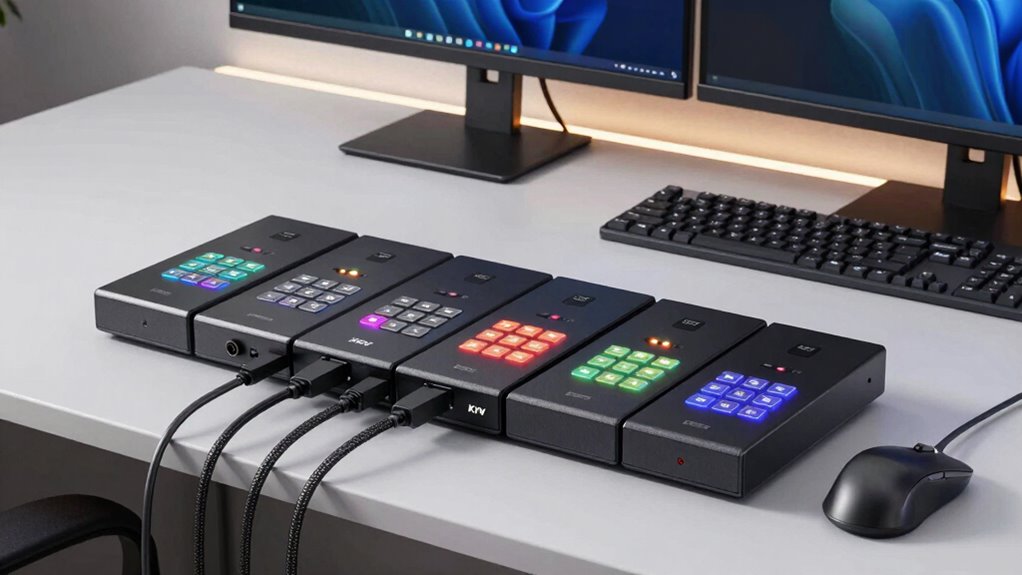

Choosing the right KVM switch for a dual computer workstation involves balancing resolution support, port count, ease of use, and compatibility. For high-end graphics or gaming setups, the 4K@144Hz dual monitor KVM stands out, while multi-device control needs are better served by larger, multi-port switches like the 8-port model.
Below, I review five options, each suited to different priorities—and each with its own tradeoffs—so you can find the perfect fit for your specific workspace demands.

Get business pricing on monitors, keyboards and dev gear
- Business-only prices and quantity discounts
- Tax-exempt purchasing
- Multiple users, one account, clear invoices
Complete the kit
![Lamicall 6Pack Cord Organizer, [1s Lock] Spring Cable Hol...](https://m.media-amazon.com/images/I/71uBLICDwfL._AC_SL480_.jpg)
Key Takeaways
- High-resolution support varies from 4K@60Hz to 4K@144Hz, impacting visual clarity and gaming performance.
- Port count ranges from 2 to 8, influencing how many computers or peripherals can be managed simultaneously.
- Switching methods include physical buttons, remote controls, and software, affecting convenience and setup complexity.
- Some models require multiple cables and external power, which may complicate installation.
- Compatibility and EDID/emulation features vary, affecting seamlessness across different operating systems and displays.


| kvm switches for dual computer workstation | USB Ports | Number of Monitors |
|---|---|---|
| 4K@144Hz Dual Monitor KVM Swit | 4 USB 3.0 | 2 |
| 8 Port DisplayPort KVM Switch | 4 USB 3.0 | — |
| UGREEN HDMI KVM Switch 2 Monit | 4 USB 3.0 | — |
| Dual Monitor HDMI DP KVM Switc | 4 USB 3.0 | 2 |
| Heravo USB 3.0 HDMI KVM Switch | 4 (3×USB-A + 1×USB-C) | 2 |
More Details on Our Top Picks
4K@144Hz Dual Monitor KVM Switch for 2 Computers with DisplayPort and USB 3.0
This switch stands out for supporting ultra-high resolutions up to 4K@144Hz and 8K@60Hz, making it ideal for gamers and professional creatives who need crisp visuals. It allows sharing two monitors and four USB devices, with extended and mirror modes for versatile workflows. Compared with other options, it offers superior resolution support but at the cost of needing two DisplayPort cables per computer, which could be restrictive if your setup favors HDMI or fewer cables. Its plug-and-play design simplifies installation, yet it lacks hotkey switching, which might be a drawback for those seeking quick keyboard commands.
Pros:- Supports up to 4K@144Hz and 8K@60Hz, perfect for high-res displays
- Remote and button switching for flexible control
- Allows sharing multiple USB peripherals
- Plug-and-play without driver installation
Cons:- Requires two DisplayPort cables per computer, limiting flexibility
- No hotkey switching support
- Adapter cables not recommended, which may hinder certain setups
Best for: High-end gaming, professional graphics work, or any setup prioritizing maximum resolution and refresh rates.
Not ideal for: Users with limited space or those who prefer HDMI connections over DisplayPort, or who need hotkey switching.
- Resolution Support:4K@144Hz, 8K@60Hz
- Monitor Connection:DisplayPort
- Number of Monitors:2
- Number of Computers:2
- USB Ports:4 USB 3.0
- Switching Methods:Button, Remote
Our verdict“Ideal for users demanding top-tier resolution and refresh rate, willing to manage multiple DisplayPort cables.”
8 Port DisplayPort KVM Switch 4K@60Hz with USB 3.0, EDID Simulation, Remote Control, and Audio
This model caters to setups with multiple computers, controlling up to eight with a single monitor, keyboard, and mouse. It supports 4K@60Hz, which is ample for most professional tasks, and includes EDID simulation for seamless switching without display flicker. Its versatile switching methods—panel button, remote, and RS232—offer convenience, especially in server or enterprise environments. Compared to smaller switches, it’s more complex and requires an external power supply, which might be a hassle for casual users. Its broad OS compatibility makes it suitable for mixed-device environments but may be overkill for simple dual-PC setups.
Pros:- Supports 4K@60Hz resolution for high-quality display
- Controls up to 8 computers from one monitor
- Flexible switching including remote and wired options
- EDID simulation ensures seamless display output
Cons:- Requires external power supply
- Setup can be complex for non-technical users
- Remote control length may limit placement
Best for: Multi-device control in office, server, or lab environments requiring many computers connected to a single display.
Not ideal for: Single or dual computer users who don’t need extensive port counts or complex switching options.
- Number of Ports:8
- DisplayPort Resolution:4K@60Hz
- USB Ports:4 USB 3.0
- Switching Modes:Panel button, remote, RS232
- Power Supply:12V/2A
Our verdict“Best suited for users managing multiple systems and needing robust, flexible switching options.”
UGREEN HDMI KVM Switch 2 Monitors 2 Computers 4K@60Hz with 4 USB 3.0 Ports
This UGREEN HDMI KVM offers a reliable solution for controlling two computers with dual monitors at 4K@60Hz. It provides four USB 3.0 ports, supporting fast data transfer, and supports multiple operating systems. Its straightforward button and desktop controller switching make it accessible for users who prefer simple, hardware-based control. Compared to DisplayPort-based models, it might be more compatible with common HDMI setups but lacks EDID emulation, which can cause display flickering or resolution issues when switching. It’s best for users who want a balanced mix of performance and affordability.
Pros:- Supports 4K@60Hz for clear visuals
- Dual monitor support enhances multitasking
- Multiple USB 3.0 ports for fast peripherals
- Easy switching via buttons or desktop controller
Cons:- No hotkey switching or EDID emulation
- Requires external power supply
- Limited to HDMI connections, which might be less flexible
Best for: Home or small office users needing dual monitor control without complex setup.
Not ideal for: High-end gaming or professional graphics work where higher refresh rates or resolution support is critical.
- Resolution:4K@60Hz
- USB Ports:4 USB 3.0
- HDMI Version:HDMI 2.0
- Switching Modes:Button, Desktop Controller
- Supported Systems:Windows, MacOS, Linux
Our verdict“A solid budget-friendly choice for dual monitor setups with straightforward needs.”
Dual Monitor HDMI DP KVM Switch for 2 Computers, 4K60Hz, Supports Extended/Copy Mode, 4 USB 3.0 Ports, Includes DC 12V Adapter & Wired Controller
This KVM switch caters to users needing dual monitors and more flexible display modes, supporting up to 4K60Hz. Its ability to switch between extended and duplicate modes makes it suitable for detailed workflows or presentations. The durable metal casing enhances stability, and both button and wired controller options add convenience. Compared with simpler models, it might require more setup effort—especially in configuring display modes—and some computers may need dual-display support. Still, its versatility makes it an appealing choice for complex workstation needs.
Pros:- Supports 4K60Hz display resolution
- Extended and copy display modes
- Durable metal casing for stability
- Easy switching with multiple controls
Cons:- Requires dual-display support on computers
- Setup complexity for optimal configuration
- Limited to two monitors and two computers
Best for: Professionals needing flexible display modes and reliable performance in dual monitor configurations.
Not ideal for: Single-port or minimal setup users, or those seeking plug-and-play simplicity.
- Number of Monitors:2
- Resolution Support:up to 4K60Hz
- USB Ports:4 USB 3.0
- Power Supply:DC 12V Adapter
- Switching Method:Button and wired controller
Our verdict“Ideal for advanced users needing versatile display configurations and durable hardware.”
Heravo USB 3.0 HDMI KVM Switch 2 Monitors 2 Computers, 4K@60Hz Dual Monitor
Heravo’s KVM switch offers a straightforward solution for sharing two monitors and peripherals between two computers at 4K@60Hz. Its support for multiple USB devices makes it flexible, and the remote control simplifies switching during busy workflows. However, the need for multiple HDMI cables and the absence of EDID emulation could cause resolution or flicker issues when switching. It’s best suited for users who prioritize simplicity and reliable performance over extensive port options or advanced features.
Pros:- Supports 4K@60Hz resolution
- Easy switching with remote and button
- Multiple USB 3.0 ports for peripherals
- Plug & Play setup
Cons:- Requires multiple HDMI cables
- Limited to two monitors and two computers
- No EDID/emulation support
Best for: Professional or home office users seeking reliable dual monitor sharing with simple controls.
Not ideal for: Environments requiring high refresh rates or complex multi-port control.
- Number of Monitors:2
- Resolution:4K@60Hz
- USB Ports:4 (3×USB-A + 1×USB-C)
- HDMI Version:HDMI 2.0
- Switching Method:Button and wired remote
Our verdict“Best for users who want a simple, reliable dual monitor KVM without extra complexity.”

How We Picked
My choices are based on a combination of resolution support, port flexibility, ease of switching, build quality, and overall value. I prioritized models that support common high-resolution standards, have reliable switching options, and are suitable for dual monitor setups. I also considered user-friendly features like plug-and-play operation, compatibility with multiple OS, and whether additional cables or power supplies are needed. Finally, I balanced these features against real-world tradeoffs such as setup complexity and device compatibility to identify options that serve different types of users—from professionals to power users.
Factors to Consider When Choosing Kvm Switches For Dual Computer Workstations
When selecting a KVM switch for dual computer workstations, the key factors to consider include resolution support, port count, switching methods, and compatibility. Think about whether you need the highest possible resolution for professional graphics or gaming, or if a simpler setup suffices for everyday multitasking. The number of USB peripherals you want to share, and whether you prefer remote control or hotkeys, can influence your choice. Compatibility with your operating system and display setup also plays a significant role in ensuring smooth switching without display flickering or resolution issues.
Resolution and Refresh Rate
If your work involves high-end graphics, gaming, or video editing, prioritize switches supporting 4K@144Hz or higher. For general office tasks, 4K@60Hz is usually sufficient. Higher refresh rates demand more from your cables and hardware, so verify compatibility before purchasing.
Port Count and Connectivity
Decide how many computers and peripherals you need to connect. A dual monitor setup with two computers requires at least a 2-port switch, but larger environments or multi-device control benefit from models with more ports. Ensure your cables match the switch’s inputs, and check whether additional power supplies or adapters are necessary.
Switching Methods
Choose between physical buttons, remote controls, hotkeys, or software-based switching. Remote controls and hotkeys offer quick toggling, which is advantageous during busy workflows. Physical buttons tend to be more reliable but less convenient if your setup is cluttered or far from the switch.
Compatibility and Features
Make sure the switch supports your operating system and display setup. Features like EDID emulation prevent flickering and resolution mismatch, providing a seamless experience. For professional use, dual-mode support (extended and duplicate display) can add versatility, but may complicate setup for novices.
Frequently Asked Questions
What is the difference between 4K@60Hz and 4K@144Hz support?
The main difference lies in the refresh rate, which affects how smoothly visuals are rendered. 4K@60Hz provides clear, detailed images suitable for most professional and entertainment purposes, while 4K@144Hz offers much smoother motion, ideal for gaming and fast-paced video editing. Your choice depends on your specific visual requirements and whether your hardware can support higher refresh rates without bottlenecking.
Do I need special cables or adapters for a KVM switch?
Most high-resolution KVM switches require specific cables, typically DisplayPort or HDMI, and USB cables for peripherals. Many models specify that each computer needs its own cables, and some may not support adapters if they only accept certain input types. Always check the switch’s compatibility and cable requirements before purchasing, especially if you want to avoid extra expense or setup complexity.
Can I use a KVM switch with different operating systems?
Yes, most modern KVM switches support multiple operating systems, including Windows, MacOS, Linux, and Chrome OS. However, some advanced features like hotkeys or remote control may have limited functionality depending on the OS. Verify compatibility in the product specifications to ensure seamless switching across your devices.
Are EDID features important for KVM switches?
EDID (Extended Display Identification Data) emulation helps the switch communicate display capabilities to connected computers, preventing flickering or resolution mismatches during switching. If you work with high resolutions or multiple monitors, prioritizing a switch with EDID support can lead to a more stable and flicker-free experience.
What are the tradeoffs of multi-port (8+) KVM switches?
While multi-port switches allow control of many systems from a single console, they tend to be more complex, larger, and often require external power supplies. Setup can be more involved, and they may be overkill for simple dual-computer setups. However, they excel in environments where managing multiple servers or workstations efficiently is a priority.
Conclusion
For users with high-end gaming, video editing, or graphics-intensive work, the 4K@144Hz Dual Monitor KVM Switch is the best fit, offering top-tier resolution and refresh rates. Those managing multiple servers or systems in an office environment will find the 8 Port DisplayPort KVM Switch more suitable, despite its setup complexity. Budget-conscious users or office workers needing reliable dual monitor control at 4K@60Hz should consider the UGREEN HDMI KVM Switch. Finally, professionals requiring flexible display modes and durability might prefer the Dual Monitor HDMI DP KVM Switch. Each selection hinges on your specific resolution needs, device count, and ease of switching—matching the right tool to your workflow ensures efficiency and clarity in your workstation setup.
Halloween Picks
halloween
As an affiliate, we earn on qualifying purchases.