
Resolution alone doesn’t make your webcam look better because factors like good lighting, lens quality, and stable footage are essential for clear, professional results. Without proper light placement and environment control, even the highest resolution can appear dull, blurry, or choppy. Frame rate, stabilization, and background factors also impact quality. Keep these in mind, and you’ll discover how to truly improve your video setup beyond just increasing pixel count.

Get business pricing on monitors, keyboards and dev gear
- Business-only prices and quantity discounts
- Tax-exempt purchasing
- Multiple users, one account, clear invoices
Key Takeaways
- Higher resolution doesn’t improve image quality without good lighting, stabilization, and proper camera settings.
- Poor lighting and environmental factors can cause dull images regardless of resolution.
- Stabilization and frame rate are crucial for smooth, clear video; resolution alone can’t fix shaky footage.
- Lens quality, sensor performance, and calibration significantly impact image sharpness more than resolution.
- Upgrading resolution without addressing these factors may result in worse video quality with jitter and blurriness.
As an affiliate, we earn on qualifying purchases.
Does Higher Webcam Resolution Improve Video Quality?

Does increasing your webcam’s resolution automatically mean better video quality? Not necessarily. Higher resolution captures more detail, but if your webcam lacks good image stabilization, shaky footage can ruin the experience. Additionally, a higher resolution often requires a higher frame rate to keep motion smooth. If your webcam’s frame rate drops at increased resolutions, your video may appear choppy, negating the benefits of the added pixels. So, while a higher resolution can improve clarity, it’s only effective if paired with steady image stabilization and a consistent frame rate. Without these, your video might look worse, with jittery motion or blurry details. Investing in camera stabilization can make a significant difference in overall video smoothness. Furthermore, understanding digital concepts like compression and bandwidth can help optimize your streaming quality. Properly managing video encoding settings ensures a better balance between resolution and performance, preventing unnecessary quality loss. It’s also important to consider your internet connection speed, as insufficient bandwidth can lead to degraded video quality regardless of resolution. Focus on balance—resolution alone won’t guarantee better video quality.
professional lighting kit for webcams
As an affiliate, we earn on qualifying purchases.
As an affiliate, we earn on qualifying purchases.
Why Lighting Is More Important Than Resolution for Clarity
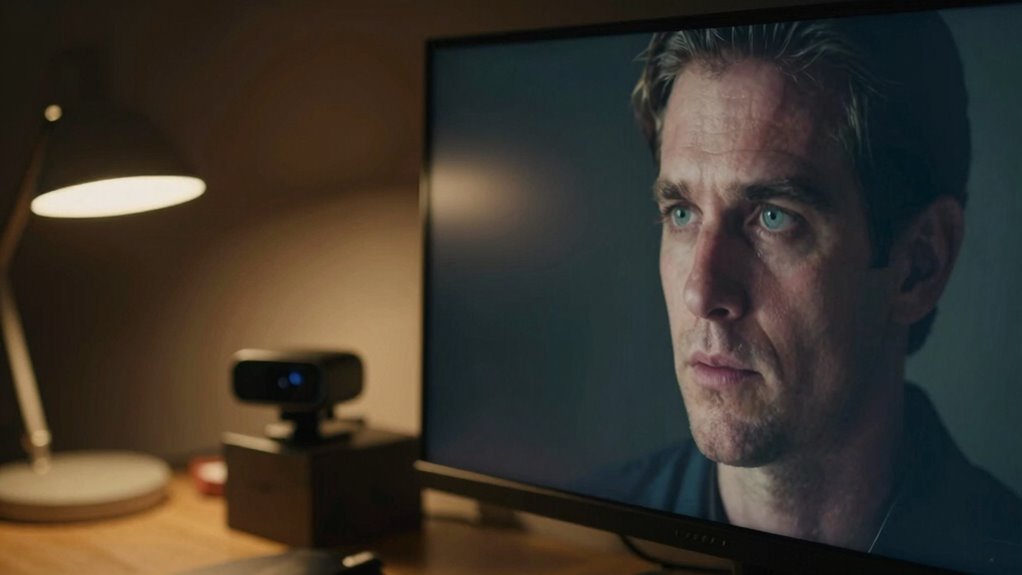
Good lighting makes your webcam image clearer and more natural. Proper light placement reduces shadows and highlights your features, while the right brightness and contrast guarantee your face is easy to see. Without adequate lighting, even the highest resolution can’t improve your video quality. Additionally, understanding lifestyle upgrades can help you make smarter choices to enhance your overall video setup. Incorporating visual cues can further optimize your lighting strategy, ensuring your face is consistently well-lit from different angles. Considering luxury wallpapers and their textures can also influence how light reflects in your space, enhancing your overall appearance on camera. Being mindful of lighting techniques can significantly boost your on-camera presence, making your setup more professional and engaging. Considering fireproof storage options for your important documents can also help you stay prepared in case of emergencies that might disrupt your setup.
Proper Light Placement
Even with a high-resolution webcam, poor lighting can make your image look dull or grainy. Proper light placement is key to prevent ambient shadows that can obscure your face and create uneven lighting. Position lights so they evenly illuminate your face, ideally at eye level or slightly above, to prevent harsh shadows below your chin or nose. Pay attention to color temperature; using soft, neutral light helps maintain natural skin tones and avoids overly warm or cool hues that distort your appearance. Avoid placing lights directly behind you, which creates backlighting and reduces clarity. Instead, aim for a balanced, frontal setup that highlights your features without casting distracting shadows. Proper light placement ensures your video looks sharp, clear, and professional, regardless of your webcam’s resolution. Additionally, understanding how lighting placement impacts overall image quality can help you make more informed adjustments for optimal results. Recognizing how indoor air quality can influence your comfort during long video calls can also be beneficial, especially in enclosed spaces.
Brightness and Contrast
Have you ever noticed how some webcams produce clear images even at lower resolutions? The secret often lies in proper brightness and contrast. When your camera’s exposure and contrast are well calibrated, the image appears sharper and more vibrant. This is where color grading and image calibration come into play—they help enhance visual clarity by balancing light levels and color accuracy. Brightness ensures your face is well-lit without washed-out highlights, while contrast adds depth, making details stand out. Adjusting these settings can dramatically improve image quality, often more than increasing resolution. Good lighting combined with proper calibration emphasizes your features and reduces noise, making your webcam look better regardless of pixel count. It’s all about controlling light, not just more pixels. Additionally, understanding lighting conditions can help optimize your webcam’s performance in various environments, especially when considering visual clarity, how light interacts with your camera sensor, and the importance of proper calibration for achieving the best image quality. Proper calibration also involves understanding your specific household lighting setup, which can significantly impact your webcam’s effectiveness.
high resolution webcam with adjustable frame rate
As an affiliate, we earn on qualifying purchases.
As an affiliate, we earn on qualifying purchases.
How Your Webcam’s Lens and Sensor Affect Image Sharpness
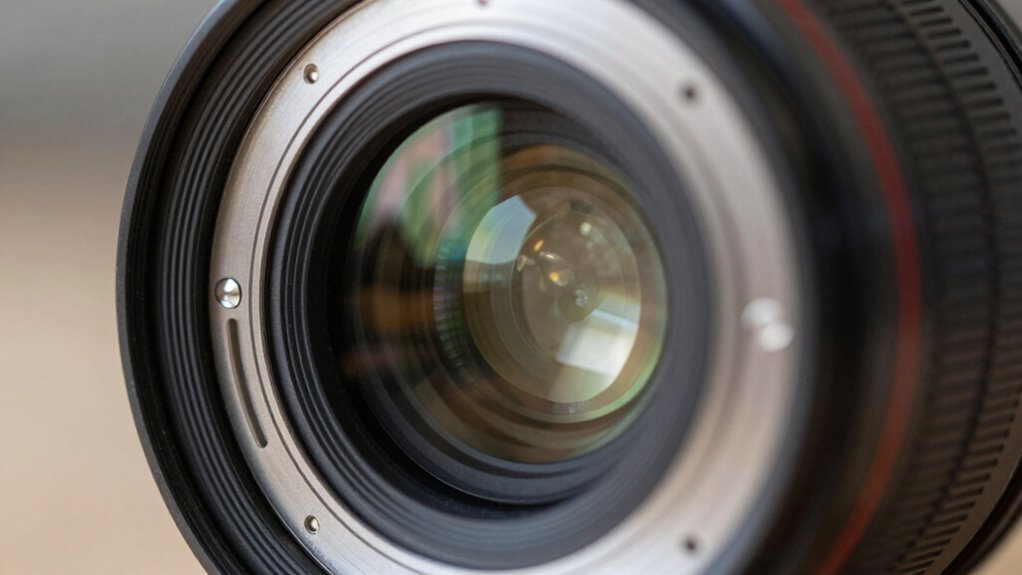
The quality of your webcam’s lens determines how well it focuses light and produces a sharp image, so a better lens can make a noticeable difference. The sensor size also impacts image clarity; larger sensors capture more light and detail, especially in low-light conditions. When choosing a webcam, consider both the lens quality and sensor size to get the sharpness you want. Additionally, webcam optimization settings can further enhance image clarity by adjusting various parameters for your specific environment. Properly maintaining your webcam, such as keeping the lens clean and ensuring optimal sensor performance, can also contribute to consistently clear images. Regularly inspecting and cleaning the lens is essential for preserving the quality of your images over time, as dust and smudges can significantly reduce sharpness. Understanding security and office gear can help you select equipment that enhances both your privacy and your workspace efficiency. Additionally, being aware of camera maintenance techniques can prolong your webcam’s lifespan and maintain image quality over time.
Lens Quality Matters
A high-quality lens is essential for capturing sharp, clear images with your webcam. The lens material influences how well light passes through, impacting overall image clarity. A better lens material reduces distortions and flare, making your video look more professional. Aperture size also plays a role; a wider aperture allows more light in, improving low-light performance and depth of field. When choosing a webcam, consider these factors:
- Premium lens material for better light transmission
- Larger aperture size for enhanced low-light clarity
- Precise lens construction to minimize distortions
- Quality coatings to reduce glare and reflections
These elements work together to improve image sharpness, ensuring your webcam produces crisp, vibrant videos regardless of resolution. Investing in a quality lens makes a noticeable difference in your overall video quality. Additionally, selecting gap-sealing products can help prevent light leaks and reflections that might degrade image quality.
Sensor Size Impact
While a quality lens greatly enhances image clarity, the size of your webcam’s sensor plays an essential role in defining sharpness and detail. Larger sensors typically offer higher sensor sensitivity, allowing them to perform better in low-light conditions and produce clearer images. They also support higher pixel density, meaning more pixels fit into a given area, resulting in sharper, more detailed pictures. Smaller sensors often struggle with noise and reduced sharpness because they have fewer pixels and lower sensor sensitivity. When choosing a webcam, consider how the sensor size impacts image quality, especially if you often work in dim environments. A bigger sensor combined with a good lens guarantees you get a clearer, more professional-looking image, regardless of resolution. sensor size can also help you craft more direct and engaging descriptions of your equipment’s capabilities. Understanding how sensor technology influences image output can help you select the best device for your needs. Additionally, recognizing the sensor design can help you make more informed decisions based on your specific usage scenarios.
As an affiliate, we earn on qualifying purchases.
Common Mistakes That Make High-Resolution Webcams Look Poor
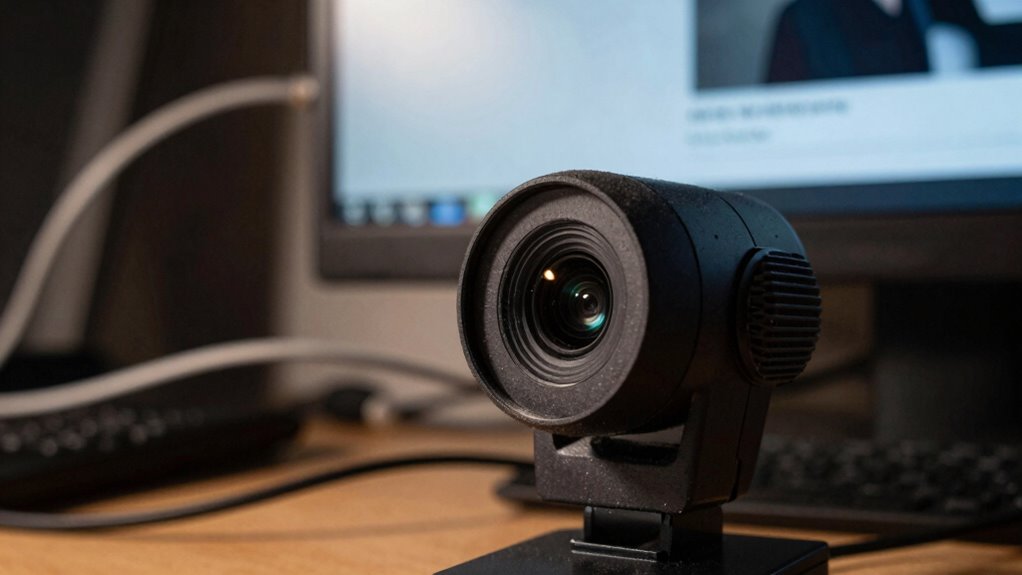
High-resolution webcams can deliver stunning detail, but if you’re not careful, small mistakes can cause your video quality to suffer. Common errors include poor lighting, which creates shadows and reduces clarity, and neglecting background distractions that divert attention from you. Failing to properly color correction can make your skin tone look unnatural or washed out. Additionally, ignoring camera positioning often results in unflattering angles or shaky footage.
- Overlooking lighting setup, leading to poor image quality
- Ignoring background distractions that clutter the shot
- Skipping color correction, causing unnatural tones
- Improper camera placement, resulting in awkward framing
Simple Tips to Boost Your Webcam Video Quality at Home
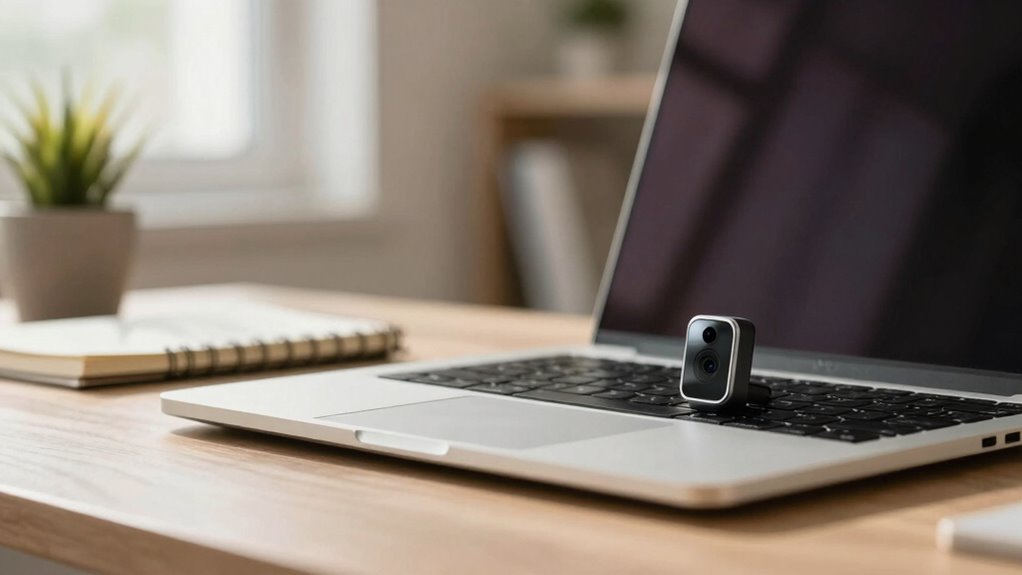
Wondering how to make your webcam look sharper and more professional without buying new gear? Start by optimizing your internet bandwidth. A stable, high-speed connection reduces video compression artifacts that can make images look blurry or pixelated. Close unnecessary apps and browser tabs that consume bandwidth, and connect your device directly to your router via Ethernet if possible. Adjust your webcam settings to lower the compression level; this preserves more detail and reduces compression artifacts. Proper lighting also enhances clarity and sharpness, making your video appear clearer without extra bandwidth. Finally, position your webcam at eye level and ensure a clutter-free background. These simple adjustments improve your video quality instantly, without costly upgrades.
When Is It Time to Upgrade Your Webcam and What Else Matters?
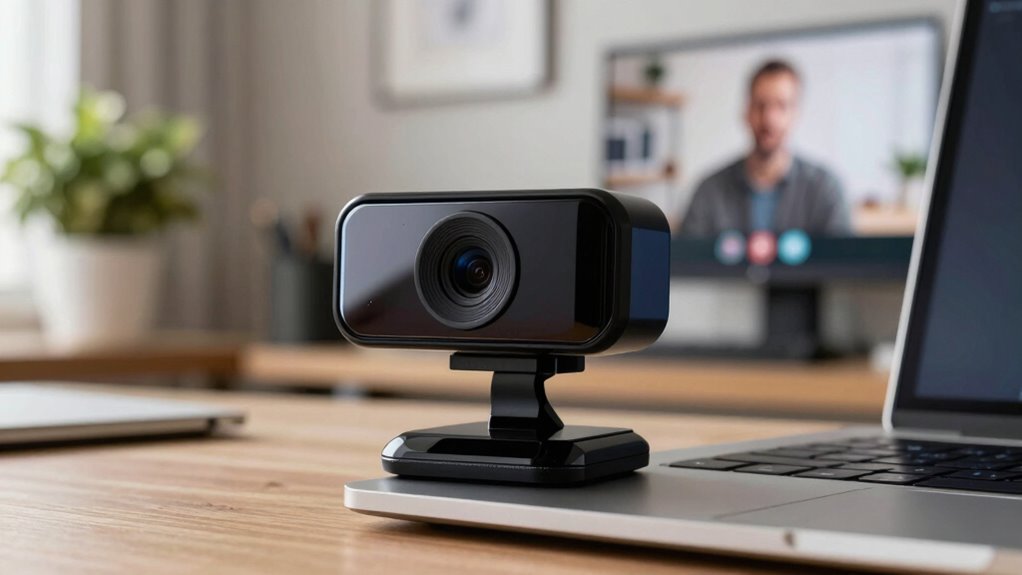
Knowing when to upgrade your webcam depends on recognizing the limitations of your current device and how they affect your video quality. If you notice choppy motion, poor color accuracy, or a dull image, it’s time to consider an upgrade. Pay attention to these factors beyond resolution:
Upgrade your webcam when motion is choppy, colors dull, or image lacks clarity—focus on performance, not just resolution.
- Frame rate, which affects how smooth your video appears
- Color accuracy, ensuring your image looks natural
- Low-light performance, for clearer images in dim settings
- Autofocus and exposure controls, for sharper, well-lit video
Upgrading becomes necessary when your current webcam can’t keep up with your needs or produces inconsistent quality. Remember, a higher resolution won’t matter if frame rate and color accuracy are lacking. Balance these aspects for the best video experience.
Frequently Asked Questions
Can Software Improvements Enhance Webcam Image Quality?
Yes, software improvements can enhance your webcam’s image quality. By adjusting for lighting conditions and optimizing lens quality, software can reduce noise and improve clarity. You can use filters, auto-focus, and exposure adjustments to make your video sharper and more vibrant, especially in challenging lighting. While hardware matters, smart software tweaks help you get the best possible image, making your webcam look clearer and more professional.
How Does Internet Bandwidth Impact Webcam Video Clarity?
Your internet speed directly impacts your webcam’s video clarity, as faster speeds allow smoother, higher-quality streams. Bandwidth limitations can cause pixelation, lag, and dropped frames, making your video look less sharp and professional. When you have robust bandwidth, your webcam can transmit clearer images without interruptions. Conversely, slow or unstable internet connections force your webcam to lower quality settings, reducing overall clarity and making your video appear choppy or blurry.
Do Microphone Quality and Audio Affect Perceived Video Quality?
Yes, microphone quality and audio do affect how viewers perceive your video quality. High audio fidelity makes your sound clearer and more professional, enhancing overall impression. Proper microphone placement reduces background noise and echoes, creating a more engaging experience. When your audio is crisp and well-placed, it complements your video, making the entire presentation feel polished and credible, even if your webcam resolution isn’t top-tier.
What Role Does Background and Environment Play in Webcam Appearance?
The background and environment greatly influence your webcam’s appearance. Good lighting conditions illuminate your face clearly and reduce shadows, making your video look sharper. Proper camera positioning ensures your face is centered and well-framed, avoiding distracting backgrounds. You should also consider cleaning your background or using a blurred or virtual background to minimize distractions. These factors combined improve overall video quality, making your appearance look more professional and polished.
Are There Specific Settings to Optimize Webcam Performance?
You can optimize your webcam by adjusting settings like brightness, contrast, and sharpness to match your lighting conditions. Position your camera at eye level for the best framing, ensuring your face is well-lit and clear. Experiment with different lighting setups and camera angles until your image looks natural. These tweaks work together, creating a seamless look that resolution alone can’t achieve, making your webcam appear sharper and more professional.
Conclusion
Remember, a high-resolution webcam is like a shiny new paintbrush—it’s only part of the picture. To really improve your video quality, focus on lighting, lens quality, and your environment. Think of your webcam as a window; clean it and illuminate it well, and your image will shine brighter than any megapixel count. Don’t just chase pixels—aim for clarity and context, and your video calls will look as sharp as a freshly cut diamond.
Halloween Picks
halloween
As an affiliate, we earn on qualifying purchases.