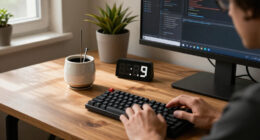
Build a coding-themed desk setup by choosing accessories you will use, checking that they fit your desk and equipment, and arranging them without crowding your work area. This guide is for beginners who want a practical workspace with programming-inspired details, whether they are buying ready-made items or making a few simple decorations. Allow 1-3 hours to plan and arrange the setup; ordering products may add shipping time.

Get business pricing on monitors, keyboards and dev gear
- Business-only prices and quantity discounts
- Tax-exempt purchasing
- Multiple users, one account, clear invoices

Python Cheat Sheet Neoprene Desk Mat with Anti-Slip Base and Stitched Edges, 16 × 32 in
- ✔ Material: Neoprene
- ✔ Base: Anti-slip rubber
- ✔ Edges: Stitched

Pixiecube Linux Commands Extended Mouse Pad, 31.5 x 11.8 Inches
- ✔ Brand: Pixiecube
- ✔ Model: GG-2232-Pa
- ✔ Dimensions: 31.5 × 11.8 in

Funny Programmer Wooden Box Sign, 5 x 5 Inches
- ✔ Dimensions: 5 × 5 in
- ✔ Weight: 30 g
- ✔ Material: Wood
Difficulty: Beginner | Time: 1-3 hours, plus shipping time if ordering supplies
What You’ll Need
Tools & Materials:
- A tape measure or ruler
- A notepad or device for recording desk measurements and ideas
- A phone or camera for photographing your current setup
- Cleaning cloth and suitable surface cleaner
- Optional: craft paper, scissors, and markers for simple handmade labels or art
Knowledge:
- Basic familiarity with your desk layout and computer equipment
- No coding or crafting experience required
Set a spending limit before shopping. Check desk dimensions, monitor and keyboard sizes, available outlets, and the location of cables. If you rent or share the workspace, use removable decorations and avoid adhesives that may damage the surface.
Python Cheat Sheet Neoprene Desk Mat with Anti-Slip Base and Stitched Edges, 16 × 32 in
For Python learners who want a reference woven into their setup, the LAMBOCK Python desk mat is the strongest all-around fit in this group. Its 16 × 32-inch surface is large enough to support typing, writing, and mouse use, so the coding theme does more than decorate the desk. The Python layout stays visible for quick reminders while studying or working, which makes this more useful as a learning aid than the wooden sign. Compared with the Pixiecube pad, however, its reference is narrower in scope: it focuses on Python rather than Linux and Unix commands across several system topics. The neoprene surface, stitched edges, and anti-slip rubber base suit regular desk use, but the product has no warranty, and Python-specific content will be less relevant to developers working in other languages. A smaller 12 × 22-inch size is also available for tighter spaces, though it offers less room to spread out.
Pros:
- Python reference remains in view while studying or working.
- Smooth neoprene surface supports typing, writing, and mouse use.
- Anti-slip rubber base helps keep the mat in place.
- Stitched edges are designed to support durability.
Cons:
- No warranty is provided.
- Python-specific content may not help people working in other languages.
Best for: Python students and developers who want a visible language reference on a desk mat used for everyday computer work.
Not ideal for: People who need a broad Linux or Unix command guide, or who would rather keep reference material off their desk surface.
Bottom line: We recommend this as the most balanced pick for Python-focused work because it pairs a useful reference with a full desk surface.
“We recommend this as the most balanced pick for Python-focused work because it pairs a useful reference with a full desk surface.”
Pixiecube Linux Commands Extended Mouse Pad, 31.5 x 11.8 Inches
The Pixiecube Linux Commands pad takes a broader systems approach than the Python mat. Its printed guide groups Linux and Unix commands by areas such as networking, files, processes, and system management, making it the better match for users who want a quick command lookup across routine administrative tasks. The 31.5 × 11.8-inch format can sit beneath a laptop or keyboard and mouse, giving it more horizontal reach than the Python mat’s smaller 12 × 22-inch option. That footprint is also the main constraint: we need enough clear desk space to use it comfortably. Its 2 mm thickness keeps the profile low but provides limited cushioning compared with a thicker desk mat. Water- and stain-resistant treatment, a nonslip surface, and stitched edges add practical protection, though this remains a thin mouse-pad-style surface rather than a padded work area. Compared with the sign, it is far more functional; compared with the Python mat, it serves more command topics but is less focused on one language.
Pros:
- Commands are grouped across networking, navigation, processes, files, and other topics.
- Extended dimensions fit a laptop or keyboard with a mouse.
- Water- and stain-resistant surface is suited to everyday desk use.
- Stitched edge helps resist fraying.
Cons:
- Large dimensions require ample desk space.
- The 2 mm surface provides limited cushioning.
Best for: Linux users, students, and system administrators who have room for an extended pad and want commands grouped by task.
Not ideal for: People with a compact desk or anyone seeking substantial wrist cushioning or a focused Python syntax reference.
Bottom line: This is our pick for Linux command access when broad topic coverage matters more than compact size or plush padding.
“This is our pick for Linux command access when broad topic coverage matters more than compact size or plush padding.”
Funny Programmer Wooden Box Sign, 5 x 5 Inches
If our priority is a small signal of programmer humor rather than an on-desk reference, the 5 × 5-inch wooden box sign is the natural choice. It can sit on a desk or shelf, or be hung on a wall, so it adds a coding-themed accent without claiming the broad work area needed by either mat. Its polished wood finish gives it a decor role that feels distinct from the Python and Linux pads, which put their themes directly under our hands. The tradeoff is function: unlike those mats, this sign does not support mouse movement or provide commands to consult. Its small dimensions can also make the design hard to see from across a room, and it is intended for indoor use. We would choose it for a compact workspace, office shelf, or gift when a lighthearted programming reference matters more than day-to-day utility.
Pros:
- Compact footprint fits desks, shelves, and tiered trays.
- Can stand on a flat surface or hang on a wall.
- Polished wood finish suits office decor.
- Humorous programming theme gives it a distinct decorative role.
Cons:
- Indoor use only.
- The 5 × 5-inch size may limit visibility.
Best for: Programmers who want a small indoor accent for a desk, shelf, or wall, or shoppers choosing a lighthearted tech-themed gift.
Not ideal for: Anyone seeking a functional coding reference, a large visible statement piece, or an accessory for outdoor display.
Bottom line: We would pick this sign for personality in a small space, while choosing either mat when practical coding utility comes first.
“We would pick this sign for personality in a small space, while choosing either mat when practical coding utility comes first.”
As an Amazon Associate we earn from qualifying purchases.
Before You Start
Decide whether you want to buy accessories, make them, or combine both approaches. Prioritize items that improve organization or comfort, then add decorative pieces only where space remains. Avoid placing objects where they block ventilation, screen visibility, keyboard movement, or access to frequently used controls.
Check product dimensions and return terms before ordering. A photo, print, or desk mat can look different in color or scale than it did online. Keep drinks away from electronics and use only materials rated for the surface where you plan to place them.
Step-by-Step Instructions
Step 1: Measure the desk and map the work area
Clear loose items from the desk, then measure its width and depth. Note the space occupied by your monitor, keyboard, mouse, laptop, speakers, and any work equipment. Mark the usable areas on a quick sketch, including a clear zone for writing or other tasks.
Take a photo from your usual seated position. Use it to spot surfaces that are visible but do not interfere with work, such as a wall above the desk, the side of a monitor stand, or an open corner.
Tip: Measure a desk mat, shelf, or monitor stand before buying accessories intended to sit on it.
Check: Your sketch shows the equipment footprint and identifies open areas for accessories.
Step 2: Choose a theme and set a budget
Pick one visual direction, such as terminal colors, code symbols, circuit patterns, pixel art, or a language or tool you enjoy. Choose two or three colors that work with the desk and equipment. Write down the maximum amount you plan to spend, including delivery and any craft supplies.
List the items you are considering and mark each as functional or decorative. Give priority to useful pieces such as a cable holder, desk mat, pen cup, or headphone stand. Limit purely decorative purchases to the remaining budget.
Tip: Choose references you enjoy seeing every day, rather than buying items just because they mention a programming language.
Check: You have a theme, a small color palette, a spending limit, and a prioritized item list.
Step 3: Select accessories that fit your setup
Compare each item’s dimensions and materials with your measurements. Check that a desk mat leaves room for the mouse and keyboard, a stand can support the intended device, and a cable organizer matches the cable thickness or attachment method. For lighting, check the power source and whether the light can be positioned without shining into your eyes or screen.
Choose decorations that can be cleaned easily and do not shed glitter, dust, or loose parts near equipment. If you are making an item, use a paper mock-up first. Place the mock-up in position for a day to see whether it blocks anything or feels distracting.
Tip: Do not attach magnets or adhesive-backed items to equipment unless the manufacturer permits it.
Check: Every planned item has a place, fits the available space, and suits its intended use.
Step 4: Prepare the desk before arranging items
Turn off and unplug equipment before cleaning around its cables or moving it. Follow the equipment maker’s cleaning guidance; use a lightly damp cloth on suitable surfaces and keep liquid away from openings. Let the desk dry fully before placing mats or adhesive accessories.
Untangle accessible cables and group them by device. Leave enough slack to adjust your monitor or move a laptop, and keep power connections reachable. Do not pull cables tight or bundle warm power adapters in a way that traps heat.
Tip: Take a photo of cable connections before unplugging anything, especially if several devices share a power strip.
Check: The surface is clean and dry, and cables remain connected safely or are easy to identify.
Step 5: Place functional accessories first
Set the desk mat, monitor or laptop stand, and cable organizers in place before adding decorations. Position the keyboard and mouse where your wrists can stay relaxed and your shoulders can rest comfortably. Keep the screen at a comfortable viewing distance and avoid raising it with an unstable stack of books or objects.
Route cables along the rear or edges of the desk where possible. Keep them clear of chair wheels, moving desk parts, and walkways. Place frequently used tools within easy reach; keep spare supplies and seldom-used items farther away.
Tip: Make small position changes while seated at your normal working posture. A tidy photo alone does not confirm comfort.
Check: You can sit, type, use the mouse, and reach controls without bumping accessories or pulling cables.
Step 6: Add coding-themed decoration
Place a small number of themed items in the open areas from your sketch. Try a framed code print, pixel-art figure, keyboard keycap display, algorithm-inspired notebook, or a handmade label for a storage container. Keep decorative items out of the keyboard and mouse movement area.
For wall art or a desk divider, position it where it does not obscure the screen or create glare. Use a removable hanging method suitable for the wall surface, and follow its weight limit. Keep small objects away from pets and children if they share the room.
Tip: Leave some empty space. A few visible pieces usually make the theme easier to appreciate and the desk easier to use.
Check: The theme is visible from your seat, while the desk still has clear space for daily work.
Step 7: Test the arrangement during a normal work session
Use the setup for at least 20 minutes while doing a typical task. Notice whether the mat shifts, the mouse runs out of space, a light causes glare, or an item blocks access to a port or control. Check that you can clean around the accessories and reach anything you need regularly.
Move or remove any item that distracts you, crowds your work area, or makes your posture less comfortable. Recheck cable slack after moving equipment, then take a final photo so you can restore the layout after cleaning.
Tip: If an accessory needs constant repositioning, try another location or return it if that option is available.
Check: The setup remains comfortable and usable through a normal work session, with no blocked controls or strained cables.
Common Mistakes to Avoid
- Buying accessories before checking their size. — Measure the desk and equipment first, and compare those measurements with each product listing.
- Filling every open spot with decorations. — Reserve clear space for work and add only a few themed items after placing functional accessories.
- Routing cables tightly to make them look neat. — Leave slack for moving devices and keep power adapters ventilated and accessible.
- Using an adhesive that damages the desk or wall. — Check the surface and adhesive instructions, test in an inconspicuous spot, or choose a freestanding item.
Troubleshooting
Problem: The desk mat leaves too little room for the mouse.
Solution: Move the keyboard closer to the monitor, rotate the mat if its shape allows, or replace it with a smaller size that still supports the keyboard.
Problem: A themed light reflects on the screen.
Solution: Move the light behind or beside the monitor, aim it at a wall, or use a lower brightness setting. Remove it if the reflection persists.
Problem: Cable clips will not stay attached.
Solution: Clean and dry the attachment area, check that the clip supports the cable size, and follow the adhesive’s setup and curing directions. Use a freestanding cable box or reusable ties if the surface is unsuitable.
Problem: The arranged desk feels cluttered or distracting.
Solution: Remove decorative items one at a time until the work area feels clear. Store extras nearby and rotate them occasionally instead of displaying them all.
What Success Looks Like
Your completed desk has a visible coding theme, accessories that fit the measured space, and clear room for normal work. You can use the keyboard and mouse comfortably, reach common controls, keep cables safely routed, and clean around the items. After a normal work session, accessories remain in place and no item creates glare, obstruction, or distraction.
Next Steps
Save the final setup photo and keep product measurements or receipts with it. Wipe accessories during routine desk cleaning and check cable clips after moving equipment. If your equipment changes, remeasure the layout before adding new items. Rotate decorative pieces when you want a fresh look, and donate or recycle unused accessories where local rules allow.
Frequently Asked Questions
What coding-themed accessories are useful for a first setup?
Start with functional items that can carry the theme, such as a programming-inspired desk mat, cable clips, a code print, or a notebook with a related cover. Choose only items that fit your workspace and daily routine.
Can I make coding-themed desk accessories myself?
Yes. You can make a paper code print, decorate a storage container with a removable label, or create a simple pixel-art display. Use a paper mock-up to check placement and keep craft materials away from openings, fans, and drink areas.
How many decorations should I put on my desk?
There is no fixed number. Keep the keyboard, mouse, and main work area clear, then add a few pieces where they are visible without interrupting work. Remove anything that collects dust in a difficult spot or needs frequent moving.
How do I choose a desk mat size?
Measure the width and depth available after accounting for your keyboard, mouse movement, and other equipment. Compare those measurements with the mat dimensions and leave room for any writing or work surface you need.
How can I keep the theme without overspending?
Set a spending limit, choose one or two useful themed items, and make simple decorations from materials you already have. Check dimensions and return terms before ordering, and add more only after using the setup for a while.