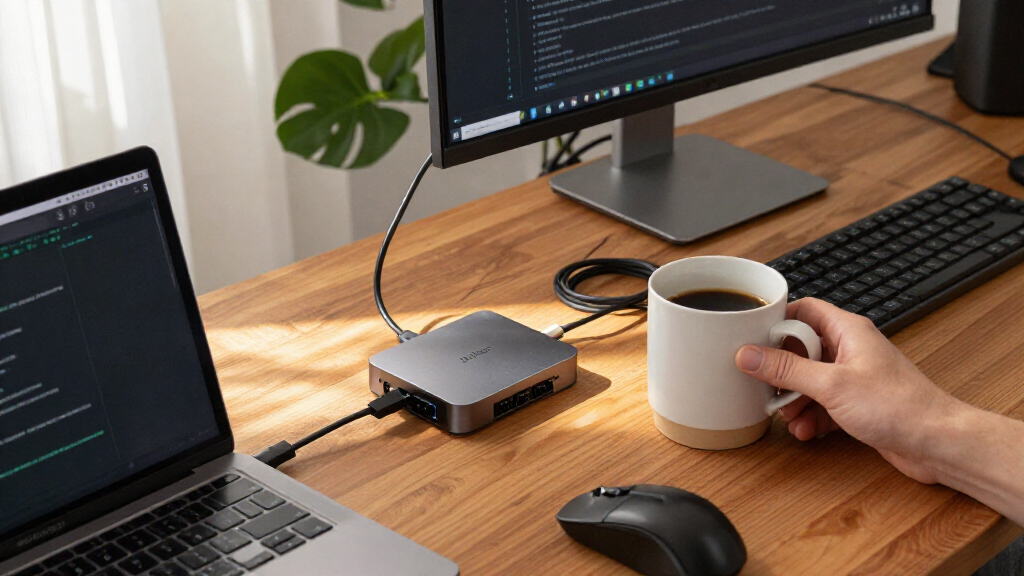

The Anker 13-in-1 USB-C Docking Station is a compact desktop hub for laptop owners who need more connections and, on supported systems, several external displays. Its biggest advantage is the combination of 13 ports and up to 85W power delivery in a small vertical design. The catch is that triple-display support is not universal: Mac users cannot use it for three independent extended screens, and Windows or ChromeOS buyers need a compatible USB-C video connection. It is worth considering for a compatible Windows or ChromeOS workstation, but it is a poor fit if you are buying mainly for multi-monitor Mac use.

Anker 13-in-1 USB-C Docking Station with Triple Display
- ✔ Hardware Interface: HDMI, MicroSD, USB
- ✔ Compatible Devices: Full Functional USB C/Thunderbolt3/4/5, Lenovo/HP/Dell laptops, Macbook
- ✔ Total USB Ports: 4
Why This Product Stands Out
This dock stands out because it tries to serve as a workstation hub, monitor adapter, and charging point at the same time. In the mid-range dock category, a broad collection of ports is useful, but the Anker’s appeal is the way those connections are gathered into a small vertical unit: HDMI and DisplayPort outputs sit alongside USB, Ethernet, SD and microSD readers, and audio. For someone who regularly moves between a laptop and a desk, that can turn a many-cable setup into one connection to the computer.
The triple-display capability is the more distinctive promise, though it needs careful qualification. It is aimed at compatible Windows 10/11 and ChromeOS systems; it does not mean every laptop with a USB-C connector can drive three separate screens. Mac users face the sharpest limitation because this dock does not provide the same independent extended-display experience for them. Compared with a simpler dual-monitor hub, the Anker offers more potential screen flexibility, but only for the buyer whose operating system and laptop support it.
That makes this a specific-use dock rather than a universal upgrade. Its port count and compact design are strong for a single desk setup, while its operating-system limits matter more than the headline number of displays. Buyers who only need one monitor and a few USB devices may not gain much from the extra capacity; buyers who want multiple screens and a broad set of connections can get more from it, provided they verify compatibility first.
Key Features and What They Mean
The 13-port selection can turn a laptop into a practical desk workstation without requiring separate adapters for every device. HDMI and DisplayPort outputs let compatible users connect monitors, while USB-A and USB-C ports keep everyday accessories such as a keyboard, mouse, and external storage within reach. That is especially useful for people who connect several devices at once and want to leave the cables in place when taking their laptop away. Ethernet offers a wired connection for users who prioritize a dependable network, while SD and microSD readers make file transfers easier for photographers and others who regularly work from memory cards. The audio connection can also keep wired headphones or audio equipment part of the desk setup. Buyers with these varied needs benefit most; someone who only connects one display and a charger may not use enough of the port selection to justify a full dock.
The multiple video outputs are valuable because they can give compatible users more screen space for separate tasks instead of forcing them to switch between crowded windows. A researcher might keep a document on one display, source material on another, and messages on a third; a different workflow could use the extra screens for spreadsheets, calls, and reference apps. This is most useful to people who multitask across several applications throughout the day. The benefit depends on the laptop’s USB-C video capability and operating-system support, however, and Mac users cannot treat the triple-display claim as support for three independent extended screens.
Up to 85W power delivery lets the dock charge a connected laptop while its other ports are in use. For a compatible laptop, this means one connection can handle power and desk accessories, making it quicker to reconnect after working elsewhere and reducing cable clutter. It is especially convenient for everyday productivity and business laptops whose charging needs fit within the dock’s output. It may not deliver full-speed charging to a higher-powered computer, so check the laptop’s required wattage and the dock’s power arrangement before relying on it to replace the original charger.
The vertical, compact body measures about 3.5 by 1.6 by 4.9 inches and weighs around 13.12 ounces. Its small footprint helps keep a crowded desk clear, while its manageable weight makes it possible to move between work areas when needed. That makes it a better fit for a tidy, mostly stationary setup than for someone seeking a travel hub. The 18-month warranty gives everyday desk users a defined period of support for a dock that may stay connected throughout the workweek, though it does not replace checking compatibility before purchase.
Performance and Real-World Use
In a day-to-day desk setup, the dock’s main convenience is consolidating connections. A compatible laptop can connect to monitors, wired networking, USB accessories, memory cards, and audio through one docking point, which is especially useful for people who take their laptop away from the desk and reconnect it regularly. The port range reduces adapter juggling, but it also makes planning worthwhile: count the devices you will connect and confirm that the right ports are available for your monitors and peripherals.
The most important setup step is checking the laptop rather than relying on the presence of a USB-C socket. For video, confirm that the port supports DisplayPort Alt Mode and that the computer’s operating system supports the display arrangement you want. For charging, compare the laptop’s power needs with the dock’s 85W delivery. A mismatch can mean reduced charging speed or a need to keep the laptop’s own charger connected. These checks are more consequential than the dock’s physical setup, which is likely to be straightforward once the right cables and ports are confirmed.
Its compact build is suited to a mostly stationary desk, and its broad connectivity can make a laptop feel closer to a conventional workstation. The tradeoff is that an all-in-one dock concentrates several jobs in one accessory: if your monitor plan changes or you switch to a different computer, compatibility may change too. The Mac display limitation is a particular concern for mixed-device households or anyone likely to change platforms. Treat the three-screen claim as a system-dependent feature, not a universal promise.
Who Should Buy This
This Anker dock makes the most sense for a Windows 10/11 or ChromeOS laptop owner who has verified USB-C video support and wants a permanent or semi-permanent desk setup with multiple external displays. It also suits people who use a mix of USB accessories, wired Ethernet, SD or microSD cards, and audio equipment, and would rather connect those through one dock than carry separate adapters. If your laptop’s charging needs fit within 85W power delivery and you will make use of several of the 13 ports, the dock’s combination of display options and everyday connectivity is a compelling reason to choose it.
Who Should Skip This
Skip this model if you use a Mac and need several independent extended screens; its display behavior does not match that use case. It is also a poor choice for anyone who has not checked whether their laptop’s USB-C port supports video output and charging, since the connector shape alone does not establish compatibility. Owners of higher-power laptops should compare their computer’s adapter requirements against the dock’s 85W ceiling. If you only connect one monitor and a couple of accessories, a simpler, less feature-heavy hub may be a better match than paying for ports and display support you will not use.
Value for Money
As a mid-range, feature-dense dock, the Anker offers better value when its broad port selection replaces multiple adapters and its multi-display support is genuinely useful. Ethernet, card readers, audio, USB connections, and laptop charging in one compact unit can justify choosing a full dock over a basic hub for a busy desk. Its value falls quickly if you only need a few connections, or if your computer cannot use the monitor configuration that distinguishes it.
For a Mac buyer seeking extended multi-monitor use, the right move is to compare alternatives designed for that display requirement rather than buying this dock for its triple-display label. A basic dual-monitor 13-in-1 hub may suit someone whose setup is simpler, while a Plugable triple-display dock with 100W delivery may be a better comparison for a compatible buyer who needs more charging headroom. The Anker is worthwhile when its specific combination of ports, compactness, and supported display use matches your setup; it is not a value choice on port count alone.
Anker 13-in-1 USB-C Docking Station with Triple Display
This dock stands out because it tries to serve as a workstation hub, monitor adapter, and charging point at the same time. In the mid-range dock category, a broad collection of ports is useful, but the Anker’s appeal is the way those connections are gathered into a small vertical unit: HDMI and DisplayPort outputs sit
Pros:
- The 13-port selection can replace several separate adapters, simplifying a desk setup with displays, storage, networking, and audio.
- Triple-display support on compatible systems gives multitaskers room to keep reference material, communication apps, and primary work visible at once.
- Up to 85W power delivery can charge many laptops while the dock handles peripherals, reducing cable clutter; check your laptop’s charging needs and the dock’s power requirements.
- The vertical footprint and roughly 13-ounce weight suit a fixed desk where surface space is limited, while remaining manageable to move.
- An 18-month warranty provides a defined support period for a device likely to stay connected to a laptop every workday.
Cons:
- Mac users are limited to mirrored displays rather than multiple independent extended screens, which undermines the main selling point for many multi-monitor setups.
- USB-C compatibility is not automatic: the laptop needs suitable DisplayPort Alt Mode for video, and charging support must match the intended power setup.
- Extended multi-display use is positioned for Windows 10/11 and ChromeOS; buyers with other systems should not assume the advertised monitor setup will work.
- The dock’s 85W charging ceiling may be insufficient for some higher-powered laptops under demanding workloads, so buyers should compare it with their computer’s adapter requirements.
Best for: Windows 10/11 or ChromeOS laptop users with compatible USB-C video output who want several monitors, wired networking, card readers, and laptop charging from one dock.
Not ideal for: Mac users who need multiple independent extended displays, or laptop owners whose USB-C port lacks the required video and charging support.
Bottom line: The Anker 13-in-1 USB-C Docking Station is worth buying conditionally : choose it if you use a compatible Windows 10/11 or ChromeOS laptop, have confirmed video and charging support, and will use its extra ports or multiple-display setup.
Frequently Asked Questions
Does the Anker 13-in-1 dock support triple extended displays on a Mac?
No, not as three independent extended screens. The stated limitation for Mac users is mirrored displays, so this is not the right dock if your main goal is a multi-monitor Mac desktop with separate content on each screen.
Will it work with any laptop that has USB-C?
No. A USB-C connector by itself does not guarantee video output or charging support. Check that your laptop supports DisplayPort Alt Mode for the display setup you want, and confirm its charging requirements are compatible with the dock’s 85W power delivery.
Can it charge a laptop while connecting monitors and other accessories?
It supports up to 85W power delivery, which can charge many laptops while the dock is in use. Some higher-powered models may need more wattage or may charge more slowly, so compare the dock’s rating with your laptop’s supplied charger and requirements.
Is it worth choosing over a simpler dual-monitor USB-C hub?
Choose the Anker when you will use its extra ports or compatible triple-display support. If two monitors and a few basic connections cover your needs, a simpler 9-in-1 or dual-monitor dock may be a better fit. For a triple-display setup that also needs higher charging capacity, compare docks such as Plugable’s 100W triple-display option.
Which operating systems are suited to its extended-display use?
The stated extended-display support is aimed at Windows 10/11 and ChromeOS, subject to the laptop’s USB-C video capabilities. Mac users should not assume the same extended-display behavior; verify the display arrangement for your exact computer before buying.
Final Thoughts
The Anker 13-in-1 USB-C Docking Station is worth buying conditionally: choose it if you use a compatible Windows 10/11 or ChromeOS laptop, have confirmed video and charging support, and will use its extra ports or multiple-display setup. It brings a broad workstation connection set into a compact vertical design, with 85W charging that can simplify a compatible laptop desk. Skip it if you need independent extended displays from a Mac, if your laptop’s USB-C port lacks the required features, or if you only need a basic hub. The deciding factor is not the 13-port headline; it is whether your computer can use the connections you are paying for.