
Choosing the right file system is key to ensuring your external drive works smoothly across devices. Formats like exFAT offer broad compatibility for Windows, Mac, and Linux, while FAT32 works with many older devices but limits file sizes. NTFS and APFS provide better security but may have compatibility issues. Understanding these options helps you avoid glitches and data loss. If you want to find out which file system suits your needs best, explore further.
Key Takeaways
- Compatibility depends on whether the drive’s file system is supported by the operating system (e.g., NTFS for Windows, HFS+ or APFS for Mac).
- ExFAT offers broad cross-platform support, making it ideal for external drives used across multiple operating systems.
- FAT32 has wide compatibility but limits file size to 4GB and struggles with large partitions.
- Certain file systems, like APFS or NTFS, may require third-party software for full recognition on unsupported OSes.
- Proper formatting matching device and OS capabilities ensures external drive recognition and seamless access.
exFAT external hard drive formatting
As an affiliate, we earn on qualifying purchases.
As an affiliate, we earn on qualifying purchases.
Which File System Is Best for Your External Drive?
Choosing the right file system for your external drive can considerably impact its performance, compatibility, and ease of use. If you prioritize security, look for file systems that support strong encryption algorithms, ensuring your data stays protected during storage and transfer. For seamless cloud synchronization, select a file system that integrates well with cloud services, allowing effortless backups and access from multiple devices. NTFS is ideal for Windows users because of its robust encryption options, while exFAT offers broad compatibility across different operating systems for quick data sharing. Consider your main usage: if encryption and security are vital, opt for a system that supports advanced encryption algorithms, which can significantly enhance data protection. For cloud-based workflows, choose a file system optimized for cloud sync, streamlining your data management and access. Additionally, understanding the role of file system features can help you make a more informed choice tailored to your needs. Moreover, being aware of cross-platform compatibility can prevent potential issues when using multiple operating systems.
NTFS external drive encryption software
As an affiliate, we earn on qualifying purchases.
As an affiliate, we earn on qualifying purchases.
Top File Systems for External Storage Devices

When selecting a file system for your external storage device, it’s important to take into account how well it aligns with your specific needs and device compatibility. For seamless cloud synchronization, NTFS and exFAT are excellent choices, as they support large files and are widely compatible with cloud services. If security is a priority, choose a file system that meets strong encryption standards, like APFS or NTFS, which support encryption features. exFAT is beneficial for cross-platform use and supports large files without requiring complex setup. While FAT32 offers broad compatibility, it limits file size and lacks modern security features. Evaluate your primary use—whether cloud sync, security, or device compatibility—to determine the best fit among these top file systems. Additionally, understanding how file systems impact storage performance can help optimize your external drive for specific tasks. Recognizing the importance of device compatibility can further ensure your drive functions smoothly across different systems. Moreover, choosing a compatible file system can simplify your data management process and reduce potential issues during file transfers. Being aware of file system limitations can help prevent unexpected problems and improve overall storage efficiency.
best external SSD with exFAT support
As an affiliate, we earn on qualifying purchases.
As an affiliate, we earn on qualifying purchases.
Compatibility of File Systems Across Windows, Mac, and Linux

Understanding how different file systems interact with Windows, Mac, and Linux is essential for guaranteeing smooth data transfer and device compatibility. Each operating system favors certain formats—NTFS for Windows, APFS for Mac, and EXT4 for Linux—making cross-platform use tricky. To improve compatibility, many users turn to exFAT, which supports large files and works across all three OSes. Keep in mind that file systems also influence cloud storage integration and data encryption; some formats lack native encryption support, risking data security. When sharing drives, consider these points:
- Choosing a universal format like exFAT streamlines cross-platform access.
- Compatibility impacts how you manage cloud storage backups.
- File system limitations can affect data encryption options, influencing security.
Being aware of these factors helps you avoid data loss and ensures your external drives work seamlessly across systems.
As an affiliate, we earn on qualifying purchases.
Limitations of FAT32 and When to Avoid It

While exFAT offers broad compatibility, many users still rely on FAT32 due to its longstanding presence and simplicity. However, FAT32 has notable limitations that can impact your drive use. Its maximum file size is 4GB, which restricts storing large files like videos or backups. Additionally, partition management is limited; FAT32 struggles with partitions larger than 32GB on Windows, often requiring you to reformat or use third-party tools. Encryption compatibility is also limited, making secure data protection challenging. These constraints make FAT32 less suitable for modern needs, especially if you’re dealing with large files, multiple partitions, or secure storage. File system limitations can significantly influence your choice depending on your specific requirements, so avoid FAT32 when managing large files or requiring advanced security features, and consider alternatives better suited for your specific use case.
Why Use exFAT for Cross-Platform Compatibility?
exFAT offers broad device support, making it easy to use across Windows, macOS, and even some Linux systems. It also handles large files without issues, unlike older formats with size limits. Plus, switching to exFAT is straightforward, so you can quickly set up your drives for seamless cross-platform use. For troubleshooting, understanding file system choices can help you resolve compatibility issues more effectively. Additionally, knowing about different file formats can assist in selecting the best option for your specific needs. Being aware of file system compatibility can further streamline your external drive setup process.
Broad Device Support
Choosing the right file system is essential if you want your external drives to work seamlessly across different devices. exFAT offers broad device support, making it ideal for cross-platform use. It’s compatible with Windows, macOS, gaming consoles, and some smart TVs, ensuring you don’t face limitations when switching devices. Using exFAT also helps maintain network security, as it’s less prone to corruption and malware compared to other formats. Additionally, it supports cloud integration, enabling easier data sharing and backup options. Keep in mind that broad device support isn’t just about hardware; it also involves compatibility with network security protocols and cloud services. When choosing a file system, consider how well it fits your device ecosystem to avoid compatibility issues down the line.
File Size Limits
When dealing with large files, understanding the file size limits of your storage format becomes essential. Formats like FAT32 have strict restrictions, capping file sizes at 4GB, which can hinder working with high-resolution videos or large backups. exFAT supports much larger files, making it ideal for external drives used across platforms. Its design minimizes data fragmentation by managing clustered storage efficiently, reducing the chance of slow access times and corrupted data. Unlike older formats, exFAT allows for seamless handling of big files without splitting them into smaller parts. This flexibility guarantees your data remains intact and accessible, regardless of the operating system. Choosing a format with appropriate file size limits keeps your workflow smooth and prevents unexpected data loss or access issues.
Easy Format Transition
File size limits are a key consideration when selecting a storage format, but equally important is how easily you can switch formats if needed. Using exFAT makes format changes seamless, especially when moving between Windows and macOS. Its compatibility simplifies tasks like cloud synchronization, ensuring files stay up-to-date across devices without reformatting. Plus, exFAT supports data encryption, keeping your files secure during transfers, even when switching platforms. Moving to exFAT reduces the hassle of reformatting drives, saving time and effort. Additionally, because exFAT is widely recognized by various device types, it supports dog breeds overview that enhance its versatility for different user needs.
Best File Systems for Mac Users: APFS and HFS+ Explained

For Mac users, understanding the differences between APFS and HFS+ is essential for optimizing storage and ensuring compatibility. APFS is Apple’s newer file system, designed for solid-state drives, offering faster performance, seamless cloud integration, and advanced encryption standards. It simplifies managing multiple snapshots and backups, making it ideal for modern Mac environments. HFS+, on the other hand, has long been the standard for macOS, supporting older hardware and traditional external drives. While it lacks some of APFS’s modern features, it remains compatible with many devices and operating systems. If you prioritize security, encryption standards are more advanced in APFS, providing better data protection. Additionally, understanding file system features can help you select the most suitable format for your specific storage setup. When choosing between these options, consider compatibility requirements to ensure your external drives function seamlessly across your devices. Moreover, knowing how drive types impact performance can further inform your decision-making process.
How to Format Your Drive Safely in 5 Easy Steps

To format your drive safely, start by choosing the right file system for your needs. Next, back up any important data to prevent loss, then use the appropriate formatting tools to complete the process. Following these steps guarantees a smooth and secure setup for your external drive.
Choose Appropriate File System
Choosing the right file system is essential because it determines how your drive stores and manages data, affecting compatibility and performance. Selecting the correct format guarantees smooth data transfer, supports file encryption, and maintains security through storage encryption. To make an informed choice, consider these factors:
- Compatibility with your devices and operating systems
- Support for large files and storage capacity
- Security features like file encryption options
For example, if you need cross-platform access, FAT32 or exFAT might be best. If security is a priority, NTFS or APFS offer robust encryption capabilities. Keep in mind that some file systems support built-in file encryption, enhancing data protection. Picking the right format now saves time and prevents issues later, especially when managing sensitive information.
Back Up Existing Data
Before you start formatting your drive, it’s essential to back up any important data to prevent potential loss. You can choose a cloud backup service for quick, reliable storage or copy files to another external drive. Consider encrypting sensitive data before backing up to guarantee privacy during transfer and storage. This step protects your information if the drive gets lost or stolen. Make sure your backup is complete and verify that all critical files are accessible. Don’t forget to update your backups regularly, especially if you add or modify files. By securely backing up your data, you safeguard against accidental deletion or formatting errors, making the process safer and stress-free when you’re ready to format your drive. Remember, inspiring leadership can help you stay organized and focused during technical tasks like this.
Use Proper Formatting Tools
Once you’ve backed up your data, it’s time to select the right formatting tools to prepare your drive. Use built-in disk management utilities or trusted third-party software to guarantee a safe process. Choosing the right tool helps you avoid data corruption and compatibility issues. When formatting, consider these key points:
- Choose the appropriate file system based on your device and intended use, like NTFS for Windows or exFAT for cross-platform compatibility.
- Implement encryption methods during or after formatting to protect sensitive data.
- Use cloud storage for an extra layer of backup, especially before formatting, so you won’t lose important files.
Proper tools and methods guarantee your drive’s performance and security, aligning with your data management needs.
Choosing the Right File System Based on Your Needs
Selecting the right file system for your external drive depends on how you plan to use it. If you need quick access across multiple devices, formats like exFAT or FAT32 are versatile and compatible. For enhanced security, consider file systems that support encryption methods, especially if you’re storing sensitive data. If you frequently use cloud storage, choose a file system that integrates smoothly with your cloud services, like NTFS or APFS. Think about your data size and transfer speed needs; for large files, NTFS or exFAT work well. Also, consider future-proofing your setup—some file systems are better suited for newer hardware and operating systems. Microplastics in dust can also impact the integrity of stored data over time, so choosing a durable and reliable file system is important. Matching your file system choice to your specific use case guarantees peak performance, security, and compatibility.
Pros and Cons of Proprietary vs. Open-Source File Systems
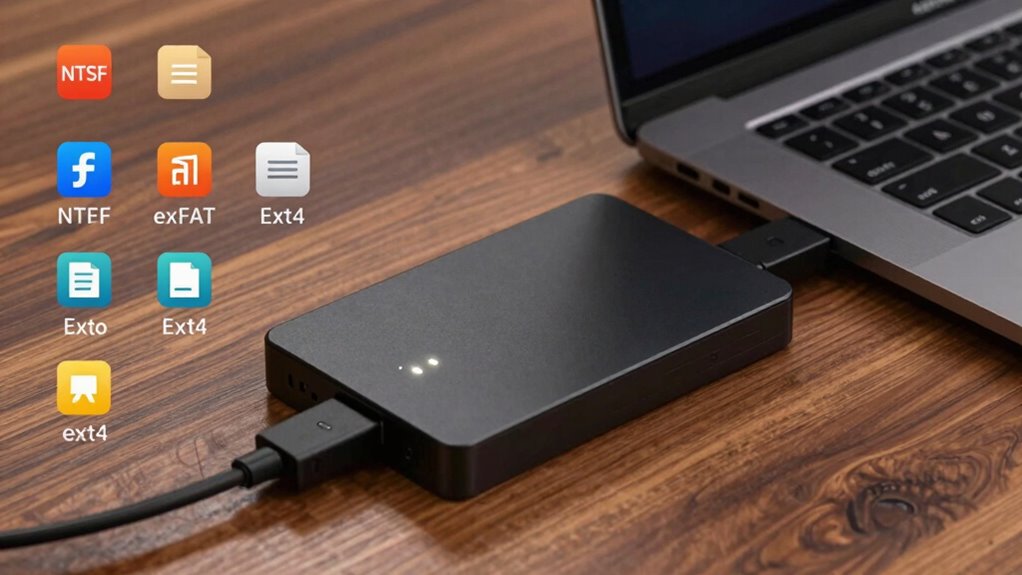
When choosing between proprietary and open-source file systems, understanding their key differences helps you make an informed decision. Proprietary systems often offer optimized performance and seamless integration with specific hardware or software, making them suitable for cloud storage solutions. However, they may lock you into specific vendors and lack transparency in encryption standards, risking security concerns. Open-source options provide greater flexibility, transparency, and community support, allowing you to verify encryption standards and adapt to evolving needs. They often foster innovation and may be more compatible across different devices. But, they can sometimes lack dedicated support or optimized performance. Consider these points:
- Proprietary systems prioritize performance but limit customization.
- Open-source systems enhance transparency but may require more technical expertise.
- Both options impact external drive compatibility and security features.
- File system options can help you choose the best solution for your needs. Additionally, understanding the Horsepower of Electric Dirt Bikes can inform decisions about performance requirements if integrating external drives with high-performance hardware. Proper knowledge of file system compatibility can also help prevent data loss and ensure smooth operation of your external storage devices, especially in environments where hardware performance is critical.
Troubleshooting Common External Drive Compatibility Problems

When your external drive isn’t working as expected, compatibility issues might be the cause. You may encounter drive format limitations or operating system constraints that prevent proper recognition. Identifying these factors helps you troubleshoot effectively and find the right solution.
File System Compatibility Issues
Have you ever plugged in an external drive only to find it’s not recognized? Compatibility issues often stem from file system choices that don’t match your device or operating system. For example, certain file systems handle drive partitioning differently, affecting recognition. Data encryption can also cause problems if your device doesn’t support the encryption method used. Additionally, some systems struggle with external drives formatted in incompatible file systems, like NTFS on a Mac. To troubleshoot, consider these points:
- Confirm the drive’s file system aligns with your device’s supported formats
- Check if data encryption is causing access issues
- Revisit drive partitioning to confirm it’s optimized for your system
These steps help identify compatibility barriers, preventing frustration down the line.
Drive Format Limitations
Drive format limitations are a common obstacle when trying to use external drives across different devices. If your drive isn’t formatted correctly, you might face read/write errors or incompatibility issues. For example, a drive formatted in NTFS works well on Windows but may be unreadable on Mac without extra software. Similarly, some systems require drives to support specific encryption methods for security. If you’re relying on cloud storage, incompatible formats can hinder seamless data transfer or backup. To avoid frustration, choose formats like exFAT or FAT32, which offer broad compatibility.
| Compatible Formats | Incompatible Formats |
|---|---|
| exFAT, FAT32 | NTFS, HFS+ |
| Supports encryption | Limited encryption options |
| Cross-platform use | Device-specific limitations |
Operating System Constraints
Operating system constraints often cause compatibility issues with external drives, especially when different systems use distinct file management protocols. For example, some OSes may not support certain file systems or encryption security features, limiting access or risking data loss. These limitations can hinder cloud synchronization efforts or compromise encryption security, leaving your data vulnerable. To troubleshoot, consider these points:
- Make certain your OS supports the drive’s file system and encryption methods.
- Update your system to improve compatibility with newer drive formats.
- Use compatible software tools to bridge gaps between different operating systems.
Being aware of these constraints helps prevent data access issues and ensures your external drive works seamlessly across platforms, maintaining security and synchronization capabilities.
Frequently Asked Questions
Can I Reformat My External Drive Without Losing Data?
Yes, you can reformat your external drive without losing data if you backup first. Use data recovery options to retrieve files if needed, and always follow backup best practices before reformatting. To prevent data loss, copy your important files to another storage device or cloud service. Reformatting will erase the drive, so make sure your backups are complete and verified to avoid any surprises during the process.
How Do File System Choices Impact Data Transfer Speeds?
Think of file system choices as the lanes on a highway—your data’s speed depends on which lane you choose. A more efficient file system reduces overhead and streamlines transfer protocol efficiency, making data transfer faster. If you select an ideal file system, you’ll notice quicker file reads and writes, as less time is wasted maneuvering unnecessary overhead. Choosing the right format speeds up your data journey, like a clear highway with no traffic jams.
Are There Security Concerns With Different File Systems?
Yes, different file systems pose security concerns. Encryption vulnerabilities can expose your data if the file system doesn’t support strong encryption or if encryption keys are poorly managed. Permission restrictions may also be weaker on some systems, allowing unauthorized access. You should choose a file system with robust security features to protect your data, especially if you’re handling sensitive information or using external drives across multiple devices.
Which File System Supports the Largest File Sizes?
If you need to support the largest file sizes, exFAT is your best choice, as it supports files over 16 exabytes, far beyond FAT32 or NTFS. Keep in mind, though, that choosing exFAT can cause compatibility issues with some older devices or systems that don’t support it. Always consider your device’s compatibility and your file size needs before selecting a file system for your external drive.
Can I Use a Single External Drive Across All Operating Systems Seamlessly?
Imagine your external drive as a chameleon, trying to fit into every OS party. You can use one drive across all operating systems, but only if you pick the right drive formatting options. For seamless cross-platform compatibility, formats like exFAT or FAT32 work best—they’re OS-friendly. Just avoid NTFS if you’re on Mac, unless you install special software. So yes, choose wisely, and your drive can be everyone’s favorite guest!
Conclusion
Choosing the right file system guarantees your external drive works seamlessly across devices. Whether you prioritize compatibility, speed, or security, selecting the appropriate format makes all the difference. Have you considered how your specific needs influence your choice? By understanding your options and following safe formatting practices, you’ll avoid common pitfalls and keep your data safe. Isn’t it worth taking a moment to choose wisely and enjoy hassle-free external storage?