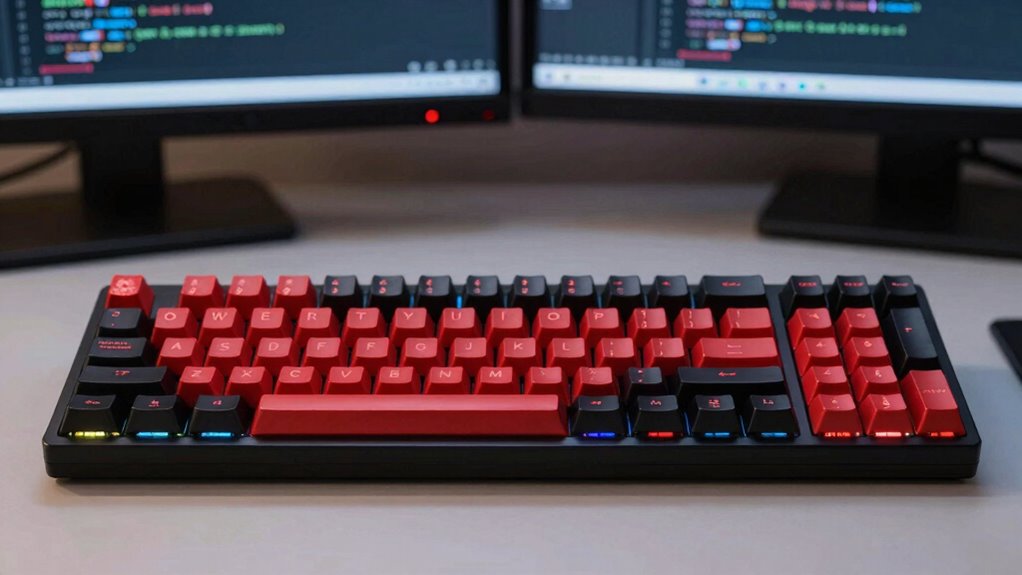

To remap your keyboard for developer shortcuts, start by choosing an ergonomic, cross-platform remapping tool like AutoHotkey or Karabiner-Elements. Identify the shortcuts you use most often and assign them to accessible keys or combinations. Test your new setup to guarantee it improves speed and comfort, then refine as needed. Keep your shortcuts consistent across tools for efficiency. Stay tuned for more tips to optimize your coding workflow and ergonomic setup.
Key Takeaways
- Choose a cross-platform remapping tool that supports ergonomic layouts and customizable shortcuts for seamless integration.
- Identify frequently used developer shortcuts and assign them to more accessible keys or key combinations.
- Test remapped shortcuts in various coding environments to ensure consistency and efficiency.
- Maintain clear documentation of changes and regularly review shortcuts for ergonomic improvements.
- Troubleshoot remapping issues by verifying software settings, updating drivers, and reprogramming problematic keys.

Logitech Ergo K860 Wireless Ergonomic Split Keyboard with Wrist Rest
- Ergonomic Split Keyboard: Promotes natural typing posture
- Pillowed Wrist Rest: Provides enhanced wrist support and comfort
- Comfortable, Precise Keys: Scooped keys for confident typing
As an affiliate, we earn on qualifying purchases.
As an affiliate, we earn on qualifying purchases.
How to Choose the Best Keyboard Remapping Tool for Developers
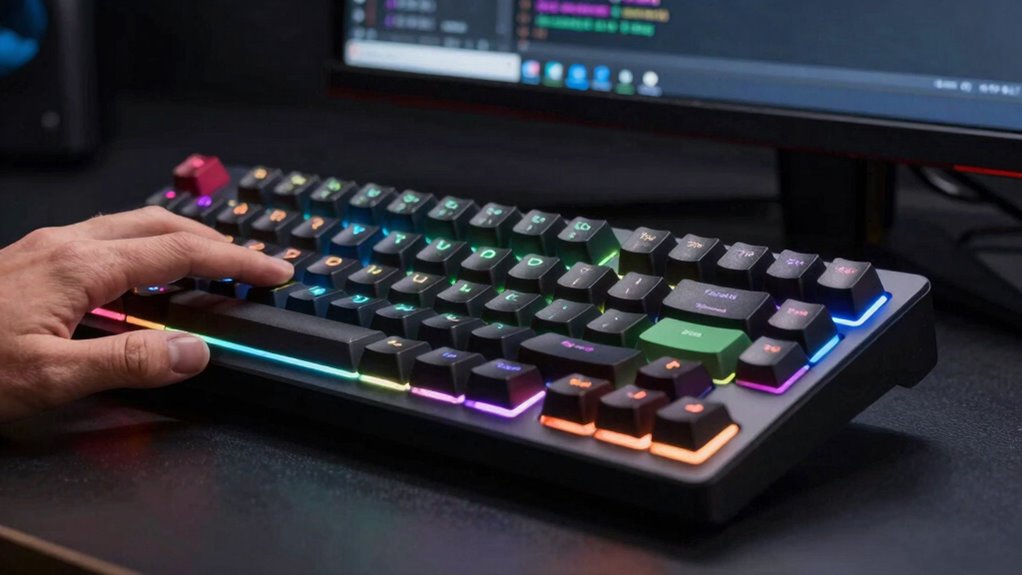
Choosing the right keyboard remapping tool is essential for developers who want to optimize their workflow and reduce strain. Look for tools with ergonomic design, which prioritize comfort during long coding sessions. An ergonomic layout minimizes repetitive strain injuries and enhances overall productivity. Cross-platform compatibility is equally important, especially if you work across different operating systems like Windows, macOS, and Linux. A versatile remapping tool that supports multiple platforms allows seamless customization without switching tools or configurations. Additionally, consider user-friendly interfaces and reliable support, ensuring easy setup and troubleshooting. By focusing on these features, you can select a remapping tool that not only improves efficiency but also promotes healthier typing habits, making your development process smoother and more comfortable. Incorporating ergonomic keyboard layouts can further reduce fatigue and prevent discomfort during extended coding periods, especially when paired with customizable shortcuts that suit your workflow. Paying attention to keyboard ergonomics can significantly impact your comfort and productivity over time, and understanding contrast ratio in related tech can help you better evaluate the visual feedback of your setup.
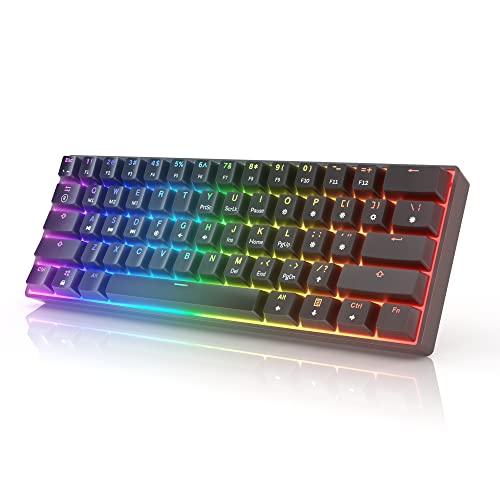
HK GAMING GK61 Mechanical Gaming Keyboard – 61 Keys Multi Color RGB Illuminated LED Backlit Wired Programmable for PC/Mac Gamer Tactile (Gateron Optical Brown)
- Switch Type: Optical Mechanical Switches
- RGB Lighting: 16.8 Million Colors, 20 Patterns
- Tactile Feedback: Responsive for Gaming and Typing
As an affiliate, we earn on qualifying purchases.
As an affiliate, we earn on qualifying purchases.
Step-by-Step Guide to Remapping Keyboard Shortcuts for Coding
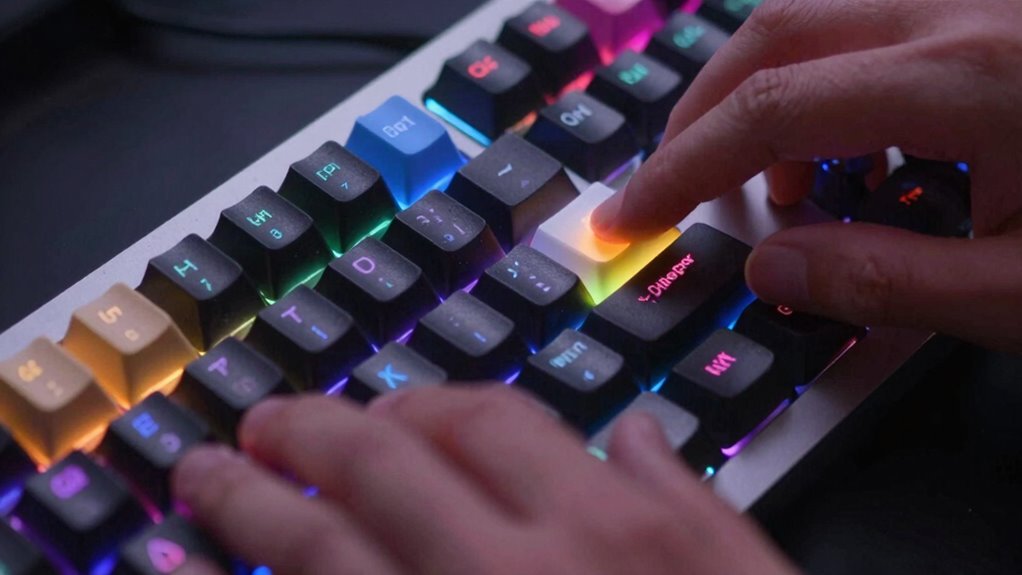
Remapping keyboard shortcuts can substantially streamline your coding workflow, allowing you to access frequently used commands more quickly and intuitively. To optimize shortcut ergonomics, start by identifying repetitive actions or commands that slow you down. Use your chosen remapping tool to assign these to easily accessible keys or combinations. Follow remapping best practices by avoiding conflicts with existing shortcuts and keeping key combinations logical. Test your new shortcuts in real coding scenarios to guarantee they improve speed and comfort. Document your changes for future reference, and adjust as needed to maintain efficiency. Remember, the goal is to create a personalized, ergonomic setup that minimizes hand strain and maximizes productivity, making your coding sessions smoother and more enjoyable. Additionally, understanding keyboard ergonomics can help prevent strain and injury during long coding sessions. Considering how artificial intelligence can assist in optimizing your workflow, including remapping tasks, might also be worth exploring for a more innovative approach.

Redragon Mechanical Gaming Keyboard Wired, 11 Programmable Backlit Modes, Hot-Swappable Red Switch, Anti-Ghosting, Double-Shot PBT Keycaps, Light Up Keyboard for PC Mac
- Vibrant Backlit Modes: 11 customizable lighting effects with adjustable brightness and speed
- Macro Customization Support: Remap keys, set shortcuts, and create macros
- Hot-Swappable Red Switches: Easy switch replacement with 4 spare switches included
As an affiliate, we earn on qualifying purchases.
As an affiliate, we earn on qualifying purchases.
Tips for Customizing Developer Keyboard Shortcuts Effectively

Once you’ve set up your custom shortcuts, it’s important to fine-tune them for maximum efficiency. Focus on maintaining good keyboard ergonomics to prevent strain during long coding sessions. To improve shortcut consistency, consider these tips:
- Use intuitive key combinations that match your workflow, reducing cognitive load.
- Keep shortcuts uniform across different tools to avoid confusion.
- Avoid overloading a single key with multiple functions; prioritize essential actions.
- Regularly review and adjust shortcuts based on your evolving coding habits.
- Incorporate ergonomic considerations to ensure comfortable and sustainable keyboard use during extended periods. Additionally, understanding requirements traceability can help you systematically track and optimize your shortcut setup, ensuring it aligns with your overall development process. Monitoring early detection signs of fatigue can help you prevent discomfort and maintain productivity.

VSDINSIDE Macro Keypad, Stream Controller Deck Gaming Streaming Shortcut Keyboard, 18 Programmable Keys Customizable Visual AI Pad USB Soundboard for OBS, YouTube, Desk Office Setup, Laptop, PC, Mac
- Programmable Keys: 18 customizable macro keys with visual display
- Quick Single Tap Commands: Supports one-tap macros, text input, and scene switching
- Multi-Shortcut Programming: Create complex macros for gaming and content creation
As an affiliate, we earn on qualifying purchases.
As an affiliate, we earn on qualifying purchases.
How to Test and Troubleshoot Your Keyboard Remapping Setup
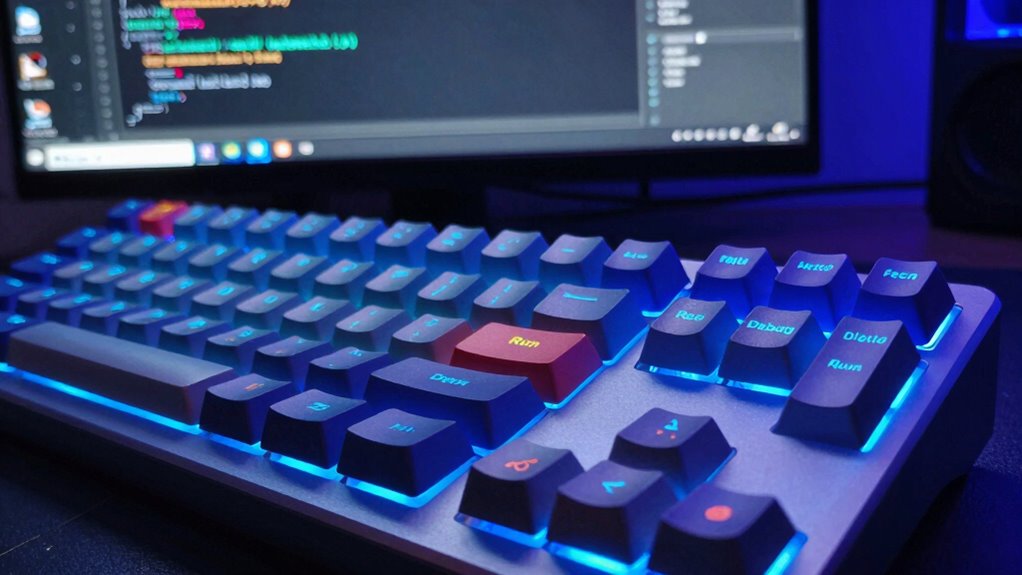
Before relying on your new keyboard layout, you need to thoroughly test it to guarantee everything works as intended. Start by checking hardware compatibility—make certain your keyboard functions correctly with your operating system and that no keys are unresponsive. Use simple testing tools or built-in keyboard testers to verify each remapped key performs as expected. If you encounter issues, revisit your user interface customization settings, confirming your remapping software or configuration files are correctly applied. Test shortcuts across different applications to identify inconsistencies. Troubleshooting may involve reprogramming keys, updating drivers, or adjusting software settings. This process helps make sure your remapped layout is reliable, avoiding disruptions and optimizing your workflow. Proper testing guarantees your digital safety and ensures your custom shortcuts enhance productivity rather than hinder it. Additionally, understanding measurement accuracy can assist in diagnosing hardware or software issues impacting your remapping setup.
Maintaining and Updating Your Keyboard Shortcuts Over Time

As your workflow evolves and software updates roll out, maintaining regular reviews and refinements of your keyboard shortcuts is essential to stay efficient. Over time, you’ll want to guarantee your remapping aligns with shortcut ergonomics and remains intuitive. Follow these remapping best practices:
Regularly review and refine your shortcuts to stay efficient, ergonomic, and aligned with evolving workflows.
- Periodically evaluate if shortcuts still speed up your tasks.
- Adjust key combinations to reduce finger strain and improve ergonomics.
- Remove redundancy by consolidating similar shortcuts.
- Stay updated with software changes that may affect shortcut configurations.
- Incorporate child development principles to ensure your setup remains adaptable and supportive of long-term productivity.
Regularly revisiting your shortcuts helps prevent clutter and keeps your setup optimized. Staying proactive ensures your shortcuts continue to support productivity and ergonomic comfort, making your custom remapping a long-term asset.
Frequently Asked Questions
Can Remapping Affect My Keyboard’s Default Functionality?
Remapping your keyboard can affect its default functionality, especially if you change essential keys used for shortcuts. You might encounter remapping conflicts, where custom shortcuts clash with system or app commands, causing unexpected behavior. Be cautious and test your new layout thoroughly. If issues arise, you can always revert to the default settings to restore original keyboard shortcuts and functionality, ensuring your workflow stays smooth.
Is Keyboard Remapping Compatible Across Different Operating Systems?
Think of keyboard remapping like a universal translator—it’s not always seamless across different operating systems. Cross-platform compatibility can be tricky, as custom shortcut configurations often rely on OS-specific tools or settings. While some remapping software offers broad support, you might need to reconfigure shortcuts for each OS to guarantee smooth functionality. Always check compatibility before customizing your shortcuts to avoid frustration and ensure they work everywhere you need them.
How Do I Revert to the Original Keyboard Layout if Needed?
To revert to the original keyboard layout, you simply perform a keyboard reset or layout restoration. On Windows, go to Settings > Time & Language > Language, select your language, and choose Options to reset the keyboard layout. On macOS, open System Preferences > Keyboard > Input Sources, then remove any custom layouts to restore the default. For Linux, access your system’s keyboard settings and select the original layout. This guarantees your keyboard reverts to its default state.
Are There Any Security Risks Involved in Remapping Keys?
Did you know that nearly 60% of security breaches involve human error? When you remap keys, it can introduce remapping vulnerabilities if not done carefully. While remapping itself isn’t inherently risky, it might affect keyboard security if malicious software exploits custom layouts or if you don’t keep your system updated. Always verify your remapping tools are trustworthy, and avoid shortcuts that could accidentally disable security features.
Can Remapping Interfere With Other Software or Hardware Setups?
Remapping your keyboard can interfere with other software or hardware setups, especially if it creates conflicting custom shortcuts. You might accidentally override essential commands or cause hardware conflicts with certain peripherals. To avoid issues, test your custom shortcuts carefully and make sure they don’t clash with system functions or device controls. Staying aware of potential conflicts helps maintain smooth performance across your software and hardware ecosystem.
Conclusion
Remapping your keyboard is like tuning an instrument—you get it just right for your workflow. With the right tools and tips, you can customize shortcuts to boost your coding efficiency and reduce strain. Keep testing and refining your setup, and it’ll become as natural as breathing. Remember, the key is to stay flexible and adapt as your needs evolve. Soon, your keyboard will feel like an extension of your mind, making coding smoother and more enjoyable.