
To create a CLI with Python, you can combine Typer and Rich for a smooth experience. Typer handles command management and input validation effortlessly, while Rich adds colorful formatting, progress bars, and styled text. Start by defining your commands with Typer and customize options for clarity. Use Rich to make your interface visually appealing and easier to interpret. If you keep exploring, you’ll discover how to build a professional, user-friendly CLI tailored to your needs.

Get business pricing on monitors, keyboards and dev gear
- Business-only prices and quantity discounts
- Tax-exempt purchasing
- Multiple users, one account, clear invoices
Key Takeaways
- Use Typer to define commands, options, and arguments with automatic input validation for a user-friendly CLI.
- Incorporate Rich to enhance output with colorful formatting, progress bars, tables, and styled error messages.
- Organize commands hierarchically or in groups for better navigation and clarity.
- Handle exceptions gracefully to provide clear, informative feedback using Rich’s visual formatting.
- Leverage domain knowledge to customize commands and outputs for specific use cases, improving relevance and usability.
Creating a command-line interface (CLI) in Python is straightforward thanks to tools like Typer and Rich. These libraries streamline the process, allowing you to build user-friendly and visually appealing CLIs with minimal effort. As you develop your CLI, you’ll want to focus on two key aspects: error handling and command customization. Proper error handling ensures your program responds gracefully to unexpected inputs or issues, while command customization gives you the flexibility to tailor commands to fit your specific needs.
When you design your CLI, error handling becomes an essential part of creating a robust tool. Typer simplifies this process by automatically validating inputs based on function annotations, but you should also anticipate potential errors that might arise during execution. For example, if a user enters an invalid argument, your CLI should inform them clearly about what went wrong, rather than crashing or producing a confusing message. You can accomplish this by catching exceptions and providing helpful, informative feedback. Using Rich, you can enhance error messages with color and formatting, making them stand out and easier to understand. This not only improves user experience but also helps users troubleshoot issues quickly. Additionally, understanding home theatre projectors and their features can help you create more specialized and effective CLI tools tailored to specific domains.
Command customization is another crucial aspect you should leverage. Typer makes it easy to define commands with specific options and arguments, giving you granular control over your CLI’s behavior. You can create commands that accept various parameter types, set default values, and add help descriptions—all of which make your CLI more intuitive. Additionally, you can organize commands hierarchically or group related commands together, creating a logical structure that users will appreciate. Rich complements this by allowing you to customize the output of your commands. You can add colorful progress bars, tables, or formatted text, making your CLI more engaging and easier to interpret. Customization also extends to how you handle user input and output, enabling you to craft a polished and professional interface.
Products Worth Considering

DJI Osmo Mobile 8 3-Axis Phone Gimbal Stabilizer

Apple Watch SE 3 GPS Smartwatch, 40mm
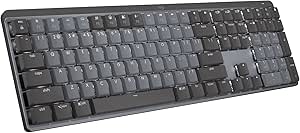
Logitech MX Mechanical Wireless Illuminated Keyboard, Tactile Quiet, Graphite
As an affiliate, we earn on qualifying purchases.
Frequently Asked Questions
Can Typer and Rich Be Used Together in Existing Python Projects?
Yes, you can definitely use Typer and Rich together in your existing Python projects. They complement each other well for command automation and plugin integration, making your CLI more interactive and user-friendly. Typer handles command parsing effortlessly, while Rich enhances output with beautiful formatting. Integrating them is straightforward, enabling you to improve your project’s usability without rewriting much code, all while leveraging their powerful features seamlessly.
How Do I Handle Errors and Exceptions in My CLI?
You handle errors and exceptions in your CLI by using Typer’s built-in exception management features, like custom exception handlers. Wrap your command logic in try-except blocks to catch specific errors, then use Rich to display user-friendly error messages. This approach improves error handling, making your CLI more robust. Always log exceptions for debugging, and provide clear feedback to users so they understand what went wrong and how to fix it.
Are There Any Limitations on Cross-Platform Compatibility?
Think of your CLI as a traveler crossing borders; some limitations could trip it up. Platform-specific constraints and library compatibility issues might cause hiccups on certain operating systems, like Windows versus Linux or macOS. While Typer and Rich are designed to be cross-platform, you should test features that depend on system-specific functions. Keep these constraints in mind to guarantee your CLI travels smoothly across all platforms without losing its way.
How to Customize the Appearance of Output With Rich?
To customize the appearance of output with Rich, you explore its extensive customization options for visual styling. You can change colors, add styles like bold or underline, and customize borders and backgrounds. Use Rich’s console methods, such as `print()` with style parameters, or create styled objects like `Panel` and `Table`. This flexibility lets you tailor your CLI’s look, making it more engaging and visually appealing for users.
Is There a Way to Extend Typer Commands Dynamically?
Your CLI can totally evolve like a living creature! Yes, you can extend Typer commands dynamically through runtime extension, allowing you to register commands at runtime or add new ones on the fly. Use functions like `app.command()` to register commands dynamically, or manipulate `app` directly for more advanced behavior. This approach makes your CLI flexible and adaptable, perfect for complex workflows or plugin systems.
Conclusion
By combining Typer and Rich, you can effortlessly build powerful, user-friendly CLIs that stand out. Imagine automating your daily tasks—like a developer using this combo to track project progress—saving time and reducing errors. The flexibility and elegance of these tools mean you don’t need to be a seasoned developer to craft professional interfaces. Start experimenting today, and see how your command-line apps become more intuitive, engaging, and impactful.