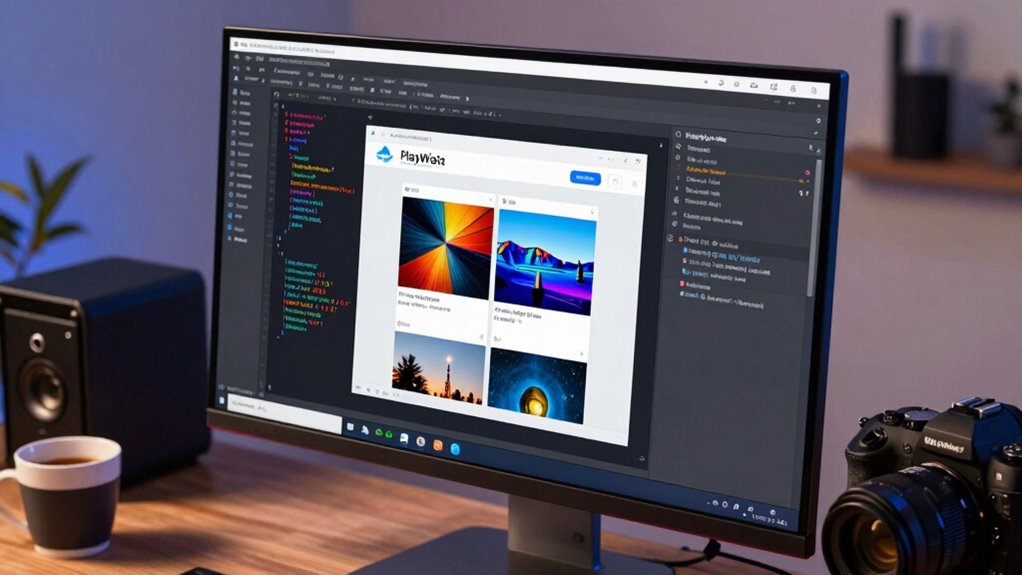

To create visual regression tests with Playwright screenshots, you start by capturing baseline images of your UI elements or pages. Next, run your tests to take new screenshots during updates, then compare these images to your stored baselines using Playwright’s built-in comparison tools. Automated differences highlight visual issues early, saving manual effort and ensuring UI consistency across browsers and devices. If you keep exploring, you’ll discover how to set this up efficiently and maintain reliable visual quality.

Get business pricing on monitors, keyboards and dev gear
- Business-only prices and quantity discounts
- Tax-exempt purchasing
- Multiple users, one account, clear invoices
Key Takeaways
- Use Playwright’s `page.screenshot()` method to capture precise UI snapshots during tests.
- Establish baseline images to compare against current screenshots for detecting visual discrepancies.
- Automate screenshot comparisons with tools like pixelmatch or Playwright’s built-in diffing features.
- Integrate visual regression tests into your CI pipeline for continuous UI validation.
- Adjust sensitivity thresholds to identify subtle visual changes while minimizing false positives.
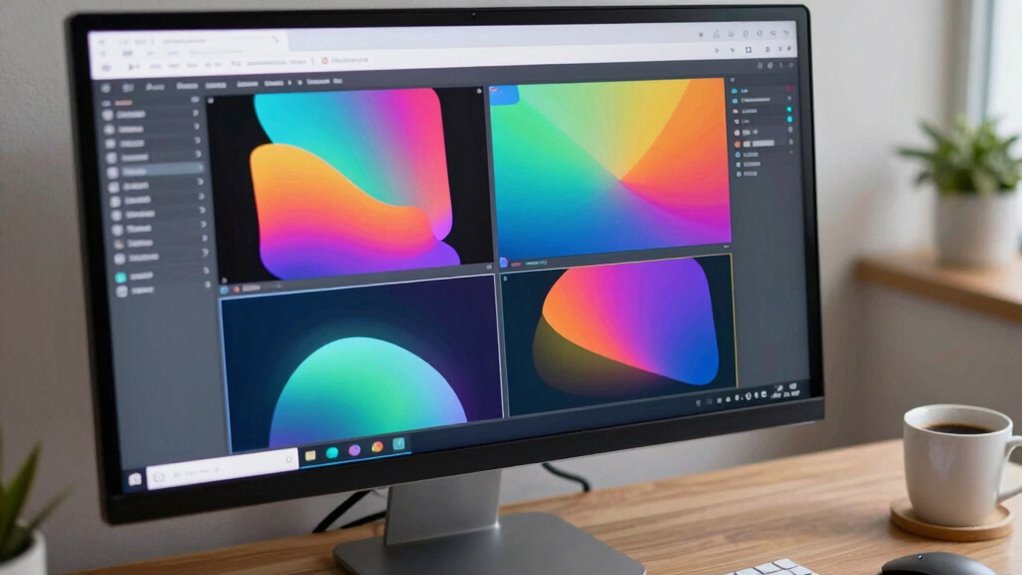
Visual regression testing is essential for guaranteeing your website or application’s UI remains consistent as you make updates. When you’re frequently changing code, it’s easy for visual elements to drift or break without you noticing. That’s where image comparison comes into play, enabling you to detect subtle visual differences between your current UI and a baseline. By automating this process through test automation, you save yourself hours of manual checking, allowing you to catch visual bugs early and maintain a polished user experience.
Automated visual regression testing detects subtle UI changes, saving time and ensuring a polished, consistent user experience.
Using Playwright to create visual regression tests with screenshots is a powerful approach. Playwright’s built-in screenshot capabilities let you capture precise images of your webpage at different states. When combined with image comparison tools, you can automatically verify whether those screenshots match your baseline images. If discrepancies occur, the tool highlights the differences, making it straightforward to identify unintended visual changes. This setup makes your testing more reliable, repeatable, and less prone to human error.
Test automation with Playwright’s screenshot feature simplifies the entire process. You can script your tests to navigate through various pages, interact with elements, or simulate user behaviors, then take screenshots at critical points. These images are then compared against reference images stored from previous tests. When the comparison detects differences beyond a set threshold, it flags a potential issue, allowing you to investigate and resolve it promptly. This creates a robust visual validation process that adapts well to evolving UI designs. This continuous feedback loop ensures your UI remains consistent, even as your code evolves.
One of the key advantages of integrating image comparison with Playwright is how it streamlines regression testing. Instead of manually scrutinizing visual elements, you run your automated tests, and the system handles the heavy lifting. It saves you time and reduces the risk of overlooking visual bugs that could negatively impact your users’ experience. Plus, since Playwright supports cross-browser testing, you can verify your UI’s consistency across Chrome, Firefox, and Safari, ensuring a truly robust visual validation process. Additionally, understanding the importance of contrast ratio in visual fidelity helps ensure your tests accurately reflect real-world viewing conditions. Moreover, considering visual fidelity during testing can improve accessibility and overall user satisfaction. Incorporating color accuracy as part of your visual validation can further enhance the consistency and quality of your UI across different devices and lighting conditions. Paying attention to color contrast can also help meet accessibility standards, making your site more inclusive for all users.
Playwright screenshot automation tool
As an affiliate, we earn on qualifying purchases.
As an affiliate, we earn on qualifying purchases.
Frequently Asked Questions
How Do I Compare Screenshots Across Different Browsers?
To compare screenshots across different browsers, you focus on ensuring cross-browser consistency by using Playwright’s screenshot normalization. First, take screenshots in each browser, then normalize these images to account for differences like rendering and resolution. Use a visual comparison tool, such as pixelmatch, to detect differences. This process helps you identify visual discrepancies, ensuring your application looks consistent across various browsers and maintaining a reliable visual regression testing process.
What Are Best Practices for Managing Baseline Images?
To manage baseline images effectively, you should organize them systematically in dedicated folders, clearly naming each to reflect the test scenario and browser. Regularly review and update your baseline images as your design evolves, ensuring accurate image comparison. Use version control to track changes, and automate baseline management within your testing pipeline. Consistent baseline management reduces false positives and helps maintain reliable visual regression testing results.
Can Visual Tests Be Integrated Into Ci/Cd Pipelines?
Imagine your project gently flowing through the pipeline like a river. You can integrate visual tests into CI/CD pipelines seamlessly, using test automation tools and image comparison techniques. This setup catches visual discrepancies early, ensuring quality without disrupting your flow. By automating visual regression testing, you keep your app’s appearance consistent, catching issues before they reach users, and maintaining smooth, reliable releases every time.
How Do I Handle Dynamic Content in Visual Regression Tests?
To handle dynamic content in visual regression tests, you should focus on screenshot stabilization by implementing strategies like waiting for network idle, hiding or removing unpredictable elements, and setting fixed timeouts. Use Playwright’s waitForSelector or waitForResponse to make sure content is fully loaded before capturing screenshots. This approach minimizes false positives, making your tests more reliable despite content variability.
What Tools Complement Playwright for Visual Testing?
You can complement Playwright with tools like Percy or Applitools for visual testing, enhancing visual storytelling by capturing thorough screenshots. These tools automatically compare images, helping you identify visual discrepancies efficiently. For ideal results, focus on image optimization to reduce load times and guarantee consistent rendering. Combining Playwright with these visual testing tools streamlines your process, making it easier to maintain visual consistency and deliver a seamless user experience.
visual regression testing software
As an affiliate, we earn on qualifying purchases.
As an affiliate, we earn on qualifying purchases.
Conclusion
Now that you know how to craft visual regression tests with Playwright screenshots, you’re armed with a tool powerful enough to catch even the tiniest design changes—quicker than a lightning strike! By integrating these tests into your workflow, you’ll prevent your website from turning into a confusing maze of visual bugs. Keep experimenting, and soon, you’ll be the superhero of seamless, bug-free user experiences—faster than you can say “visual perfection”!
As an affiliate, we earn on qualifying purchases.
automated visual comparison tool
As an affiliate, we earn on qualifying purchases.
As an affiliate, we earn on qualifying purchases.
Fall Picks
fall essentials
As an affiliate, we earn on qualifying purchases.