For developers, the best programmable macro pad makes repeated actions easier to reach without taking over the desk. I’d choose the VSD M18 Programmable Macro Pad as the best overall candidate for its 18-key layout, while the VSD K1 Pro and Logitech MX Creative Console stand out for LCD-guided controls and a more polished desktop setup. The main tradeoff is between many physical shortcuts, visual labels, and a compact footprint; software compatibility and configuration effort matter just as much as the hardware. Small pads suit a few frequent commands, while larger layouts can hold app-specific layers for editors, terminals, and communication tools. Read on for the full breakdown and help matching a pad to your workflow.

Get business pricing on monitors, keyboards and dev gear
- Business-only prices and quantity discounts
- Tax-exempt purchasing
- Multiple users, one account, clear invoices
Key Takeaways
- Key count changes the workflow: the 18-key VSD M18 models and 15-key STREONOR S15 offer room for broader shortcut sets than the two-, three-, and four-key pads.
- LCD labels favor changing workflows: the Streonor S6 Mini, VSD K1 Pro, and Logitech MX Creative Console make button functions visible, while mechanical pads rely more on keycaps, layers, or memory.
- Knobs separate navigation and adjustment use: the S6 Mini, K1 Pro, MOSHOU 12-Key, and SIKAI CASE add rotary input for tasks such as scrolling or changing values.
- Small pads suit focused routines: the BTXETUEL four-key, QINIZX three-key, and MOSHOU two-key options keep a few commands close, but cannot replace a broad shortcut deck.
- Similar model names do not mean identical layouts: compare the VSD M18 RGB model with the VSD M18 Stream Controller and check the exact control and software features before choosing.
| Streonor S6 Mini Stream Controller with 6 LCD Keys, 3 Rotary Knobs, and Scene-Switching Keys |  | Best for App-Switching Workflows | LCD keys: 6 customizable | Rotary knobs: 3 programmable | Scene-switching keys: 3 | VIEW LATEST PRICE | See Our Full Breakdown |
| EEZBotFun 8-Key Programmable Macropad with 3.5-Inch TFT LCD |  | Best for Tinkerers | Programmable keys: 8 mechanical keys | Display: 3.5-inch full-color TFT LCD | Switches: Hot-swappable | VIEW LATEST PRICE | See Our Full Breakdown |
| Logitech MX Keypad Programmable Macro Pad for Developers, Pale Grey |  | Best for App-Aware Developer Shortcuts | Display keys: 9 customizable full-color LCD keys | Connectivity: USB-C | Compatible operating systems: Windows and macOS | VIEW LATEST PRICE | See Our Full Breakdown |
| VSD K1 Pro Programmable Macro Keyboard with 6 LCD Keys and 3 Knobs |  | Best for a Full-Keyboard Desk Setup | Key count: 87 | Programmable controls: 6 LCD keys and 3 multifunction knobs | Connectivity: USB-C | VIEW LATEST PRICE | See Our Full Breakdown |
| SIKAI CASE 6-Key Programmable Macro Mechanical Keypad with Custom Knob |  | Best for Simple Saved Shortcuts | Key count: 6 | Switches: Hot-swappable mechanical; Cherry MX model listed | Connectivity: USB-C | VIEW LATEST PRICE | See Our Full Breakdown |
| VSD M18 Programmable Macro Pad with 18 Keys and RGB Light Ring |  | Best for Visual, Multi-Step Workflows | Key count: 18 total: 15 LCD keys and 3 physical buttons | Connectivity: USB-C | Power: USB powered | VIEW LATEST PRICE | See Our Full Breakdown |
| MOSHOU 12-Key Programmable Macro Pad with Dual Knobs and RGB Backlighting |  | Best for Layered Controls and Wireless Setups | Keys: 12 | Knobs: 2 programmable knobs | Macro layers: 3 | VIEW LATEST PRICE | See Our Full Breakdown |
| BTXETUEL Mini 4-Key Programmable RGB Macro Pad, Black |  | Best for a Small, Cross-Platform Shortcut Cluster | Keys: 4 | Switch type: Clicky; Outemu Red switch model | Connectivity: USB-C | VIEW LATEST PRICE | See Our Full Breakdown |
| MOSHOU 2-Key Programmable Backlit Macro Pad |  | Best for Two High-Frequency Commands | Keys: 2 | Switch type: Mechanical, hot-swappable | Backlight: Adjustable color | VIEW LATEST PRICE | See Our Full Breakdown |
| SayoDevice Mini 8-Key Programmable Mechanical Keyboard |  | Best Compact Mechanical Pad for Custom Scripts | Key count: 8 | Switches: Mechanical, hot-swappable | Connectivity: USB-C | VIEW LATEST PRICE | See Our Full Breakdown |
| STREONOR S15 Stream Controller, 15-Key LCD Macro Pad with 3 Status Displays, Black |  | Best for At-a-Glance Workflow Monitoring | Keys: 15 customizable LCD keys | Status displays: 3 non-touch panels | Connectivity: USB-C | VIEW LATEST PRICE | See Our Full Breakdown |
| Logitech MX Creative Console with 9 Customizable Keys, Graphite |  | Best for Dial-Based Creative Controls | Keys: 9 customizable LCD keys | Controls: Control dial and roller | Customization: Up to 15 keypad pages by profile, dial, and roller | VIEW LATEST PRICE | See Our Full Breakdown |
| Sayodevice 12-Key USB-C Mechanical Gaming Keypad with Red Switches |  | Best for Cross-Platform HID Macros | Keys: 12 | Switches: Otuemu Red Speed mechanical | Connectivity: USB-C | VIEW LATEST PRICE | See Our Full Breakdown |
| VSD M18 Stream Controller with 18 Programmable Keys |  | Best for Maximum Shortcut Capacity | Programmable inputs: 18: 15 LCD keys and 3 physical buttons | Connectivity: USB-C | Operating systems: Windows 11 or later; macOS 11.0 or later | VIEW LATEST PRICE | See Our Full Breakdown |
| QINIZX Mini 3-Key Programmable Mechanical Macro Keypad with RGB Backlighting |  | Best Compact Dedicated Macro Trio | Keys: 3 | Switches: Hot-swappable linear red | Function modes: Keyboard, mouse, multimedia, multi-key | VIEW LATEST PRICE | See Our Full Breakdown |
| programmable macro pads for developer | Connectivity |
|---|---|
| Streonor S6 Mini Stream Contro | USB-C |
| EEZBotFun 8-Key Programmable M | USB-C |
| Logitech MX Keypad Programmabl | USB-C |
| VSD K1 Pro Programmable Macro | USB-C |
| SIKAI CASE 6-Key Programmable | USB-C |
| VSD M18 Programmable Macro Pad | USB-C |
| MOSHOU 12-Key Programmable Mac | USB wired, Bluetooth, 2.4 GHz wireless |
| BTXETUEL Mini 4-Key Programmab | USB-C |
| MOSHOU 2-Key Programmable Back | — |
| SayoDevice Mini 8-Key Programm | USB-C |
| STREONOR S15 Stream Controller | USB-C |
| Logitech MX Creative Console w | USB-C |
| Sayodevice 12-Key USB-C Mechan | USB-C |
| VSD M18 Stream Controller with | USB-C |
| QINIZX Mini 3-Key Programmable | Wired USB-C listed; included cable listed as micro-USB |
More Details on Our Top Picks
Streonor S6 Mini Stream Controller with 6 LCD Keys, 3 Rotary Knobs, and Scene-Switching Keys
The Streonor S6 Mini suits developers who want more than a grid of shortcut keys: its six LCD keys handle labeled actions, while three programmable knobs give frequent adjustments a tactile control. Three scene-switching keys make it easier to keep separate layouts for different tasks or apps. Compared with the SIKAI CASE 6-Key, it trades onboard-stored shortcuts and broad listed OS support for visible LCD labels, knobs, and plugin-based customization. That makes it a more flexible desk controller, but also more dependent on its software ecosystem. It supports Windows and macOS, not Linux, and some integrations may need an account or subscription. I’d choose it for app-heavy workflows, not for a minimal, OS-agnostic macro pad.
Pros:- LCD key labels make changing shortcut layouts easier to follow.
- Three programmable knobs add tactile control for supported app and media actions.
- Dedicated scene-switching keys support distinct layouts for different tasks.
- Plugins and multi-action macros suit varied productivity workflows.
Cons:- Linux is not supported.
- Some third-party integrations may require an account or subscription.
- Included cable configuration varies, and some packages lack a USB-A to USB-C cable.
Best for: Windows or macOS developers who switch between apps and want labeled shortcuts, rotary controls, and separate workflow scenes.
Not ideal for: Linux users and developers who want simple onboard macros without software or third-party integration dependencies.
- LCD keys:6 customizable
- Rotary knobs:3 programmable
- Scene-switching keys:3
- Connectivity:USB-C
- Operating systems:Windows 10 64-bit or later; macOS Big Sur 11.0 or later
- Plugins:100+
- Dimensions:7.09 x 4.41 x 2.76 inches
Our verdict“Choose the Streonor S6 Mini if you want a compact, app-aware control surface with knobs; skip it if Linux support or simple onboard programming is a priority.”
EEZBotFun 8-Key Programmable Macropad with 3.5-Inch TFT LCD
The EEZBotFun 8-Key Macropad is the most maker-oriented choice here: it pairs hot-swappable keys with a large display and an open configuration approach that includes self-hostable web setup and enclosure STL files. The screen can show key functions and custom icons, which helps when a developer builds a dedicated shortcut layer. Compared with the Logitech MX Keypad, it offers more room for hardware experimentation but less confidence in polished, app-aware setup. Its 3D-printed PLA case may show layer lines, and the product information conflicts on operating-system support: it lists Windows, macOS, and Linux, then says Windows only. HID mode can work without companion software, while non-HID features need the app. I’d favor it for DIY-minded Windows users willing to verify compatibility before buying.
Pros:- Eight programmable mechanical keys provide a larger shortcut set than the six-key SIKAI CASE.
- Hot-swappable switches can be changed without soldering.
- The 3.5-inch display shows functions and supports custom icons.
- HID mode supports basic use without third-party software; self-hostable configuration and STL files invite tinkering.
Cons:- The operating-system claims conflict, making macOS and Linux support uncertain.
- The 3D-printed PLA enclosure may have visible layer lines and a less polished finish.
- Non-HID operation requires the companion application.
Best for: Developers who enjoy modifying hardware, want hot-swappable switches and open configuration files, and can confirm their operating system is supported.
Not ideal for: Buyers seeking clear cross-platform support, a refined enclosure, or advanced features that work without a companion app.
- Programmable keys:8 mechanical keys
- Display:3.5-inch full-color TFT LCD
- Switches:Hot-swappable
- Processor:ESP32-S2
- Connectivity:USB-C
- Enclosure:3D-printed PLA
- Dimensions:4.3 x 3.9 x 0.6 inches
- OS compatibility:Description lists Windows, macOS, and Linux but also states Windows only
Our verdict“Pick the EEZBotFun if hardware customization and open configuration matter more than a polished case or unambiguous OS support.”
Logitech MX Keypad Programmable Macro Pad for Developers, Pale Grey
The Logitech MX Keypad earns its place for developers who want shortcut layouts to follow the application they are using. Its nine full-color LCD keys can launch apps, run macros or scripts, and show different commands through app-aware profiles and multiple key pages. The listed integrations include tools such as VS Code and IntelliJ, giving it a more software-centered role than the knob-equipped Streonor S6 Mini. That focus is useful when coding, meetings, and media controls all need separate commands, but it leaves out the tactile rotary controls the Streonor offers. Setup also relies on Logi Options+ for some features, and AI integrations may need internet access and a third-party account. I’d pick this for supported Windows or macOS workflows, not for Linux or software-free use.
Pros:- Nine customizable LCD keys can display shortcuts, scripts, and app controls.
- App-aware profiles can change layouts as supported applications change.
- Multiple key pages help organize commands without adding more physical keys.
- Listed integrations include VS Code, IntelliJ, GitHub Copilot, Zoom, and other apps.
Cons:- Some customization features require Logi Options+.
- AI integrations may depend on an internet connection and a third-party account.
- It has no rotary knobs, unlike the Streonor S6 Mini.
Best for: Developers on Windows or macOS who work across supported IDEs and want application-specific, visually labeled shortcuts.
Not ideal for: Linux users, buyers who want rotary knobs, or anyone avoiding companion software and account-dependent integrations.
- Display keys:9 customizable full-color LCD keys
- Connectivity:USB-C
- Compatible operating systems:Windows and macOS
- Minimum Windows version:Windows 10
- Customization software:Some features require Logi Options+
- Key features:Backlit, customizable display keys; hotkeys; media keys
- Enclosure material:Plastic
- Color:Pale Grey
Our verdict“Choose the MX Keypad for app-specific, labeled shortcuts across supported developer tools; skip it if you need Linux support or knob controls.”
VSD K1 Pro Programmable Macro Keyboard with 6 LCD Keys and 3 Knobs
The VSD K1 Pro is not a small add-on pad: it combines six LCD macro keys and three multifunction knobs with a full 87-key mechanical keyboard. That makes it a fit for developers who want ordinary typing and programmable controls in one wired desk setup. Compared with the compact Streonor S6 Mini, it takes up more space but adds a complete typing board, hot-swappable switches, and adjustable stands. The gasket mount and five-layer dampening are intended to soften the typing feel and reduce noise, though neither changes the fact that it is a sizable, non-water-resistant keyboard. Some display functions require software and a wired connection, and a USB-C-to-USB-C cable is not included. I’d choose it as a combined workstation keyboard, not as a portable macro pad.
Pros:- Combines six LCD macro keys and three knobs with a full 87-key keyboard.
- Hot-swappable PCB supports 3-pin and 5-pin switches without soldering.
- Gasket mount and five-layer dampening are designed for a softer, quieter typing feel.
- Three adjustable stand angles let users change the typing position.
Cons:- Its full-size layout occupies substantially more space than the Streonor S6 Mini.
- Some display customization requires software and a wired connection.
- Not water resistant, and a USB-C-to-USB-C cable is not included.
Best for: Developers who want a full mechanical keyboard with dedicated LCD macro keys and knobs, plus switch customization.
Not ideal for: Buyers with limited desk space, users seeking a standalone compact pad, or anyone needing spill resistance.
- Key count:87
- Programmable controls:6 LCD keys and 3 multifunction knobs
- Connectivity:USB-C
- Operating systems:Windows and macOS
- Switches:Linear Red; hot-swappable 3-pin and 5-pin support
- Mount and dampening:Gasket mount with five-layer sound-dampening structure
- Stand angles:3°, 6°, and 13°
- Included cable:USB-A to USB-C
Our verdict“Choose the VSD K1 Pro if you want macro controls built into your main mechanical keyboard, rather than a separate compact pad.”
SIKAI CASE 6-Key Programmable Macro Mechanical Keypad with Custom Knob
The SIKAI CASE 6-Key keeps its job narrow: store six custom shortcuts onboard, then use them across computers without needing the configuration software on each one. That portability gives it an advantage over the more display-dependent Streonor S6 Mini for developers who want basic, repeatable actions rather than app-specific screens and scene controls. The tradeoff is limited macro depth: setup requires Windows software, and each macro can contain only up to five characters. Its six hot-swappable mechanical keys and compact format make it a straightforward companion to a regular keyboard, but it does not offer the LCD labels, knobs, or broader visual feedback found on other picks. I’d treat it as a small shortcut bank, not a programmable control center for complex coding workflows.
Pros:- Onboard memory stores six shortcuts for use on other computers.
- Compact design fits beside a regular keyboard.
- Hot-swappable mechanical switches allow switch replacement.
- Listed compatibility includes Windows, Mac, Linux, and Vista.
Cons:- Macro setup requires a Windows computer.
- Each macro is limited to five characters, restricting longer snippets and sequences.
- It lacks the LCD key labels and rotary controls offered by the Streonor S6 Mini.
Best for: Developers who need a compact set of short, reusable shortcuts that can travel between Windows, Mac, and Linux computers.
Not ideal for: Users who need long text snippets, complex multi-action macros, visual key labels, or configuration without a Windows computer.
- Key count:6
- Switches:Hot-swappable mechanical; Cherry MX model listed
- Connectivity:USB-C
- Onboard memory:Stores six custom shortcuts
- Maximum macro length:Up to 5 characters
- Configuration:Windows software
- Listed operating systems:Windows, Mac, Linux, Vista
- Layout and color:QWERTY; Black
Our verdict“Choose the SIKAI CASE for a portable bank of six short saved shortcuts, but look elsewhere for longer macros or visual app-aware controls.”
VSD M18 Programmable Macro Pad with 18 Keys and RGB Light Ring
The VSD M18 earns this spot for developers who want visible, named controls rather than a bank of memorized shortcuts. Its 15 LCD keys can show JPG, PNG, or GIF icons, while three physical buttons add room for frequent actions; the keys can run both single commands and multi-step macros. Built-in clock, calendar, and reminder plugins also make it useful as a small desktop control center. Compared with the MOSHOU 12-Key, it gives up knobs and wireless use in exchange for programmable displays and a more visual workflow. The tradeoff is platform reach: it supports Windows 11 or later and macOS 11 or later, but not native Linux plug-and-play. Custom RGB tones also require a firmware upgrade, so Linux-first developers should look elsewhere.
Pros:- Fifteen LCD keys can use still or animated image icons for easy recognition
- Supports both single actions and customizable multi-step macros
- Built-in clock, calendar, weather, stopwatch, and reminder plugins add desktop utility
- Adjustable RGB light ring and ambidextrous layout
Cons:- Native Linux plug-and-play support is not available
- Custom RGB tones require a device firmware upgrade
- USB-C connection is wired, unlike the MOSHOU 12-Key’s wireless options
Best for: Windows and Mac developers who want labeled visual controls for app launching, media, and repeated multi-step workflows
Not ideal for: Linux developers who need native plug-and-play support, or buyers who prefer physical knobs and wireless connectivity
- Key count:18 total: 15 LCD keys and 3 physical buttons
- Connectivity:USB-C
- Power:USB powered
- Compatible systems:Windows 11 or later; macOS 11.0 or later
- Linux support:Native plug-and-play not supported
- Key image formats:JPG, PNG, GIF
- Lighting:Adjustable RGB light ring
- Built-in plugins:Schedule reminder, clock, stopwatch, weather, calendar
Our verdict“Choose the VSD M18 if visual labels and multi-step controls matter more than Linux support or wireless flexibility.”
MOSHOU 12-Key Programmable Macro Pad with Dual Knobs and RGB Backlighting
For developers who want shortcuts plus tactile adjustment, the MOSHOU combines 12 programmable keys with two knobs that support rotation and press actions. Three macro layers let one compact pad serve different applications or work modes, while USB, Bluetooth, and 2.4 GHz connections suit desks where a cable is inconvenient. Unlike the VSD M18, it uses mechanical keys rather than LCD displays, so assignments are less visually explicit; in return, it offers knobs and wireless operation. Its settings must be configured and saved while wired, and RGB modes are also limited to wired use. The acrylic enclosure and three-month warranty are worth weighing for a device intended for daily use. This is a stronger fit for layered, hands-on control than for icon-led command recall.
Pros:- Three customizable macro layers can separate application or task workflows
- Two programmable knobs support rotation and press actions
- USB, Bluetooth, and 2.4 GHz connectivity provide flexible placement
- Hot-swappable mechanical switches allow switch changes
Cons:- Settings must be configured and saved in wired mode before wireless use
- RGB lighting modes are available only while wired
- The stated warranty is three months
Best for: Developers who switch among several applications and want layered shortcuts, two programmable knobs, and wireless desk flexibility
Not ideal for: Buyers who need on-device visual labels, wireless lighting control, or a longer stated warranty
- Keys:12
- Knobs:2 programmable knobs
- Macro layers:3
- Connectivity:USB wired, Bluetooth, 2.4 GHz wireless
- Switches:Mechanical, hot-swappable
- Backlighting:RGB; six modes available in wired mode
- Compatible systems:Windows 10 or later, macOS 10.12 Sierra or later, Ubuntu 20.04
- Enclosure:Acrylic
Our verdict“Pick the MOSHOU 12-Key if you want knobs, multiple macro layers, and wireless use more than LCD-labeled keys.”
BTXETUEL Mini 4-Key Programmable RGB Macro Pad, Black
The BTXETUEL is a practical add-on when a developer only needs a few commands within easy reach. It arrives with Select All, Cut, Copy, and Paste assigned, then lets you remap the four keys for shortcuts, media, or other functions; programming stored on the device can travel between computers. At 3.5 inches long, it occupies less desk space than the SayoDevice Mini 8-Key, but that smaller footprint also halves the number of dedicated assignments. Its USB-C connection and support for Windows, macOS, and Linux make it a simple wired companion to a full keyboard. Configuration differs by platform: Windows uses software, while Mac and Linux use a website. The clicky switches may also be a poor match for quiet shared workspaces.
Pros:- Compact footprint works alongside a standard keyboard
- Device-stored programming carries mappings between computers
- Compatible with Windows, macOS, and Linux
- Includes USB-C cable and two sets of keycaps
Cons:- Four keys limit the number of dedicated commands available
- Mac and Linux programming uses a website, while Windows uses separate software
- Not water resistant and uses clicky switches
Best for: Developers who want four frequently used shortcuts beside a full keyboard and need device-stored mappings across Windows, Mac, and Linux
Not ideal for: Users who need more than four dedicated assignments, quiet switches, or water resistance
- Keys:4
- Switch type:Clicky; Outemu Red switch model
- Connectivity:USB-C
- Cable:Detachable, 5 ft
- Backlighting:RGB
- Compatible systems:Windows, macOS, Linux
- Dimensions:3.5 × 1.1 × 1.1 in (7.8 × 2.8 × 2.8 cm)
- Water resistance:Not water resistant
Our verdict“Choose the BTXETUEL if four cross-platform shortcuts are enough and you want a small pad that keeps its programming on-device.”
MOSHOU 2-Key Programmable Backlit Macro Pad
The MOSHOU 2-Key makes sense when a developer wants only one or two actions off the main keyboard—for example, a frequently used command and a build or media control. Its two programmable mechanical keys keep the pad exceptionally small, and hot-swappable switches let owners change the switch hardware. The adjustable-color backlight gives the assignments some visual distinction, though it cannot compensate for the very limited key count. Compared with the BTXETUEL Mini 4-Key, this model takes up less space but offers half as many assignments and its listed data does not specify how programming is configured or saved. Compatibility spans Windows, macOS, Android, iOS, and HarmonyOS, but developers needing a broader command bank will outgrow it quickly.
Pros:- Two-key layout occupies very little desk space
- Keys can be programmed for shortcuts, commands, and macros
- Hot-swappable mechanical switches allow hardware changes
- Adjustable-color backlight provides visual feedback
Cons:- Only two assignments are available
- Compatible replacement switches are needed to change the switch feel
- Connection and programming details are not specified in the supplied product data
Best for: Developers with one or two repeated shortcuts who need a tiny companion pad beside a keyboard, mouse, or drawing tablet
Not ideal for: Users building a multi-command workflow or anyone who wants clearly documented programming software and connection details
- Keys:2
- Switch type:Mechanical, hot-swappable
- Backlight:Adjustable color
- Compatible devices:Android, HarmonyOS, Windows, iOS, macOS
- Hand orientation:Ambidextrous
- Unit count:1
Our verdict“Buy the MOSHOU 2-Key only if two frequently used actions justify its minimal footprint; choose the BTXETUEL for more assignments.”
SayoDevice Mini 8-Key Programmable Mechanical Keyboard
The SayoDevice Mini 8-Key occupies a useful middle ground: it gives developers more assignments than the BTXETUEL 4-Key without taking up the space of larger LCD control decks. Its eight hot-swappable keys can handle combinations, macros, media controls, and custom scripts, while customizable RGB lighting adds a way to distinguish groups of actions. The included replacement keycaps make visual remapping more practical, and the one-year warranty is a stated advantage over the MOSHOU 12-Key’s shorter warranty. The main compromise is configuration: customization requires the SayoDevice website, and the pad connects by USB-C rather than wirelessly. Windows and Mac support is listed, but Linux is not, so Linux-first developers should favor a model with explicit Linux compatibility.
Pros:- Eight keys support combinations, macros, media controls, and custom scripts
- Hot-swappable switches and eight replacement keycaps support customization
- Customizable RGB lighting can help distinguish assignments
- Includes a 5-foot USB data cable and states a one-year warranty
Cons:- Configuration requires the SayoDevice website
- USB-C wired connection does not offer wireless use
- Listed operating-system support covers Windows and Mac, not Linux
Best for: Windows and Mac developers who want a compact mechanical pad for custom scripts and a moderate set of dedicated shortcuts
Not ideal for: Linux users, wireless-first setups, or developers who want LCD labels or configuration outside a website
- Key count:8
- Switches:Mechanical, hot-swappable
- Connectivity:USB-C
- Compatible systems:Windows, Mac OS
- Lighting:Customizable RGB
- Programmable functions:Key combinations, macros, media controls, custom scripts
- Included accessories:5-foot USB data cable, 8 replacement keycaps
- Warranty:1 year
Our verdict“Choose the SayoDevice Mini 8-Key for a compact, script-capable mechanical pad if website-based setup and wired use suit your workflow.”
STREONOR S15 Stream Controller, 15-Key LCD Macro Pad with 3 Status Displays, Black
The STREONOR S15 suits developers who want a broad bank of visual shortcuts alongside a quick readout of system or other supported information. Its 15 customizable LCD keys can group commands by task, while three non-touch status displays keep selected information visible without spending a key on it. Compared with the Sayodevice 12-Key, it offers more visual guidance and plugin-based controls, but depends on companion software and supported integrations rather than plug-and-play HID operation. Custom pages and action flows can separate coding, editing, and meeting tasks; the tradeoff is that Linux users are excluded, and some integrations may require accounts or memberships. I’d choose it for a Windows or Mac desk where visual organization matters more than mechanical key feel.
Pros:- 15 customizable LCD keys can display distinct shortcuts and app actions.
- Three non-touch panels can show supported information such as time or system performance.
- Custom pages and action flows can organize different workflows.
- Plugin, icon, and GIF support allows extensive visual customization.
Cons:- Linux is not supported.
- The included USB-C to USB-C cable requires a compatible USB-C port.
- Some third-party integrations may require an account, subscription, or membership.
Best for: Windows and Mac developers who want labeled visual shortcuts, task-specific pages, and supported status information in view.
Not ideal for: Linux developers or buyers seeking a driver-free mechanical keypad with tactile switches.
- Keys:15 customizable LCD keys
- Status displays:3 non-touch panels
- Connectivity:USB-C
- Plugins:100+ supported
- Operating systems:Windows 10 64-bit or later; macOS Big Sur 11.0 or later
- Linux support:Not supported
- Color:Black
Our verdict“Choose the S15 if you want a visual command center with separate status panels and use Windows or macOS.”
Logitech MX Creative Console with 9 Customizable Keys, Graphite
The Logitech MX Creative Console is the clearest fit here for developers who also make frequent, precise adjustments in design or media apps. Its nine LCD keys provide labeled commands, while the dial and roller handle continuous changes and navigation that a key-only pad cannot. Compared with the STREONOR S15, it gives up six keys and status displays in exchange for a dedicated physical control surface; compared with the mechanical Sayodevice, it favors app profiles and visual feedback over a simple HID setup. Up to 15 keypad pages per profile help keep app-specific actions organized, though the Logi Options+ app is required to customize them. The battery-powered design also adds a practical unknown: the provided specifications do not state battery life.
Pros:- Nine LCD keys can show visual labels for app actions.
- Control dial and roller support precise adjustments and navigation.
- App profiles, Smart Actions, shortcuts, and custom icons support tailored workflows.
- Includes a stand for flexible placement.
Cons:- Customization requires the Logi Options+ app.
- Battery life is not specified in the product data.
- Nine keys provide fewer direct shortcut slots than the STREONOR S15 or VSD M18.
Best for: Developers who regularly work in creative or productivity apps and want a dial for fine adjustments alongside programmable shortcuts.
Not ideal for: Linux users, buyers who want a larger bank of keys, or anyone who prefers a wired device with clearly specified power behavior.
- Keys:9 customizable LCD keys
- Controls:Control dial and roller
- Customization:Up to 15 keypad pages by profile, dial, and roller
- Connectivity:USB-C
- Operating systems:Windows 10 or later; recent versions of macOS
- Power:Battery powered
- Enclosure:Plastic
- Color:Graphite
Our verdict“Pick the MX Creative Console if a dial matters more to your workflow than having the largest number of programmable keys.”
Sayodevice 12-Key USB-C Mechanical Gaming Keypad with Red Switches
For developers who value broad OS compatibility and a straightforward keyboard-style device, the Sayodevice 12-Key takes a different path from the LCD controllers. Its Otuemu Red Speed mechanical switches provide physical key travel, and plug-and-play HID operation avoids the dedicated software dependency associated with the Logitech MX Creative Console. The 12 keys can be assigned shortcuts, multi-step actions, media controls, or scripts, making it a compact companion for repetitive commands across Windows, macOS, Linux, and Android. That flexibility comes with less visual guidance: unlike the STREONOR S15, there are no LCD labels or status panels. It is also only a supplementary keypad, not a replacement keyboard, and the ABS body is not water resistant. I’d favor it when compatibility and tactile input matter more than screen-based customization.
Pros:- 12 independently configurable keys support shortcuts, macros, media controls, and scripts.
- Plug-and-play HID operation does not require a driver.
- Mechanical red switches provide tactile physical input.
- Compatible with Windows, macOS, Linux, and Android.
Cons:- The 12-key layout is a supplementary keypad rather than a full keyboard.
- Keys lack LCD labels, so the layout offers less visual feedback than the STREONOR S15.
- The ABS enclosure is not water resistant.
Best for: Developers who switch between Windows, macOS, Linux, or Android and want tactile macro keys that act as a standard HID keyboard.
Not ideal for: Buyers who need on-key visual labels, status displays, water resistance, or a full-size keyboard.
- Keys:12
- Switches:Otuemu Red Speed mechanical
- Connectivity:USB-C
- Operating systems:Windows, macOS, Linux, Android
- Dimensions:4.6 × 1.7 × 1.1 in
- Weight:4 oz
- Backlighting:RGB
- Enclosure:ABS; not water resistant
Our verdict“Choose the Sayodevice if you want a compact, tactile macro pad that works across several operating systems without a driver.”
VSD M18 Stream Controller with 18 Programmable Keys
The VSD M18 is the capacity pick for developers who want many commands on one surface. Its 18 programmable inputs combine 15 LCD keys with three physical buttons, giving it more direct controls than the nine-key Logitech MX Creative Console and a different mix from the Sayodevice’s all-mechanical layout. Custom images and animations can make app actions easier to recognize, while the RGB light ring and included productivity plugins add visual cues and utility. The appeal is a large, configurable surface for launches, text entry, media, and workflow changes; the tradeoff is a requirement for Windows 11 or later or macOS 11.0 or later. It also connects by USB-C cable, so placement depends on reaching a suitable port. This makes most sense for a fixed desk setup that benefits from many labeled actions.
Pros:- 18 programmable inputs combine LCD keys and physical buttons.
- Custom images and GIF animations help distinguish assigned actions.
- One-touch and multi-hotkey macros support app launches, text entry, and media control.
- RGB ring and built-in clock, stopwatch, calendar, and weather plugins add visual and utility features.
Cons:- Compatible only with Windows 11 or later and macOS 11.0 or later.
- USB-C cable connection can limit placement relative to the computer.
- The LCD-and-button layout provides less mechanical switch feedback than the Sayodevice 12-Key.
Best for: Developers with a fixed Windows 11 or newer or macOS desk setup who want a large set of labeled shortcuts and workflow controls.
Not ideal for: Linux users, people with older operating systems, or buyers who need a compact keypad with mechanical switches.
- Programmable inputs:18: 15 LCD keys and 3 physical buttons
- Connectivity:USB-C
- Operating systems:Windows 11 or later; macOS 11.0 or later
- Image formats:JPG, PNG, GIF
- Lighting:Customizable RGB light ring
- Keyboard layout:Neo
- Hand orientation:Ambidextrous
- Water resistance:Water repellent
- Color:White
Our verdict“Pick the VSD M18 if you want the most direct controls in this batch and your computer meets its OS requirements.”
QINIZX Mini 3-Key Programmable Mechanical Macro Keypad with RGB Backlighting
The QINIZX Mini 3-Key is for developers who have just a few commands they want within easy reach, such as build, test, and deploy actions. Its three hot-swappable linear red switches offer a small physical control surface, while onboard storage retains settings when the keypad moves between devices. That portability gives it an advantage over the larger STREONOR S15 when desk space is scarce, but three keys leave little room for broad app profiles or task groups. Configuration requires the included software, and Mac users must program it on Windows first, making setup less direct than the plug-and-play Sayodevice 12-Key. The product data also lists a micro-USB cable despite describing wired USB-C connectivity, so the connection details are inconsistent. I’d choose it only for a narrowly defined, minimal command set.
Pros:- Three programmable keys suit a small set of high-frequency commands.
- Onboard storage retains settings when switching devices.
- Hot-swappable linear red switches allow switch changes.
- Supports keyboard, mouse, multimedia, and multi-key functions.
Cons:- Configuration software is required, and Mac users must configure it on Windows first.
- Three keys offer far fewer direct actions than the Sayodevice 12-Key or VSD M18.
- Not water resistant; the listed cable details conflict between USB-C connectivity and a micro-USB included cable.
Best for: Developers with three frequently repeated commands who want a tiny keypad that can retain its setup when moved between devices.
Not ideal for: Mac-only users without access to Windows for setup, or anyone needing many macros, visual labels, or water resistance.
- Keys:3
- Switches:Hot-swappable linear red
- Function modes:Keyboard, mouse, multimedia, multi-key
- Connectivity:Wired USB-C listed; included cable listed as micro-USB
- Onboard storage:Yes
- Operating systems:Windows, Linux, macOS, Android; Mac setup requires Windows
- Dimensions:2.69 × 1.18 × 1.18 in
- Enclosure:Metal and plastic; not water resistant
Our verdict“Choose the QINIZX if you need only three persistent hardware shortcuts and can complete setup on Windows.”
How We Picked
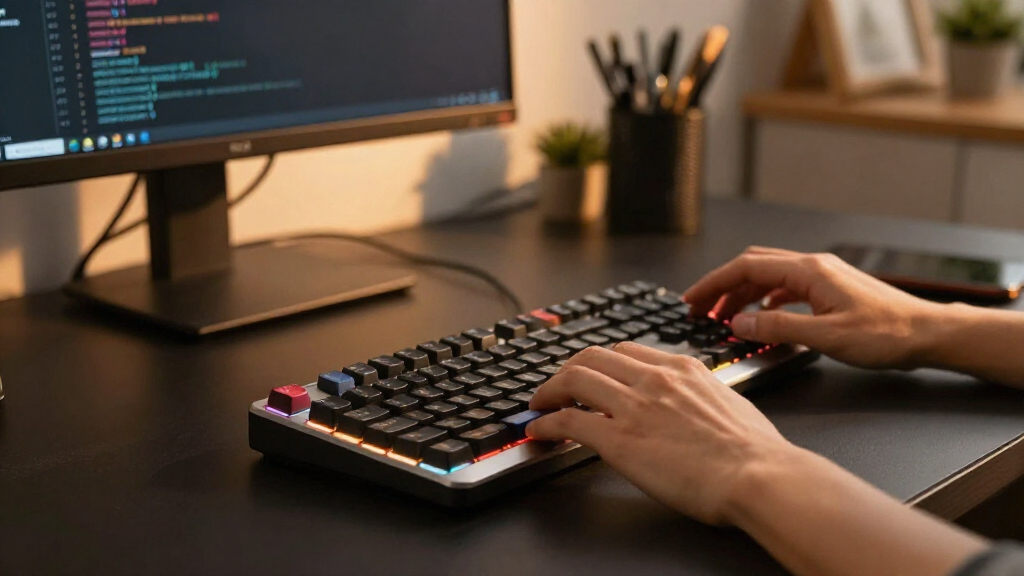
I ranked these pads by how well their controls map to developer routines: launching tools, running repeated commands, switching contexts, and adjusting values without reaching for the mouse. Key count, rotary controls, LCD labels, physical switches, and the likely effort of organizing shortcuts all shaped the evaluation. I gave broader, clearly differentiated layouts the strongest overall consideration, while compact devices could rank well for focused use or limited desk space.
The order also reflects tradeoffs. A display can make changing profiles easier to follow, but it does not automatically mean a pad supports the developer’s preferred apps or operating system. Mechanical keys offer tactile input, while knob-equipped designs add another control type at the cost of space and setup complexity. Since the supplied product names do not establish detailed software compatibility, build materials, or included configuration tools, buyers should verify those points for the exact model before purchase.
| programmable macro pads for developer | Connectivity |
|---|---|
| Streonor S6 Mini Stream Contro | USB-C |
| EEZBotFun 8-Key Programmable M | USB-C |
| Logitech MX Keypad Programmabl | USB-C |
| VSD K1 Pro Programmable Macro | USB-C |
| SIKAI CASE 6-Key Programmable | USB-C |
| VSD M18 Programmable Macro Pad | USB-C |
| MOSHOU 12-Key Programmable Mac | USB wired, Bluetooth, 2.4 GHz wireless |
| BTXETUEL Mini 4-Key Programmab | USB-C |
| MOSHOU 2-Key Programmable Back | — |
| SayoDevice Mini 8-Key Programm | USB-C |
| STREONOR S15 Stream Controller | USB-C |
| Logitech MX Creative Console w | USB-C |
| Sayodevice 12-Key USB-C Mechan | USB-C |
| VSD M18 Stream Controller with | USB-C |
| QINIZX Mini 3-Key Programmable | Wired USB-C listed; included cable listed as micro-USB |
Factors to Consider When Choosing Programmable Macro Pads For Developers
Choosing a developer macro pad starts with the work you want to remove friction from, not the number of keys that looks most impressive. I’d map a typical day first, then match the controls and software to those recurring tasks.
Count Actions You Repeat, Not Every Shortcut You Know
Start by listing commands you trigger repeatedly, such as opening a terminal, running a build, switching workspaces, or pasting a standard snippet. Separate commands that need a dedicated physical key from those you can reach through a keyboard shortcut you already remember. A small pad can be more useful than a large one if it holds the few actions that interrupt your flow most often. Larger layouts make sense when you want separate groups for an editor, terminal, and calls. A common mistake is filling every button before deciding which actions deserve a permanent place. Leave room for changes as projects and tools shift. If the list is short, compact options like the two-, three-, and four-key models may fit better than a full deck.
Check How Profiles and Layers Fit Your Apps
Profile switching can turn one set of controls into different command groups for different applications, but the pad’s software must support the way you work. Find out whether profiles change automatically with the active app or require a manual switch. Manual switching can work well for a stable routine, while automatic behavior may help when you move between tools often. Also check whether commands can run scripts, send text, or trigger only standard key combinations; these capabilities vary by device and software. A pad that stores shortcuts in its own memory may behave differently from one that depends on a desktop app running in the background. Before buying, confirm support for your operating system and any scripts or accessibility tools in your workflow. This compatibility check can matter more than adding several extra keys.
Decide Whether You Need Visual Labels or Tactile Keys
LCD buttons can show changing labels, which helps when a control’s job depends on the active app or profile. That visibility may reduce the need to memorize layers, though displays bring another software and setup dependency. Mechanical key pads give physical feedback and may suit commands you can identify by position or key feel. Their usefulness depends on whether labels, remapping, or multiple profiles keep those positions understandable. Neither approach is automatically better for coding: visible labels help with a changing set, while tactile keys can make a fixed set easy to reach without looking. Avoid choosing a screen solely because it appears more advanced. Think about whether you will change functions often enough to benefit from dynamic labels.
Treat Knobs as a Separate Input Choice
A rotary knob is useful when a task involves gradual adjustment, such as changing a value, scrolling, or moving through a timeline. It will add little if your shortcuts mainly launch commands or switch tabs. Check whether each knob supports pressing as well as turning, and whether those actions can be assigned independently. Multiple knobs can reduce key use for continuous controls, but they also take up desk space and need clear assignments to avoid confusion. A developer who edits audio, video, or visual tools may get more from knobs than someone who mainly works in a terminal. Consider the apps where you would use them before paying the setup cost in time and attention. One well-mapped knob is often more useful than several without a regular job.
Plan for Desk Space, Cable Reach, and Placement
A macro pad only saves effort if it sits where your hand can reach it without disrupting normal typing. Measure the space beside your keyboard and account for mouse movement, monitor stands, and other desk controls. A compact pad is easy to place, but a crowded layout can make its buttons harder to distinguish. Larger models need more room and may be more practical beside a full-size keyboard than between keyboard and mouse. Check the connection type and cable direction if the pad will sit at an angle or under a monitor. Put the most frequent actions nearest your hand and keep less-used profiles farther away. Placement can change which key count feels manageable in everyday use.
Choose a Manageable First Setup
Programmability can mean simple key remapping or a more involved process involving profiles, displays, macros, and desktop software. More controls create more opportunities to customize, but they also require time to assign, label, and maintain. For a first pad, begin with a small set of actions and add layers only after the layout feels natural. Check whether configuration tools are available for your computer and whether saved settings survive a restart or move to another machine. This matters for developers who switch between personal and work computers. The common mistake is buying for a hypothetical future setup and leaving most controls unused. Pick the simplest device that supports the routines you already repeat, with enough room for the next few you expect to add.
Frequently Asked Questions
Is an 18-key macro pad too large for a developer who mainly uses a terminal?
It can be more capacity than you need if you only want a few commands such as opening a shell or running a script. An 18-key layout becomes more useful when you assign distinct groups for terminals, editors, and communication tools, especially if profiles are easy to switch. Check the desk footprint and whether you can label or remember each action. If you expect to use only a handful of keys, a compact pad may be easier to place and maintain. Choose the larger layout when you already have enough recurring actions to fill it with purpose.
Do LCD keys make a macro pad easier to use across several coding apps?
They can make changing button assignments easier to identify because labels can reflect the active profile. That benefit depends on the device’s software and whether profiles follow your apps automatically or need a manual switch. A screen does not by itself guarantee compatibility with a specific editor, terminal, or operating system. For a stable set of shortcuts, clearly positioned mechanical keys may be just as straightforward. Verify profile behavior before treating a display as a solution to context switching.
Can these pads run shell scripts or only send keyboard shortcuts?
The product names alone do not establish whether each model can launch scripts or only send key presses and text. Check the configuration software documentation for actions such as opening applications, running commands, or calling scripts. Also confirm whether those actions work on your operating system and whether the configuration app must stay open. If script execution is central to your workflow, test the exact command path and permissions before relying on it. A device with many keys is still limited if its software cannot trigger the actions you need.
Should I choose a knob-equipped pad for coding?
Knobs are most helpful when your developer workflow includes gradual adjustments or navigation in apps that support those controls. They may be useful for scrolling, changing values, or controlling visual and audio tools, but they add little to a shortcut set made mostly of launches and fixed commands. Confirm that knobs can be assigned the actions you want and whether rotation and pressing can do different things. A knob model also needs enough desk space to keep controls comfortable to reach. Pick one for a recurring task, not just because it adds another input type.
What should I verify before choosing between the two VSD M18 models?
Compare the exact model names and product specifications, since one listing describes an RGB light ring and another calls itself a stream controller. Confirm the key layout, included controls, connection, supported operating systems, and configuration software for the specific item. Check whether profiles, displays, or other features mentioned in a listing are actually present on that version. Similar naming can make two products seem interchangeable when their functions differ. Match the confirmed details to your desk and software needs before making the choice.
Conclusion
For a broad set of developer shortcuts, I’d start with the VSD M18 Programmable Macro Pad as the best overall candidate, provided its software supports your workflow. The BTXETUEL Mini 4-Key is the best value-style fit for a few fixed commands, while the Logitech MX Creative Console is my premium-leaning pick for buyers who want customizable controls in a more polished console format. Beginners who want a small, focused setup can start with the four-key BTXETUEL or compare it with the QINIZX Mini 3-Key. For visible labels and knobs, look at the VSD K1 Pro or Streonor S6 Mini; for a larger labeled layout, consider the STREONOR S15. Before choosing any of them, confirm software support, connection details, and the exact model configuration.