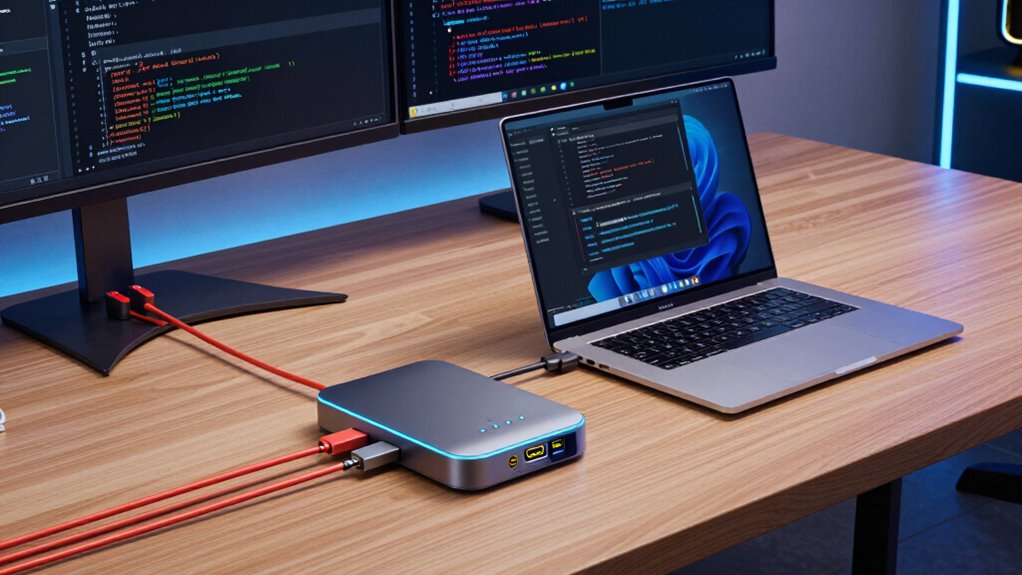

Finding the right laptop dock for Windows development can significantly boost your productivity and workspace flexibility. The best options offer multiple monitor support, fast data transfer, and reliable power delivery, but they vary in complexity and price. The Plugable USB-C Triple Monitor Dock stands out as the overall best for its versatile connectivity, while the Dell Pro Dock WD25 provides a reliable, straightforward solution for most setups. Choices often balance between port variety, charging power, and compatibility—each with its own tradeoffs. Continue reading for a detailed breakdown of these top picks and how they match different development needs.

Get business pricing on monitors, keyboards and dev gear
- Business-only prices and quantity discounts
- Tax-exempt purchasing
- Multiple users, one account, clear invoices
Key Takeaways
- Top docks combine multi-monitor support with high power delivery for seamless work setups.
- Compatibility with Thunderbolt 4 and USB-C is vital for future-proofing your investment.
- Port variety—USB-A, USB-C, HDMI, DisplayPort—directly impacts flexibility and workflow efficiency.
- Build quality and ease of setup distinguish premium options from budget-friendly models.
- Pricing varies widely; balance features with your specific development needs to find the best value.
| Plugable USB-C Triple Monitor Docking Station: 13-in-1 Laptop Dock with 100W Charging for Mac, Windows, Chrome |  | Best Overall for Versatile Multi-Display Setup | Number of ports: 13 | HDMI outputs: 3 | Maximum resolution: 4K 30Hz on primary, 1920×1200 60Hz on others | VIEW ON AMAZON | See Our Full Breakdown |
| Dell Pro Laptop Docking Station WD25, USB-C, 100W, DisplayPort, HDMI |  | Best Value for High-Resolution Multi-Display Support | Power Output: 100W | Display Support: Up to 4 high-res displays | Ports: DisplayPort, HDMI, USB-C, USB | VIEW ON AMAZON | See Our Full Breakdown |
| Anker Prime TB5 Docking Station, 14-in-1 Thunderbolt 5 Dock for Laptops |  | Best for High-Speed Data and 8K Video Output | Upstream Port: Thunderbolt 5 | Downstream Ports: 2 Thunderbolt 5, 2 USB-C, 3 USB-A | Card Readers: SD and TF | VIEW ON AMAZON | See Our Full Breakdown |
| Plugable Thunderbolt 4 Dock, 100W Charging, Dual HDMI, 13 Ports for Windows and Mac |  | Best for High-Speed Dual 4K or 8K Display Support | Power Delivery: 100W (96W certified) | Display Support: Dual 4K 60Hz or single 8K | Ports: HDMI, Thunderbolt, USB, SD/microSD, Ethernet, audio | VIEW ON AMAZON | See Our Full Breakdown |
| Acer 13-in-1 USB-C Laptop Docking Station with 2 HDMI, DisplayPort, Gigabit Ethernet, and Power Adapter |  | Best for Reliable Power and Multiple HDMI Outputs | Display Outputs: 2 HDMI, 1 DisplayPort | Power Adapter: 110W | Supported Displays: Triple 4K @ 30Hz with DSC support | VIEW ON AMAZON | See Our Full Breakdown |
| Plugable USB-C Triple Display Docking Station with 100W Power Delivery |  | Best for Multi-Monitor Setups and Versatile Connectivity | Power Delivery: 100W | Display Outputs: 3 HDMI (1x 4K 30Hz, 2x 1080p 60Hz) | USB Ports: 6x USB 3.0 | VIEW ON AMAZON | See Our Full Breakdown |
| Microsoft Surface Thunderbolt 4 Docking Station – Black |  | Best for Speed and Dual 4K Display Support | Connectivity: Thunderbolt 4, USB-C (3), USB-A (3) | Charging: Up to 2.5 hours rapid charging | Display Support: Up to two 4K monitors | VIEW ON AMAZON | See Our Full Breakdown |
| Acer USB-C Docking Station Dual Monitor, 9-in-1 Laptop Dock with 2 HDMI |  | Best for Dual 4K Productivity and Broad Compatibility | Number of Ports: 9-in-1 | HDMI Output: 2 ports, 4K@60Hz | USB Ports: 3 USB-A, 1 USB-C | VIEW ON AMAZON | See Our Full Breakdown |
| TobenONE 19-in-1 Laptop Docking Station Dual Monitor with 10 USB Ports and 2 4K HDMI |  | Best for Extensive Connectivity and Dual 4K Support | Ports: 10 USB, 2 HDMI, SD/MicroSD, Ethernet | Video Output: 2×4K HDMI | Power Delivery: Up to 100W | VIEW ON AMAZON | See Our Full Breakdown |
| Selore 17-in-1 Triple Display Laptop Docking Station with 4K HDMI & DP |  | Best for Triple 4K Display and Versatile Features | Number of Ports: 17 | HDMI Ports: 3 | DisplayPort: 2 | VIEW ON AMAZON | See Our Full Breakdown |
| Anker Prime Docking Station, 14-in-1 Laptop Docking Station Dual Monitor |  | Best for Versatile Multi-Device Management | Connectivity: 14-in-1 | Total Power Output: 160W | USB-C Ports: 3 at 100W max each | VIEW ON AMAZON | See Our Full Breakdown |
| laptop docks for windows developer | Power delivery |
|---|---|
| Plugable USB-C Triple Monitor | 100W for laptop, 20W for devices |
| Dell Pro Laptop Docking Statio | — |
| Anker Prime TB5 Docking Statio | — |
| Plugable Thunderbolt 4 Dock | 100W (96W certified) |
| Acer 13-in-1 USB-C Laptop Dock | — |
| Plugable USB-C Triple Display | 100W |
| Microsoft Surface Thunderbolt | — |
| Acer USB-C Docking Station Dua | 100W |
| TobenONE 19-in-1 Laptop Dockin | Up to 100W |
| Selore 17-in-1 Triple Display | 100W |
| Anker Prime Docking Station | — |
More Details on Our Top Picks
Plugable USB-C Triple Monitor Docking Station: 13-in-1 Laptop Dock with 100W Charging for Mac, Windows, Chrome
This dock stands out for supporting up to three HDMI displays with 4K resolution, making it ideal for developers who need multiple screens for coding, debugging, and documentation. Its 100W power delivery simplifies workspace setup by charging laptops while connected, reducing desk clutter. Compared with the Plugable USB-C Triple Display Docking Station, this model offers similar multi-monitor support but adds enhanced compatibility with Windows, macOS, and ChromeOS, though it requires driver installation on Mac and ChromeOS, which could be a hassle for some users. Its extensive port selection ensures peripherals like SD cards, Ethernet, and audio are all accommodated. The main tradeoff involves driver dependencies, especially for Mac users, and the absence of HDCP support limits protected content playback.
Pros:- Supports triple 4K monitor setup for productive multitasking
- Provides 100W charging to keep laptops powered during work
- Universal compatibility with Windows, macOS, and ChromeOS
- Multiple ports including SD card reader and Ethernet
Cons:- Requires driver installation on Mac and ChromeOS, which can be inconvenient
- No HDCP support limits playback of protected content
Best for: Windows developers who require reliable triple monitor support and universal OS compatibility.
Not ideal for: Mac users who prefer a plug-and-play experience without driver setup or need HDCP support for protected content.
- Number of ports:13
- HDMI outputs:3
- Maximum resolution:4K 30Hz on primary, 1920×1200 60Hz on others
- Power delivery:100W for laptop, 20W for devices
- Compatible systems:Windows 10+, macOS 11+, ChromeOS
- Additional ports:USB-A 4 ports, SD card reader, Gigabit Ethernet, audio in/out
Our verdict“This dock is best suited for Windows developers seeking a versatile, multi-monitor setup with broad OS compatibility, accepting some driver dependencies.”
Dell Pro Laptop Docking Station WD25, USB-C, 100W, DisplayPort, HDMI
The Dell WD25 excels at supporting up to four high-res displays, offering a cost-effective way for developers needing extensive screen real estate. Its 100W power delivery ensures your laptop remains charged during intensive sessions. Unlike the Plugable USB-C Triple Dock, which is highly compatible across operating systems, the WD25 emphasizes sustainability with eco-friendly materials, making it appealing to environmentally conscious buyers. However, it requires a compatible USB-C port, and Dell’s focus on Dell hardware compatibility may limit its seamless use with some non-Dell PCs. The port details are somewhat limited, which might leave some users wanting more clarity on port types and configurations.
Pros:- Supports up to four high-res displays for multitasking
- Provides 100W charging to keep laptops powered
- Made with at least 65% postconsumer recycled materials
- Flexible USB-C cable routing for workspace organization
Cons:- Requires a compatible USB-C port, which may limit use on some machines
- Limited detailed port information can cause uncertainty
Best for: Developers with Dell or other compatible PCs needing multiple high-resolution displays and eco-conscious design.
Not ideal for: Users with non-compatible USB-C ports or seeking detailed port specifications, as the product offers limited clarity.
- Power Output:100W
- Display Support:Up to 4 high-res displays
- Ports:DisplayPort, HDMI, USB-C, USB
- Compatibility:Dell and non-Dell PCs
- Materials:At least 65% postconsumer recycled materials
- Standby Power Reduction:Up to 72%
Our verdict“This dock is ideal for environmentally conscious developers needing substantial multi-display support with reliable charging capabilities, provided their hardware is compatible.”
Anker Prime TB5 Docking Station, 14-in-1 Thunderbolt 5 Dock for Laptops
The Anker Prime TB5 makes a compelling choice for demanding developers who need ultra-fast data transfer and support for next-gen video outputs. Its Thunderbolt 5 ports enable rapid workflows, supporting dual 8K displays or a single high-res 8K monitor, surpassing typical multi-monitor setups. The active cooling system is a notable advantage compared to more basic docks, helping maintain peak performance during prolonged use. While it offers a broad array of ports, it cannot support external USB-A hubs internally, which could be limiting for users with many peripherals. The price point isn’t specified, but its advanced features target professional and creative markets willing to invest in top-tier performance.
Pros:- Supports 8K video output and dual displays
- Lightning-fast 40Gbps Thunderbolt 4 performance
- Efficient active cooling prevents overheating
- Multiple ports including Thunderbolt and USB-A
Cons:- Cannot support external USB-A hubs due to internal architecture
- Price not openly specified, potentially high for casual users
Best for: Power users and developers working with large data sets or high-resolution media who need the fastest transfer speeds and multi-display flexibility.
Not ideal for: Budget-conscious users or those with minimal peripheral needs, as the premium features come at a likely higher cost and some internal limitations.
- Upstream Port:Thunderbolt 5
- Downstream Ports:2 Thunderbolt 5, 2 USB-C, 3 USB-A
- Card Readers:SD and TF
- Ethernet:2.5Gbps
- Video Output:HDMI 2.1 or DisplayPort 2.1
- Max Power:140W
Our verdict“This dock suits developers who require maximum throughput, advanced video support, and are comfortable with a premium investment for professional workflows.”
Plugable Thunderbolt 4 Dock, 100W Charging, Dual HDMI, 13 Ports for Windows and Mac
The Plugable Thunderbolt 4 Dock delivers robust 40Gbps performance, making it well-suited for developers who need to run dual 4K at 60Hz or even an 8K display. Its 13 ports cover a range of connectivity options, including HDMI, Thunderbolt, USB, Ethernet, and SD card slots, allowing a streamlined setup for complex workflows. Compared to the Anker Prime TB5, it is slightly more versatile in terms of OS support, but its display support can be more dependent on device capabilities and OS limitations. Its certified 96W power delivery ensures your laptop remains charged, though some features may be limited on certain Mac models, and it requires Thunderbolt 4 or compatible USB-C ports.
Pros:- Supports dual 4K 60Hz or single 8K display for high-resolution workflows
- 40Gbps Thunderbolt 4 performance with fast data transfer
- 13 versatile ports for peripherals and network
- Certified 96W power delivery for reliable charging
Cons:- Display support varies depending on device and OS compatibility
- Limited features on some Mac models, possibly reducing versatility
Best for: Developers and creatives who need high-performance multi-monitor setups and fast data transfer at an accessible price point.
Not ideal for: Users with older laptops lacking Thunderbolt 4 or those seeking guaranteed support for external hubs, as this dock may have limitations in those areas.
- Power Delivery:100W (96W certified)
- Display Support:Dual 4K 60Hz or single 8K
- Ports:HDMI, Thunderbolt, USB, SD/microSD, Ethernet, audio
- Performance:40Gbps Thunderbolt 4
- Compatibility:Windows 10+, macOS with specific models
Our verdict“This dock is best for developers needing fast, dual high-resolution displays with comprehensive port options and reliable power, assuming device compatibility.”
Acer 13-in-1 USB-C Laptop Docking Station with 2 HDMI, DisplayPort, Gigabit Ethernet, and Power Adapter
The Acer 13-in-1 dock offers a solid solution for developers who prioritize multiple display outputs and a powerful charger. Its support for triple 4K displays at 30Hz, via HDMI and DisplayPort, makes it suitable for multitasking but not ideal for high-refresh-rate needs. The 110W power adapter ensures your laptop stays charged during heavy workloads, outperforming many competitors that provide less power. Unlike the more advanced Thunderbolt docks, it doesn’t support video output or monitor power supply, which limits flexibility. It’s well-suited for Windows setups with MST technology but offers limited display options for macOS users, who may face mirroring restrictions.
Pros:- Supports triple 4K displays for multitasking
- Includes a 110W power adapter for reliable charging
- Multiple connectivity options including Ethernet and USB
- Sleek aluminum design with security slot
Cons:- Does not support monitor power supply or video output for daisy chaining
- Limited display options on macOS, mainly mirroring
Best for: Windows developers needing triple 4K display support and reliable charging, especially when working within MST-compatible hardware limits.
Not ideal for: Mac users or those seeking high-refresh-rate displays or monitor power delivery, as these features are absent.
- Display Outputs:2 HDMI, 1 DisplayPort
- Power Adapter:110W
- Supported Displays:Triple 4K @ 30Hz with DSC support
- Connectivity:Gigabit Ethernet, USB-A, USB-C, SD/TF, 3.5mm AUX
- Compatibility Notes:Supports Windows with MST; limited on macOS
- Included Accessories:110W power adapter, USB-C cable
Our verdict“This dock is best for Windows developers who need dependable triple display support and robust charging in a sleek package, accepting some limitations in display flexibility.”
Plugable USB-C Triple Display Docking Station with 100W Power Delivery
This dock stands out for its ability to support up to three HDMI monitors, including a 4K at 30Hz, making it ideal for users who need expansive screen real estate. Compared with the Microsoft Surface Thunderbolt 4 Dock, it offers broader device compatibility and more USB ports, but it sacrifices the faster Thunderbolt data transfer speeds. Its 100W power delivery ensures your laptop stays charged during intensive multitasking, yet it is limited to 4K at 30Hz on the primary display, which could be a drawback for high-refresh-rate users. The inclusion of multiple USB 3.0 ports and Ethernet makes it suitable for enterprise environments. However, it lacks native Linux support and requires driver installation on macOS, which might frustrate some users. Ideal for professionals needing multiple displays and extensive device connections in mixed OS environments.
Pros:- Supports up to three external monitors for increased workspace
- Provides 100W power delivery to keep laptops charged
- Compatible with Windows, macOS, and ChromeOS devices
- Includes multiple USB ports and Ethernet for versatile connectivity
Cons:- Limited to 4K at 30Hz for the primary display, not ideal for high-refresh-rate needs
- Requires driver installation on macOS and no native Linux support
Best for: Windows users who require a multi-monitor setup with broad device compatibility and reliable connectivity in enterprise or hybrid work settings.
Not ideal for: Linux users or those who need ultra-high refresh rate displays, as driver issues and refresh rate limits might hinder performance.
- Power Delivery:100W
- Display Outputs:3 HDMI (1x 4K 30Hz, 2x 1080p 60Hz)
- USB Ports:6x USB 3.0
- Ethernet:Gigabit Ethernet
- Compatibility:Windows, macOS, ChromeOS
- Supported Resolutions:4K @ 30Hz, 1080p @ 60Hz
Our verdict“This dock is best suited for users who prioritize multi-monitor support and broad device compatibility over ultra-high refresh rate visuals.”
Microsoft Surface Thunderbolt 4 Docking Station – Black
This docking station excels in high-speed data transfer and dual 4K monitor support, making it ideal for demanding tasks like video editing or data-intensive workflows. Unlike the Acer USB-C Docking Station, which offers broad USB and SD card support, the Surface Thunderbolt 4 Dock emphasizes rapid charging and Thunderbolt 4 speeds, but it is limited to Windows and Thunderbolt 4-compatible devices. Its sleek design and use of recycled ocean-bound plastic appeal to eco-conscious buyers. The main tradeoff is its higher price point and the need for a Thunderbolt 4-compatible laptop, which may not fit all budgets. This makes it better suited for power users who need fast data and display performance on compatible Windows machines.
Pros:- Supports dual 4K monitors at 60Hz for sharp visuals
- Fast data transfer and rapid charging capabilities
- Multiple USB-C and USB-A ports for peripherals
- Eco-friendly recycled ocean-bound plastic construction
Cons:- Requires Thunderbolt 4 compatible devices, limiting compatibility
- Higher price compared to USB-C only docks
Best for: Power users with Thunderbolt 4-enabled Windows laptops seeking fast data transfer and dual 4K monitor support.
Not ideal for: Users with non-Thunderbolt systems or budget-conscious buyers, due to compatibility and cost considerations.
- Connectivity:Thunderbolt 4, USB-C (3), USB-A (3)
- Charging:Up to 2.5 hours rapid charging
- Display Support:Up to two 4K monitors
- Material:Recycled ocean-bound plastic
Our verdict“This dock is ideal for Windows users with Thunderbolt 4 laptops who prioritize speed, display quality, and eco-friendly design.”
Acer USB-C Docking Station Dual Monitor, 9-in-1 Laptop Dock with 2 HDMI
The Acer 9-in-1 dock shines with its support for dual 4K@60Hz monitors, providing crisp visuals for professional multitasking. Its broad compatibility with various laptops and USB-C devices makes it a versatile choice over the Plugable USB-C Triple Display Dock, which offers more display outputs but fewer high-refresh-rate options. The inclusion of SD card slots and multiple USB ports boosts productivity, while the 100W power delivery keeps laptops charged. However, it requires a device with a compatible USB-C port supporting display, charging, and data transfer—a common limitation. Mac users will find the display mirroring restriction inconvenient, and the power adapter isn’t included, adding extra cost. This dock suits users looking for reliable dual 4K support with simple setup.
Pros:- Supports dual 4K monitors at 60Hz for sharp, smooth visuals
- Multiple USB and SD card slots for extensive connectivity
- Power delivery up to 100W to keep laptops charged
- Broad compatibility with various Windows and some Chromebook devices
Cons:- Requires compatible USB-C ports supporting display, data, and charging
- MacOS users can only mirror, not extend displays
- Power adapter not included, adding to overall cost
Best for: Professionals and students needing high-quality dual 4K displays and broad device compatibility.
Not ideal for: Mac users or those requiring more than two displays, due to display mirroring limitations and limited outputs.
- Number of Ports:9-in-1
- HDMI Output:2 ports, 4K@60Hz
- USB Ports:3 USB-A, 1 USB-C
- Power Delivery:100W
- SD Card Slots:SD and MicroSD
- Material:Aluminum alloy
Our verdict“This dock offers reliable dual 4K support for users who need straightforward, high-quality display connectivity on compatible laptops.”
TobenONE 19-in-1 Laptop Docking Station Dual Monitor with 10 USB Ports and 2 4K HDMI
The TobenONE 19-in-1 dock is tailored for those needing maximum connectivity in a single device. Its 10 USB ports, dual 4K HDMI outputs, and gigabit Ethernet make it a comprehensive solution for professionals, content creators, and students. Compared to the Selore 17-in-1, it offers more ports and a straightforward plug-and-play setup, but its size and high wattage power adapter may reduce portability. This dock excels in environments where multiple peripherals and dual high-resolution displays are necessary, yet the complex setup and lack of Mac support limit its versatility for some users. The high power needs also mean it’s less suited for portable use. Best for those who prioritize port density and dual 4K visuals in a fixed workspace.
Pros:- Extensive connectivity with 19 ports including dual 4K HDMI
- Supports dual 4K monitors for detailed multitasking
- Power delivery up to 100W ensures continuous charging
- Plug and play, no driver installation needed
Cons:- Requires high-wattage power supply (not included)
- Designed mainly for Windows and Chrome OS, not recommended for Mac
- Bulkier size reduces portability
Best for: Windows or Chrome OS users requiring extensive ports, dual 4K displays, and reliable power delivery for a desktop-like experience.
Not ideal for: Mac users or those seeking a lightweight, portable dock, due to size and high power requirements.
- Ports:10 USB, 2 HDMI, SD/MicroSD, Ethernet
- Video Output:2×4K HDMI
- Power Delivery:Up to 100W
- Compatibility:Windows, Chrome OS
- Cable:Single USB-C
- Size:Bulky
Our verdict“This dock is ideal for users with a fixed workspace needing numerous ports and dual 4K displays without portability concerns.”
Selore 17-in-1 Triple Display Laptop Docking Station with 4K HDMI & DP
The Selore 17-in-1 offers triple 4K display support with three HDMI and two DisplayPort outputs, making it perfect for users who want maximum visual real estate. Unlike the Plugable USB-C Triple Display Dock, which has fewer ports, this model provides a wider array of connectivity options including multiple USB-A, USB-C, Ethernet, SD card slots, and a real-time LCD display for monitoring. Its support for triple 4K displays is a major advantage, but setup complexity and the need for additional power chargers (not included) can be drawbacks. It supports both Windows and macOS, but driver installation may be required for some outputs, and full functionality depends on your device’s capabilities. This pick is best for creative professionals or multitaskers needing extensive display setups.
Pros:- Supports triple 4K displays for maximum multitasking
- Multiple ports including USB, Ethernet, and SD slots
- Real-time LCD display for device monitoring
- Supports both Windows and macOS
Cons:- Requires additional power chargers for full operation
- Driver installation may be necessary for some outputs
- Setup complexity may challenge less experienced users
Best for: Creative professionals or power users who require triple 4K displays and extensive peripheral support on Windows or macOS.
Not ideal for: Casual users or those with limited workspace, as setup can be complex and extra power supplies are needed.
- Number of Ports:17
- HDMI Ports:3
- DisplayPort:2
- USB-C Ports:2
- Power Delivery:100W
- Includes:USB-C to USB-A, USB-C to USB-C, user manual
Our verdict“This dock suits users who need triple 4K displays and extensive connectivity, especially in creative or professional environments.”
Anker Prime Docking Station, 14-in-1 Laptop Docking Station Dual Monitor
The Anker Prime Docking Station stands out for its extensive 14-in-1 connectivity, making it an ideal choice for developers who need to connect multiple peripherals and dual 4K displays. Compared to the Plugable USB-C Triple Monitor Dock, which offers slightly fewer ports and only 100W charging, the Anker provides a higher power output of 160W, supporting fast charging for larger laptops and multiple devices simultaneously. While it supports dual 4K displays at 60Hz, it falls short of handling higher-resolution monitors like 5120×1440, which might be a limiting factor for some developers with ultra-wide screens. Additionally, its compatibility across Windows, ChromeOS, and Thunderbolt laptops makes it flexible, but it doesn’t support Linux, narrowing its appeal for open-source enthusiasts. Its multiple USB-C and USB-A ports facilitate data transfer and device management, reducing clutter and increasing productivity. However, the dual-display output on macOS shows identical screens, which could be a drawback for Mac users needing independent displays. This dock offers excellent value for developers managing complex setups, provided their monitor resolution needs align with its specs.
Pros:- Supports dual 4K displays at 60Hz for crisp visuals
- High 160W power output enables fast charging for multiple devices
- Multiple ports for data, USB peripherals, and charging convenience
- Compatible with Windows, ChromeOS, and Thunderbolt laptops
Cons:- Does not support monitors with 5120×1440 resolution, limiting ultra-wide setups
- Displays on both external monitors are identical on macOS, reducing flexibility for Mac users
- Limited Linux compatibility narrows its use case for open-source developers
Best for: Windows developers who need robust dual 4K display support and extensive peripheral connectivity for multitasking.
Not ideal for: Linux users or developers requiring ultra-wide monitor support at resolutions like 5120×1440, as it lacks compatibility or higher resolution support.
- Connectivity:14-in-1
- Total Power Output:160W
- USB-C Ports:3 at 100W max each
- USB-A Port:1 at 12W max
- Data Transfer Speed:up to 10Gbps
- Display Support:Dual 4K at 60Hz or 1080p at 60Hz
- Compatibility:USB-C, USB4, Thunderbolt, Windows 10/11, ChromeOS
Our verdict“This dock is best suited for Windows developers who prioritize high power delivery and multiple device connections over ultra-wide or Linux-specific setups.”

How We Picked
These products were evaluated based on their compatibility with Windows, port selection, power delivery capacity, build quality, and overall usability. We prioritized docks that support multiple monitors with high resolution, as developers often need extensive screen real estate. Reliability, compatibility with Thunderbolt 4 and USB-C, and ease of setup influenced the rankings. We also considered value for money and how well each dock integrates into a typical developer workstation, ensuring the options appeal to a range of budgets and technical needs.Factors to Consider When Choosing Laptop Docks For Windows Developers
Choosing the right laptop dock for Windows development requires understanding several key factors. Not all docks support multiple high-resolution displays, and not every model delivers enough power or data transfer speeds for demanding workflows. Developers should consider their specific monitor setup, port needs, and the importance of fast charging. Making the right choice involves balancing these features against budget constraints and future scalability. Let’s explore the main factors to keep in mind.Monitor Support and Display Output
Developers often run multiple high-resolution screens, so selecting a dock that supports dual or triple monitor setups is essential. Check whether the dock offers HDMI, DisplayPort, or Thunderbolt outputs and verify their maximum supported resolutions. Some docks excel with 4K displays, while others may struggle with higher refresh rates or multiple screens, impacting your workflow. Always match the dock’s capabilities with your monitor specs to prevent frustration and ensure clarity.
Power Delivery and Charging Capacity
Reliable power delivery is a cornerstone for a clean, clutter-free workspace. A dock with at least 60W to 100W charging ensures your laptop stays powered during intensive tasks. Overloading a dock’s power output can lead to slower charging or instability, especially for high-performance laptops. Remember, a dock with high wattage isn’t just about charging; it also supports peripherals that demand steady power, enhancing overall productivity.
Port Variety and Compatibility
Assess your peripheral needs carefully. A good dock should offer a balanced mix of USB-A, USB-C, Ethernet, and audio ports. Developers who connect multiple external drives, keyboards, and audio interfaces will benefit from a broad port selection. Furthermore, ensure compatibility with your laptop’s port type—USB-C or Thunderbolt 4—to avoid additional adapters or connection issues. Missing critical ports can reduce your setup’s flexibility and increase clutter.
Build Quality and Ease of Setup
Durability and simplicity matter more than ever in a cluttered workspace. Well-built docks with sturdy materials resist wear over time, while a straightforward setup minimizes frustration. Some models include integrated cables or mounting options that keep your desk tidy. Beware of overly complex installations or flimsy construction—these can lead to connectivity problems or frequent replacements, hampering your workflow.
Price and Future Scalability
While budget options might seem attractive initially, they often lack the advanced features developers need for growth. Investing in a slightly pricier model with better port support, higher power delivery, and more robust build quality can pay off long-term. Consider your current and future monitor configurations, peripheral needs, and whether the dock can support upcoming hardware updates. Making a thoughtful purchase prevents the need for frequent replacements and ensures your setup remains versatile.
Frequently Asked Questions
Can I use a single dock to connect multiple monitors and peripherals for my Windows laptop?
Yes, many modern docks are designed to support multiple monitors along with a range of peripherals such as external drives, keyboards, and audio devices. However, ensure the dock explicitly states support for your monitor resolutions and the number of displays you plan to connect. Compatibility with your laptop’s port type and the dock’s maximum bandwidth are also critical factors. Confirm these specs before purchasing to avoid issues with display flickering or peripheral connectivity problems.
Will a docking station slow down my data transfer speeds or impact performance?
In most cases, a well-designed dock should not hinder your data transfer speeds significantly. Docks with Thunderbolt 4 or USB-C with high bandwidth support are capable of handling fast data rates, making them suitable for file transfers and external drives. However, lower-quality docks or those with limited bandwidth can bottleneck performance, especially when transferring large files or using multiple high-speed devices simultaneously. Always verify the dock’s specifications align with your performance needs.
Is it better to choose a dock with Thunderbolt 4 or USB-C for Windows development?
Thunderbolt 4 docks generally offer faster data transfer speeds, more reliable multi-monitor support, and greater future-proofing, making them ideal for demanding development workflows. USB-C docks are more affordable and widely compatible, but they may lack some of the high-speed capabilities and extensive features of Thunderbolt 4. Your choice should depend on your laptop’s supported ports, budget, and whether you need the highest transfer speeds or broader compatibility.
How important is build quality and warranty when selecting a dock?
Build quality directly affects durability and long-term reliability, especially in a busy workspace. A sturdy, well-made dock resists wear and potential damage, reducing replacement costs. Additionally, a strong warranty or support policy can save headaches if issues arise. For developers who depend on stable connections and continuous performance, investing in a reputable brand with solid build quality and good customer support is often worth the extra expense.
Should I prioritize higher port counts or better display support?
It depends on your workflow. If you rely heavily on multiple peripherals, prioritize docks with a high number of USB ports and Ethernet. Conversely, if your work demands high-resolution multi-monitor setups, focus on docks that support 4K or higher resolutions across multiple outputs. Ideally, choose a model that balances both—ensuring your peripheral and display needs are met without compromise, especially as workflows become more complex.
Conclusion
The best overall choice for most Windows developers is the Plugable USB-C Triple Monitor Dock, thanks to its versatile connectivity and reliable performance. For those on a budget, the Acer 13-in-1 USB-C Docking Station offers solid features at a lower price point. Developers seeking premium, future-proof options should consider the Anker Prime TB5 Docking Station with Thunderbolt 5 support. Beginners or those with simple setups will find the Microsoft Surface Thunderbolt 4 Dock straightforward and easy to use. Ultimately, your selection should align with your monitor setup, peripheral needs, and long-term expansion plans.
As an affiliate, we earn on qualifying purchases.Halloween Picks
halloween