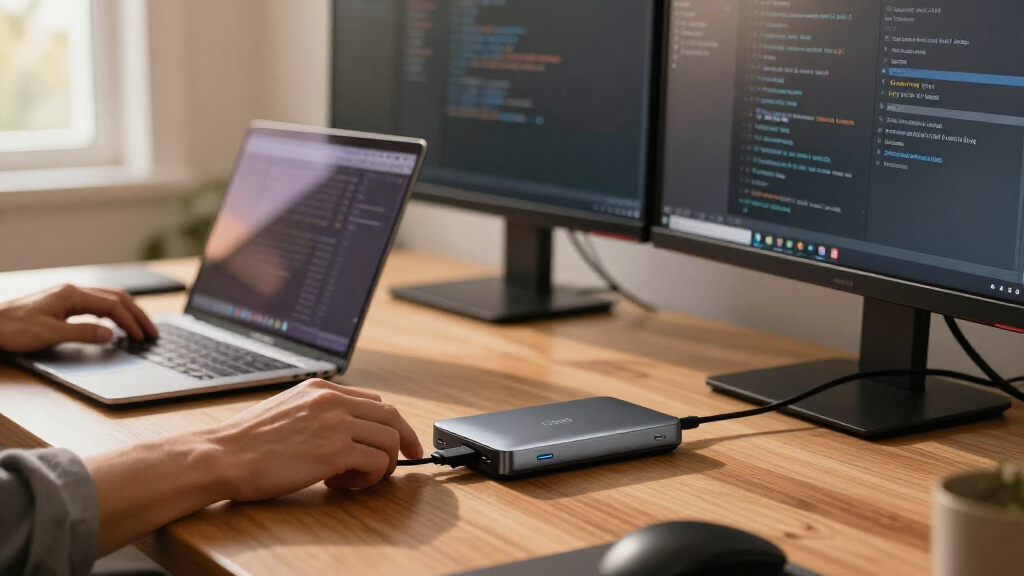

Developers need more from a dock than the average laptop user: multiple external monitors, stable Ethernet for VMs and containers, plenty of USB ports for peripherals and test devices, and enough passthrough power to keep a workstation laptop charged under compile loads. After comparing 15 popular options, the Plugable 13-in-1 Triple Monitor Docking Station stands out as the best overall pick for its triple-display flexibility and reliable 100W charging, while the Anker Prime 14-in-1 makes the most sense for developers who want polished build quality and dependable thermal behavior. On a tighter budget, the WAVLINK 7-in-1 and Wozoyo 11-in-1 cover the basics without the premium price. The main tradeoff in this category is between display bandwidth and port count — docks that drive three monitors often share bandwidth across ports, while simpler hubs keep single-monitor setups fast and cheap. Read on for the full breakdown of which dock fits which workflow.

Get business pricing on monitors, keyboards and dev gear
- Business-only prices and quantity discounts
- Tax-exempt purchasing
- Multiple users, one account, clear invoices
Key Takeaways
- DisplayLink-free docks with native triple-monitor output (Plugable, TobenONE, Anker 13-in-1) ranked highest because developers rarely want driver layers between their GPU and monitors.
- Multi-monitor docks in this lineup vary widely in display mode: the Acer 13-in-1 models and LIONWEI limit triple-display to a single 4K output plus lower-resolution mirrors/extensions, while the Plugable and TobenONE sustain higher resolutions across all screens.
- 100W passthrough is now the standard floor for developer laptops — docks like the WAVLINK at 95W and HP G5 at 90W+ still work, but high-load MacBooks and gaming-class workstations benefit from the full 100W tier.
- The Anker Nano line (8-in-1 and 13-in-1 detachable) carved out a distinct niche: portability plus modularity, ideal for developers who shuttle between home and office rather than anchoring one desk.
- OEM docks (Lenovo ThinkPad Gen 2, HP Universal G5) trade raw port count for firmware stability and managed-IT compatibility — better for corporate environments, worse for hobbyists wanting maximum monitors.
| Wozoyo 11-in-1 USB-C Docking Station with 100W Power Delivery |  | Best Compact Everyday Hub | Port count: 11 | Video outputs: HDMI and DisplayPort, up to 4K | USB ports: Dual USB 5Gbps | VIEW LATEST PRICE | See Our Full Breakdown |
| Acer 13-in-1 USB-C Docking Station with 3 HDMI Ports |  | Best for HDMI Monitor Setups | Port count: 13-in-1 | HDMI: 3 ports; up to 4K at 60Hz for single or dual displays | Typical triple-display mode: 4K at 60Hz + 4K at 60Hz + 1080p at 60Hz | VIEW LATEST PRICE | See Our Full Breakdown |
| Anker Nano 8-in-1 USB-C Hub with Dual 4K HDMI for Windows |  | Best for Windows Dual 4K | Connectivity: 8-in-1 | Video: Two HDMI ports; dual 4K at 60Hz with compatible Windows host | USB-C power input: Up to 100W | VIEW LATEST PRICE | See Our Full Breakdown |
| LIONWEI 13-in-1 USB-C Docking Station with Dual 4K HDMI and DisplayPort |  | Best Windows Port Variety | Port count: 13 | Video outputs: 2 HDMI and 1 DisplayPort | Maximum resolution: Up to 4K at 60Hz | VIEW LATEST PRICE | See Our Full Breakdown |
| Plugable 13-in-1 USB-C Triple Monitor Docking Station with 100W Charging |  | Best for Three Extended Displays | Port count: 13 | HDMI outputs: 3 | Display support: Up to three extended HDMI displays | VIEW LATEST PRICE | See Our Full Breakdown |
| Anker Nano 13-in-1 Laptop Docking Station with Detachable 6-in-1 USB-C Hub |  | Best Hybrid Desk-and-Travel Pick | Ports: 13-in-1: USB-C upstream, 2 USB-C data, 3 USB-A, 2 HDMI, DisplayPort, Gigabit Ethernet, 3.5mm audio, SD/TF, DC input | Max display support: 4K 60Hz single, dual 2K 60Hz, or triple 1080p 60Hz | Power delivery: Up to 100W laptop charging | VIEW LATEST PRICE | See Our Full Breakdown |
| WAVLINK 7-in-1 USB-C Docking Station with Dual HDMI, DisplayPort, and 95W Power Delivery |  | Best for Linux and Chrome OS Workstations | Ports: 2 HDMI, 1 DisplayPort, 3 USB 2.0, USB-C PD | Total ports: 7 | Max single-display resolution: 8K at 60Hz | VIEW LATEST PRICE | See Our Full Breakdown |
| Lenovo ThinkPad USB-C Dock Gen 2 (40AS0090US) |  | Best for ThinkPad-Fleet Developers | USB ports: 3 × USB 3.1, 2 × USB 2.0 | Video ports: 1 × HDMI, 2 × DisplayPort | Max external monitors: 3 | VIEW LATEST PRICE | See Our Full Breakdown |
| TobenONE 15-in-1 USB-C Docking Station with Dual HDMI, 100W Power Delivery, and Volume Knob |  | Best Port Density for the Price | Ports: 15 total | USB ports: 2 × USB-C 10Gbps, 1 × USB-A 10Gbps, 2 × USB-A 5Gbps | Video output: 2 × HDMI, up to 4K at 60Hz | VIEW LATEST PRICE | See Our Full Breakdown |
| Acer 13-in-1 USB-C Docking Station with Triple Display Support |  | Best Bundled Power for Demanding Laptops | Ports: 2 HDMI, 1 DisplayPort 1.4, 4 USB-C, 3 USB-A, Gigabit Ethernet, 3.5mm AUX, SD/microSD reader | Max displays: 3 independent screens on compatible Windows laptops | Triple display resolution: Up to 4K at 30Hz with compatible DSC host | VIEW LATEST PRICE | See Our Full Breakdown |
| Anker Prime 14-in-1 Dual Monitor Docking Station |  | Best for Power-Hungry Desk Setups | Connectivity: 14-in-1 | Total power output: 160W | USB-C ports: 3, up to 100W each | VIEW LATEST PRICE | See Our Full Breakdown |
| Anker 13-in-1 USB-C Laptop Docking Station with Triple Display |  | Best for Triple-Monitor Windows Setups | Ports: 2× HDMI, DisplayPort, 3× USB-C, 3× USB-A, Gigabit Ethernet, SD/microSD, 3.5mm audio, DC-IN | Display support: Up to 3 external monitors at 1080p@60Hz; single display up to 4K@60Hz | Laptop charging: Up to 85W | VIEW LATEST PRICE | See Our Full Breakdown |
| TobenONE 13-in-1 USB-C Docking Station for Three Monitors |  | Best for Cross-Platform Flexibility | Ports: 13 total: 2 HDMI, VGA, 4 USB-A, 2 USB-C, Gigabit Ethernet, SD/TF reader, 3.5mm audio | Display support: Up to three displays; dual 4K at 30Hz plus one 1080p | Power adapter: 65W included | VIEW LATEST PRICE | See Our Full Breakdown |
| HP Universal USB-C G5 Essential Docking Station |  | Best for Corporate Desk Standardization | Ports: 12 total, including 5 USB ports | Display outputs: HDMI and DisplayPort; supports up to three displays | Hardware interfaces: USB-C, USB 3.0, HDMI, DisplayPort, Gigabit Ethernet, 3.5mm audio | VIEW LATEST PRICE | See Our Full Breakdown |
| usb c docking stations for developer | Compatibility | Ports |
|---|---|---|
| Wozoyo 11-in-1 USB-C Docking S | — | — |
| Acer 13-in-1 USB-C Docking Sta | — | — |
| Anker Nano 8-in-1 USB-C Hub wi | Windows 10/11, ChromeOS, and macOS; full-function USB-C, USB4, or Thunderbolt | — |
| LIONWEI 13-in-1 USB-C Docking | — | — |
| Plugable 13-in-1 USB-C Triple | — | — |
| Anker Nano 13-in-1 Laptop Dock | Dell XPS, Lenovo ThinkPad, HP Spectre, most Windows USB-C laptops | 13-in-1: USB-C upstream, 2 USB-C data, 3 USB-A, 2 HDMI, DisplayPort, Gigabit Ethernet, 3.5mm audio, SD/TF, DC input |
| WAVLINK 7-in-1 USB-C Docking S | Windows, Chrome OS, Linux, Harmony OS, Android (no macOS) | 2 HDMI, 1 DisplayPort, 3 USB 2.0, USB-C PD |
| Lenovo ThinkPad USB-C Dock Gen | — | — |
| TobenONE 15-in-1 USB-C Docking | Windows, ChromeOS, Linux with full-featured USB-C or Thunderbolt 3/4 | 15 total |
| Acer 13-in-1 USB-C Docking Sta | — | 2 HDMI, 1 DisplayPort 1.4, 4 USB-C, 3 USB-A, Gigabit Ethernet, 3.5mm AUX, SD/microSD reader |
| Anker Prime 14-in-1 Dual Monit | — | — |
| Anker 13-in-1 USB-C Laptop Doc | Full-Function USB-C, USB4, Thunderbolt 3/4/5; Windows 10/11, ChromeOS | 2× HDMI, DisplayPort, 3× USB-C, 3× USB-A, Gigabit Ethernet, SD/microSD, 3.5mm audio, DC-IN |
| TobenONE 13-in-1 USB-C Docking | USB-C or Thunderbolt 3/4/5 laptops on macOS, Windows, ChromeOS | 13 total: 2 HDMI, VGA, 4 USB-A, 2 USB-C, Gigabit Ethernet, SD/TF reader, 3.5mm audio |
| HP Universal USB-C G5 Essentia | USB-C and Thunderbolt-enabled HP and non-HP laptops | 12 total, including 5 USB ports |
More Details on Our Top Picks
Wozoyo 11-in-1 USB-C Docking Station with 100W Power Delivery
The Wozoyo 11-in-1 suits developers who want Ethernet, card readers, and more than one video connection in a small dock. Its 100W power delivery and Gigabit Ethernet support a tidier desk setup, while SD and TF slots are useful for moving project files or media without extra adapters. Compared with the LIONWEI 13-in-1, it takes up less space and weighs less, but offers fewer ports and less clearly defined display behavior. Windows can extend across three monitors, while macOS mirrors external displays, so developers should check their host OS before planning a multi-monitor workflow. The supplied details also conflict on the HDMI port count, which makes this a less certain pick for a display-heavy desk.
Pros:- Compact body combines Ethernet, card readers, video, and USB connections
- Up to 100W power delivery
- Gigabit Ethernet for a stable wired network connection
- Two-year warranty
Cons:- macOS mirrors external displays rather than extending them independently
- Product details conflict on the number of HDMI ports
- Only dual USB ports are specified
Best for: Developers with a compact desk who need wired networking, card readers, and occasional multi-display use on Windows.
Not ideal for: Mac developers who need multiple independent external displays or anyone who needs confirmed HDMI port counts before buying.
- Port count:11
- Video outputs:HDMI and DisplayPort, up to 4K
- USB ports:Dual USB 5Gbps
- Power delivery:Up to 100W
- Ethernet:Gigabit, 1Gbps
- Card readers:SD and TF
- Dimensions:5 × 1.4 × 2 in
- Weight:0.11 kg
Our verdict“Choose the Wozoyo for a compact Windows developer setup with wired networking and card access, provided its display-port details fit your needs.”
Acer 13-in-1 USB-C Docking Station with 3 HDMI Ports
For a developer whose desk is already built around HDMI monitors, the Acer 13-in-1 makes three direct display connections its main advantage. Single or dual displays can reach 4K at 60Hz; triple-screen results depend on bandwidth and monitor support, with the stated typical arrangement combining two 4K screens and one 1080p screen. Its varied USB ports and Gigabit Ethernet also give peripherals and network access a home on the same dock. Compared with the Plugable 13-in-1, Acer does not specify DisplayLink for macOS multi-monitor use, but macOS mirrors external screens, so it is a better fit for compatible Windows workflows. The dock requires DisplayPort Alt Mode, and its charger and cable are not included.
Pros:- Three HDMI outputs for a desk built around HDMI monitors
- Single or dual display support up to 4K at 60Hz
- Includes Gigabit Ethernet and SD/MicroSD readers
- Mix of 10Gbps, 5Gbps, and USB 2.0 ports
Cons:- macOS mirrors external monitors
- Requires a compatible DisplayPort Alt Mode USB-C port
- 100W charger and cable are not included, and USB ports do not charge devices
Best for: Windows developers with a DisplayPort Alt Mode laptop and up to three HDMI monitors who want USB, card-reader, and Ethernet connections.
Not ideal for: Mac developers who need separate extended desktops across multiple monitors, or laptop owners without DisplayPort Alt Mode.
- Port count:13-in-1
- HDMI:3 ports; up to 4K at 60Hz for single or dual displays
- Typical triple-display mode:4K at 60Hz + 4K at 60Hz + 1080p at 60Hz
- USB-C data:2 × 10Gbps
- USB-A data:1 × 10Gbps, 2 × 5Gbps, 1 × 480Mbps
- Power delivery:100W input; up to 85W laptop output
- Ethernet:Gigabit, 1000Mbps
- Card readers:SD and MicroSD, up to 104Mbps
Our verdict“Pick the Acer when a compatible Windows laptop needs three HDMI connections and a broad selection of data ports in one dock.”
Anker Nano 8-in-1 USB-C Hub with Dual 4K HDMI for Windows
The Anker Nano 8-in-1 is the more focused choice for a Windows developer who wants two sharp external displays without a full-size dock. With a compatible DP 1.4 host, it supports dual 4K at 60Hz, and USB data can reach 10Gbps for fast transfers from connected storage. SD and TF slots add a convenient route for project or camera files. Compared with the Wozoyo 11-in-1, the Nano spells out its dual-display capability more clearly, but supports fewer connections overall and requires a 100W charger for up to 85W laptop pass-through. macOS mirrors external screens, and Linux is not supported, so this is a specific Windows-first pick rather than a flexible choice for mixed development machines.
Pros:- Dual 4K at 60Hz support on compatible Windows hosts
- USB data transfer up to 10Gbps
- SD and TF 3.0 card slots
- Up to 85W laptop pass-through charging
Cons:- Full charging requires a 100W charger and cable, which are not included
- macOS mirrors external displays
- Not compatible with Linux
Best for: Windows developers using a DP 1.4 laptop who want dual 4K monitors, fast USB data, and card slots in a compact hub.
Not ideal for: Linux users, Mac users who need separate external desktops, and developers who need a built-in Ethernet connection.
- Connectivity:8-in-1
- Video:Two HDMI ports; dual 4K at 60Hz with compatible Windows host
- USB-C power input:Up to 100W
- Laptop charging output:Up to 85W
- USB data rate:Up to 10Gbps
- Card slots:SD and TF 3.0, up to 104MB/s
- Compatibility:Windows 10/11, ChromeOS, and macOS; full-function USB-C, USB4, or Thunderbolt
- Weight:3.84 oz
Our verdict“Choose the Nano for a compatible Windows laptop and dual 4K desk, but skip it if you need Linux support or Ethernet.”
LIONWEI 13-in-1 USB-C Docking Station with Dual 4K HDMI and DisplayPort
The LIONWEI 13-in-1 earns its place for developers who want a broad mix of connections and a Windows triple-monitor setup. Two HDMI outputs and DisplayPort let a desk use different display connectors, while 10Gbps data, Gigabit Ethernet, and a 3.5mm audio jack cover common work peripherals. Compared with the compact Wozoyo 11-in-1, it offers more ports and a clearly specified three-display Windows mode, though its 140g weight and wider feature set make it less of a pocketable travel hub. The OS split matters: macOS extends to only one external monitor, so the third video output does not give Mac developers three independent screens. Its 100W input also leaves up to 87W for laptop charging while in use.
Pros:- 13 ports include HDMI, DisplayPort, Ethernet, and audio
- Supports up to three displays on Windows
- Data transfer rates up to 10Gbps
- Up to 87W available for laptop charging
Cons:- macOS extends to only one external monitor
- Dock uses 13W of the 100W input, limiting laptop output to 87W
- Three-display support is limited to Windows
Best for: Windows developers connecting a mix of HDMI and DisplayPort monitors, wired networking, and audio peripherals.
Not ideal for: Mac developers who need more than one extended external display or travelers who prioritize the smallest, lightest hub.
- Port count:13
- Video outputs:2 HDMI and 1 DisplayPort
- Maximum resolution:Up to 4K at 60Hz
- Power delivery:Up to 100W input; up to 87W laptop charging
- Data rate:Up to 10Gbps
- Ethernet:Gigabit
- Audio:3.5mm audio/microphone jack
- Weight:140g
Our verdict“Choose the LIONWEI for a Windows desk that needs varied video and peripheral connections, and avoid it for multi-display Mac work.”
Plugable 13-in-1 USB-C Triple Monitor Docking Station with 100W Charging
The Plugable 13-in-1 is the strongest fit here for developers who need three extended HDMI screens and can work within its resolution limits. It supports up to 4K at 30Hz on one output and 1920×1200 at 60Hz on the other two, with DisplayLink Manager required for multiple displays on macOS. That software-based route distinguishes it from the Acer 13-in-1, whose multi-monitor behavior on macOS mirrors content rather than extending it. Plugable also supplies up to 100W laptop charging and 20W device charging, plus Ethernet, SD, and audio connections. The tradeoffs are material for developer desks: DisplayLink adds a software dependency, and HDCP-protected playback such as Netflix or Hulu is unsupported.
Pros:- Supports up to three extended HDMI displays
- Up to 100W laptop charging and 20W front USB-C device charging
- Includes Gigabit Ethernet, SD reader, and audio in/out
- Power adapter and 1m USB-C host cable are included
Cons:- DisplayLink Manager is required for multiple displays on macOS
- HDCP-protected video playback is unsupported
- Two HDMI outputs are limited to 1920×1200 at 60Hz
Best for: Developers who need three extended HDMI work screens, including Mac users willing to install DisplayLink Manager.
Not ideal for: Users who need HDCP-protected video playback, higher refresh rates across all three displays, or a software-free macOS setup.
- Port count:13
- HDMI outputs:3
- Display support:Up to three extended HDMI displays
- HDMI 1 resolution:Up to 4K at 30Hz
- HDMI 2 and 3 resolution:Up to 1920×1200 at 60Hz
- Laptop charging:Up to 100W
- Front USB-C charging:20W
- Other connections:Gigabit Ethernet, SD reader, audio in/out
Our verdict“Pick the Plugable when three extended HDMI work displays matter more than HDCP video support or avoiding DisplayLink software.”
Anker Nano 13-in-1 Laptop Docking Station with Detachable 6-in-1 USB-C Hub
Most docks force a choice between a full desktop station and a pocketable travel hub — this one refuses to. The Anker Nano 13-in-1 pairs a full triple-display desktop dock with a detachable 6-in-1 hub you can pull off and toss in a laptop bag, which is a flexibility advantage no other option in this lineup offers, including the TobenONE 15-in-1. Anker also bundles a 140W adapter and 10Gbps cable, so nothing extra is needed at checkout — unlike the TobenONE and WAVLINK docks, which leave you sourcing your own charger. The tradeoff is display headroom: max output is 4K/60 on a single screen, dropping to 1080p across three, while the WAVLINK claims triple 4K. macOS users get mirroring only across multiple externals.
Pros:- Detachable hub covers both desktop and travel scenarios in one purchase
- 140W power adapter and 10Gbps cable included — no hidden extras
- Up to 100W laptop charging keeps power-hungry workstations topped up
- SD/TF slots plus 10Gbps data transfer handle build machines and card offloads
Cons:- Triple-display mode tops out at 1080p per screen — weak for text-heavy coding monitors
- Dock requires a connected laptop to activate ports, so it can’t run headless
- macOS mirrors rather than extends across multiple displays
Best for: Developers who split time between a multi-monitor home desk and coworking or client sites
Not ideal for: MacBook developers wanting extended displays on multiple externals — macOS mirrors only
- Ports:13-in-1: USB-C upstream, 2 USB-C data, 3 USB-A, 2 HDMI, DisplayPort, Gigabit Ethernet, 3.5mm audio, SD/TF, DC input
- Max display support:4K 60Hz single, dual 2K 60Hz, or triple 1080p 60Hz
- Power delivery:Up to 100W laptop charging
- Data transfer:Up to 10Gbps
- Included power adapter:140W
- Included cable:3 ft USB-C, 10Gbps rated
- Compatibility:Dell XPS, Lenovo ThinkPad, HP Spectre, most Windows USB-C laptops
- Warranty:18 months
Our verdict“Buy this if one purchase needs to cover a full desk setup and a travel kit; skip it if you need three high-resolution monitors.”
WAVLINK 7-in-1 USB-C Docking Station with Dual HDMI, DisplayPort, and 95W Power Delivery
Where most docks in this roundup quietly assume you’re on Windows, the WAVLINK 7-in-1 explicitly supports Linux, Chrome OS, Harmony OS, and Android with a driver-free setup — a rare fit for developers running Ubuntu or a Chromebook as a daily driver. Its display ceilings are the boldest here: 8K at 60Hz single-display or triple 4K at 60Hz, exceeding the Anker Nano 13-in-1’s 1080p triple-display limit. But those numbers are conditional on a host with DP 1.4 and DSC support, so a mid-range laptop may deliver far less. It’s also leaner than the TobenONE 15-in-1: just three USB 2.0 ports, no Ethernet, no card readers, and no charger in the box.
Pros:- Broad OS support including Linux and Chrome OS with no drivers required
- Class-leading display ceilings: 8K/60 single or triple 4K/60 on capable hosts
- Up to 95W charging keeps a laptop powered through the same cable
- Slim 0.6-inch profile fits easily in a laptop sleeve
Cons:- No macOS compatibility at all
- Charger not included — an added cost the Anker Nano doesn’t impose
- Only USB 2.0 data ports, so large repo clones and file transfers crawl
Best for: Linux or Chrome OS developers who want maximum display resolution from a minimal, portable dock
Not ideal for: MacBook users (no macOS support) and anyone needing Ethernet or fast USB file transfers
- Ports:2 HDMI, 1 DisplayPort, 3 USB 2.0, USB-C PD
- Total ports:7
- Max single-display resolution:8K at 60Hz
- Max multi-display output:Triple 4K at 60Hz
- Power delivery:100W input / 95W output
- Dimensions:4.4 × 2 × 0.6 in
- Compatibility:Windows, Chrome OS, Linux, Harmony OS, Android (no macOS)
- Warranty:2 years
Our verdict“This makes the most sense for Linux-first developers chasing high-resolution multi-monitor setups on a budget of desk space.”
Lenovo ThinkPad USB-C Dock Gen 2 (40AS0090US)
This is the corporate-standard choice, and that’s exactly its appeal. The ThinkPad USB-C Dock Gen 2 is built and validated for ThinkPads, which matters in managed IT environments where the HP Universal USB-C G5 is its only real peer. It drives up to three monitors through one HDMI and two DisplayPort connections, and unlike the WAVLINK or TobenONE, it ships with a 90W adapter and USB-C cable in the box. The honest caveat: its spec sheet lists just one 4K/60 display, and actual output depends heavily on the connected laptop — a ThinkPad will fare far better than an off-brand machine. Compatibility documentation is thin, so non-Lenovo buyers are taking something of a gamble.
Pros:- Purpose-built and validated for ThinkPad laptops
- Three-monitor support via HDMI plus dual DisplayPort
- 90W power adapter and USB-C cable included
- Full peripheral coverage: five USB ports, Gigabit Ethernet, combo audio
Cons:- Only one 4K/60 display guaranteed — behind the WAVLINK and Acer on resolution
- Video output varies by connected system, with no clear compatibility matrix
- No card readers, which competitors like the Anker Nano include
Best for: ThinkPad owners and developers in corporate IT environments who need a fleet-standard dock
Not ideal for: Owners of other laptop brands — validation and documentation center on Lenovo hardware
- USB ports:3 × USB 3.1, 2 × USB 2.0
- Video ports:1 × HDMI, 2 × DisplayPort
- Max external monitors:3
- Display support:DisplayPort 1.4, HDMI 2.0; up to 1 × 4K at 60Hz
- Ethernet:Gigabit
- Audio:1 × combo jack
- Included:Dock, 90W AC adapter, power cord, USB-C cable
Our verdict“If your daily driver is a ThinkPad, this is the safe, IT-friendly default; everyone else should verify compatibility before buying.”
TobenONE 15-in-1 USB-C Docking Station with Dual HDMI, 100W Power Delivery, and Volume Knob
If your desk looks like a hardware store — keyboards, Webcams, external SSDs, card readers — nothing in this batch matches the TobenONE’s 15 ports, including three 10Gbps ports for fast external drives. That raw connectivity beats the Acer 13-in-1 on data speed and edges out the Anker Nano on sheer port count. The quirky physical volume knob is a small daily convenience for developers living in Slack calls and Spotify. But the gaps are real: no power adapter ships in the box, and dual 4K/60 output depends on your laptop’s USB-C or Thunderbolt implementation, so check your host before assuming two crisp monitors. Compared with the Lenovo Gen 2, you get far more ports but far less vendor validation.
Pros:- 15 ports including three 10Gbps connections for rapid SSD and repo transfers
- Dual 4K at 60Hz output on compatible hosts
- SD and microSD 3.0 readers plus Gigabit Ethernet cover most workflow needs
- Physical volume knob is genuinely handy for call-heavy days
Cons:- Power adapter not included, unlike the Anker Nano and Lenovo docks
- Dual-monitor support is conditional on laptop and port capabilities
- Wide 11.8-inch footprint eats desk space compared with compact docks
Best for: Peripheral-heavy developers who need many simultaneous connections and fast external-drive speeds
Not ideal for: Buyers wanting a complete out-of-box setup — the charger is a separate purchase
- Ports:15 total
- USB ports:2 × USB-C 10Gbps, 1 × USB-A 10Gbps, 2 × USB-A 5Gbps
- Video output:2 × HDMI, up to 4K at 60Hz
- Power delivery:Up to 100W pass-through (charger not included)
- Additional connections:Gigabit Ethernet, 3.5mm audio, SD and microSD 3.0 readers
- Compatibility:Windows, ChromeOS, Linux with full-featured USB-C or Thunderbolt 3/4
- Dimensions:11.81 × 3.14 × 0.86 in; 6.24 oz
- Warranty:2 years
Our verdict“Pick this when port count and data speed matter more than included accessories; budget for a separate USB-C charger.”
Acer 13-in-1 USB-C Docking Station with Triple Display Support
The Acer 13-in-1 earns its spot with the strongest power story in this batch: a 110W adapter delivering 100W to the host, enough for gaming-adjacent dev laptops that throttle on lesser docks like the Lenovo Gen 2’s 90W. Port selection is broad — displays, four USB-C, three USB-A, Ethernet, audio, and dual card readers — wrapped in an aluminum enclosure with a security slot, a nice touch for shared or office spaces. Against the TobenONE 15-in-1, you trade three ports and 10Gbps data speeds for the included adapter and sturdier build. The catch is resolution: triple displays run at 4K/30Hz maximum, and only with a DSC-capable Windows laptop; macOS mirrors only, and the rear USB-C port carries data alone.
Pros:- 110W adapter included with 100W delivery — no under-powered-host worries
- Three independent displays on compatible Windows laptops
- Aluminum enclosure with integrated security slot for shared workspaces
- USB 4.0 Type-C cable included for full-speed host connection
Cons:- Triple displays cap at 4K/30Hz, which feels choppy for scrolling code
- macOS mirrors only across multiple monitors
- Rear USB-C port is data-only — no video or power delivery
Best for: Windows laptop owners with power-hungry machines who want an all-inclusive, lockable desk dock
Not ideal for: MacBook developers and anyone needing 60Hz on three 4K monitors
- Ports:2 HDMI, 1 DisplayPort 1.4, 4 USB-C, 3 USB-A, Gigabit Ethernet, 3.5mm AUX, SD/microSD reader
- Max displays:3 independent screens on compatible Windows laptops
- Triple display resolution:Up to 4K at 30Hz with compatible DSC host
- Power adapter:110W included
- Laptop power delivery:Up to 100W
- Enclosure:Aluminum with integrated security slot
- OS support:Windows MST extended; macOS mirrors only
- Included:Dock, 110W adapter, USB 4.0 Type-C cable, manuals
Our verdict“This model is better suited to Windows developers with high-wattage laptops who value an included adapter and physical security over 60Hz multi-monitor output.”
Anker Prime 14-in-1 Dual Monitor Docking Station
This is the dock for the developer whose desk looks like a small data center. The 160W total power output is the standout: it can charge a laptop at 100W over USB-C while simultaneously topping up three other devices, something the Anker 13-in-1 and its 85W ceiling can’t match. The 10Gbps data transfer also makes it a better fit than the TobenONE 13-in-1 for devs pushing large containers or build artifacts to external drives. The compromises are real, though — displays top out at 2K@60Hz with DP 1.4 (1080p with DP 1.2), ultra-wide 5120×1440 panels aren’t supported, and there’s no Linux support. If your priority is sharp 4K triple-monitor output, other picks in this lineup serve that better.
Pros:- 160W total power output with charging for up to four devices
- 10Gbps data transfer for fast external drive workflows
- 14 ports cover virtually every peripheral a desk needs
- Includes a 100W-rated 3.3 ft upstream USB-C cable
Cons:- Display resolution caps at 2K@60Hz even with DP 1.4
- No support for 5120×1440 ultra-wide monitors
- macOS mirrors rather than extends external displays
Best for: Multi-device developers who charge a laptop, phone, and accessories from one dock and move large files frequently
Not ideal for: Anyone with 5120×1440 ultra-wide monitors or Linux workstations — neither is supported
- Connectivity:14-in-1
- Total power output:160W
- USB-C ports:3, up to 100W each
- USB-A ports:1, up to 12W
- Data transfer speed:Up to 10Gbps
- Display outputs:2 HDMI ports
- Display resolution:Up to 2K@60Hz (DP 1.4); 1080p@60Hz (DP 1.2)
- Warranty:18 months
Our verdict“Choose this if charging capacity and data throughput matter more to you than maximum display resolution.”
Anker 13-in-1 USB-C Laptop Docking Station with Triple Display
Three extended monitors on Windows without a driver install — that’s the core pitch here, and it’s why this model earns its spot over the TobenONE 13-in-1, which requires a driver for display output. Everything works out of the box: three 1080p60 displays, 85W laptop charging, 18W phone charging, and an included 135W power adapter so there’s one less thing to buy. Compared with the Anker 8-in-1, the port array is far deeper — three USB-C, three USB-A, dedicated card readers, and audio. The catch is display sharpness: triple-display mode is limited to 1080p, so developers working with dense code or spreadsheets across three screens may prefer a single 4K60 display or find 1080p text soft. Mac users again get mirror mode only.
Pros:- Driver-free triple extended displays on Windows and ChromeOS
- 135W power adapter included in the box
- Charges laptop (85W) and phone (18W) simultaneously
- 13 ports including 10Gbps USB-C data and SD readers
Cons:- Triple display mode is capped at 1080p@60Hz
- macOS limited to mirrored external monitors
- No Linux support
Best for: Windows or ChromeOS developers running a three-monitor battle station who want plug-and-play setup
Not ideal for: Anyone who needs sharp high-DPI text across all three displays, or macOS users wanting extended monitors
- Ports:2× HDMI, DisplayPort, 3× USB-C, 3× USB-A, Gigabit Ethernet, SD/microSD, 3.5mm audio, DC-IN
- Display support:Up to 3 external monitors at 1080p@60Hz; single display up to 4K@60Hz
- Laptop charging:Up to 85W
- USB-C data transfer:Up to 10Gbps
- Compatibility:Full-Function USB-C, USB4, Thunderbolt 3/4/5; Windows 10/11, ChromeOS
- Included power adapter:135W
- Dimensions:4.9 × 3.5 × 1.6 in
- Warranty:18 months
Our verdict“The easiest path to a three-monitor dev setup on Windows — just accept 1080p across all three screens.”
TobenONE 13-in-1 USB-C Docking Station for Three Monitors
Most docks in this roundup quietly drop Linux support and treat macOS as an afterthought. The TobenONE 13-in-1 takes the opposite approach: it’s driver-based, which is exactly what lets it extend displays on macOS, Windows, and ChromeOS alike — a genuine differentiator against the Anker 13-in-1, which mirrors on Mac and skips Linux entirely. It also adds a VGA output for legacy conference-room projectors that no other pick here offers, plus four USB-A ports for older peripherals. The tradeoffs: the included adapter delivers only 57W of laptop charging, well below the Anker 13-in-1’s 85W, and the driver requirement adds an install step and occasional troubleshooting. Dual 4K runs at 30Hz, and some data-and-power-only USB-C laptops are limited to two extended displays.
Pros:- Extended multi-display support across macOS, Windows, and ChromeOS
- Up to three displays including dual 4K at 30Hz
- Four USB-A 3.0 ports plus VGA for legacy displays and projectors
- Included 65W adapter with built-in charging protections
Cons:- Laptop charging limited to 57W
- Requires a driver install for display functionality
- Some laptops support only two extended displays
Best for: Mac and mixed-platform developers, or anyone who needs extended multi-display support and a VGA port for legacy screens
Not ideal for: Power-hungry laptops that need more than 57W charging, and devs who want a zero-driver plug-and-play experience
- Ports:13 total: 2 HDMI, VGA, 4 USB-A, 2 USB-C, Gigabit Ethernet, SD/TF reader, 3.5mm audio
- Display support:Up to three displays; dual 4K at 30Hz plus one 1080p
- Power adapter:65W included
- Laptop charging:Up to 57W
- USB-A transfer speed:Up to 5Gbps
- Compatibility:USB-C or Thunderbolt 3/4/5 laptops on macOS, Windows, ChromeOS
- Dimensions:5.9 × 5.9 × 1.05 in
- Weight:1.8 lb
Our verdict“The most flexible pick here for Mac users and mixed-platform teams, provided the driver-based approach and modest charging wattage fit your laptop.”
HP Universal USB-C G5 Essential Docking Station
If you’re buying docks for a whole engineering team rather than one desk, the HP Universal G5 Essential makes sense for reasons the consumer-focused picks don’t. It’s vendor-neutral despite the HP badge — any USB-C or Thunderbolt laptop works — and IT teams get a consistent, supported hardware standard with a formal warranty process, something the TobenONE and WAVLINK options don’t offer. One cable handles up to three displays, five USB ports, Ethernet, and audio, which keeps desks clean across hot-desk environments. The tradeoff is simplicity over muscle: there’s no flashy 160W output like the Anker Prime 14-in-1, no card readers, and no published per-display resolution details, so buyers must verify their monitor configuration against HP’s documentation before rolling out fleet-wide.
Pros:- Works with both HP and non-HP USB-C and Thunderbolt laptops
- Single-cable connection for up to three displays plus peripherals
- 120W power supply and full accessory kit included in the box
- Backed by HP’s formal 1-year limited warranty and support channel
Cons:- No card readers or high-wattage auxiliary charging compared with consumer rivals
- Published display resolution details are sparse, requiring verification per monitor setup
- Requires USB-C or Thunderbolt on the host laptop
Best for: IT managers standardizing docks across mixed HP and non-HP laptop fleets with support and warranty requirements
Not ideal for: Individual developers who want maximum specs per dollar — consumer docks offer more ports, higher resolutions, and faster charging
- Ports:12 total, including 5 USB ports
- Display outputs:HDMI and DisplayPort; supports up to three displays
- Hardware interfaces:USB-C, USB 3.0, HDMI, DisplayPort, Gigabit Ethernet, 3.5mm audio
- Wattage:120W
- Compatibility:USB-C and Thunderbolt-enabled HP and non-HP laptops
- Weight:1.5 lb
- Warranty:HP 1-Year Limited Warranty
Our verdict“A sensible fleet purchase for organizations that value standardized, vendor-supported hardware over bleeding-edge specs.”

How We Picked
My ranking logic for this roundup starts with the workflow a developer actually runs: two or three external monitors, a wired network connection for containers and remote debugging, several USB ports for keyboards, audio interfaces, and test phones, and single-cable laptop docking. I weighted display output quality heaviest — not just how many ports a dock has, but whether it can genuinely drive independent 4K screens without mirroring tricks or resolution caps. Next came power delivery, since a dock that can’t keep a 16-inch MacBook Pro or workstation laptop charged during compiles defeats the purpose of single-cable docking. Port layout and bandwidth sharing mattered too: a 13-in-1 dock that throttles data when all displays are active is worse than an 8-in-1 that holds full speed.
Beyond specs, I factored in build and thermal behavior — docks with aluminum housings and better heat dissipation tend to survive years of 24/7 desk duty, which is how developers actually use them. Driver requirements were a differentiator: DisplayLink-based or driver-dependent docks rank lower for developers who move between Linux, Windows, and macOS, where driver support is uneven. Finally, I considered value positioning: a dock earns a high rank by being the best tool for a specific setup, not by having the longest spec sheet. That’s why OEM docks like the Lenovo and HP sit mid-pack — excellent within their ecosystem, limiting outside it.
Factors to Consider When Choosing Usb C Docking Stations For Developers
Before settling on a dock, it helps to understand the constraints that govern every USB-C docking station on this list. Bandwidth is finite, operating systems behave differently, and the cheapest way to add ports often creates the problems developers hate most — flickering monitors and flaky USB devices.Display Bandwidth Is the Real Bottleneck
A single USB-C connection carrying Thunderbolt 3/4 or USB4 has roughly 40Gbps to work with; older USB 3.2 Gen 2 ports have 10Gbps. Every monitor, Ethernet link, and USB device shares that pipe, and most docks in this price range are not Thunderbolt — they use DisplayPort Alt Mode plus silicon to split bandwidth. This is why so many 13-in-1 docks advertise “triple display” but quietly cap you at one 4K screen plus two 1080p outputs, or mirror displays on macOS. Before buying, check whether the dock’s triple-display claim applies to your laptop’s actual port standard, not just the dock’s marketing page. Developers running three independent 4K monitors should either budget for a Thunderbolt-class dock or accept the resolution tradeoffs of Alt Mode hubs. A common mistake is buying a dock for its port count and discovering the monitors downgrade the moment everything is plugged in.
macOS vs. Windows Changes Everything
Apple’s M-series chips natively support only a single external display over DisplayPort Alt Mode (two on Pro/Max/Ultra chips). That means most non-Thunderbolt docks on this list will mirror, not extend, multiple monitors on a base M1/M2/M3 MacBook — a trap that catches developers constantly. Windows laptops with USB-C ports that support DP Alt Mode and MST can extend across multiple displays through hubs using MST, which is why several Windows-focused docks explicitly say “for Windows.” If you’re on a base-chip MacBook, either verify the dock uses DisplayLink (and install macOS drivers) or plan for a single-monitor setup. Linux users face the opposite issue: MST works on most kernels, but DisplayLink driver support is fragile and often breaks after updates. Match the dock to your OS before anything else on the spec sheet.
Power Delivery: Why 100W Is the Sensible Floor
Power delivery ratings are shared between what the dock’s power adapter provides and what actually reaches the laptop after the dock’s own electronics take their cut. A dock advertised at 100W passthrough typically delivers 85–90W to the machine, which is enough for most ultrabooks but marginal for 16-inch MacBooks, workstation laptops, and gaming-class hardware under sustained compile or ML workloads. Docks in the 65W tier are fine for 13-inch laptops but will slowly drain a beefier machine under load. Also check whether the dock charges while all displays are active — some budget hubs reduce charging output when display bandwidth peaks. The cost difference between 65W and 100W docks is small; the frustration of a laptop that won’t charge while docked is not.
Ethernet, USB Layout, and the Reality of Shared Bandwidth
Gigabit Ethernet is non-negotiable for developers pulling containers, pushing to remote repos, or debugging network services — and it’s often the first thing cheap hubs fake with a 100Mbps controller, so verify the spec. On the USB side, count how many ports are USB-A versus USB-C and check their generations: a dock with four USB 2.0 ports is nearly useless for external SSDs holding build artifacts or VM images. Many budget docks hang all USB ports off a single internal hub, meaning your mechanical keyboard and your SSD share one upstream link — fine for input devices, bad for storage throughput. Look for at least one USB 3.0+ port rated independently, and prefer docks with front-facing ports for dongles you swap daily. SD card readers, audio jacks, and volume knobs are conveniences, not decision factors.
Drivers, Firmware, and Long-Term Reliability
The most reliable docks in this category are driverless — the OS sees the displays and ports natively. Anything requiring DisplayLink or proprietary software introduces a maintenance liability: driver updates break, Linux support lags, and corporate security policies sometimes block the software entirely. This is why the OEM docks from Lenovo and HP rank where they do — their firmware is boringly stable, and IT departments trust them, but they assume you’re on a compatible business laptop. Generic docks are more universal but occasionally need firmware updates that only ship as Windows executables. For developers who dual-boot or run Linux as a daily driver, driverless operation should be a hard requirement. Read the support situation before buying, not after the second monitor starts flickering.
When to Pay More — and When Not To
Paying more in this category buys three things: genuine multi-monitor bandwidth, better power delivery headroom, and superior thermals/build. If you run three monitors, a 100W-class laptop, and external storage simultaneously, the premium tier (Plugable, Anker Prime) earns its price because it doesn’t compromise on any of those. If you have a single monitor and a 13-inch laptop, an $80–120 hub like the WAVLINK or Anker Nano 8-in-1 does everything you need — spending triple for ports you’ll never use is the most common mistake in this market. The middle tier is the trickiest: docks like the Wozoyo and LIONWEI pack enormous port counts at mid prices, but the value depends entirely on whether their display limitations fit your setup. Buy for your actual monitor configuration 18 months from now, not the port count on the box today.
Frequently Asked Questions
Can these docking stations drive three independent 4K monitors?
Only a few docks in this lineup can genuinely do this, and none of them do it over a basic USB-C Alt Mode connection without compromises. The Plugable 13-in-1 and TobenONE docks come closest, offering combinations of HDMI and DisplayPort outputs that can run three independent screens, though on some models the third output runs at a lower resolution than the primary two. Many 13-in-1 docks advertise triple display but deliver one 4K screen extended with two mirrored or reduced-resolution outputs — the Acer models and LIONWEI fall into this pattern. If three true 4K screens is your requirement, verify the exact resolution-per-port table in the dock’s documentation and confirm your laptop’s USB-C port supports DP Alt Mode with multi-stream transport. On base M-series MacBooks, three independent displays over these docks is generally not possible without DisplayLink.
Will a 100W docking station actually charge my laptop at 100W?
No — the 100W figure describes the power the dock’s adapter supplies, and the dock’s own circuitry consumes some of it before passing the rest to your laptop. In practice, you’ll see roughly 85–90W delivered to the machine, which is plenty for most ultrabooks and 14-inch laptops. A 16-inch MacBook Pro under sustained load can draw around 140W, so even a full 100W passthrough won’t keep it at 100% battery during heavy compiles or ML training — it will drain slowly rather than fast, and recharge when the load drops. Some budget docks also reduce charging output when multiple displays are connected, which is worth checking in reviews before buying. If you run a power-hungry workstation laptop, prioritize docks with proven sustained charging under full display load rather than the headline number.
Why do so many docks say they don’t support multiple displays on macOS?
Apple’s silicon limits native external display output over DisplayPort Alt Mode — base M1 through M3 chips support only one external display, with two or more reserved for Pro, Max, and Ultra chips. Since most docks in this price range use Alt Mode rather than Thunderbolt, macOS simply mirrors the same image to every connected monitor. Docks built on DisplayLink technology work around this with compression and software drivers, which is why a handful of DisplayLink-based docks do support multi-display on any Mac — at the cost of driver dependencies, occasional update breakage, and slightly higher CPU usage. Windows laptops don’t have this restriction as long as their USB-C port supports MST. If you’re on a base-chip MacBook and need two or more extended monitors, your realistic options are a DisplayLink dock or upgrading to a Pro/Max-chip machine with a Thunderbolt dock.
Are the OEM docks (Lenovo, HP) worth it over generic multiport docks?
It depends entirely on your laptop and environment. The Lenovo ThinkPad USB-C Dock Gen 2 and HP Universal G5 are built for business fleets: firmware updates are well-maintained, they wake from sleep reliably, and IT departments can manage them — qualities generic docks can’t always match. Their weakness is display flexibility and universality; the Lenovo dock behaves best with ThinkPads, and both offer fewer total ports and less aggressive multi-monitor support than the 13-in-1 and 15-in-1 generic options. If you’re a developer at a company issuing you a ThinkPad or EliteBook and you want a dock that never surprises you, the OEM route is the safer buy. If you mix personal and work machines, run Linux, or want three monitors on a budget laptop, the generic docks give you more capability per dollar.
Is a hub with a detachable module, like the Anker Nano 13-in-1, actually useful for developers?
Yes, but only for a specific working pattern: splitting time between a full desk setup and travel. The detachable design lets you leave the base dock cabled to your monitors and Ethernet at the desk while slipping a slim 6-in-1 module into your bag for cafés, coworking spaces, or the office. That means you’re not duplicating accessories or constantly re-plugging cables at home. The tradeoff is that the portable module alone carries fewer ports and typically a single display output, so it’s not a substitute for the full dock on the road. Developers anchored to one desk will get better value from a conventional fixed dock like the Plugable or TobenONE, which dedicates its entire budget and board space to desk-bound connectivity. But if your week involves two or three locations, the modular approach eliminates a real category of daily friction.
Conclusion
For the best overall pick, I’d point most developers to the Plugable 13-in-1 Triple Monitor Docking Station: it handles the multi-monitor, high-power, single-cable desk setup that defines a developer workstation without the compromises of cheaper 13-in-1 docks. The best value choice is the WAVLINK 7-in-1 — dual displays, 95W charging, and Gigabit Ethernet at a price that skips features most single-monitor users never touch. For a premium build, the Anker Prime 14-in-1 justifies its position with superior thermals, thoughtful port placement, and dependable dual-monitor performance for high-load laptops.
Beginners setting up their first multi-monitor desk should start with the Anker 8-in-1 Dual HDMI dock — simple, driverless, and hard to misconfigure. For specific needs: corporate ThinkPad users get the most friction-free experience from the Lenovo ThinkPad USB-C Dock Gen 2; HP-managed environments should match with the HP Universal G5; three-monitor builders on a budget get closest with the TobenONE 15-in-1 or 13-in-1; and developers who split time between desks should look hard at the Anker Nano 13-in-1’s detachable design. Whatever you choose, buy for the monitor configuration you’ll actually run — bandwidth, not port count, is what separates a dock you forget about from one you fight with daily.
Fall Picks
fall essentials
As an affiliate, we earn on qualifying purchases.