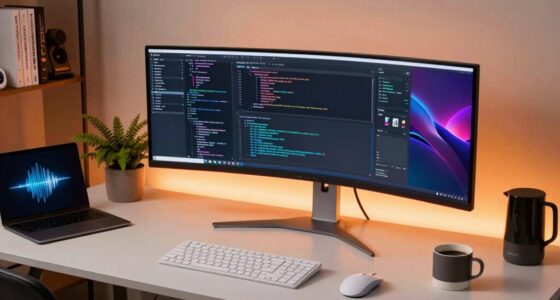

Developers need more from a docking station than the average laptop user: multiple external monitors, stable power delivery, enough USB ports for peripherals and dev boards, and reliable behavior across macOS, Windows, and Linux. After comparing 15 options, the Plugable 13-in-1 Triple Monitor Docking Station stands out as the best overall pick for its combination of triple-display support, 100W charging, and broad OS compatibility. If budget matters, the WAVLINK 7-in-1 covers dual 4K monitors and 95W charging at a lower tier, while the Anker Prime 14-in-1 is the premium choice for a cleaner desk with dual-monitor output and refined build quality. The main tradeoff in this category is display bandwidth versus price: triple-monitor docks cost more and demand more from your laptop’s USB-C controller, while compact hubs trade screen count for portability. Keep reading for the full breakdown of what each dock does well, where it falls short, and which one fits your setup.

Get business pricing on monitors, keyboards and dev gear
- Business-only prices and quantity discounts
- Tax-exempt purchasing
- Multiple users, one account, clear invoices
Key Takeaways
- Triple-monitor support is where prices and reliability diverge most: the Plugable 13-in-1 and TobenONE 13-in-1 handle three displays properly, while most 8-in-1 hubs like the Anker Nano top out at two.
- macOS users face a hard limit — Apple Silicon doesn’t support extended triple displays over most DisplayLink-free docks, so dual-HDMI models like the LIONWEI 13-in-1 make more sense for Mac developers.
- 100W power delivery is now standard on premium docks (Plugable, TobenONE 15-in-1, Wozoyo 11-in-1), meaning you can leave your laptop charger in the bag permanently.
- OEM docks (HP G5 Essential, Lenovo ThinkPad Gen 2) offer the best enterprise manageability and firmware support but restrict port variety compared to third-party 13-in-1 competitors.
- The detachable hub design of the Anker Nano 13-in-1 is the only pick that works as both a permanent desk dock and a travel hub — a genuinely useful hybrid for hybrid-remote developers.
| Plugable 13-in-1 USB-C Triple Monitor Docking Station with 100W Charging |  | Best for Mac Developers Running Triple Monitors | Ports: 13 | Video outputs: 3 HDMI; up to three extended displays | Max resolution: 4K at 30Hz (HDMI 1); 1920×1200 at 60Hz (HDMI 2/3) | VIEW LATEST PRICE | See Our Full Breakdown |
| Anker Nano 8-in-1 USB-C Hub with Dual 4K HDMI for Windows |  | Best Portable Pick for Commuting Developers | Connectivity: 8-in-1 | Video output: 2 HDMI, up to dual 4K at 60Hz (Windows, DP 1.4 host) | Laptop pass-through charging: Up to 85W (with 100W charger, not included) | VIEW LATEST PRICE | See Our Full Breakdown |
| Acer 13-in-1 USB-C Docking Station with Triple Display Support |  | Best Premium Desk Setup for Windows Workstations | Ports: 2 HDMI, 1 DisplayPort 1.4, 4 USB-C, 3 USB-A, Gigabit Ethernet, AUX, SD/microSD | Max displays: 3 independent screens on compatible Windows laptops | Triple display resolution: Up to 4K at 30Hz with compatible DSC host | VIEW LATEST PRICE | See Our Full Breakdown |
| Anker 13-in-1 USB-C Laptop Docking Station with Triple Display |  | Best Value Full-Size Desk Dock | Ports: 2 HDMI, DisplayPort, 3 USB-C, 3 USB-A, Gigabit Ethernet, SD/microSD, 3.5mm audio, DC-IN | Display support: Up to 3 monitors at 1080p/60Hz; single display up to 4K/60Hz | Laptop charging: Up to 85W | VIEW LATEST PRICE | See Our Full Breakdown |
| LIONWEI 13-in-1 USB-C Docking Station with Dual 4K HDMI and DisplayPort |  | Best Budget Triple-Display Option | Ports: 13 | Video outputs: 2 HDMI, 1 DisplayPort, up to 4K at 60Hz | Display support: Up to 3 displays on Windows; 1 extended display on macOS | VIEW LATEST PRICE | See Our Full Breakdown |
| HP Universal USB-C G5 Essential Docking Station |  | Best for Corporate Desks | Ports: 12 total, including 5 USB ports | Display outputs: HDMI and DisplayPort; up to 3 displays | Other interfaces: Gigabit Ethernet, 3.5mm audio, USB-C | VIEW LATEST PRICE | See Our Full Breakdown |
| TobenONE 15-in-1 USB-C Docking Station with Dual HDMI, 100W Power Delivery, and Volume Knob |  | Best Port Selection | Ports: 15 | USB ports: 2× USB-C 10Gbps, 1× USB-A 10Gbps, 2× USB-A 5Gbps | Video output: 2× HDMI, up to 4K at 60Hz | VIEW LATEST PRICE | See Our Full Breakdown |
| TobenONE 13-in-1 USB-C Docking Station for Three Monitors |  | Best Budget Triple-Display Dock | Ports: 13 | Display support: Up to 3 displays; dual 4K at 30Hz plus 1080p | USB-A ports: 4× USB 3.0, up to 5Gbps | VIEW LATEST PRICE | See Our Full Breakdown |
| WAVLINK 7-in-1 USB-C Docking Station with Dual HDMI, DisplayPort, and 95W Power Delivery |  | Best for High-Resolution Displays | Ports: 7 total | Video outputs: 2× HDMI, 1× DisplayPort | Max resolution: 8K at 60Hz single display; triple 4K at 60Hz | VIEW LATEST PRICE | See Our Full Breakdown |
| Wozoyo 11-in-1 USB-C Docking Station with 100W Power Delivery |  | Best Compact Travel Dock | Ports: 11 | Video outputs: Dual HDMI up to 4K, DisplayPort up to 4K | USB ports: 2× USB 5Gbps | VIEW LATEST PRICE | See Our Full Breakdown |
| Anker Prime 14-in-1 Dual Monitor Docking Station |  | Best Power Delivery | Connectivity: 14-in-1 | Total power output: 160W | USB-C ports: 3, up to 100W each | VIEW LATEST PRICE | See Our Full Breakdown |
| Anker 8-in-1 USB-C Laptop Docking Station with Dual HDMI |  | Best Budget Hub | Ports: USB-C PD-IN, 2 USB-A, 2 HDMI, Ethernet, microSD/SD reader | Single-display resolution: Up to 4K@60Hz | Dual-display resolution: Up to 4K@30Hz | VIEW LATEST PRICE | See Our Full Breakdown |
| Lenovo ThinkPad USB-C Dock Gen 2 (40AS0090US) |  | Best for Enterprise Desks | USB ports: 3 x USB 3.1, 2 x USB 2.0 | Video ports: 1 x HDMI, 2 x DisplayPort | Display support: DisplayPort 1.4, HDMI 2.0; up to 1 x 4K@60Hz | VIEW LATEST PRICE | See Our Full Breakdown |
| Anker Nano 13-in-1 Laptop Docking Station with Detachable 6-in-1 USB-C Hub |  | Best Hybrid Dock-and-Travel Pick | Ports: USB-C upstream, 2 USB-C data, 3 USB-A, 2 HDMI, 1 DisplayPort, Gigabit Ethernet, 3.5mm audio, SD/TF slots | Display support: 1 x 4K@60Hz, 2 x 2K@60Hz, or 3 x 1080p@60Hz | Power delivery: Up to 100W laptop charging | VIEW LATEST PRICE | See Our Full Breakdown |
| Acer 13-in-1 USB-C Docking Station with 3 HDMI Ports |  | Best Budget Triple-HDMI Setup | HDMI ports: 3; up to 4K@60Hz single or dual | Triple-display mode: Typically 4K@60Hz + 4K@60Hz + 1080p@60Hz | USB-C ports: 2 x 10Gbps | VIEW LATEST PRICE | See Our Full Breakdown |
| usb c docking stations for developer | Ports | Compatibility | Warranty |
|---|---|---|---|
| Plugable 13-in-1 USB-C Triple | 13 | Windows 10+, macOS 11+, ChromeOS; USB-C, USB4, Thunderbolt | — |
| Anker Nano 8-in-1 USB-C Hub wi | — | Windows 10/11, ChromeOS, macOS; full-function USB-C, USB4, Thunderbolt | — |
| Acer 13-in-1 USB-C Docking Sta | 2 HDMI, 1 DisplayPort 1.4, 4 USB-C, 3 USB-A, Gigabit Ethernet, AUX, SD/microSD | — | — |
| Anker 13-in-1 USB-C Laptop Doc | 2 HDMI, DisplayPort, 3 USB-C, 3 USB-A, Gigabit Ethernet, SD/microSD, 3.5mm audio, DC-IN | Full-function USB-C, USB4, Thunderbolt 3/4/5; Windows 10/11, ChromeOS | 18 months |
| LIONWEI 13-in-1 USB-C Docking | 13 | — | 18 months |
| HP Universal USB-C G5 Essentia | 12 total, including 5 USB ports | USB-C and Thunderbolt HP and non-HP laptops | HP 1-Year Limited |
| TobenONE 15-in-1 USB-C Docking | 15 | — | 2 years |
| TobenONE 13-in-1 USB-C Docking | 13 | USB-C / Thunderbolt 3/4/5 macOS, Windows, ChromeOS laptops | — |
| WAVLINK 7-in-1 USB-C Docking S | 7 total | — | 2 years |
| Wozoyo 11-in-1 USB-C Docking S | 11 | — | 2 years |
| Anker Prime 14-in-1 Dual Monit | — | USB-C, USB4, Thunderbolt; Windows 10/11, ChromeOS | — |
| Anker 8-in-1 USB-C Laptop Dock | USB-C PD-IN, 2 USB-A, 2 HDMI, Ethernet, microSD/SD reader | — | 18 months |
| Lenovo ThinkPad USB-C Dock Gen | — | — | — |
| Anker Nano 13-in-1 Laptop Dock | USB-C upstream, 2 USB-C data, 3 USB-A, 2 HDMI, 1 DisplayPort, Gigabit Ethernet, 3.5mm audio, SD/TF slots | Dell XPS, Lenovo ThinkPad, HP Spectre, most Windows USB-C laptops | 18 months |
| Acer 13-in-1 USB-C Docking Sta | — | Windows and macOS laptops with DisplayPort Alt Mode | — |
More Details on Our Top Picks
Plugable 13-in-1 USB-C Triple Monitor Docking Station with 100W Charging
Most docks in this lineup simply mirror displays on macOS, but this Plugable is the only triple-monitor option here that can extend to three screens on a Mac — the reason it earns a dedicated role. It does this through DisplayLink, a driver-based approach that renders video through software rather than native GPU outputs. That tradeoff cuts both ways: compared with the Anker 13-in-1, which needs no drivers but mirrors on macOS, the Plugable requires installing DisplayLink Manager and won’t play HDCP-protected content like Netflix. For a coding workstation, that limitation rarely matters. 100W laptop charging plus a 20W front port means a MacBook and phone both stay powered, and the port selection covers Ethernet, SD cards, and audio without adapters.
Pros:- Extends to three displays on macOS via DisplayLink, unlike most docks here that mirror only
- 100W laptop charging plus dedicated 20W front charging for a phone
- Broad port selection including Ethernet, SD card reader, and audio
- TAA, NDAA, and Section 889 compliance for restricted workplaces
Cons:- DisplayLink Manager installation is required for multi-display macOS setups
- No HDCP-protected video playback through the dock
- HDMI 2 and 3 outputs are limited to 1920×1200, lower than dual-4K rivals
Best for: MacBook developers who need three extended displays for IDE, terminal, and documentation simultaneously
Not ideal for: Anyone who streams HDCP-protected video through the dock, since protected playback is unsupported
- Ports:13
- Video outputs:3 HDMI; up to three extended displays
- Max resolution:4K at 30Hz (HDMI 1); 1920×1200 at 60Hz (HDMI 2/3)
- Laptop charging:Up to 100W
- Front USB-C charging:20W
- USB-A ports:4 (5Gbps)
- Other connections:Gigabit Ethernet, SD card reader, audio in/out
- Compatibility:Windows 10+, macOS 11+, ChromeOS; USB-C, USB4, Thunderbolt
Our verdict“This is the pick for Mac developers who refuse to give up a three-screen workflow and can accept driver-based video.”
Anker Nano 8-in-1 USB-C Hub with Dual 4K HDMI for Windows
At 3.84 ounces and the size of a short pencil case, this hub is built for the developer who moves between home, office, and café. Where the Plugable 13-in-1 and Acer 13-in-1 anchor a desk, the Nano slips into a laptop sleeve while still driving dual 4K at 60Hz on Windows — sharper than the Anker 13-in-1’s triple-1080p ceiling. The tradeoffs are real: macOS mirrors rather than extends, Linux isn’t supported at all, and you must supply your own 100W charger and cable to hit the 85W pass-through, which adds cost and one more thing to pack. SD and TF readers at 104 MB/s are fine for firmware images and light assets, not fast media work.
Pros:- Dual 4K at 60Hz output on compatible Windows hosts
- Featherweight 3.84 oz design that travels anywhere
- 10Gbps USB data transfer across data ports
- Up to 85W pass-through laptop charging
Cons:- Charger and cable not included, adding real cost to the sticker
- No Linux compatibility at all
- macOS external displays mirror only
Best for: Windows laptop developers who want dual high-res monitors and core connectivity in a travel-weight hub
Not ideal for: Linux users and Mac developers needing extended displays — both are unsupported for multi-display extension
- Connectivity:8-in-1
- Video output:2 HDMI, up to dual 4K at 60Hz (Windows, DP 1.4 host)
- Laptop pass-through charging:Up to 85W (with 100W charger, not included)
- USB data transfer:Up to 10Gbps
- Card slots:SD and TF 3.0, up to 104 MB/s
- Compatibility:Windows 10/11, ChromeOS, macOS; full-function USB-C, USB4, Thunderbolt
- Weight:3.84 oz
Our verdict“The right choice for Windows-focused developers whose dock needs to fit in a bag, not sit on a desk.”
Acer 13-in-1 USB-C Docking Station with Triple Display Support
This Acer targets the developer with a permanent triple-monitor battlestation. Compared with the Anker 13-in-1, it pulls ahead on raw capability: an included 110W adapter delivering full 100W to the laptop, DisplayPort 1.4 alongside dual HDMI, and 4K triple-display potential on DSC-capable hardware. The aluminum enclosure and integrated security slot make it a better fit for shared or office environments than plastic-bodied rivals like the LIONWEI 13-in-1. But its strengths are Windows-only: macOS users get mirroring, not extended desktops, and the triple-4K ceiling demands a modern GPU with Display Stream Compression — older laptops will fall back to lower resolutions. One rear USB-C port carries data only, so read the manual before planning your cable layout.
Pros:- Up to three independent 4K displays on compatible Windows laptops
- 110W included adapter with up to 100W laptop power delivery
- Aluminum enclosure with an integrated security lock slot
- Wide connectivity including DisplayPort 1.4, Ethernet, and dual card readers
Cons:- Triple 4K at 30Hz requires a compatible DSC host and GPU
- macOS mirrors rather than extends across displays
- Rear USB-C port is data-only with no video or power delivery
Best for: Windows developers with modern DSC-capable laptops who want a permanent, lockable triple-display desk dock
Not ideal for: Mac developers — multiple displays mirror only, with no extended-desktop option at all
- Ports:2 HDMI, 1 DisplayPort 1.4, 4 USB-C, 3 USB-A, Gigabit Ethernet, AUX, SD/microSD
- Max displays:3 independent screens on compatible Windows laptops
- Triple display resolution:Up to 4K at 30Hz with compatible DSC host
- Power adapter:110W included
- Laptop power delivery:Up to 100W
- Enclosure:Aluminum with security slot
- OS support:Windows extended displays; macOS mirror only
Our verdict“A well-built, full-power desk dock for Windows workstations — provided your GPU can actually feed three screens.”
Anker 13-in-1 USB-C Laptop Docking Station with Triple Display
This is the sensible middle ground of the roundup: more desk-friendly capability than the Anker Nano 8-in-1, less complexity than the Acer 13-in-1’s DSC-dependent display setup. The included 135W adapter charges a laptop at 85W and a phone at 18W simultaneously, so one brick powers the whole station. The catch is resolution: triple display is capped at 1080p at 60Hz, which is workable for terminal windows and documentation but noticeably soft next to the Nano’s dual 4K. macOS users again get mirror mode only, which pushes Mac developers toward the Plugable instead. For a Windows or ChromeOS developer who values port variety and simultaneous charging over pixel density, the balance here is hard to beat.
Pros:- 13 ports covering HDMI, DisplayPort, USB-A/C, Ethernet, card readers, and audio
- Simultaneous 85W laptop and 18W phone charging
- 135W power adapter included in the box
- Works across full-function USB-C, USB4, and Thunderbolt 3/4/5 hosts
Cons:- Triple display limited to 1080p at 60Hz
- macOS external monitors support mirror mode only
- USB-A ports transfer at 5Gbps, half the speed of its USB-C ports
Best for: Windows or ChromeOS developers who want maximum ports and dual-device charging at a mid-range positioning
Not ideal for: Anyone who needs high-resolution multi-monitor output — triple display stops at 1080p
- Ports:2 HDMI, DisplayPort, 3 USB-C, 3 USB-A, Gigabit Ethernet, SD/microSD, 3.5mm audio, DC-IN
- Display support:Up to 3 monitors at 1080p/60Hz; single display up to 4K/60Hz
- Laptop charging:Up to 85W
- Phone charging:Up to 18W
- USB-C data transfer:Up to 10Gbps
- Included power adapter:135W
- Compatibility:Full-function USB-C, USB4, Thunderbolt 3/4/5; Windows 10/11, ChromeOS
- Warranty:18 months
Our verdict“A well-rounded value dock for Windows and ChromeOS developers who prioritize port count and charging over display sharpness.”
LIONWEI 13-in-1 USB-C Docking Station with Dual 4K HDMI and DisplayPort
The LIONWEI competes on price-per-port, and mostly succeeds. Like the Anker 13-in-1 it offers 13 connections, but it stretches to 4K at 60Hz output rather than capping multi-monitor setups at 1080p. Windows developers get up to three displays; Mac users get exactly one extended monitor — better than the mirroring-only Anker and Acer docks, but far short of the Plugable’s Mac triple-display support. The power story deserves attention: the dock claims 100W input but consumes 13W itself, leaving 87W for the laptop, enough for most machines but tight for power-hungry 16-inch workstations under compile load. At 140g it is lighter than the desk-anchored alternatives, though it lacks the Acer’s lock slot for securing it in an office.
Pros:- Up to 4K at 60Hz display output across HDMI and DisplayPort
- One extended display works on macOS, unlike mirror-only rivals
- 10Gbps data transfer and 13 total ports
- Light 140g build with 18-month warranty
Cons:- The dock itself consumes 13W, capping laptop charging at 87W
- macOS extends to only a single external monitor
- No security slot or metal enclosure for shared office use
Best for: Budget-conscious developers who want 4K-capable triple displays on Windows or one extended monitor on a Mac without paying premium dock prices
Not ideal for: Power-hungry laptop owners — 87W of delivered charging may fall short under heavy workloads
- Ports:13
- Video outputs:2 HDMI, 1 DisplayPort, up to 4K at 60Hz
- Display support:Up to 3 displays on Windows; 1 extended display on macOS
- Power delivery:Up to 100W input; 87W available to laptop
- Data transfer:Up to 10Gbps
- Ethernet:Gigabit
- Weight:140g
- Warranty:18 months
Our verdict“A cost-effective pick for developers who want 4K multi-display on Windows and at least some Mac flexibility on a tight budget.”
HP Universal USB-C G5 Essential Docking Station
This pick makes the most sense for developers working in an HP-managed office environment where IT wants a standardized, one-cable desk setup. Compared with the TobenONE 15-in-1, the HP trades raw port count for enterprise polish: a 120W power supply is included, three-display support works across USB-C and Thunderbolt laptops, and the 1-year HP warranty gives IT departments a familiar support path.
The tradeoff is flexibility. It is a driver-reliant corporate dock rather than a tinkerer’s hub, and unlike the WAVLINK 7-in-1, macOS support is not clearly spelled out, so mixed-OS teams should verify compatibility first. The included power brick is a real advantage over charger-less rivals, though, and its 1.5-pound build stays firmly planted on the desk.
Pros:- Works with both HP and non-HP USB-C and Thunderbolt laptops
- Supports up to three displays through a single cable
- 120W power supply and cord are included, unlike many rivals
- Familiar HP warranty and support channel for IT departments
Cons:- Requires a USB-C or Thunderbolt-enabled laptop; older machines are excluded
- Listed dimensions conflict with the stated footprint, raising questions about actual desk space
- Fewer high-speed data ports than similarly positioned docks like the TobenONE 15-in-1
Best for: Developers on HP or mixed Windows fleets who want a standardized, IT-friendly single-cable desk dock
Not ideal for: Linux-first or macOS developers — the dock is tuned for corporate Windows deployments and its display support outside that ecosystem is uncertain
- Ports:12 total, including 5 USB ports
- Display outputs:HDMI and DisplayPort; up to 3 displays
- Other interfaces:Gigabit Ethernet, 3.5mm audio, USB-C
- Power:120W power supply included
- Compatibility:USB-C and Thunderbolt HP and non-HP laptops
- Weight:1.5 lb
- Warranty:HP 1-Year Limited
Our verdict“This is the dock for developers in HP-centric workplaces who value a supported, power-included desk solution over maximum port variety.”
TobenONE 15-in-1 USB-C Docking Station with Dual HDMI, 100W Power Delivery, and Volume Knob
If your desk sprawl includes external SSDs, YubiKeys, card readers, and a wired network drop, this option stands out for sheer connectivity density: 15 ports including three 10Gbps USB connections, dual 4K60 HDMI outputs, SD and microSD readers, and Gigabit Ethernet. Compared with the Wozoyo 11-in-1, the TobenONE adds faster 10Gbps data ports and a genuinely useful physical volume knob — a small thing that music-listening developers will appreciate daily.
The tradeoffs are real, though. The power adapter is not included, so factor in the cost of a 100W charger, and dual-monitor behavior depends heavily on whether your laptop has a full-featured USB-C port. At 6.24 ounces it is light enough to travel with, unlike the heavier HP G5.
Pros:- Two external 4K displays at a smooth 60Hz
- Three 10Gbps USB ports plus two 5Gbps ports for fast peripherals
- Built-in SD and microSD 3.0 readers and Gigabit Ethernet
- Physical volume knob for quick audio control
Cons:- Power adapter not included — an additional purchase is required
- Dual-display output depends on the laptop having full-featured USB-C or Thunderbolt 3/4
Best for: Developers with many peripherals — external drives, security keys, card media — who need the widest port variety on one dock
Not ideal for: Buyers wanting an all-in-one purchase, since the missing power adapter means an extra buy before the dock is fully usable
- Ports:15
- USB ports:2× USB-C 10Gbps, 1× USB-A 10Gbps, 2× USB-A 5Gbps
- Video output:2× HDMI, up to 4K at 60Hz
- Power delivery:Up to 100W pass-through (charger not included)
- Other connections:Gigabit Ethernet, 3.5mm audio, SD/microSD 3.0
- Weight:6.24 oz
- Warranty:2 years
Our verdict“Choose this when port count is your priority and you already own a capable USB-C charger; skip it if you want everything in the box.”
TobenONE 13-in-1 USB-C Docking Station for Three Monitors
Three screens on a budget is the whole pitch here, and this model delivers it where rivals make you pay more for the privilege. Unlike the TobenONE 15-in-1, this dock includes a 65W power adapter in the box and still supports three displays — dual 4K at 30Hz plus a 1080p third screen. For developers who live in code editors and terminals, 30Hz is a tolerable compromise; anyone doing design work will notice the difference versus the WAVLINK’s 4K60 output.
The driver requirement is the main friction point: display output will not work until you install software, which may be a non-starter on locked-down corporate machines. VGA is a dated inclusion, but it does rescue older conference-room monitors. Compared with the HP G5, you get more ports for less administrative hassle — as long as you can install drivers.
Pros:- Supports up to three displays from one dock
- 65W power adapter included with up to 57W laptop charging
- 13 ports covering HDMI, VGA, USB-C, USB-A, Ethernet, and card readers
- USB 3.0 ports deliver 5Gbps transfer speeds
Cons:- Driver installation required for display functionality
- Dual 4K limited to 30Hz, noticeably less smooth than 60Hz alternatives
- Data-and-power-only USB-C laptops may be capped at two extended displays
Best for: Multi-monitor developers on a budget who want three displays and an included power adapter without paying premium-dock money
Not ideal for: Locked-down corporate laptops or Linux users — the required display driver may not install or be permitted
- Ports:13
- Display support:Up to 3 displays; dual 4K at 30Hz plus 1080p
- USB-A ports:4× USB 3.0, up to 5Gbps
- Other interfaces:VGA, 2× USB-C, Gigabit Ethernet, SD/TF reader, 3.5mm audio
- Power:65W adapter included; up to 57W laptop charging
- Compatibility:USB-C / Thunderbolt 3/4/5 macOS, Windows, ChromeOS laptops
- Weight:1.8 lb
Our verdict“A sensible pick for budget-conscious developers who want triple monitors and an in-box power supply, provided their machine allows the required driver.”
WAVLINK 7-in-1 USB-C Docking Station with Dual HDMI, DisplayPort, and 95W Power Delivery
For developers working with high-pixel-density screens, this option stands out for its 8K60 single-display capability and triple 4K60 output — a sharper ceiling than either TobenONE dock, which top out at 4K60 dual or 4K30 triple. Its driver-free plug-and-play design also removes the installation hassle the TobenONE 13-in-1 demands, making it friendlier on restricted machines.
The catch list is longer than its port list, though. Just three USB 2.0 ports means keyboard-and-mouse duty only — no fast drive transfers here — and macOS users are excluded entirely, a limitation the Wozoyo 11-in-1 does not share. Like the TobenONE 15-in-1, no charger ships in the box, and hitting 8K requires a host with DP 1.4 and DSC 1.2 support. Think of this as a display-first dock that happens to carry USB, rather than a general-purpose hub.
Pros:- Single-display 8K at 60Hz or triple 4K at 60Hz output
- Up to 95W laptop charging through one cable
- Driver-free plug-and-play setup across Windows, ChromeOS, Linux, HarmonyOS, and Android
- Very compact 4.4-inch footprint
Cons:- No macOS support at all
- Only three USB 2.0 ports — far too slow for external drives
- 8K output depends on host DP 1.4, DSC 1.2, and graphics capabilities, and no charger is included
Best for: Windows, Linux, or ChromeOS developers with high-resolution or triple 4K monitors who prioritize display output over data ports
Not ideal for: MacBook developers and anyone needing fast USB transfers — macOS is unsupported and all USB ports are 2.0 speed
- Ports:7 total
- Video outputs:2× HDMI, 1× DisplayPort
- Max resolution:8K at 60Hz single display; triple 4K at 60Hz
- Power delivery:100W input, 95W output (charger not included)
- USB ports:3× USB 2.0
- Dimensions:4.4 × 2 × 0.6 in
- Warranty:2 years
Our verdict“This is a display-specialist dock for non-Mac developers who want maximum resolution and can live with USB 2.0 peripherals.”
Wozoyo 11-in-1 USB-C Docking Station with 100W Power Delivery
At roughly 5 inches wide and 0.11 kg, this is the dock that actually fits in a laptop sleeve, which is more than can be said for the 1.8-pound TobenONE 13-in-1. This model is better suited to developers who split time between home, office, and coffee shop: HDMI and DisplayPort video, Gigabit Ethernet, SD/TF readers, and 100W pass-through in a palm-sized body.
The compromise is display depth. Unlike the WAVLINK’s triple 4K60, Windows users get triple-monitor extension but macOS users get mirroring only — a real limitation for MacBook developers running documentation and terminals side by side. Its dual 5Gbps USB ports are fine for keyboards and moderate file transfers, but slower than the TobenONE 15-in-1’s 10Gbps options, and the short 15cm cable means the dock must sit nearly flush with your laptop.
Pros:- 11 ports in an ultralight 0.11 kg body that travels easily
- 100W power delivery keeps a laptop charged through the dock
- Gigabit Ethernet plus SD and TF card readers for on-the-go workflows
- Broad compatibility across macOS, Windows, Android, and iOS
Cons:- macOS mirrors external displays instead of extending them
- Only two 5Gbps USB ports, and the 15cm cable limits placement flexibility
- Conflicting HDMI port specifications make exact video output unclear before purchase
Best for: Traveling developers who want a full-featured, pocketable hub for hotel and coworking desks
Not ideal for: MacBook developers needing independent multi-monitor setups — macOS support is limited to mirrored displays
- Ports:11
- Video outputs:Dual HDMI up to 4K, DisplayPort up to 4K
- USB ports:2× USB 5Gbps
- Power delivery:100W
- Other connections:1Gbps Ethernet, SD/TF readers, AUX audio
- Cable length:15 cm
- Weight:0.11 kg
- Warranty:2 years
Our verdict“Grab this if portability matters more than multi-monitor horsepower; leave it behind if you run three extended displays or work primarily on a Mac.”
Anker Prime 14-in-1 Dual Monitor Docking Station
Most docks in this roundup treat charging as an afterthought, but the Anker Prime puts it front and center with 160W of total power spread across four chargeable devices — enough to run a power-hungry dev laptop at 100W while keeping a phone, tablet, and accessory topped up. Compared with the Lenovo ThinkPad Dock Gen 2, which relies on a fixed 90W adapter, this model gives you far more flexibility if your workstation doubles as a charging hub for your whole desk. Data speeds reach 10Gbps, matching the Anker Nano 13-in-1. The catch: display output tops out at 2K at 60Hz with DP 1.4, so developers running ultrawide or 4K monitors should look at the Acer 13-in-1 instead. And Linux users are out of luck entirely.
Pros:- 160W total power output with charging for up to four devices
- 10Gbps data transfer across three USB-C ports
- Works with USB-C, USB4, and Thunderbolt laptops
- Dual HDMI display support on Windows
Cons:- macOS mirrors the image on both external displays instead of extending
- No Linux support
- Caps at 2K@60Hz — no ultrawide or 4K output
Best for: Developers with power-hungry laptops and multiple devices who need a dock that doubles as a full charging station
Not ideal for: Linux users and anyone running 4K or 5120×1440 monitors — neither is supported
- Connectivity:14-in-1
- Total power output:160W
- USB-C ports:3, up to 100W each
- Data transfer speed:Up to 10Gbps
- Display outputs:2 HDMI, up to 2K@60Hz with DP 1.4
- Compatibility:USB-C, USB4, Thunderbolt; Windows 10/11, ChromeOS
- Included cable:3.3 ft USB-C upstream, 100W, 10Gbps
Our verdict“This pick makes the most sense for developers who prioritize raw charging power over display resolution.”
Anker 8-in-1 USB-C Laptop Docking Station with Dual HDMI
If you just need to turn one USB-C port into a functional desk setup without spending much, this 8-in-1 hub covers the fundamentals: dual HDMI, two USB-A ports, Ethernet, and an SD card reader. It’s a step down from the Anker Prime 14-in-1 in nearly every measurable way — no dedicated power adapter, fewer ports, and dual displays drop to 4K@30Hz, which is noticeable when scrolling code across two screens. Pass-through charging up to 85W means you’ll need to bring your own 100W PD charger, unlike the Anker Nano 13-in-1 which ships with a 140W brick. Still, for a single-monitor setup at 4K@60Hz, it holds its own against pricier docks. Note that it demands a laptop with DP Alt Mode and Power Delivery, and macOS mirrors rather than extends.
Pros:- Covers the essentials: HDMI, USB-A, Ethernet, and card readers through one cable
- Single-display output up to 4K@60Hz
- 85W pass-through charging supports most laptops
- Works with USB-C, USB4, and Thunderbolt connections
Cons:- Dual-display mode drops to 4K@30Hz
- Requires your own 100W PD charger and cable
- No Linux support
Best for: Students and junior developers who want a basic single-monitor desk setup on a tight budget
Not ideal for: Multi-monitor Windows developers — dual displays are capped at 30Hz, which feels sluggish day-to-day
- Ports:USB-C PD-IN, 2 USB-A, 2 HDMI, Ethernet, microSD/SD reader
- Single-display resolution:Up to 4K@60Hz
- Dual-display resolution:Up to 4K@30Hz
- Pass-through charging:Up to 85W (100W charger required)
- Compatible systems:Windows 10/11, ChromeOS
- Requirements:Laptop with DP Alt Mode and Power Delivery
- Warranty:18 months
Our verdict“A sensible entry point for single-display developers who don’t want to pay for ports they won’t use.”
Lenovo ThinkPad USB-C Dock Gen 2 (40AS0090US)
Unlike the Anker and Acer options built as consumer hubs, this dock was designed for the corporate desk: one HDMI plus two DisplayPort outputs supporting up to three monitors, five USB ports, a combo audio jack, and Gigabit Ethernet — all driven by an included 90W adapter. For a developer anchored to a ThinkPad or similar business laptop all day, the mix of DisplayPort 1.4 and HDMI 2.0 makes it easier to match whatever monitors the office provides, where docks like the Acer 13-in-1 are HDMI-only. The tradeoff is aging flexibility: USB tops out at USB 3.1 speeds with no 10Gbps USB-C data ports, and actual video output depends heavily on what laptop you plug in — some systems won’t drive all three displays. It also lacks the card readers and fast charging of newer competitors.
Pros:- Supports up to three external monitors via HDMI and DisplayPort
- Full peripheral coverage including audio jack and Gigabit Ethernet
- Includes a 90W power adapter and USB-C cable
- Combo of DisplayPort and HDMI fits mixed office monitor setups
Cons:- Video output varies depending on the connected laptop
- No 10Gbps data ports or card readers
- Charging capped at 90W — tight for high-performance laptops
Best for: ThinkPad and business-laptop developers who need a permanent, three-monitor office docking station
Not ideal for: Developers wanting fast 10Gbps file transfers or MacBook users who need extended multi-display output
- USB ports:3 x USB 3.1, 2 x USB 2.0
- Video ports:1 x HDMI, 2 x DisplayPort
- Display support:DisplayPort 1.4, HDMI 2.0; up to 1 x 4K@60Hz
- Maximum external monitors:3
- Ethernet:Gigabit
- Audio:1 x combo audio jack
- Included:90W AC adapter, power cord, USB-C cable
Our verdict“This model is better suited to a fixed enterprise desk with a business laptop than a modern portable workflow.”
Anker Nano 13-in-1 Laptop Docking Station with Detachable 6-in-1 USB-C Hub
The standout trick here is the detachable 6-in-1 hub that pops off the main dock for travel — effectively two products in one box. No other dock in this lineup offers that, including the similarly-named Anker 13-in-1, so developers who split time between a home battlestation and café work sessions get real value from the design. The base dock handles up to three displays (single 4K@60Hz, dual 2K, or triple 1080p), 100W laptop charging, 10Gbps transfer, and includes a 140W power adapter plus rated cable — a more complete bundle than the Anker 8-in-1, which leaves you sourcing your own charger. The compromises: the dock requires a connected laptop to activate its ports, so it can’t charge devices standalone, and macOS users only get mirrored displays, not extended ones.
Pros:- Detachable travel hub means one purchase covers desk and road
- Supports up to three external displays at 60Hz
- 100W laptop charging with a 140W adapter included
- 10Gbps data transfer plus SD/TF card slots
Cons:- Dock only works when a laptop is connected
- macOS mirrors across multiple external displays
- Triple-display mode drops all monitors to 1080p
Best for: Hybrid developers who want a full triple-display desk dock that also travels as a compact hub
Not ideal for: MacBook developers needing extended multi-display output, or anyone wanting a standalone USB charger
- Ports:USB-C upstream, 2 USB-C data, 3 USB-A, 2 HDMI, 1 DisplayPort, Gigabit Ethernet, 3.5mm audio, SD/TF slots
- Display support:1 x 4K@60Hz, 2 x 2K@60Hz, or 3 x 1080p@60Hz
- Power delivery:Up to 100W laptop charging
- Data transfer:Up to 10Gbps
- Included power adapter:140W
- Compatibility:Dell XPS, Lenovo ThinkPad, HP Spectre, most Windows USB-C laptops
- Warranty:18 months
Our verdict“Compared with single-purpose docks, this two-in-one design makes the most sense for developers whose setup moves with them.”
Acer 13-in-1 USB-C Docking Station with 3 HDMI Ports
Three dedicated HDMI outputs make this the simplest path to a three-monitor coding station if all your displays use HDMI — no adapters, no DisplayPort cables, no guessing like with the Lenovo ThinkPad Dock Gen 2’s mixed outputs. Single and dual displays run at 4K@60Hz, and a typical triple setup lands at 4K + 4K + 1080p, which is plenty for editor, terminal, and browser panes. The port selection is generous for the category, including two 10Gbps USB-C data ports and dual card readers, matching pricier options like the Anker Prime 14-in-1 on speed. But the corner-cutting shows: no charger or cable is included (you supply a 100W-plus USB-C charger), the USB ports won’t charge devices, and macOS mirrors rather than extends — a dealbreaker for Apple developers.
Pros:- Three native HDMI outputs up to 4K@60Hz for single or dual displays
- Two 10Gbps USB-C data ports plus dual card readers
- Gigabit Ethernet included
- Up to 85W laptop charging output
Cons:- Charger and cable are not included — an added cost
- USB ports cannot charge external devices
- macOS mirrors content across all external monitors
Best for: Windows developers with three HDMI monitors who want maximum display count without buying extra adapters
Not ideal for: MacBook users needing extended displays, or anyone without an existing 100W USB-C charger
- HDMI ports:3; up to 4K@60Hz single or dual
- Triple-display mode:Typically 4K@60Hz + 4K@60Hz + 1080p@60Hz
- USB-C ports:2 x 10Gbps
- USB-A ports:1 x 10Gbps, 2 x 5Gbps, 1 x 480Mbps
- Card readers:SD and MicroSD, up to 104Mbps
- Ethernet:Gigabit (1000Mbps)
- Power delivery:100W input; up to 85W laptop output
- Compatibility:Windows and macOS laptops with DisplayPort Alt Mode
Our verdict“This option stands out for Windows multi-monitor setups on a budget, provided you already own a 100W charger.”

How We Picked
I ranked these docking stations against the priorities developers actually have: display output count and resolution, power delivery to the laptop, port variety for peripherals, and cross-platform behavior on Windows, macOS, and Linux. A dock that drives three 4K monitors reliably scores higher for multi-monitor workflows than one with more total ports but weaker video bandwidth. Power delivery of 90W or above earned preference because it lets a workstation laptop charge at full speed while docked. I also weighed build quality, included power adapters, and whether the vendor provides real driver and firmware support — a weak point for some budget brands.
Ranking also reflects intended use. Enterprise-friendly docks like the HP G5 and Lenovo Gen 2 are judged partly on fleet manageability, while travel-oriented hubs like the Anker Nano are judged on portability and value. Every product here has meaningful drawbacks, and I call them out so the ordering reflects genuine tradeoffs rather than a simple spec-count contest.
Factors to Consider When Choosing Usb C Docking Stations For Developers
Choosing a docking station as a developer involves constraints that generic buyers never hit. Before you pick from the list above, work through these factors — they’ll narrow the field faster than any spec sheet.
Know Your Laptop’s Display Bandwidth Limits
The number of monitors a dock claims to support matters less than what your laptop can actually output over a single USB-C cable. Windows laptops with Thunderbolt or USB4 can usually drive two or three extended displays through a capable dock, while many budget ultrabooks with USB-C 3.2 limit you to one or two. Apple Silicon Macs are the biggest trap: base M-series chips only extend to a single external display natively, so a triple-monitor dock will mirror rather than extend unless the dock uses DisplayLink drivers. Check your laptop’s exact USB-C port spec and GPU capabilities before buying, or you’ll pay for outputs you can’t use.
DisplayLink vs. Native Video — The Hidden Tradeoff
Some triple-display docks rely on DisplayLink, a compressed video technology that uses CPU resources and requires kernel drivers. For developers, this can matter a lot: DisplayLink drivers on Linux are hit-or-miss across kernel versions, and even on Windows they add latency that’s noticeable during fast-scrolling terminals or video playback. Native DisplayPort Alt Mode output avoids all of this but constrains how many monitors one cable can carry. If you live in a terminal and move windows constantly, prioritize native video; if your monitors mostly show static reference material, DisplayLink is a reasonable compromise for the third screen.
Power Delivery: Match the Dock to Your Charger, Not the Marketing Number
A dock rated for 100W pass-through doesn’t deliver 100W to your laptop — it typically reserves 10–20W for its own chipset and ports, leaving 85–90W for charging. That’s fine for most ultrabooks but marginal for 16-inch workstation machines under compile load. Another common mistake: buying a dock without checking whether the power adapter is included, since some budget models ship without one. Check your laptop’s actual charging requirement (usually printed on its original charger) and add headroom, especially if you run sustained builds that push CPU power draw.
Port Mix for Real Developer Workflows
Count ports by type, not total. A 13-in-1 dock heavy on SD card slots is less useful to a backend developer than a 7-in-1 with three USB-A ports for keyboards, webcams, and debug probes. Ethernet deserves special attention: a gigabit port is fine for most, but 2.5G Ethernet future-proofs you for faster LAN transfers. If you flash firmware or attach embedded dev boards, look for ports that stay powered consistently and check whether front-panel ports are USB 3.0 or slower — cheap docks often hide 480Mbps ports behind the same connector.
OEM Docks vs. Third-Party: The Enterprise Question
Docks from HP, Lenovo, and Dell offer firmware updates, IT-deployment tools, and warranty support that third-party brands rarely match. The tradeoff is port variety and flexibility: OEM docks are tuned for their own laptops first, and features like triple-display output may only work fully on the matching brand. Third-party docks from Plugable and Anker generally provide better documentation and multi-platform support than no-name competitors, which is why they dominate the top of this list. If you’re buying for a team rather than yourself, factor in driver management and long-term availability — a dock that vanishes from the market in a year is a support headache.
Desk-Only vs. Hybrid Use
A common pattern I saw while comparing these products: developers buy a giant 13-in-1 dock, then also carry a small hub for travel, paying twice. If you split time between a desk and coworking spaces, consider a hybrid like a dock with a detachable hub module, or accept a slightly weaker desk setup in exchange for one device that travels. Pure desk docks with external power adapters are bulky on purpose — better cooling, more stable video, and full-time charging. Decide which scenario dominates your week before committing to either form factor.
Frequently Asked Questions
Can I run three external monitors from a MacBook through one of these docks?
On base M1 and M2 chips, no native dock can extend to three external displays — macOS simply doesn’t support it, and the docks will mirror your screens instead. M3 Pro, M4 Pro, and Max chips handle multiple external displays natively, so a triple-display dock like the Plugable 13-in-1 makes sense on those machines. The workaround for base chips is a DisplayLink-based dock, which renders extra screens on the CPU; it works but adds load and needs driver installation. If you’re on a base Mac, a dual-monitor dock like the LIONWEI 13-in-1 or Acer 3-HDMI model paired with realistic expectations is the better buy.
Will a 100W docking station actually charge my workstation laptop at full speed?
Not quite. Docks rated at 100W typically deliver 85–90W to the laptop after reserving power for their own chipset, ports, and displays. Most 14-inch and many 16-inch laptops charge fine at that level, but high-wattage workstations under sustained compile or GPU load may drain slowly or hold steady rather than gain charge. If your original charger is 140W or higher, expect the dock to slow-charge under heavy use — which is usually acceptable at a desk, since you’re plugged in for hours anyway. Check your laptop’s rated input on its stock charger and compare against the dock’s actual passthrough figure, not its headline number.
Do these docks work well on Linux?
Native DisplayPort Alt Mode docks generally work plug-and-play on Linux since the kernel treats them as standard displays — the Plugable, LIONWEI, and WAVLINK models fall into this category. The friction point is DisplayLink-based video, which requires proprietary kernel modules that lag behind new kernel releases and occasionally break after updates. Ethernet and USB ports work universally, but it’s worth checking Realtek or ASIX chipset support for 2.5G Ethernet on your specific distribution. If Linux is your daily driver, stick to docks advertising native/Alt Mode video and avoid anything that mentions driver downloads for multiple-monitor support.
Is a 13-in-1 or 15-in-1 dock better than a simpler 7-in-1 or 8-in-1?
Only if you’ll use the ports. More ports usually means a larger power brick, a bigger desk footprint, and shared bandwidth — on some high-count docks, using multiple displays at once drops USB speeds or disables certain ports. A developer running two monitors, Ethernet, and a handful of USB peripherals is well served by a compact 8-in-1 like the Anker, while someone with a webcam, microphone, debug hardware, and three screens genuinely benefits from a 13-in-1 or 15-in-1. The real question is monitor count: if you need three screens, you’re in the high-port-count tier by necessity. Buy for your actual setup, not the port total.
Are OEM docks from HP or Lenovo worth it over third-party options?
They’re worth it in specific situations: corporate fleets, warranty-sensitive purchases, or when you own the matching-brand laptop, since features like triple display and firmware updates work best within the same ecosystem. For everyone else, third-party docks from Plugable and Anker offer more ports, better cross-platform flexibility, and comparable reliability at similar or lower tiers. The HP G5 Essential and Lenovo ThinkPad Gen 2 are excellent at what they do — stable, managed, boring in a good way — but they won’t match a 13-in-1 dock for peripheral density. If you’re a solo developer buying for yourself, third-party is usually the smarter call; if you’re provisioning a team of ThinkPads, the Lenovo wins on manageability alone.
Conclusion
For most developers, the Plugable 13-in-1 Triple Monitor Dock is the best overall pick: triple-display output, 100W charging, and solid multi-platform support cover the widest range of dev setups. On a budget, the WAVLINK 7-in-1 delivers dual 4K monitors and 95W charging without the premium price, and the Anker 8-in-1 Dual HDMI is an even simpler entry point for beginners who just want two screens and a few ports. For buyers who want the best premium experience, the Anker Prime 14-in-1 justifies its higher tier with build quality and a cleaner dual-monitor setup, while the TobenONE 15-in-1 is the choice for specific needs — maximum peripheral count plus a volume knob and 100W delivery. Mac developers on base Apple Silicon chips should skip triple-display ambitions and go with the LIONWEI 13-in-1, and anyone managing a fleet of ThinkPads will find the Lenovo ThinkPad Gen 2 the right tool. Match the dock to your actual monitor count and OS first; everything else is negotiable.
Fall Picks
fall essentials
As an affiliate, we earn on qualifying purchases.